

How to put your website online
Publish your website on AWS, share a link anyone can see, and update it every time you change your files on GitHub.
Series: Build your website on AWS (4 articles)
- …
- 4How to put your website online This article

Your website works on your computer and it's saved on GitHub, but nobody can visit it yet. To share it with other people, your site needs to be online.
In this guide we'll use AWS Amplify Hosting to publish your site. Amplify takes the files from your GitHub repository, puts them online at an HTTPS address, and publishes them again every time you update the repository.
Open your project
Each project has its own AWS account, so first make sure you're in the right one. Go to AWS Settings and choose AWS Console next to your project. Ours is Portfolio, but use your project's name.

Console Home opens with your project name in the upper right corner.
Connect Amplify to GitHub
In the search bar at the top of the console, type
Amplify and choose AWS Amplify.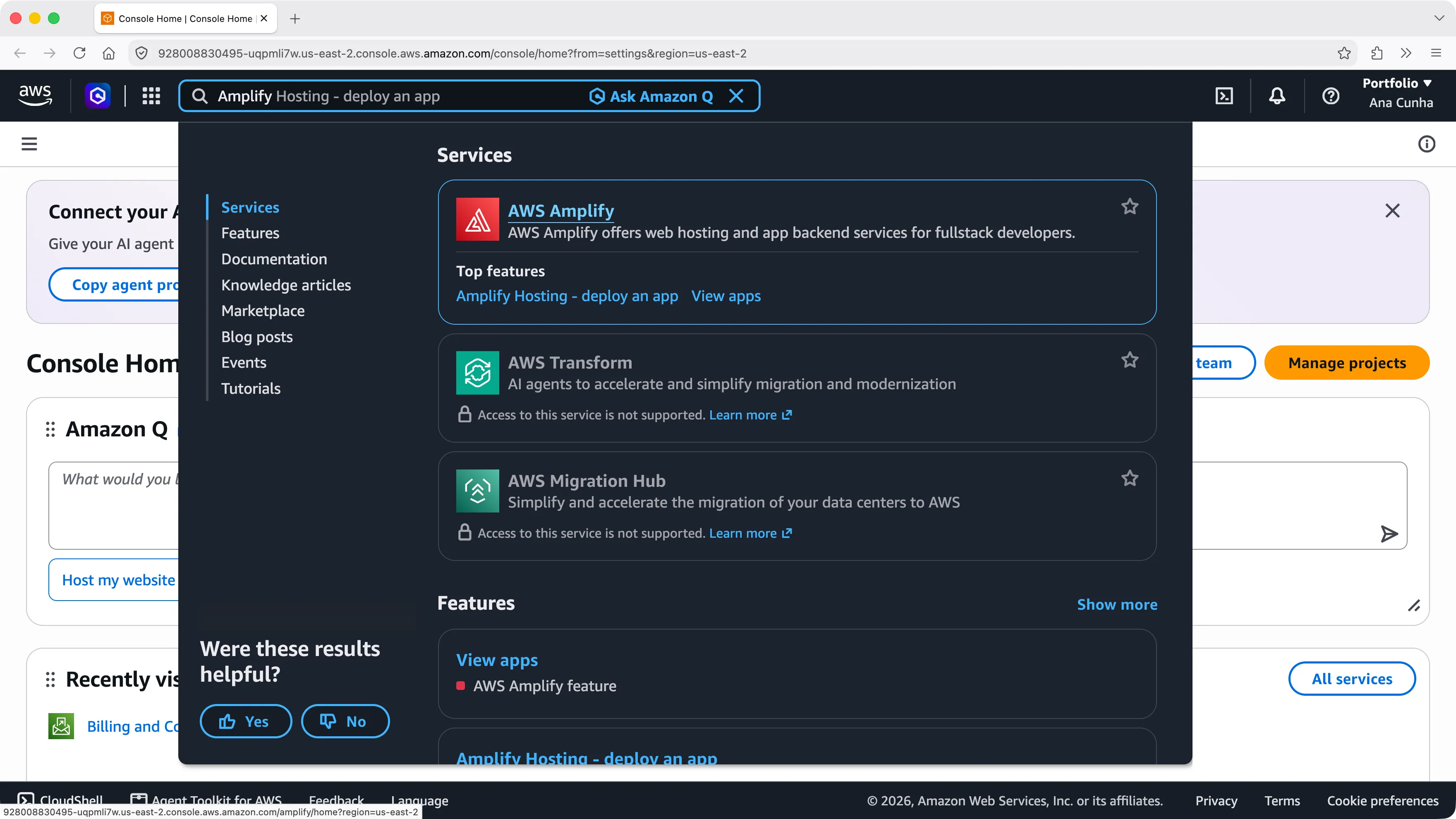
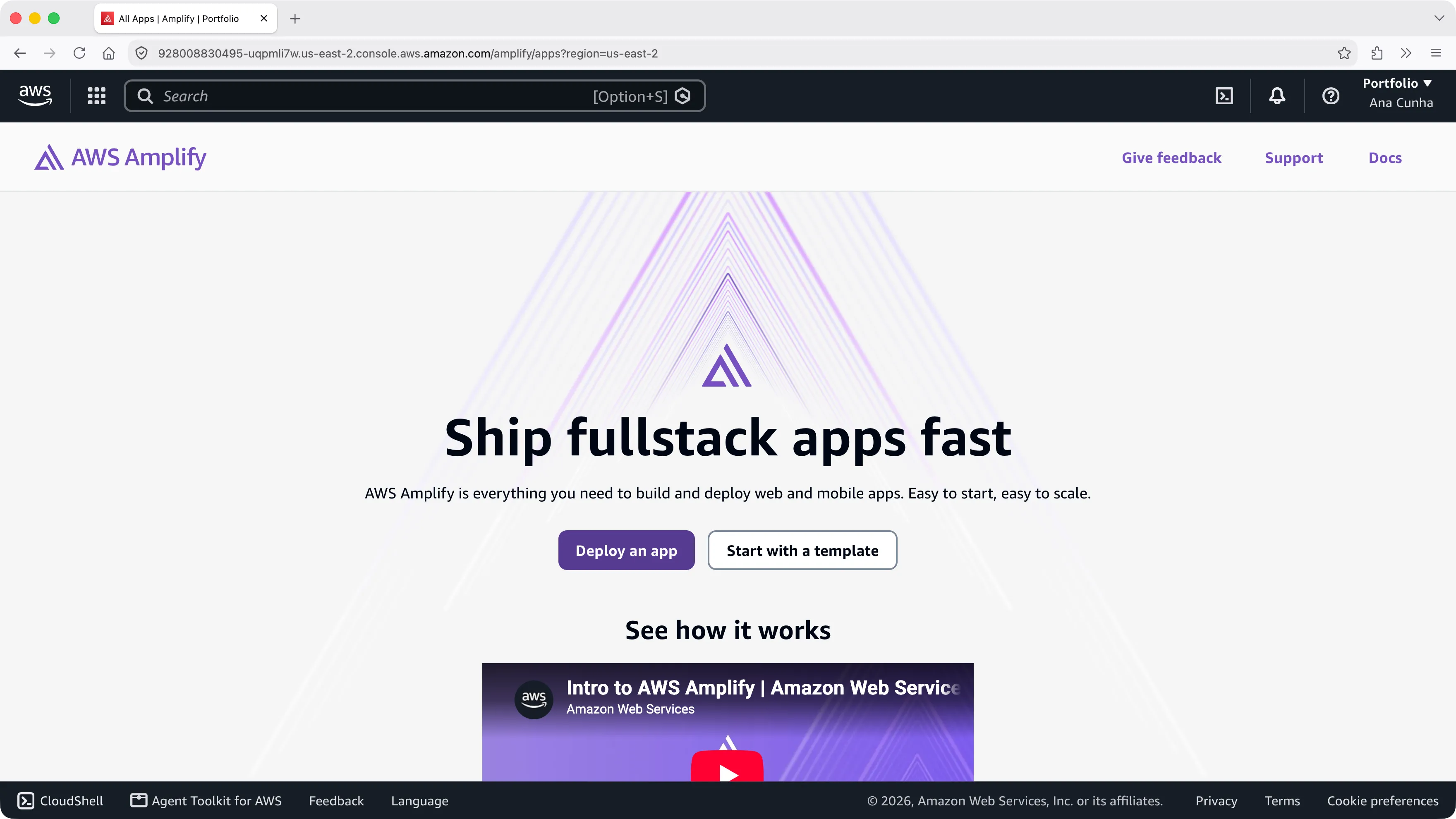
Choose Deploy an app. Deploying means putting your site online so other people can open it.
Choose GitHub, then Next.

GitHub opens a window that asks you to authorize AWS Amplify, followed by your project's Region. Choose Authorize.

Back in Amplify, on Add repository and branch, choose Update GitHub permissions to pick which repositories Amplify can see.
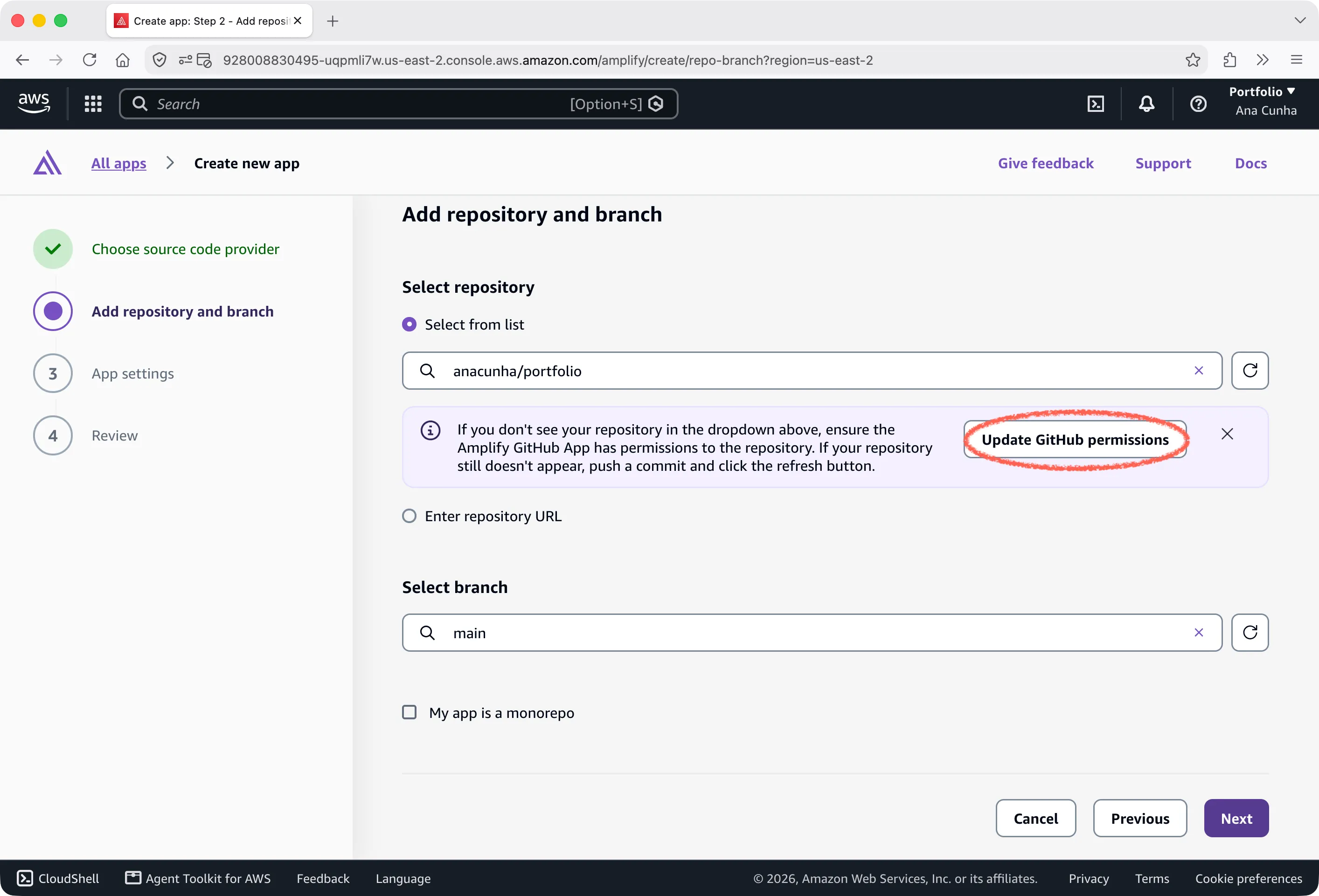
In GitHub, choose Only select repositories, select your repository (ours is
portfolio ), and choose Install & Authorize. This way Amplify only sees the repository for your site, not everything else on your GitHub account.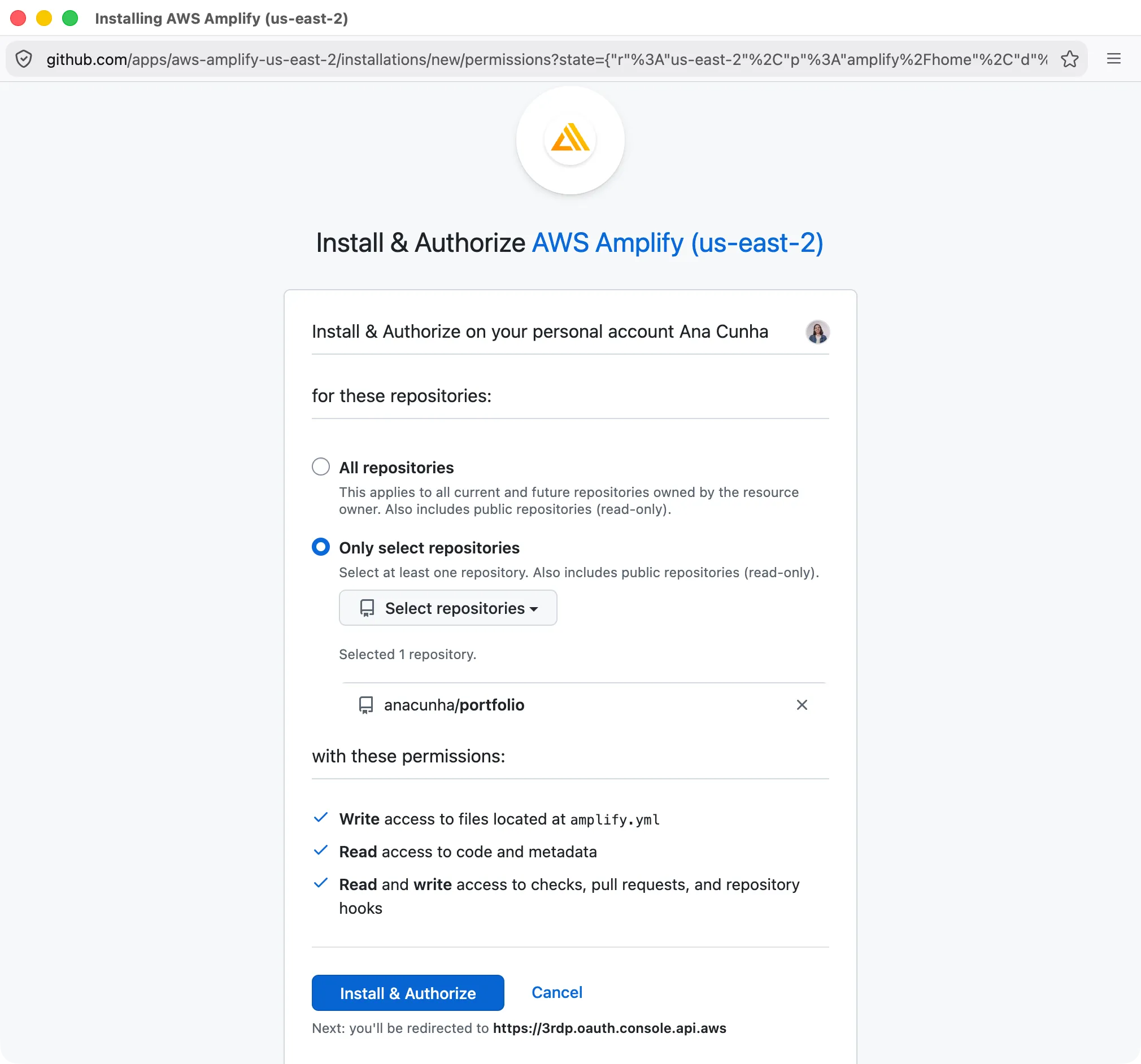
Back in Amplify, choose the refresh button next to the repository list so your repository shows up. Select your repository, then the
main branch, and choose Next.Deploy your site
On App settings, Amplify names the app after your repository. Your site doesn't need a build step, so Frontend build command stays empty and Build output directory is
/ , the top of your repository. Leave them as they are and choose Next.
Check the repository and branch, then choose Save and deploy. Amplify copies the files from GitHub and publishes them, without changing anything in your repository.
Your app's page opens, and under Branches,
main shows Deploying. When it changes to Deployed (in about a minute), your site is live.
Check your live site
Choose Visit deployed URL. Your site opens at an address that ends in
amplifyapp.com , and anyone with that link can open it.
Go through your site one more time and check that everything works. If you get a 404 page, make sure that
index.html is at the top of your repository and not inside a folder. If styles or images are missing, check that each file name in your code matches the file on GitHub exactly, including uppercase and lowercase letters. Your computer probably treats Photo.png and photo.png as the same file, but your live site doesn't.Update your site
Now that GitHub and Amplify are connected, you don't have to set any of this up again. When you change your site, upload the changed files to GitHub the same way you did before, and Amplify deploys the new version on its own.
If a deployment fails and you've connected your coding agent to AWS , you can ask your agent to check the deployment's logs and tell you what went wrong.
What you deployed
Your website is live at an HTTPS address you can share. GitHub keeps your site's files, and Amplify publishes them again every time you make a change, so updating your site is the same upload you already know.
Amplify charges for the minutes it spends deploying your site, for storing your files, and for the data it sends every time someone visits. For a site like a portfolio, that's usually less than a dollar a month, and on the Free Plan it comes out of your credits.
If you stop using your site at some point, you can delete the Amplify app : open your app in Amplify and choose App settings, General settings, then Delete app. Deleting the app takes your site offline, so wait until you no longer need the link you've shared. If you don't need the project anymore either, you can also close it : in AWS Settings, choose your project, then Close project.
Now it's time to share your link! Send it to your friends and your mom, add it to your résumé or LinkedIn, and leave it in the comments so I can see what you built.
Series: Build your website on AWS (4 articles)
- …
- 4How to put your website online This article
Enjoyed reading this content? Let the author know!
Your likes, comments, shares, and saves help creators reach more builders.

Loading recommendations
Loading article