

Kiro IDE vs. Kiro CLI: Features, Workflows & Use Cases
Compare Kiro IDE and CLI, their features, workflows, and uses.

Kiro IDE and Kiro CLI use the same Kiro agent framework, but they fit different ways of working. The IDE puts chat, specs, hooks, and steering inside a Code OSS editor. The CLI brings the agent into your terminal, which makes it useful for remote environments, scripts, and CI/CD pipelines.
The practical difference is not simply “GUI versus terminal.” It is how you want to supervise work, where that work runs, and whether you need an interactive workspace or automation.
Disclosure: I use Kiro IDE for most of my development work and rarely use the CLI. My observations about the IDE are informed by hands-on use; the CLI comparison is based primarily on Kiro's official documentation. Product features, plan limits, and command behavior can change, so check the linked documentation before relying on version- or plan-specific details.
What is Kiro IDE?
Kiro IDE is a desktop editor built on Code OSS, the open-source foundation of Visual Studio Code. During onboarding, users can import compatible VS Code settings, themes, and Open VSX extensions.

Kiro IDE is a desktop editor built on Code OSS, the open-source foundation of Visual Studio Code. During onboarding, users can import compatible VS Code settings, themes, and Open VSX extensions.
Its main advantage is that the agent works inside a visual development environment. You can inspect files, review generated plans, follow task progress, and interact with the agent without leaving the editor.
The IDE includes a Kiro panel for project-level features such as:
- Specs
- Hooks
- Steering files
- MCP servers
Kiro's chat experience includes built-in agent modes for Default, Spec, Quick Spec, Bug Fix, and Plan work.
A spec-driven workflow commonly produces three files:
1.
requirements.md (or bugfix.md for a bug-fix workflow)
2. design.md
3. tasks.md You can review these documents and execute tasks individually or as a larger sequence. This makes the IDE useful when you want to understand the plan before allowing the agent to carry it out.
What is Kiro CLI?
Kiro CLI brings the Kiro agent into the terminal. It runs with the
kiro-cli command from a project directory and can use the project's .kiro configuration, including steering files and MCP settings.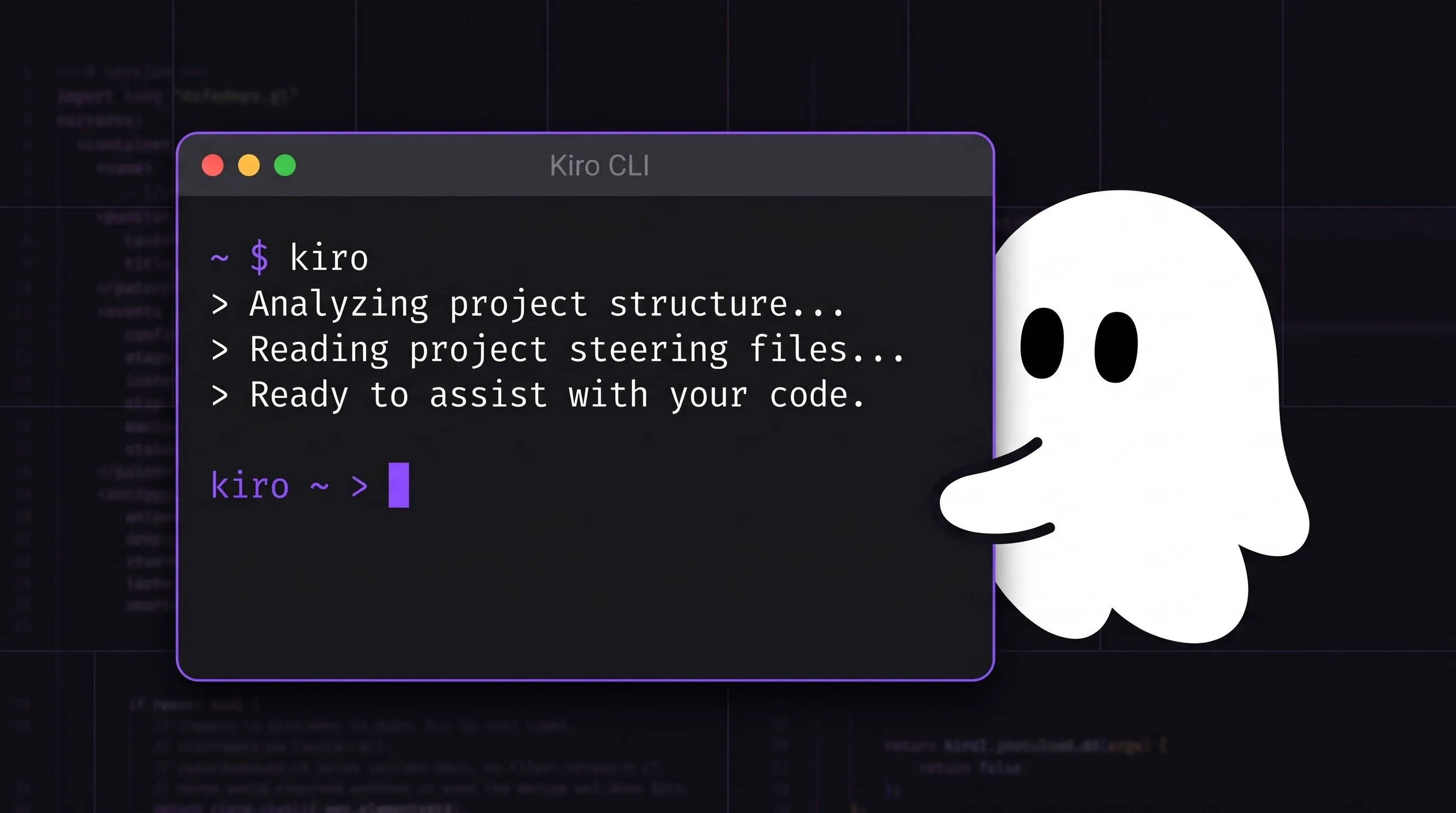
Kiro CLI was rebranded from Amazon Q Developer CLI in November 2025. In the 3.0.0 generation, it became a standalone
kiro-cli binary with a terminal user interface, fullscreen mode, voice mode, and headless execution for scripts and CI/CD workflows.It can also work with other editors through the Agent Client Protocol (ACP), including JetBrains IDEs and Zed.
Many core capabilities are shared between the IDE and CLI, including specs, steering, hooks, MCP servers, custom agents, skills, and sub-agents. The project configuration is designed to be reused rather than recreated for each interface.
One project configuration, two ways to work
Both tools can work with the same
.kiro project directory. That means the interface can change without requiring you to maintain two completely separate sets of project instructions.A simplified view looks like this:

The IDE gives you a visual workspace for reviewing and guiding the work. The CLI makes the same agent capabilities available in terminal-centered workflows.
For subscription and credit details, consult the current Kiro FAQ , since plan limits and pricing can change.
Where Kiro IDE is strongest
The IDE is especially useful when you want to see and steer the agent's work as it happens.

1. Reviewing specs and tasks
Requirements, design decisions, and task lists are available as normal editor documents. Kiro's spec review experience lets you comment on specific passages and send that feedback to the agent.
Tasks can show their progress as they move through states such as in progress and done. This makes larger pieces of work easier to follow.
2. Features that benefit from a visual workspace
The IDE includes workflows that are naturally easier to use with an editor and a screen. These include spec review, checkpoints, and Agent Focus Mode.
Checkpoints provide restore points associated with prompts. Restoring a checkpoint can roll back project files and agent context, so it is important to understand what is and is not tracked before relying on it.
Agent Focus Mode has been documented as an experimental feature for working with parallel sessions, specs, and diffs.
3. Staying familiar with the codebase
I prefer spec-driven development even when it takes longer than sending a single prompt. It encourages me to understand the requirements, design, and structure of what is being built instead of treating the generated result as a black box.
For that style of work, the IDE is the more natural environment.
Where Kiro IDE is less convenient
The IDE is not the best fit for every environment.
- It is a desktop-first workflow. It is designed for active local development, so it is less convenient when the work needs to run directly on a remote server or inside a CI job.
- Major releases can require migration. IDE 1.0 introduced changes to sessions, hooks, permissions, and inline chat. Review the migration notes before upgrading an existing setup.
- Spec work uses credits. Spec refinement, task execution, and hook runs can consume credits. Check the current FAQ for the latest plan allowances and usage rules.
- A full spec workflow takes time. Requirements, design, and task review add useful structure, but they can be slower than a direct prompt. Quick Spec can be useful for familiar, lower-risk work.
- Extension compatibility matters. Kiro's extension ecosystem is based on Open VSX compatibility, so not every VS Code extension is guaranteed to carry over.
- Checkpoints have limits. They do not necessarily capture every manual edit or external action. Review the checkpoint documentation before restoring one, especially if you have made changes outside the agent workflow.
- Environment configuration needs attention. Environment-variable handling can differ between the IDE and CLI. Follow the relevant configuration documentation for the tool you are using.
Where Kiro CLI is strongest
Kiro CLI becomes especially useful when the work does not need someone sitting in front of an editor.

1. Headless execution and automation
Headless mode can run a prompt non-interactively. This is useful for scripts, automation, and CI/CD pipelines.
For example, a pipeline could ask Kiro to review a pull request for potential security issues:
kiro-cli chat --v3 --no-interactive --trust-tools=read_file,grep_search "Review the changes in this PR for security issues"The exact command options and tool-permission behavior should be checked against the current headless mode documentation .
2. Remote and cloud workflows
The CLI is a better fit for terminal-based environments. Its documented cloud and repository options can start work in a cloud session, while headless execution can fit into automated workflows.
This is useful when a task needs to run without keeping a local editor open.
3. Working with other editors
Through ACP, Kiro can act as an agent in supported third-party editor environments, including JetBrains IDEs and Zed. This gives developers another way to use Kiro without making the Kiro IDE their only editor.
4. Reusable team workflows
Custom agents can be stored as project files under
.kiro/agents and shared through version control. Teams can therefore reuse agent configurations across projects and workflows.
Where Kiro CLI is less convenient
The CLI trades some of the IDE's visual feedback for terminal flexibility.
- Headless runs cannot rely on interactive approval. If a tool requires approval during a non-interactive run, it must be handled through the appropriate permissions or trusted-tool configuration.
- Harness selection matters. Kiro CLI's V2 and V3 behavior can differ. Scripts should explicitly select the intended harness where the documentation recommends it.
- Migration may be required. Moving between major CLI versions can involve changes to sessions, agent configurations, permissions, hooks, and ACP clients.
- Reviewing complex documents is less visual. Large specs and diffs are often easier to inspect in a full editor.
- Automation depends on plan and authentication requirements. Check the current CLI documentation and Kiro plan details before designing a workflow around API-key authentication or headless execution.
- Sandbox behavior should be verified. Do not assume a run is sandboxed merely because a command completed. Follow the current documentation and explicitly configure the behavior required by your environment.
Kiro IDE vs. Kiro CLI: side-by-side comparison

Feature availability and command behavior can change between releases. Use the official documentation linked throughout this article as the source of truth for current details.
Which one should you use first?
Choose Kiro IDE if:
- You are building a feature and want to inspect the requirements and design.
- You want to review generated tasks before execution.
- You are learning Kiro or want to understand how the agent approaches your project.
- You prefer a visual environment for inspecting files, changes, and progress.
Choose Kiro CLI if:
- Your work runs on a remote machine or terminal-first environment.
- You want to automate a repeatable task.
- You need to integrate an agent into a script or CI/CD pipeline.
- You want to use Kiro through a supported editor via ACP.
You do not necessarily have to choose one permanently. The project-level
.kiro configuration allows you to share context between the two interfaces. A practical approach is to start with the IDE for development and review, then add the CLI when you have a real need for terminal automation.
Official references
- Kiro FAQ
- Kiro CLI documentation
- Kiro CLI headless mode
- Kiro configuration
- Kiro specs
- Kiro checkpoints
- Kiro IDE 1.0 release notes
- Kiro custom agents
- Kiro IDE chat
- Getting started with Kiro
- Understanding the differences between Kiro IDE, Kiro CLI, and Amazon Q Developer
The opinions and workflow preferences in this article are my own. Product names and features belong to their respective owners. This article is an independent community comparison and is not an official Kiro or AWS publication.
Enjoyed reading this content? Let the author know!
Your likes, comments, shares, and saves help creators reach more builders.

Loading recommendations
Loading article