

Safe multi-account AWS access: Granted + direnv
Generate IAM Identity Center profiles with Granted and let direnv pick the right AWS account per repo, so Terraform never hits the wrong client.

Introduction
When you work across several AWS organizations, the riskiest command in your day isn't
terraform destroy . It's any command run in the wrong account. Exported credentials linger in a terminal tab, you cd into another client's repo, and the AWS CLI happily keeps using the old session.This article builds a setup that removes that class of mistake:
- Granted handles authentication. It generates profiles from IAM Identity Center, caches credentials in the OS keychain, and opens the AWS Console for any role in an isolated browser container.
- direnv handles context. Each repo carries an
.envrcthat setsAWS_PROFILEwhen you enter the directory and unsets it when you leave.
Why Granted rather than the alternatives?
aws-vault is excellent for long-lived IAM user keys but has a weaker console story. The native aws sso login works, but it doesn't give you per-role browser isolation or a fuzzy picker across hundreds of profiles. Leapp is a GUI rather than a CLI. Granted sits in the sweet spot for SSO-heavy, multi-org work.By the end you'll have: every account/role you can reach generated as a profile, the AWS CLI and Terraform authenticating automatically per repo, and side-by-side consoles for dev and prod in separate containers.
Prerequisites
Item | Details |
|---|---|
AWS access | At least one AWS Organization with IAM Identity Center enabled, and a user assigned to one or more permission sets. Option B below covers IAM users without SSO. |
IAM permissions | No admin rights needed on your side. You only need the permission sets you've been assigned. Generating profiles calls the SSO portal APIs ( ListAccounts , ListAccountRoles ), which any Identity Center user can call. |
Tools | macOS or Linux, Homebrew, AWS CLI v2, zsh or bash . Firefox if you want container-based console isolation. Terraform is optional. |
Cost | Zero. IAM Identity Center, STS and both tools are free. Nothing in this guide creates billable resources. |
Assumed knowledge | Comfort with ~/.aws/config profiles, environment variables, and basic shell configuration. |
Architecture overview
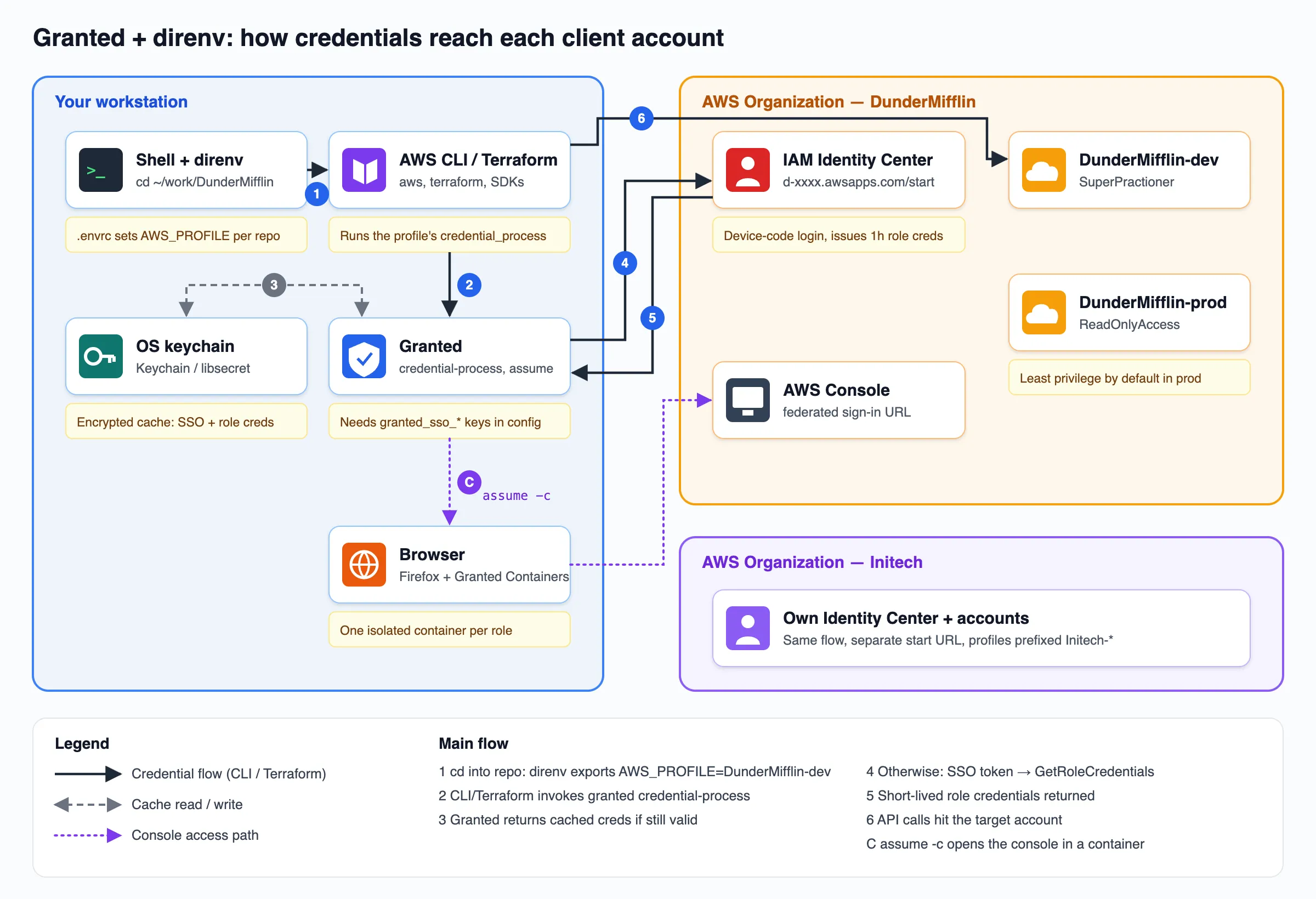
The key idea is a split of responsibilities. direnv never touches credentials. It only decides which profile name is active, based on the directory you're in. Granted never decides which account you want. It only turns a profile name into short-lived credentials.
The glue is the AWS SDK's
credential_process setting. When Terraform or the AWS CLI sees AWS_PROFILE=DunderMifflin-dev , it reads that profile, finds credential_process = granted credential-process --profile DunderMifflin-dev , and runs it. Granted checks its keychain cache. If the role credentials are still valid it returns them immediately. If not, it uses the cached SSO token to call GetRoleCredentials , and only falls back to a browser login when the SSO session itself has expired.That design gives you two properties that matter in practice. First, there are no long-lived secrets in plaintext anywhere. Second, the "current account" lives in the directory structure rather than in the terminal's memory. Closing a tab or opening a new one can't leave you pointed somewhere unexpected.
The console path is separate.
assume -c builds a federated sign-in URL and opens it in a Firefox container dedicated to that role, so DunderMifflin-prod and clientB-dev can sit in neighbouring tabs without logging each other out.
Step-by-step deployment
Phase 1: Setup
Step 1. Install Granted
brew tap fwdcloudsec/grantedbrew install granted
Check the install:
granted -v
Step 2. Configure the assume alias
assume must be sourced to export variables into your current shell. Run it once and accept the prompt:assume
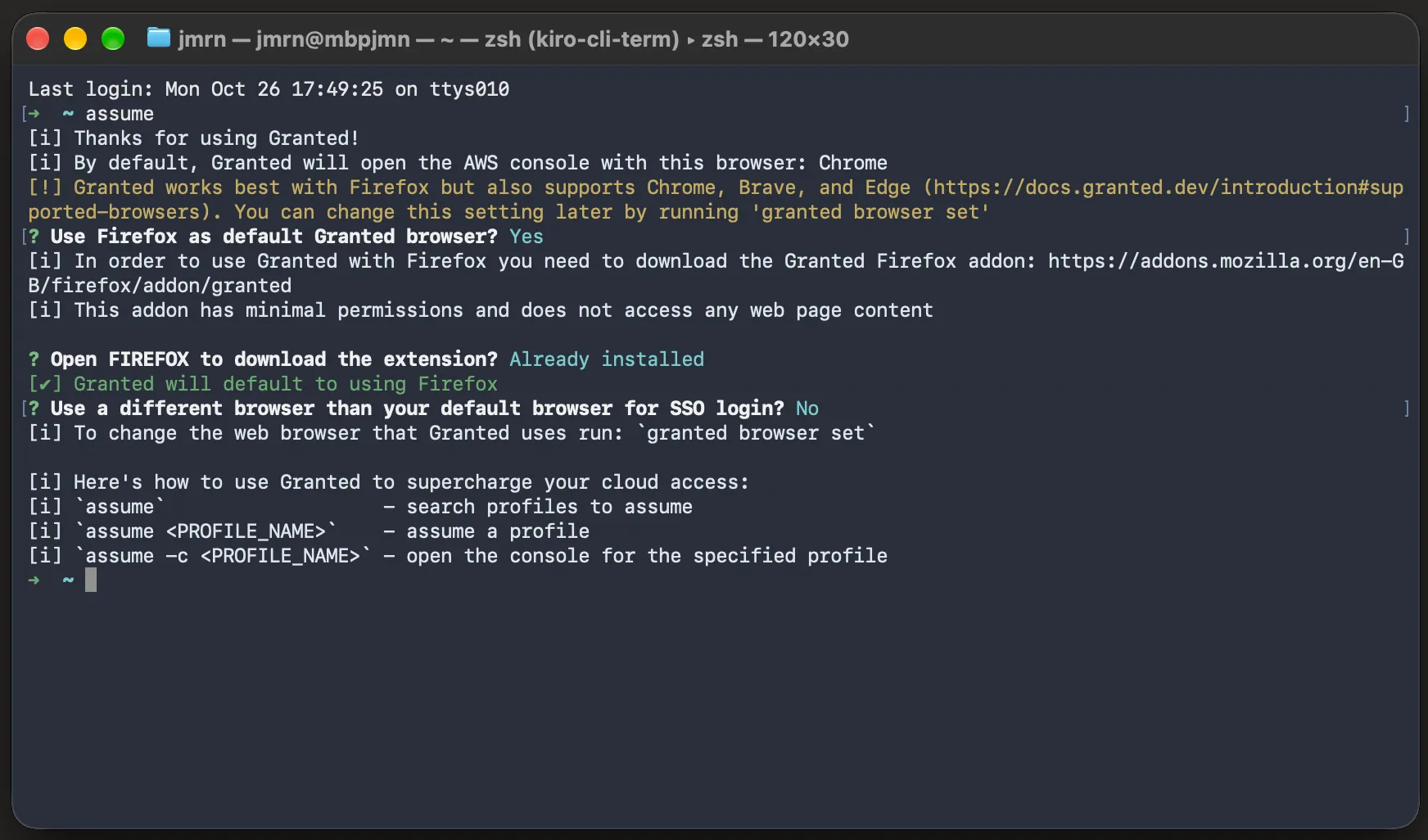
If you prefer to do it manually, add this to
~/.zshrc , then reload with source ~/.zshrc :alias assume=". assume"Step 3. Choose the console browser
If you want to change the console browser:
granted browser set

Pick Firefox, then install the Granted Containers extension from addons.mozilla.org when prompted. Chromium-based browsers work too, but Granted uses separate browser profiles there rather than containers.
Step 4. Install direnv and hook it into your shell
brew install direnv
Add the hook as the last line of
~/.zshrc :For bash use
eval "$(direnv hook bash)" eval "$(direnv hook zsh)"
Reload the shell, then check:
source ~/.zshrcdirenv version

Phase 2: Configure
Step 5. Generate profiles from IAM Identity Center (Option A, recommended)
Run this once per client organization. Use
--prefix to namespace profiles by client:granted sso populate \ --sso-region eu-north-1 \ --prefix DunderMifflin- \ https://d-xxxxxxxxxx.awsapps.com/start
A browser tab opens with a device code. Approve it, and Granted lists every account and role you can reach:
[i] listing available profiles from AWS IAM Identity Center...[✔] populated 6 profiles for https://d-xxxxxxxxxx.awsapps.com/start
Open
~/.aws/config and look at a generated profile. It should look roughly like this:[profile DunderMifflin-dev/SuperPractioner]granted_sso_start_url = https://d-xxxxxxxxxx.awsapps.com/startgranted_sso_region = eu-north-1granted_sso_account_id = 111122223333granted_sso_role_name = SuperPractionercommon_fate_generated_from = aws-ssocredential_process = granted credential-process --profile DunderMifflin-dev/SuperPractioner
Notice the
granted_ prefix on the SSO keys. That's deliberate, and the Gotchas section explains why.Repeat for every other organization with its own start URL and prefix (
--prefix Initech- ).Step 5b. IAM user keys + role assumption (Option B)
For a client without Identity Center, store the long-lived keys in the keychain instead of
~/.aws/credentials :granted credentials add? Profile Name: UnicornRentals-base? Access Key ID: AKIA...? Secret Access Key: ****[✔] Saved UnicornRentals-base to secure storage
Then define the role to assume in
~/.aws/config :[profile UnicornRentals-base]credential_process = granted credential-process --profile UnicornRentals-baseregion = eu-north-1 [profile UnicornRentals-prod]role_arn = arn:aws:iam::111122223333:role/Adminsource_profile = UnicornRentals-basemfa_serial = arn:aws:iam::444455556666:mfa/jimmyregion = eu-north-1Step 6. Give each repo its context with .envrc
In each client repo, create an
.envrc :# ~/work/DunderMifflin/infra-dev/.envrc # Clear anything a previous `assume` left behind (see Gotchas)unset AWS_ACCESS_KEY_ID AWS_SECRET_ACCESS_KEY AWS_SESSION_TOKEN export AWS_PROFILE="DunderMifflin-dev/SuperPractioner"export AWS_REGION=eu-north-1 # Optional: per-client Azure and GCP contextexport AZURE_CONFIG_DIR="$HOME/.azure-DunderMifflin"export CLOUDSDK_ACTIVE_CONFIG_NAME=dundermifflin # Untracked overridessource_env_if_exists .envrc.local
For several environments under one client, put shared settings in a parent
.envrc and use source_up in the child directories:~/work/DunderMifflin/├── .envrc # shared: region, Azure/GCP context├── infra-dev/.envrc # source_up + AWS_PROFILE=DunderMifflin-dev/...└── infra-prod/.envrc # source_up + AWS_PROFILE=DunderMifflin-prod/ReadOnlyAccess# ~/work/DunderMifflin/infra-prod/.envrcsource_upexport AWS_PROFILE="DunderMifflin-prod/ReadOnlyAccess"Phase 3: Deploy
Step 7. Allow the .envrc files
direnv refuses to load an
.envrc until you explicitly approve it:cd ~/work/DunderMifflin/infra-devdirenv: error /Users/jimmy/work/DunderMifflin/infra-dev/.envrc is blocked. Run `direnv allow` to approve its contentdirenv allowdirenv: loading ~/work/DunderMifflin/infra-dev/.envrcdirenv: export +AWS_PROFILE +AWS_REGION +AZURE_CONFIG_DIR +CLOUDSDK_ACTIVE_CONFIG_NAMEYou'll need to re-run
direnv allow after every edit of the file. That's the security gate, not a bug. (It will feel like a bug at 2 a.m.)Step 8. Add .envrc.local to .gitignore
echo ".envrc.local" >> .gitignoreCommitting
.envrc itself is usually fine. Profile names and regions aren't secret, and teammates benefit from them.Step 9. Show the active profile in your prompt
Any prompt framework works. With Starship, the
aws module is on by default and shows the profile and region. Seeing DunderMifflin-prod in red before you hit Enter is the cheapest safety net you can buy, and cheaper than the apology email.Phase 4: Verify
Step 10. Confirm the switch happens on cd
cd ~/work/DunderMifflin/infra-dev && echo $AWS_PROFILEcd ~/work/DunderMifflin/infra-prod && echo $AWS_PROFILEcd ~ && echo "profile: ${AWS_PROFILE:-<unset>}"DunderMifflin-dev/SuperPractionerDunderMifflin-prod/ReadOnlyAccessdirenv: unloadingprofile: <unset>
Verification / testing
1. Check the identity in each repo.
cd ~/work/DunderMifflin/infra-devaws sts get-caller-identity{ "UserId": "AROAXXXXXXXXXXXXXXXXX:jimmy@archnops.com", "Account": "111122223333", "Arn": "arn:aws:sts::111122223333:assumed-role/AWSReservedSSO_SuperPractioner_abc123/jimmy@archnops.com"}
Run it again from
infra-prod . The Account and the role name in the ARN must change.
2. Check that Terraform picks it up without any wrapper.
terraform init && terraform plan
The plan should run without an auth prompt. If the SSO session expired, a browser tab opens once and the plan continues.
3. Check the credential process directly.
granted credential-process --profile "DunderMifflin-dev/SuperPractioner" | jq '.Version, .Expiration'1"2026-10-25T23:45:12Z"4. Check console isolation.
assume -c DunderMifflin-dev/SuperPractionerassume -c DunderMifflin-prod/ReadOnlyAccess -s cloudwatch -r eu-north-1
Two Firefox tabs should open, each with a different container colour and signed into a different account at the same time.

Gotchas & lessons learned
-
assumesilently beatsAWS_PROFILE. Runningassumein a shell exportsAWS_ACCESS_KEY_ID,AWS_SECRET_ACCESS_KEYandAWS_SESSION_TOKEN. AWS tooling gives those environment variables precedence overAWS_PROFILE. So if you runassume Initech-prodand thencdinto DunderMifflin's repo, direnv sets the right profile, but the old keys outrank it and you're now confidently running DunderMifflin's plan as Initech. Confidence is not correctness. That's why every.envrcabove starts withunset AWS_ACCESS_KEY_ID .... In direnv-managed repos, keepassumefor-c(console) only.
-
credential_processis ignored if standard SSO keys are present. If a profile contains bothcredential_processand the usualsso_start_url/sso_account_idkeys, the AWS CLI skips the credential process and falls back toaws sso login. That's why Granted writesgranted_sso_*keys instead. If you hand-edit a profile or copy one from an oldaws configure ssosetup, rename those keys or the integration quietly stops working.
- Profiles from other tools confuse Granted. A config previously populated by
aws-sso-utilor similar contains acredential_processpointing to that tool plus keys Granted doesn't expect. Clean those profiles out, or regenerate them withgranted sso populate, rather than mixing generators in one file.
-
populatereplaces matching profiles. Re-runninggranted sso populatemerges into~/.aws/configand overwrites profiles with the same name. Anything you added by hand to a generated profile, like a customregion, disappears. Keep customisations in separate, hand-written profiles, and back up the file before re-running.
- Large organizations hit API throttling. On orgs with hundreds of accounts,
populatecan fail withTooManyRequestsExceptionfrom the SSO portal API. AWS is rate-limiting you, not judging you: wait a bit and retry.
- Profile names with slashes need quoting. Generated names like
DunderMifflin-dev/SuperPractionerare fine for the AWS CLI, but always quote them in.envrcand scripts. Some tools that build file paths or resource names from the profile name choke on the/. If that bites you, use--profile-templateonpopulateto choose a flatter naming scheme.
-
sso-regionis not your working region.--sso-regionis where Identity Center lives, which may beeu-west-1even if all your workloads run ineu-north-1. SetAWS_REGIONseparately in.envrc.
- Keychain prompts on macOS. The first few
credential-processcalls may trigger keychain access dialogs. Choosing "Always Allow" for the Granted binary stops them, though they may come back after an upgrade.
- direnv hook order matters. If direnv stops reacting to
cdafter you add a prompt framework, check where thedirenv hookline sits relative to the framework's initialisation. Putting it last in~/.zshrcis the usual fix, and the failure mode is pure silence, which is the worst kind.
- Short sessions in prod are a feature. Identity Center role credentials last one hour by default, and the SSO session itself has its own duration set by the admin. Resist asking clients to lengthen these; one-hour credentials are a security team's love language. With
credential_processthe refresh is invisible anyway.
Conclusion & next steps
You now have authentication and context cleanly separated. Granted turns any profile into short-lived, keychain-cached credentials and gives you isolated consoles per role. direnv makes the active profile a property of the directory, so the account you're working in follows the repo rather than whichever terminal tab you happen to use. Picking the wrong account is still possible. It just takes effort now, which is the best a safety feature can ask for.
Where to go from here:
- Extend it to the other clouds. The same
.envrcpattern works withAZURE_CONFIG_DIRfor isolatedazlogins andCLOUDSDK_ACTIVE_CONFIG_NAMEforgcloudconfigurations.
- Add a production guardrail. A small check in your prod
.envrcthat echoes a warning, or a Terraformallowed_account_idssetting in the provider block, makes the wrong account a hard failure instead of a surprise.
- Explore Granted's extras. Look at
assume --execto run a single command under a profile, andgranted settingsfor tuning defaults.
- Read the docs. Granted: https://docs.granted.dev · direnv: https://direnv.net
Enjoyed reading this content? Let the author know!
Your likes, comments, shares, and saves help creators reach more builders.

Loading recommendations
Loading article