
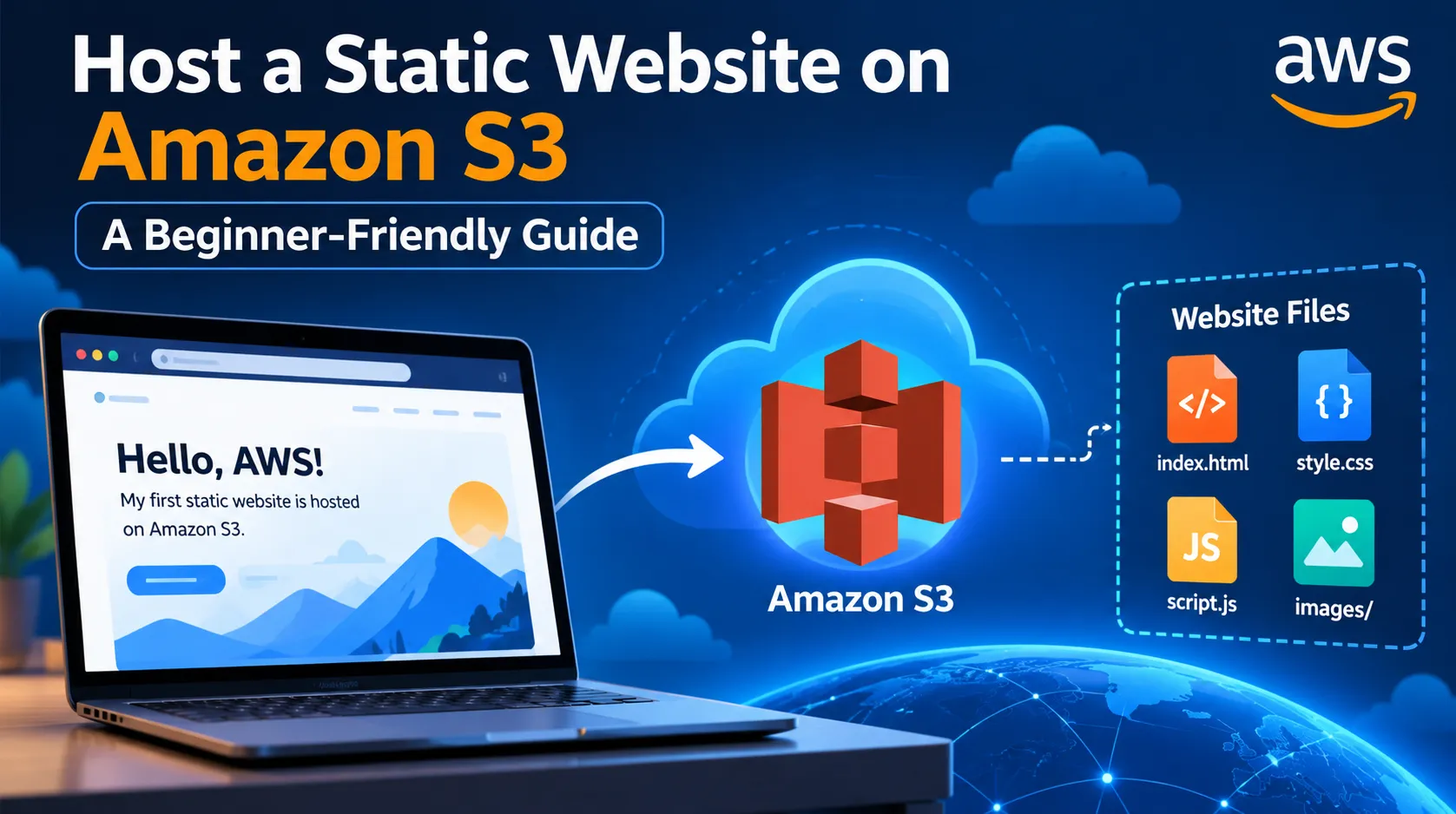
How to Host a Static Website on Amazon S3: A Beginner-Friendly Guide
Learn how to host a static website on Amazon S3 using AWS. This step-by-step guide covers S3 bucket creation, static website hosting configuration, permissions, deployment, and testing your website.

How to Host a Static Website on Amazon S3: A Beginner-Friendly Guide
Introduction
Have you ever wondered how websites are hosted on the cloud and made accessible to users worldwide?
Amazon Web Services (AWS) provides several services for hosting applications and websites. One of the simplest options for hosting a static website is Amazon Simple Storage Service (Amazon S3).
Amazon S3 is an object storage service that allows you to store and retrieve files, including HTML, CSS, JavaScript, images, and other static website assets.
In this tutorial, we will learn how to host a simple static website using Amazon S3.
By the end of this guide, you will understand how to create an S3 bucket, upload website files, configure static website hosting, and access your website through its endpoint.
What Is Amazon S3?
Amazon S3 is an object storage service designed to store and retrieve data from anywhere.
Instead of managing a traditional web server, you can use Amazon S3 to store the files required for a static website.
For example, a basic website might contain the following files:
index.html— The main webpage.style.css— The stylesheet for designing the webpage.script.js— The JavaScript file for interactive functionality.images/— A folder containing images and other visual assets.
Amazon S3 stores these files as objects inside a bucket.
Prerequisites
Before starting, you need:
- An AWS account.
- Access to the AWS Management Console.
- A basic understanding of HTML and CSS.
- A simple static website containing HTML, CSS, and optional JavaScript files.
You can create a basic HTML page using any text editor.
For this tutorial, we will use a simple
index.html file.Step 1: Create an S3 Bucket
First, sign in to the AWS Management Console.
- Open the Amazon S3 service.
- Navigate to the Buckets section.
- Select Create bucket.
- Enter a globally unique bucket name, such as
my-static-website-demo-2026. - Select the AWS Region you want to use.
- Review the remaining settings.
For a public static website served directly from an S3 website endpoint, you will need to configure the appropriate public-access settings and bucket policy.
Important: Do not disable public-access protections on an existing bucket or account without understanding the security implications. For a learning project, use a dedicated bucket containing only files intended for public access.
After reviewing the configuration, create the bucket.
Step 2: Prepare Your Website Files
Create a file named
index.html on your computer.Add the following HTML:
1
2
3
4
5
6
7
8
9
10
11
12
<html lang="en">
<head>
<meta charset="UTF-8">
<meta name="viewport" content="width=device-width, initial-scale=1.0">
<title>My First AWS Website</title>
</head>
<body>
<h1>Hello, AWS!</h1>
<p>My first static website is hosted on Amazon S3.</p>
</body>
</html>Save the file as
index.html.You can also create a CSS file and add images to make the website more attractive.
At this stage, your website is ready to be uploaded.
Step 3: Upload Your Website Files
Now, upload your website files to Amazon S3.
- Open your newly created bucket.
- Select Upload.
- Add
index.htmland any other required website files. - Select Upload to complete the process.
Once the upload finishes, your files will be stored in the S3 bucket.
However, uploading files alone does not automatically configure the bucket to serve a website.
We need to enable static website hosting.
Step 4: Enable Static Website Hosting
Open your bucket and follow these steps:
- Navigate to the Properties tab.
- Find the Static website hosting section.
- Select Edit.
- Enable static website hosting.
- Choose the option to host a static website.
- Set the index document to
index.html. - Save the changes.
Amazon S3 will provide a website endpoint for your bucket.
Keep this endpoint because you will use it to access your website.
Remember that an S3 website endpoint supports HTTP rather than HTTPS. For production websites that require HTTPS, consider using Amazon CloudFront with an appropriate origin configuration.
Step 5: Configure Permissions
By default, Amazon S3 blocks public access to buckets to help protect your data.
If you want visitors to access your website directly through the S3 website endpoint, the website files must be publicly readable.
For a dedicated public website bucket, review the Block Public Access settings and configure them only as required by your intended access model.
If your account or organization has an account-level or organization-level restriction, it may prevent public access even if you change the bucket settings.
You will also need a bucket policy that allows public read access to the website objects.
For example, the following policy grants read access to objects in a dedicated public website bucket:
1
2
3
4
5
6
7
8
9
10
11
12
{
  "Version": "2012-10-17",
  "Statement": [
    {
      "Sid": "PublicReadForWebsiteFiles",
      "Effect": "Allow",
      "Principal": "*",
      "Action": "s3:GetObject",
      "Resource": "arn:aws:s3:::YOUR-BUCKET-NAME/*"
    }
  ]
}
Replace
YOUR-BUCKET-NAME with your actual bucket name.Security warning: This policy makes every object covered by the policy publicly readable. Never use it for a bucket containing private files, credentials, personal information, or confidential data.
For production workloads, consider using CloudFront with Origin Access Control and a private S3 bucket instead. This approach allows CloudFront to retrieve content without making the bucket publicly accessible.
Step 6: Test Your Website
After configuring static website hosting and permissions, open the website endpoint provided by Amazon S3.
If everything is configured correctly, you should see:
Hello, AWS!
You have successfully hosted your first static website using Amazon S3.
If the website does not load, check the following:
- Confirm that
index.htmlwas uploaded successfully. - Verify that static website hosting is enabled.
- Check that the index document name matches the uploaded filename.
- Review the bucket policy and Block Public Access settings.
- Make sure you are using the website endpoint rather than the bucket's object URL.
Step 7: Understand the Architecture
The architecture of this project is simple:
User → Amazon S3 Website Endpoint → HTML, CSS, and JavaScript Files
When a visitor opens your website, Amazon S3 serves the requested static content.
There is no traditional web server to manage, and you do not need to maintain server operating systems or install web server software.
This makes S3 a useful option for learning cloud deployment and hosting simple static websites.
Benefits of Hosting a Static Website on Amazon S3
1. Simple Deployment
You can upload website files directly through the AWS Management Console or automate deployment using tools and scripts.
2. Scalability
Amazon S3 is designed to store large amounts of data and handle growing storage requirements.
3. Cost Considerations
Amazon S3 uses usage-based pricing. Costs depend on factors such as storage, requests, and data transfer. Review the current AWS pricing details before deploying a production website.
4. No Server Management
For a static website, you do not need to manage a traditional web server or its operating system.
5. Integration with Other AWS Services
You can combine Amazon S3 with Amazon CloudFront, AWS Certificate Manager, Amazon Route 53, and other AWS services to build a more complete website hosting solution.
Limitations to Remember
Amazon S3 static website hosting is designed for static content.
It does not directly execute server-side application code such as Java Spring Boot, Python Flask, or Node.js.
If your application requires authentication, database operations, or dynamic backend processing, you will need additional services.
For example, a Java Spring Boot application could use a separate backend service, while Amazon S3 stores the frontend's static files.
What's Next?
After completing this project, try extending it with the following improvements:
- Upload a complete HTML, CSS, and JavaScript website.
- Use Amazon CloudFront to distribute content through a content delivery network.
- Configure HTTPS using CloudFront and an appropriate certificate.
- Connect a custom domain using Amazon Route 53.
- Automate website deployment through a CI/CD pipeline.
These improvements will help you understand how individual AWS services work together in a real-world deployment.
Conclusion
Hosting a static website on Amazon S3 is an excellent beginner project for learning AWS.
In this tutorial, we created an S3 bucket, uploaded website files, enabled static website hosting, configured access permissions, and tested the website.
This project provides a foundation for exploring more advanced cloud architecture, content delivery, domain configuration, and automated deployments.
The best way to learn cloud computing is to build projects, experiment with AWS services, and understand the security and cost implications of each decision.
Happy building!
Enjoyed reading this content? Let the author know!
Your likes, comments, shares, and saves help creators reach more builders.

Loading recommendations
Loading article