
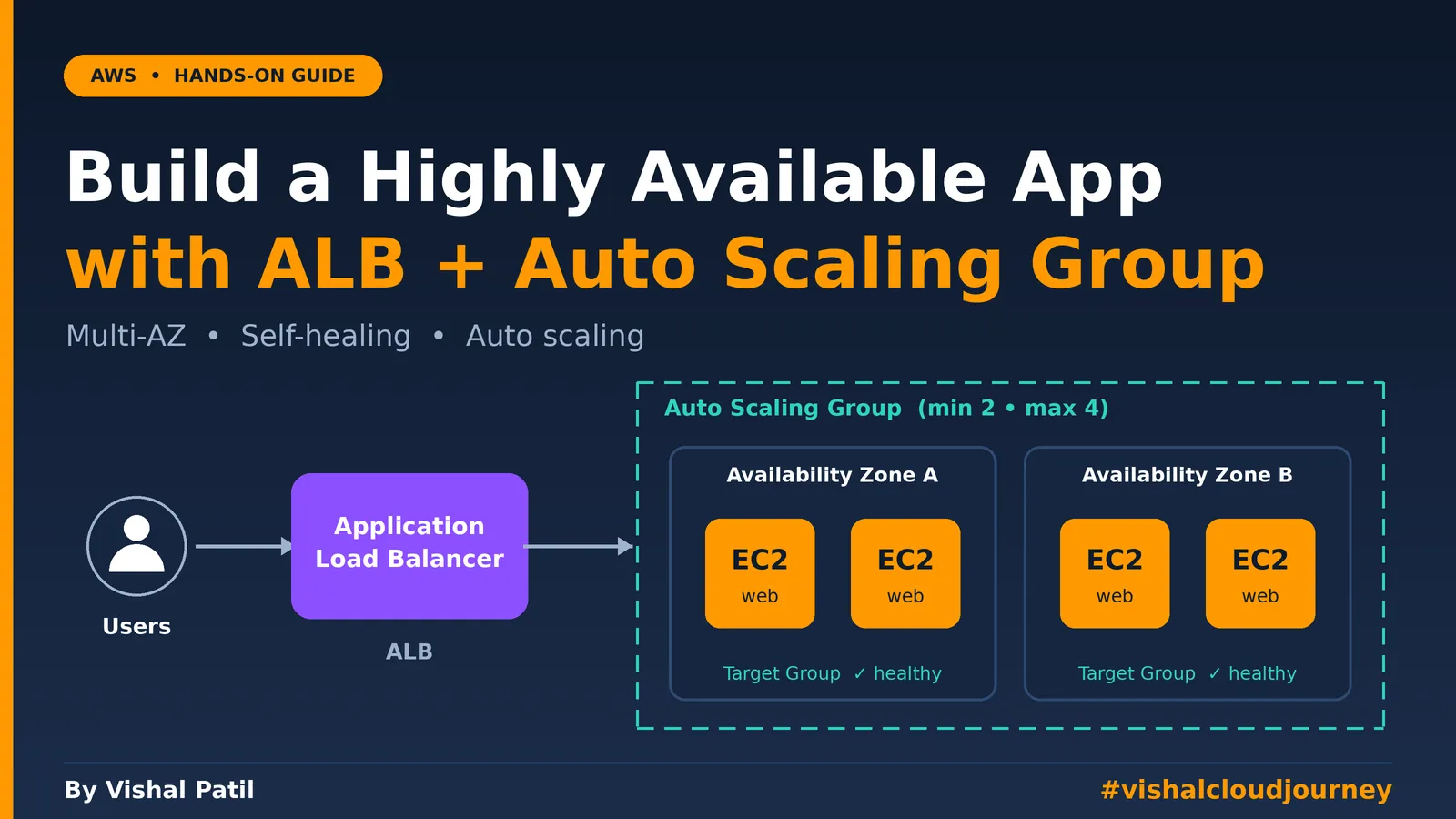
ALB + Auto Scaling Group: Build a Highly Available App
Learn how to build a highly available, self-healing web app on AWS using an Application Load Balancer and Auto Scaling Group across multiple Availability Zones. A hands-on, step-by-step guide with testing, troubleshooting, and cleanup.

Build a Highly Available App on AWS with an Application Load Balancer and Auto Scaling Group
By Vishal Patil | #vishalcloudjourney
If your app runs on a single EC2 instance, you have a single point of failure. If that instance crashes, or its Availability Zone has a problem, your app goes down with it. In this hands-on guide, I'll show you how to fix that by combining an Application Load Balancer (ALB) with an Auto Scaling Group (ASG), so your app spreads across multiple Availability Zones, heals itself, and scales with demand.
What You Will Build
- A VPC with two public subnets in two different Availability Zones
- A Launch Template that boots a simple web server
- An Application Load Balancer that distributes traffic
- An Auto Scaling Group that keeps at least 2 healthy instances running
- A scaling policy that adds instances when CPU gets high
Traffic flow:
1
User → ALB (spans AZ-a and AZ-b) → Target Group → EC2 instances managed by ASG (AZ-a, AZ-b)
Key Concepts in 60 Seconds
- Application Load Balancer (ALB): Receives incoming HTTP/HTTPS traffic and routes it to healthy targets.
- Target Group: The list of instances the ALB sends traffic to, plus the health check settings.
- Launch Template: A blueprint for instances (AMI, instance type, security group, user data).
- Auto Scaling Group (ASG): Launches, replaces, and removes instances to match your desired capacity.
- High availability: Running across multiple AZs so one failure doesn't take you down.
Prerequisites
- An AWS account with permissions to create EC2, ELB, and Auto Scaling resources
- A VPC with at least two subnets in different AZs (the default VPC works for this lab)
- Basic familiarity with the EC2 console
Cost note: The ALB and EC2 instances are billed while they run. Follow the cleanup section at the end so you don't leave resources running.
Step 1: Create the Security Groups
Use two security groups so only the load balancer can reach your instances.
ALB security group (
alb-sg)- Inbound: HTTP (port 80) from
0.0.0.0/0
Instance security group (
web-sg)- Inbound: HTTP (port 80) from
alb-sg(select the security group as the source, not an IP range)
This is a good security habit: users can only reach your instances through the load balancer.
Step 2: Create a Launch Template
- Go to EC2 → Launch Templates → Create launch template.
- Name it
web-lt. - Choose Amazon Linux 2023 as the AMI.
- Choose a small instance type such as
t3.micro(ort2.microif that's what your Free Tier covers). - Select
web-sgas the security group. - Under Advanced details → User data, paste this script:
1
2
3
4
5
6
7
8
9
10
11
12
13
14
15
16
17
dnf update -y
dnf install -y httpd
systemctl enable --now httpd
TOKEN=$(curl -s -X PUT "http://169.254.169.254/latest/api/token" \
-H "X-aws-ec2-metadata-token-ttl-seconds: 21600")
INSTANCE_ID=$(curl -s -H "X-aws-ec2-metadata-token: $TOKEN" \
http://169.254.169.254/latest/meta-data/instance-id)
AZ=$(curl -s -H "X-aws-ec2-metadata-token: $TOKEN" \
http://169.254.169.254/latest/meta-data/placement/availability-zone)
cat > /var/www/html/index.html <<EOF
<h1>Highly Available App</h1>
<p>Instance ID: $INSTANCE_ID</p>
<p>Availability Zone: $AZ</p>
EOF
This page shows which instance and AZ served your request, which makes load balancing easy to see later.
Step 3: Create the Target Group
- Go to EC2 → Target Groups → Create target group.
- Target type: Instances.
- Name:
web-tg, Protocol: HTTP, Port: 80. - Choose your VPC.
- Health check path:
/. - Create it without registering any targets. The ASG will register them automatically.
Step 4: Create the Application Load Balancer
- Go to EC2 → Load Balancers → Create load balancer → Application Load Balancer.
- Name:
web-alb, Scheme: Internet-facing. - Select your VPC and choose at least two subnets in different AZs.
- Security group:
alb-sg. - Listener: HTTP : 80, forward to
web-tg. - Create the load balancer and copy its DNS name for testing later.
Step 5: Create the Auto Scaling Group
- Go to EC2 → Auto Scaling Groups → Create Auto Scaling group.
- Name:
web-asg, select theweb-ltlaunch template. - Choose your VPC and select the same two subnets across different AZs.
- Under load balancing, choose Attach to an existing load balancer and select the
web-tgtarget group. - Under health checks, turn on ELB health checks. This lets the ASG replace instances the ALB marks unhealthy, not only ones that fail EC2 status checks.
- Set group size:
- Desired capacity: 2
- Minimum capacity: 2
- Maximum capacity: 4
- Under scaling policies, choose Target tracking scaling policy:
- Metric type: Average CPU utilization
- Target value: 50
- Create the Auto Scaling group.
Within a few minutes, two instances launch (one per AZ), register with the target group, and pass health checks.
Step 6: Test the Setup
Test load balancing
- Open the ALB DNS name in your browser.
- Refresh several times. You should see the Instance ID and AZ change, which proves traffic is being shared across instances and zones.
Test self-healing
- Go to EC2 → Instances and terminate one of the ASG instances.
- Keep refreshing the ALB URL. Your app keeps responding from the remaining instance.
- Watch the ASG launch a replacement automatically to get back to 2 instances.
Test scaling out
- Connect to one instance (EC2 Instance Connect or Session Manager).
- Install and run a CPU stress tool:
__PRE_PLACEHOLDER_2__ - Watch CloudWatch or the ASG Activity tab. When average CPU stays above the target, the ASG adds instances up to the maximum of 4.
- After the load stops, it scales back in.
Common Issues and Fixes
| Problem | Likely cause | Fix |
|---|---|---|
| Targets show unhealthy | Instance SG doesn't allow traffic from the ALB SG | Allow port 80 from alb-sg |
| ALB URL times out | ALB SG blocks port 80 or ALB is in subnets without internet access | Open port 80 on alb-sg and use public subnets |
| Page shows default or blank content | User data didn't run | Check /var/log/cloud-init-output.log on the instance |
| Instances keep getting replaced | Health check path returns an error | Make sure / returns HTTP 200 |
| Scaling never triggers | CPU not high enough or not long enough | Increase the load or lower the target value |
Production Tips
- Put instances in private subnets and keep only the ALB public (use a NAT Gateway for outbound access).
- Add an HTTPS listener with a certificate from AWS Certificate Manager.
- Use a health check path like
/healththat verifies your app, not just the web server. - Set up CloudWatch alarms and SNS notifications for unhealthy host counts.
- Define everything as code with CloudFormation or Terraform for repeatable deployments.
Clean Up
To avoid charges, delete in this order:
- Delete the Auto Scaling group (this terminates its instances)
- Delete the Application Load Balancer
- Delete the Target group
- Delete the Launch template
- Delete the Security groups (
web-sgfirst, thenalb-sg)
Conclusion
With an ALB and an Auto Scaling Group, you turned a fragile single server into an app that survives instance failures, spreads across Availability Zones, and scales with demand. This pattern is the foundation of most production web architectures on AWS, and a great skill to show in your cloud portfolio.
If you found this useful, let's connect and keep learning together.
Connect with me
- LinkedIn: https://www.linkedin.com/in/vishalpatil-devops-aws/
- dev.to: https://dev.to/vishal_patil_aws
- GitHub: https://github.com/VishalPatil-DevOps-AWS
#vishalcloudjourney #AWS #DevOps #AutoScaling #LoadBalancer #HighAvailability
Enjoyed reading this content? Let the author know!
Your likes, comments, shares, and saves help creators reach more builders.

Loading recommendations
Loading article