
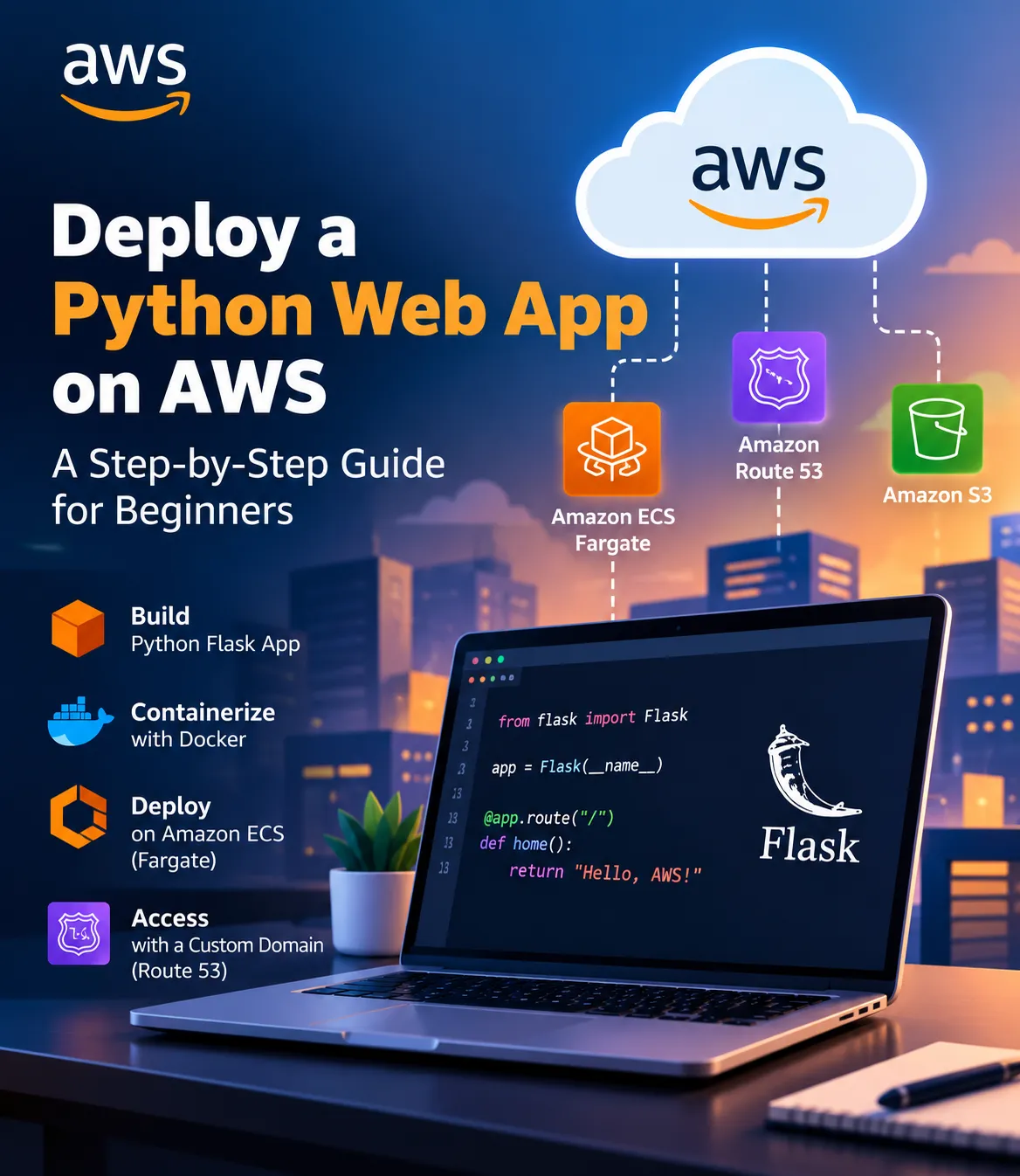
Deploy a Python Flask Web App on AWS Using Docker and Amazon ECS
Learn how to containerize a Python Flask application with Docker and deploy it on AWS using Amazon ECR and Amazon ECS with AWS Fargate. This beginner-friendly guide covers the application setup, container deployment, networking, testing, security, and cost considerations.

Introduction
Deploying a web application is an important step in software development. While running an application locally is useful for development, deploying it to the cloud makes it accessible to users over the internet.
In this tutorial, we will explore how to deploy a simple Python Flask application on Amazon Web Services (AWS) using Docker, Amazon Elastic Container Registry (ECR), and Amazon Elastic Container Service (ECS) with AWS Fargate.
This approach helps beginners understand containerization, cloud deployment, and the fundamentals of running scalable web applications.
1. Understanding the Architecture
The deployment process involves the following components:
- Python Flask: Creates the web application.
- Docker: Packages the application and its dependencies into a container image.
- Amazon ECR: Stores the Docker image.
- Amazon ECS: Manages the deployment and execution of containers.
- AWS Fargate: Runs containers without requiring you to manage the underlying servers.
- Security Groups: Control network access to the application.
Architecture flow
1
2
3
4
5
6
7
8
9
10
11
12
13
14
15
16
17
18
19
Developer
    |
    v
Python Flask Application
    |
    v
Docker Image
    |
    v
Amazon ECR
    |
    v
Amazon ECS + AWS Fargate
    |
    v
Public IP / Load Balancer
    |
    v
User accesses the application
For a simple learning deployment, you can use a public IP address if your ECS networking configuration permits it. For a production application, consider an Application Load Balancer, HTTPS, and a custom domain.
2. Create the Flask Application
First, create a project folder named
flask-aws-app.Inside the folder, create a file named
app.py.1
2
3
4
5
6
7
8
9
10
11
12
13
14
15
16
17
from flask import Flask, jsonify
app = Flask(__name__)
def home():
return jsonify({
"message": "Hello from Flask on AWS!",
"status": "running"
})
def health():
return jsonify({"status": "healthy"}), 200
if __name__ == "__main__":
app.run(host="0.0.0.0", port=5000)The application contains two endpoints:
/returns a welcome message./healthreturns a basic health status.
The application listens on port 5000 inside the container.
3. Define the Dependencies
Create a file named
requirements.txt.1
2
Flask
gunicornFlask provides the web framework, while Gunicorn serves the application using a production-oriented WSGI server.
4. Create the Dockerfile
Create a file named
Dockerfile without a file extension.1
2
3
4
5
6
7
8
9
10
11
12
13
FROM python:3.12-slim
WORKDIR /app
COPY requirements.txt .
RUN pip install --no-cache-dir -r requirements.txt
COPY app.py .
EXPOSE 5000
CMD ["gunicorn", "--bind", "0.0.0.0:5000", "app:app"]Why use Docker?
Docker packages the application and its dependencies into a consistent environment. This helps reduce differences between development and deployment environments.
5. Test the Application Locally
Install Docker Desktop and ensure Docker is running.
Open a terminal in the project folder and execute:
1
docker build -t flask-aws-app .
Run the container:
1
docker run -p 5000:5000 flask-aws-app
Open your browser and visit:
http://localhost:5000You should see a JSON response containing the welcome message.
Test the health endpoint at:
http://localhost:5000/healthOnce the local application works, it is ready to be packaged for deployment.
6. Push the Image to Amazon ECR
Amazon ECR is a managed container registry used to store Docker images.
Follow these steps:
- Sign in to the AWS Management Console.
- Open Amazon Elastic Container Registry.
- Create a private repository named
flask-aws-app. - Open the repository and follow the authentication instructions provided by AWS.
- Build and tag the image for your ECR repository.
- Authenticate Docker to ECR and push the image.
The general commands are:
1
2
3
aws ecr get-login-password --region REGION \
  | docker login --username AWS --password-stdin \
  ACCOUNT_ID.dkr.ecr.REGION.amazonaws.com
Tag the image:
1
2
docker tag flask-aws-app:latest \
  ACCOUNT_ID.dkr.ecr.REGION.amazonaws.com/flask-aws-app:latest
Push the image:
1
2
docker push \
  ACCOUNT_ID.dkr.ecr.REGION.amazonaws.com/flask-aws-app:latest
Replace
REGION and ACCOUNT_ID with your actual AWS Region and account ID.The AWS CLI must be installed and configured with appropriate permissions. Avoid hardcoding credentials or committing them to source control.
7. Deploy Using Amazon ECS and AWS Fargate
After uploading the image, configure Amazon ECS to run it.
Step 1: Create an ECS cluster
Open Amazon ECS in the AWS Console and create a cluster using the AWS Fargate infrastructure option.
Step 2: Create a task definition
Create a task definition with the following configuration:
- Launch type: AWS Fargate
- Container image: Your Amazon ECR image URI
- Container port: 5000
- CPU and memory: Select suitable values for your workload
- Task execution role: Configure the required permissions
Step 3: Configure networking
Select a VPC and suitable subnets. Configure the security group to permit inbound traffic on port 5000 only where needed.
For a public-IP-based demonstration, the task needs suitable public subnet routing and a public IP assignment. Do not expose unnecessary ports or administrative services.
Step 4: Create an ECS service
Create a service using the task definition and choose the desired number of tasks.
For a more robust deployment, use an Application Load Balancer to route traffic to the running tasks. Configure the target group to use port 5000 and the
/health endpoint for health checks.Wait until the tasks are running and the service is healthy.
8. Test the Deployed Application
Use the public IP address or load balancer DNS name, depending on your configuration.
Open:
1
http://YOUR_PUBLIC_ADDRESS:5000/
If you configured a load balancer on port 80 or 443, use its DNS name and the corresponding port instead.
You should receive a JSON response similar to:
1
2
3
4
{
  "message": "Hello from Flask on AWS!",
  "status": "running"
}
If the application is unreachable, check the ECS task status, container logs, security group rules, subnet routing, public IP configuration, and container port mapping.
9. Security and Cost Considerations
Cloud deployment requires attention to security and cost.
- Follow the principle of least privilege when assigning IAM permissions.
- Store secrets in an appropriate secrets-management service instead of embedding them in the image.
- Use HTTPS for production traffic.
- Restrict inbound traffic to the ports and sources that are actually required.
- Review AWS pricing before creating resources. Fargate, load balancers, data transfer, and other services may incur charges.
- Delete test resources when you finish experimenting.
A successful deployment does not automatically mean that the application is secure or production-ready. Logging, monitoring, authentication, backups where applicable, and appropriate scaling policies should also be considered.
10. Conclusion
Deploying Flask with Docker, Amazon ECR, Amazon ECS, and AWS Fargate provides a practical introduction to cloud-native application deployment.
By completing this workflow, developers can learn how to package an application, publish a container image, configure cloud infrastructure, and verify a running service.
Start with a small application, understand each component, and gradually introduce production features such as HTTPS, a load balancer, automated deployments, and monitoring.
Have you deployed a Python application on AWS? Share your experience, challenges, or suggestions with the AWS Builder community.
References
- AWS Documentation: https://docs.aws.amazon.com/
- Amazon ECS: https://docs.aws.amazon.com/AmazonECS/latest/developerguide/
- Amazon ECR: https://docs.aws.amazon.com/AmazonECR/latest/userguide/
- AWS Fargate: https://docs.aws.amazon.com/AmazonECS/latest/developerguide/AWS_Fargate.html
- Flask Documentation: https://flask.palletsprojects.com/
- Docker Documentation: https://docs.docker.com/
Enjoyed reading this content? Let the author know!
Your likes, comments, shares, and saves help creators reach more builders.

Loading recommendations
Loading article