
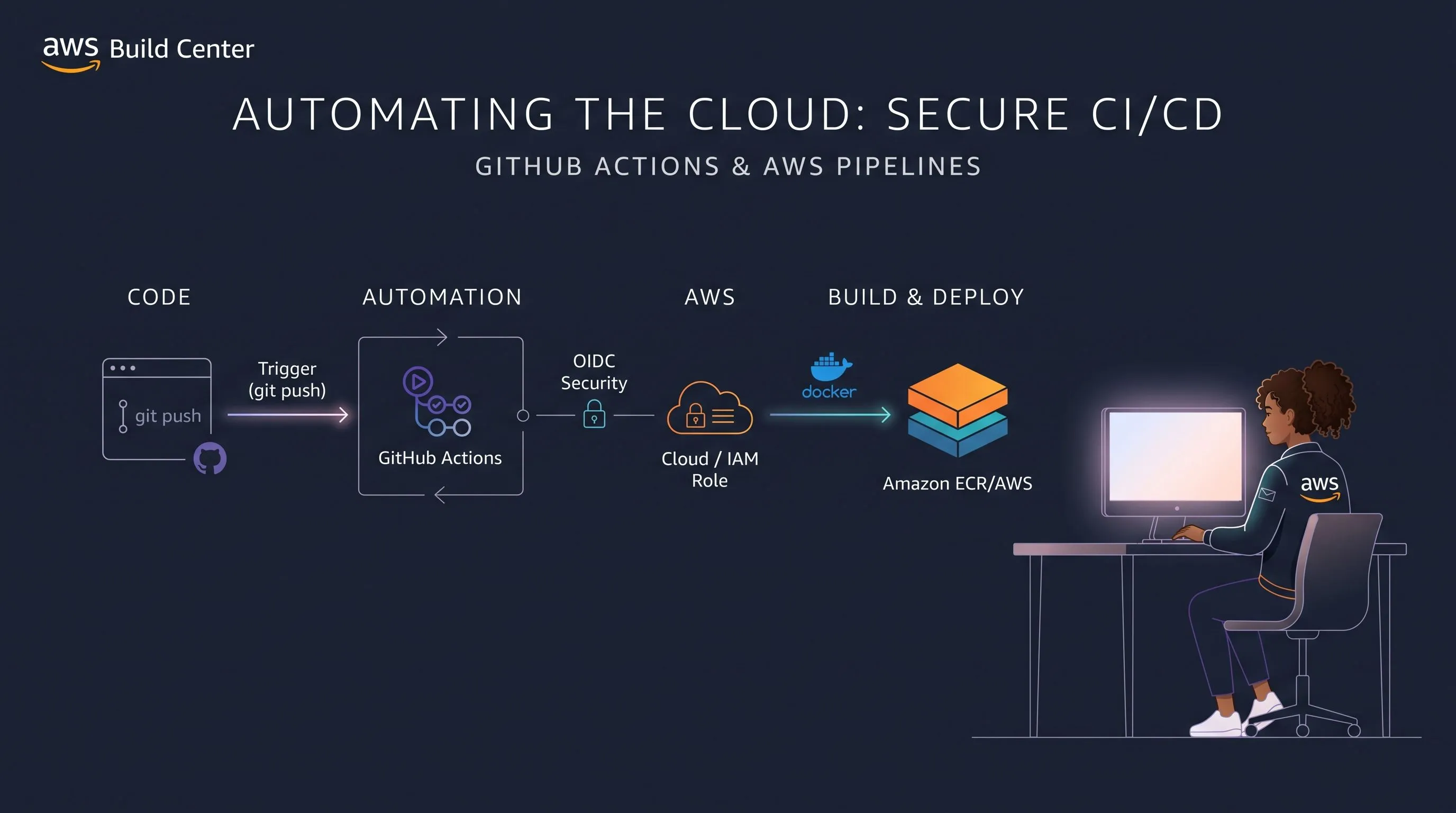
Automating the Cloud: Build Secure CI/CD Pipelines with GitHub Actions and AWS
Stop deploying manually. Learn how to build a robust Continuous Integration and Continuous Deployment (CI/CD) pipeline using GitHub Actions to securely build, test, and deploy your applications to AWS.

If you are still deploying your applications by manually running scripts or uploading ZIP files from your local machine, it is time to upgrade your workflow. Manual deployments are slow, error-prone, and hard to scale.
The solution is Continuous Integration and Continuous Deployment (CI/CD). In this tutorial, we will learn how to automate your deployments using GitHub Actions and AWS, ensuring that every push to your
main branch safely reaches production.1. The Security First Rule: Use OIDC (No Static Keys!)
In the past, developers would generate an
AWS_ACCESS_KEY_ID and AWS_SECRET_ACCESS_KEY and store them in GitHub Secrets. Do not do this. Static keys can leak and cause massive security breaches.Instead, the modern best practice is to use OpenID Connect (OIDC). This allows GitHub Actions to request a temporary, short-lived token from AWS automatically. You simply create an IAM Role in AWS that trusts your specific GitHub repository.
2. Setting Up the GitHub Actions Workflow
In your repository, create a file at
.github/workflows/deploy.yml. This YAML file will define your pipeline.Here is a robust template that authenticates securely, builds a Docker image, and pushes it to Amazon ECR (Elastic Container Registry):
1
2
3
4
5
6
7
8
9
10
11
12
13
14
15
16
17
18
19
20
21
22
23
24
25
26
27
28
29
30
31
32
33
34
35
36
37
38
name: Build and Deploy to AWS


on:

  push:

    branches:

      - main # Trigger the workflow on pushes to the main branch


# Essential for OIDC authentication

permissions:

  id-token: write

  contents: read


jobs:

  deploy:

    runs-on: ubuntu-latest


    steps:

    - name: Checkout Code

      uses: actions/checkout@v3


    - name: Configure AWS Credentials using OIDC

      uses: aws-actions/configure-aws-credentials@v3

      with:

        role-to-assume: arn:aws:iam::123456789012:role/GitHubDeployRole

        aws-region: us-east-1


    - name: Login to Amazon ECR

      id: login-ecr

      uses: aws-actions/amazon-ecr-login@v2


    - name: Build, Tag, and Push Image

      env:

        ECR_REGISTRY: ${{ steps.login-ecr.outputs.registry }}

        ECR_REPOSITORY: my-app-repo

        IMAGE_TAG: ${{ github.sha }} # Use the commit hash as the tag

      run: |

        docker build -t $ECR_REGISTRY/$ECR_REPOSITORY:$IMAGE_TAG .

docker push $ECR_REGISTRY/$ECR_REPOSITORY:$IMAGE_TAG- Understanding the Pipeline
Let's break down what happens when you push your code:
Trigger: GitHub detects a push to the main branch and spins up an Ubuntu virtual machine.
Authentication: The configure-aws-credentials action uses OIDC to assume your AWS IAM Role safely. No permanent passwords involved!
Registry Login: It authenticates your Docker client with Amazon ECR.
Build and Push: It builds your Docker image, tags it uniquely using the Git commit hash (github.sha), and pushes it to your AWS registry. - The Final Deployment Step
Once your new image is in ECR, you can add a final step to update your compute service. If you are using AWS App Runner (as discussed in our previous FastAPI tutorial) or Amazon ECS, you can use AWS CLI commands right inside the workflow to trigger an update, pulling the new image and swapping it with zero downtime.
Enjoyed reading this content? Let the author know!
Your likes, comments, shares, and saves help creators reach more builders.

Loading recommendations
Loading article