
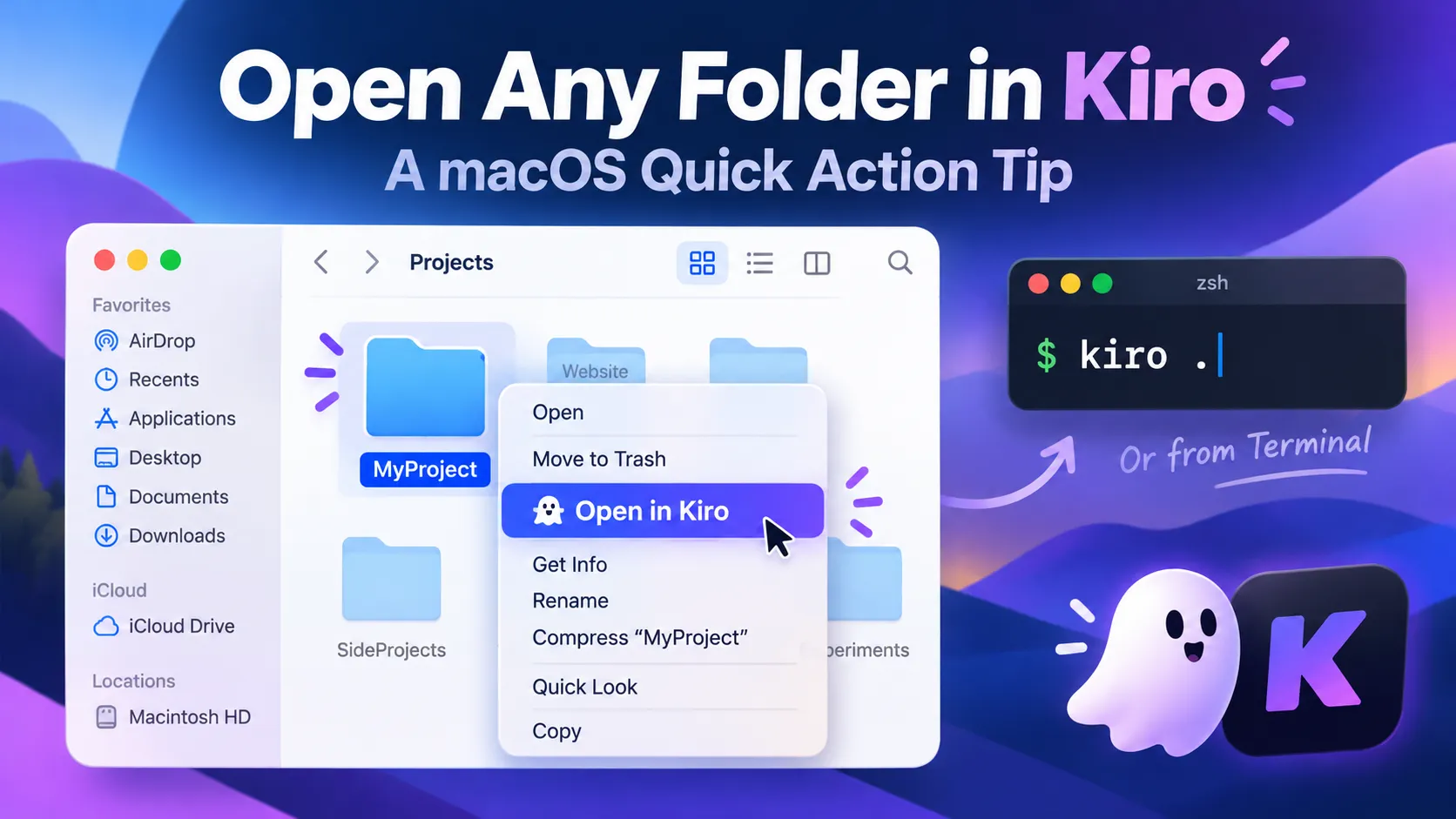
Tips: Open Any Folder in Kiro from Finder with a macOS Quick Action
Make your macOS development workflow smoother with a simple Finder Quick Action built using Automator. This guide walks you through the setup, shell script, and troubleshooting steps to launch Kiro directly from any project folder with a right-click—no additional tools required.

Hi, I'm Otani, an AWS Ambassador from Japan.
I love Kiro, and I use it every day! 👻
Today, I'd like to share a small macOS productivity tip for fellow Kiro users.
When working on projects, I often browse folders in Finder. Sometimes, I just want to right-click a folder and open it directly in Kiro without launching the IDE manually.
Wouldn't it be nice to have an "Open in Kiro" option right in Finder's context menu?
Good news! You can easily add one using macOS Automator, without installing any additional tools.
Here's how!
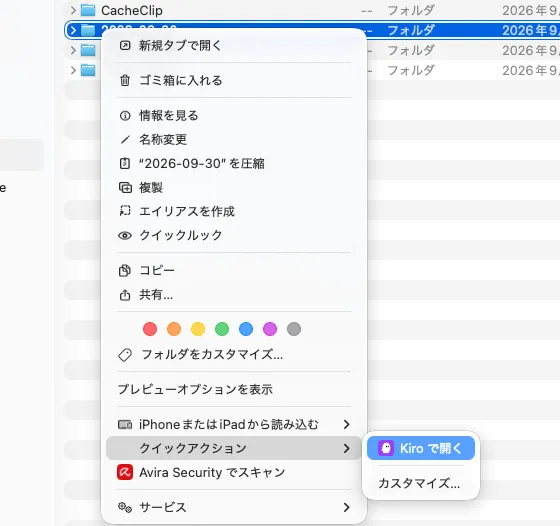
Quick Actions → Open in Kiro (I'm using macOS in Japanese, so the screenshots may look a little different from yours.)
I got the idea from the following Apple documentation.
https://support.apple.com/ja-jp/guide/shortcuts-mac/apd163eb9f95/mac
Step 1: Create a Quick Action in Automator
First, launch Automator on your Mac. Open Automator using Spotlight (Command + Space).
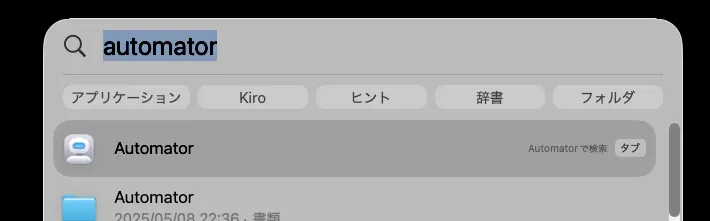
Select New Document in Menu. Select Quick Action.
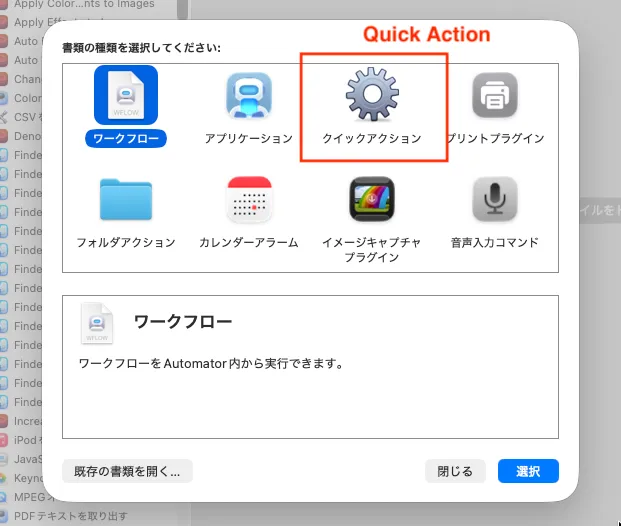
(I'm using macOS in Japanese, so the screenshots may look a little different from yours.)
Configure the workflow as follows:

(I'm using macOS in Japanese, so the screenshots may look a little different from yours.)
Workflow Settings
- Workflow receives current: folders
- In: Finder
- Image: Choose your preferred icon. I used the Kiro icon as a PNG file just for fun!
Step 2: Add a Shell Script
Next, search for Run Shell Script in the Automator actions and add it to your workflow.

Configure these settings:
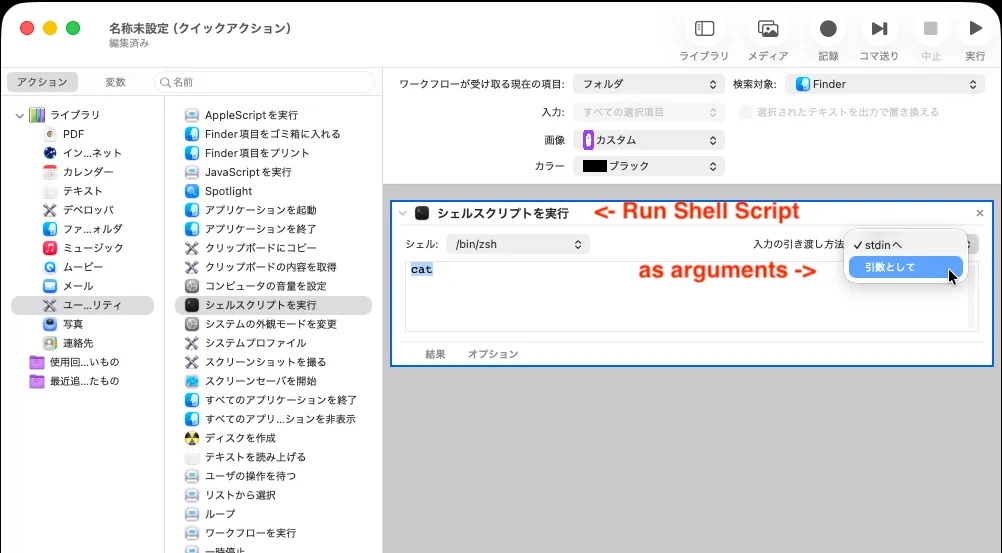
- Shell: /bin/zsh
- Pass input: as arguments
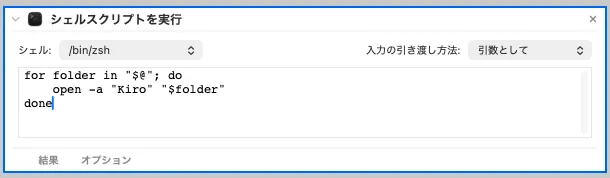
Then, paste the following script:
1
2
3
for folder in "$@"; do
    open -a "Kiro" "$folder"
done
The "$@" expression represents all folder paths passed from Finder. By enclosing it in double quotes, the script correctly handles folder names containing spaces.
That's it!
The script receives the selected folder path from Finder and opens it in Kiro using the macOS open command.
It also supports folder paths containing spaces.
Step 3: Save Your Quick Action
Save the workflow with Command + S.
I named mine: Open in Kiro
Step 4: Try It Out!
- Now, let's test it.
- Open Finder.
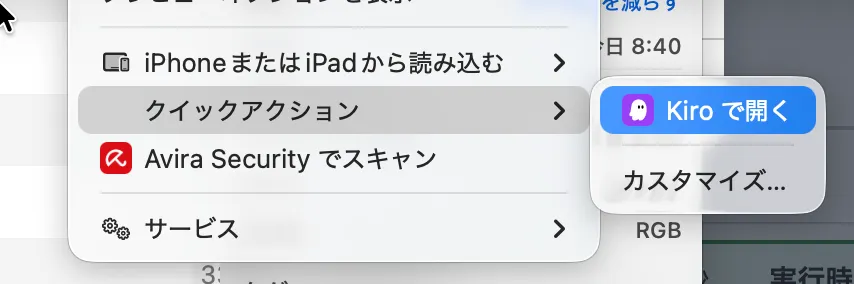
- Right-click any project folder.
- Select Services → Open in Kiro.
Depending on your macOS version, the action may appear under Quick Actions instead of Services, as it does on my Mac.
Alternative: Open Kiro from Terminal
Of course, there's another simple way to open a project in Kiro. If you've added the kiro command to your PATH, you can navigate to your project directory in Terminal and run:
1
kiro .
The . represents the current directory, so this command opens your current project folder in Kiro.
This is especially convenient if you spend most of your time working in Terminal.
However, I personally prefer the Finder Quick Action.
When I'm browsing project folders in Finder, I don't want to switch to Terminal just to launch my IDE. A simple right-click → 👻 Open in Kiro feels more natural to me.
It's a tiny difference, but I really like this workflow!
Troubleshooting
If the Quick Action doesn't work, try running the following command in Terminal.
1
open -a "Kiro" ~/Documents
If Kiro opens the Documents folder successfully, the application can be launched using the same command as the Quick Action.
Also, if you need to modify your workflow later, you can find it under:
1
~/Library/Services/
Wrap-Up
This is a tiny customization, but it makes opening projects in Kiro much smoother.
Whether you're working on AWS CDK projects, CloudFormation templates, or Lambda functions, being able to jump directly from Finder into your IDE is a nice little productivity improvement.
Both the Terminal command and Finder Quick Action are useful. It really comes down to your preferred workflow. For me, the right-click option is the winner! 👻
And the best part? You can use the same approach with other applications, too!
Hope this little tip helps. Happy building! 🚀
Enjoyed reading this content? Let the author know!
Your likes, comments, shares, and saves help creators reach more builders.

Loading recommendations
Loading article