

What are MCP Apps? Building Apps that run on Claude & ChatGPT!
Learn how to add forms, charts, PDF viewer and more interactive UI natively in your Claude or ChatGPT chat using MCP Apps and deploy it on Amazon Bedrock AgentCore Runtime.

Have you ever asked your AI assistant for insights and ended up with a wall of text instead?
Even though your AI assistant is incredibly smart and can chat flawlessly, the second you request for insights, or want to fill out a structured form, or view a real-time chart, that conversation hits a dead end. And, you realize textual description are just isn't enough. You want something more interactive like charts, or even a dashboard that you can filter.
If we have been building great user experiences for the web for years, so why not bring that into our AI chat as well!
This is where MCP Apps, an extension of the Model Context Protocol , comes to our rescue.
MCP Apps let your MCP server deliver rich, bidirectional HTML UIs like interactive dashboards, data-collection forms, real-time visualizations so that it can be rendered securely and natively inside your AI host (like Claude Desktop or ChatGPT).
In this article we'll cover the core architecture of MCP Apps and walk through a complete MCP Apps chatflow (chat + workflow): an interactive sales analytics UI where a user selects a sales region, picks a metric like revenue or conversion rate, fetches live data, visualizes it with charts, and generates & downloads a PDF report — all without ever leaving the Claude Desktop chat window. Then we'll deploy the TypeScript MCP server powering it to Amazon Bedrock AgentCore Runtime.
The code for this article is available in the repo - https://github.com/ashitaprasad/sample-mcp-apps-claude
The Fundamentals
An MCP App has the following four core building blocks:

- UI Resource (MCP Server) - It is a small web app written in separate HTML, CSS & TypeScript files, where HTML defines the structure, CSS does the styling, and TypeScript takes care of the app behavior. At build time the entire app is bundled (using
vite-plugin-singlefile) into a single self-contained HTML file likesales-form.htmlwhich is the app UI resource that we register with the MCP server. - Tool Logic (MCP Server) - Any agent connected to an MCP server can invoke MCP tools registered with the server. MCP Apps SDK provides the functionality to register an MCP tool with a linked UI resource through the metadata linkage. If any tool with UI resource is executed the linked UI is fetched and the web app is rendered inside the chat.
- Host (AI Client) - This is where the agent runs. It calls the MCP tool and renders the linked UI. The list of hosts that currently support MCP apps is provided here . Claude Desktop is a popular host which supports MCP Apps and in this article we will be using it to test our sales analytics MCP apps.
- View (sandboxed iframe) - The Host fetches the UI resource and renders it in a sandboxed iframe right in the AI chat. The sandbox is a security boundary where the iframe runs with restricted permissions and cannot reach into the host application, so an MCP App cannot directly read or manipulate the surrounding chat. All communication with the host flows through a single, well-defined messaging channel, making every interaction auditable. Using standard browser postMessage APIs, the View can easily communicate with the host and vice versa over JSON-RPC communication protocol.
A typical MCP App flow is as follows:
1
2
3
4
5
6
The Model picks a tool
→ host calls it over JSON-RPC
→ reads the tool's `_meta`
→ fetches the linked `ui://` template
→ renders it in a sandboxed iframe
→ view and host keep exchanging JSON-RPC via postMessage.
The Chatflow
Time to proceed further and build an actual chatflow comprising three MCP Apps (Sales Metric Selector, Sales Visualizer, PDF Report Viewer). Each app is a self-contained HTML file served by the MCP server, running in a sandboxed iframe, talking to the host through the SDK's
App class.The real chatflow is as follows:
- The user asks for sales data.
- The agent opens a Sales Metric Selector app so the user can pick metric, period, year, and regions - instead of typing everything out.
- On Submit, the app fetches data through an internal, app-only MCP tool and pushes it into the conversation as structured context.
- With that data in context, the user can ask for a visualization or a PDF report.
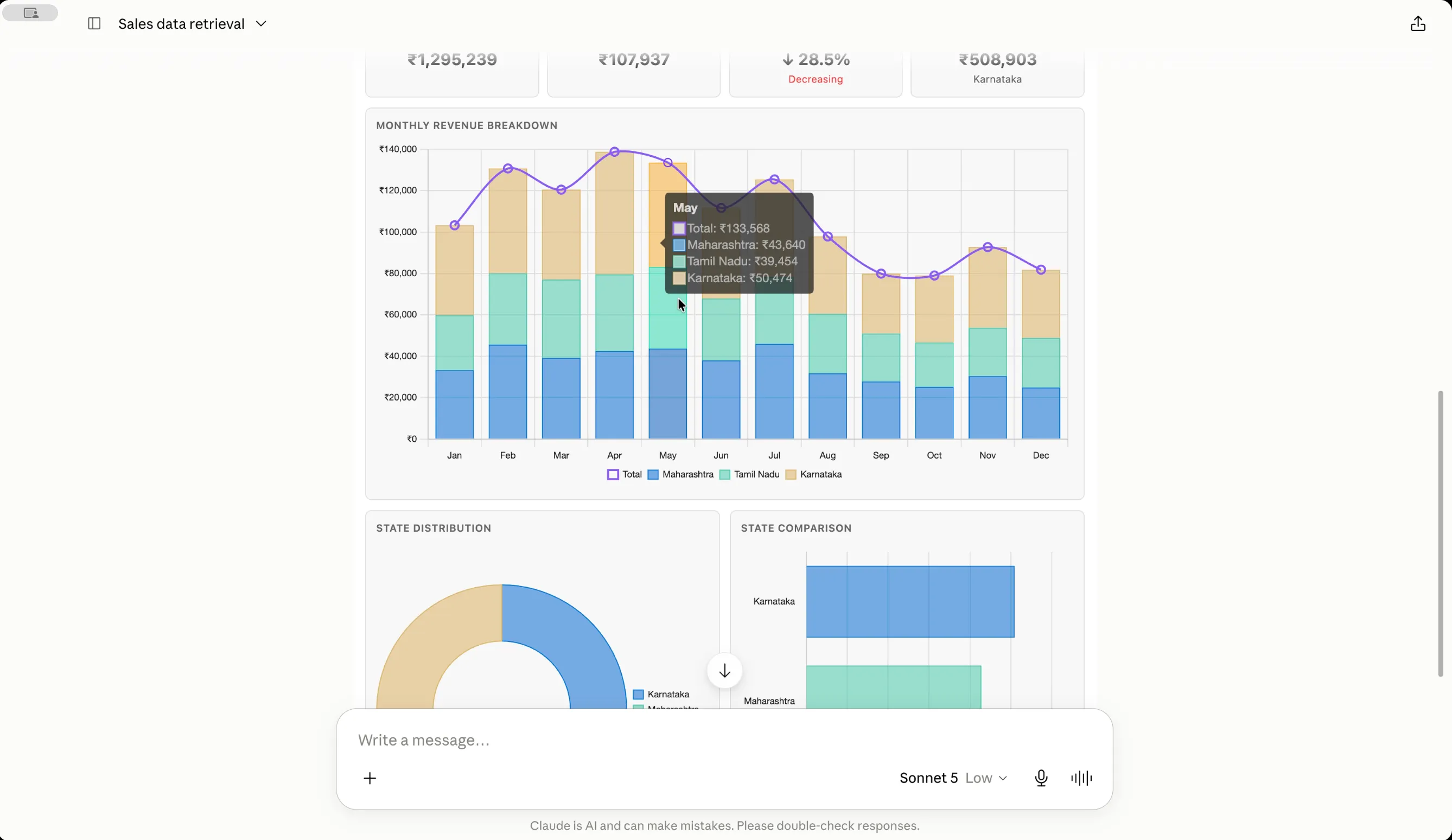
- The Sales Visualization app renders an interactive dashboard of charts.
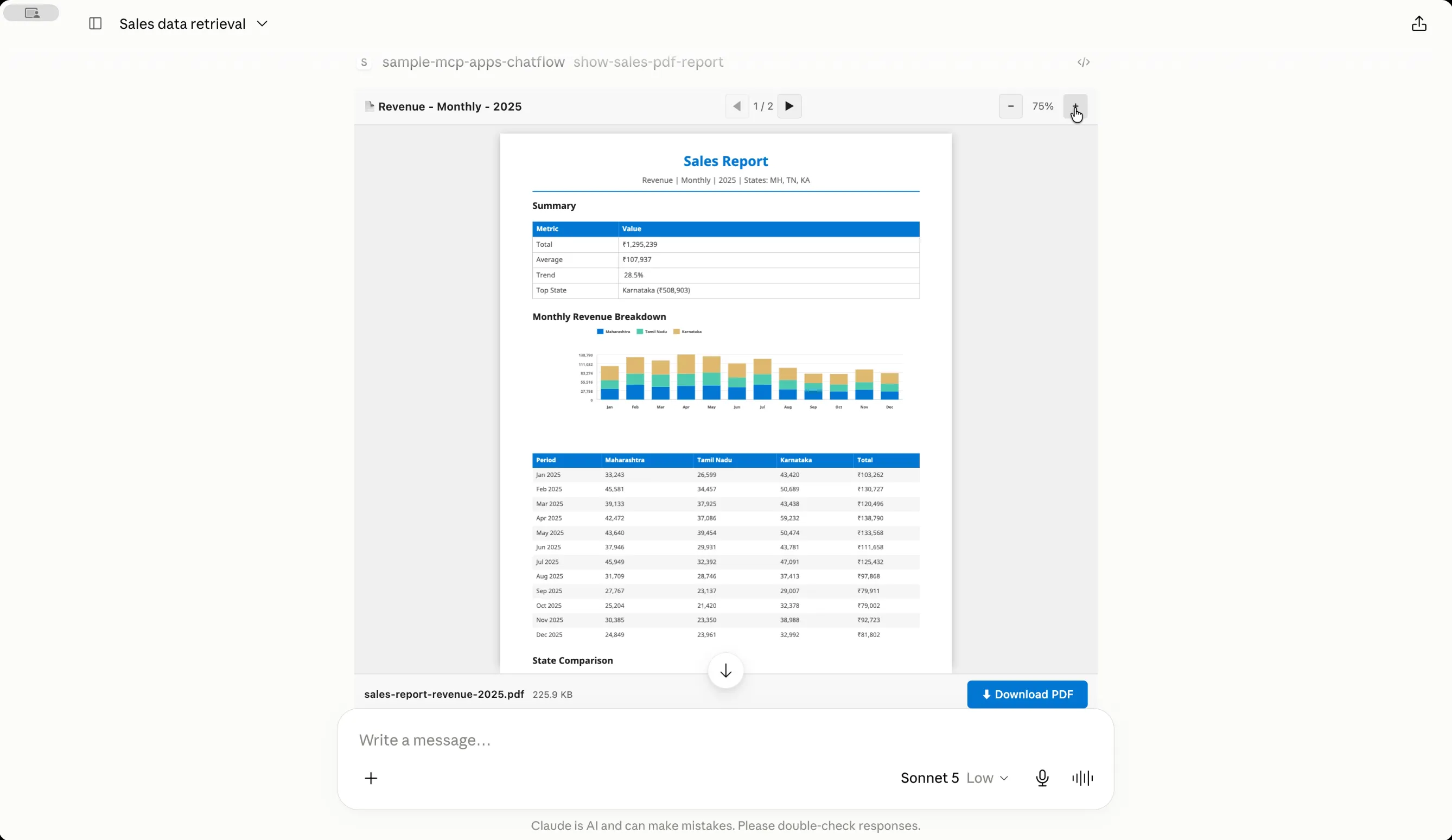
- The PDF Report Viewer app renders a server-generated PDF and lets the user download it.
The magic isn't that these steps will happen - it's that they will happen inside one continuous AI chat experience.
Creating the MCP Server
Before we create out first UI resource, we must import the
McpServer class from the official MCP TypeScript SDK. This class is the high-level API for building servers which handles all the MCP protocol plumbing.We will create the server instance with a name and a version. And wrap this construction in a factory function so that callers can create fresh server instances on demand.
1
2
3
4
5
6
7
8
9
10
import { McpServer } from "@modelcontextprotocol/sdk/server/mcp.js";

export function createServer(): McpServer {
  const server = new McpServer({
    name: "sample-mcp-apps-chatflow",
    version: "1.0.0",
  });

  return server;
}
Sales Metric Selector
The first MCP App we will require is an input form which can help us with fetching the relevant sales data for the given metric, time period, year and sales regions.
When the user prompts "get sales data", instead of asking them to specify every parameter in text, the agent calls this tool. The host reads the linked resource and renders a rich HTML form with dropdowns, toggle buttons, a region search, and multi-select cards, all inside an iframe.
We begin with importing
registerAppResource and RESOURCE_MIME_TYPE from the official MCP Apps SDK where registerAppResource registers an app's HTML view as a UI MCP resource so that our AI host knows what to render when a tool references it.Each UI resource has:
- a name - In this case
sales-metric-input-ui, and - a unique predeclared resource URI - In this case it is
ui://sample-mcp-apps-chatflow/sales-metric-input-ui, typed with theRESOURCE_MIME_TYPEwhich istext/html;profile=mcp-appso that AI hosts recognize it as an MCP App UI rather than a plain HTML text.
1
2
3
4
5
6
7
8
9
10
11
12
13
14
15
16
17
18
19
20
import { registerAppResource, RESOURCE_MIME_TYPE } from "@modelcontextprotocol/ext-apps/server";

const salesFormResourceName = `sales-metric-input-ui`;
const salesFormUri = `${RESOURCE_URI}/${salesFormResourceName}`;
registerAppResource(
    server,
    salesFormResourceName,
    salesFormUri,
    {
      mimeType: RESOURCE_MIME_TYPE,
      description: "Interactive sales metrics selector with regions, metrics, and time periods",
    },
    async () => ({
      contents: [{
        uri: salesFormUri,
        mimeType: RESOURCE_MIME_TYPE,
        text: await readAppHtml("sales-form.html"),
      }],
    }),
);
We take the help of
vite-plugin-singlefile to turn the app’s HTML, CSS and TypeScript into one self-contained, dependency-inlined HTML file because in MCP Apps, the entire app has to travel inside a single resource text blob - in this case when the host requests this resource via readAppHtml("sales-form.html"), the read callback kicks in loading this self-contained sales-form.html that appears as the interactive UI in the chat.Next, comes the MCP tool logic. We can use the
registerAppTool utility to register MCP tools that have a UI attached. Compared to the base SDK it expects the UI metadata in the config which tells the AI client the ui:// view the host should render when the tool is called.1
2
3
4
5
6
7
8
9
10
11
12
13
14
15
16
17
18
19
20
21
import {registerAppTool} from "@modelcontextprotocol/ext-apps/server";
registerAppTool(
server,
"select-sales-metric",
{
title: "Select Sales Metric",
description: "Select sales regions, metrics, and reporting periods for analysis.",
_meta: {
ui: {
resourceUri: salesFormUri
},
},
},
async () => ({
content: [{
type: "text",
text: "Select Sales Metric Tool executed.",
}],
}),
);Do note, that the UI resource is linked to the tool through the metadata linkage and the tool will execute without any error even if the host does not support MCP Apps. In that case only the tool result which is the text content -
"Select Sales Metric Tool executed." is sent back as a response.Now let us create the TypeScript file associated with our MCP app which adds interactivity, performs the host-view handshake and helps communicate with the host on behalf of the UI.
1
2
3
4
5
6
7
8
9
10
11
12
13
14
15
16
17
18
19
20
21
22
23
24
25
import { App } from "@modelcontextprotocol/ext-apps";

// Create the view-side client app object
const app = new App({ name: "sales-metrics-form", version: "1.0.0" });
app.onerror = log.error;

// Register all event listeners that trigger with UI interactions

metricSelect.addEventListener("change", () => {
  state.metric = metricSelect.value;
});

yearSelect.addEventListener("change", () => {
  state.year = yearSelect.value;
});

// Register handlers that trigger when the host sends the message
// of a particular message type such as ontoolresult which
// triggers when the MCP tool executes the tool logic and returns the result.

app.ontoolresult = (result) => {
  // process tool result
};

app.connect();
Finally, we execute
app.connect(), which wires up a PostMessageTransport and performs the ui/initialize handshake setting the stage for host-view all communication.App-only tool - get-sales-data
MCP App can also be used for broader tool orchestration where a single tool can trigger other tools making it more interactive. It enables UI-only interactions (refresh buttons, form submissions) with the option to not expose any tool details to the agent/model. This provides more control to the end user who can make deterministic tool executions where you don’t have to rely on the AI model for making tool calls.
In the Sales Metric Selector MCP App, when the user clicks Submit, the form can call another MCP tool from inside the iframe to fetch the relevant data from the server.
Let us register
"get-sales-data" tool which is only visible to the MCP App and not the AI agent using _meta.ui visibility set as only app. As this tool is not exposed to the model there is no way it gets called accidentally and we have complete control over its execution.1
2
3
4
5
6
7
8
9
10
11
12
13
14
15
16
17
18
registerAppTool(
server,
"get-sales-data",
{
title: "Get Sales Data",
description: "Fetch sales report data for states, metric, period, and year.",
inputSchema: getSalesDataInputSchema.shape,
_meta: { ui: { resourceUri: salesFormUri,
visibility: ["app"] } }, // hidden from the model
},
async ({ states, metric, period, year }) => {
const report = getData(states, metric, period, year);
return {
content: [{ type: "text", text: JSON.stringify(report) }],
structuredContent: report as unknown as Record<string, unknown>,
};
},
);When the
Submit button is clicked, the data fetch can be triggered via app.callServerTool.1
2
3
4
5
6
7
8
9
10
const result = await app.callServerTool({
name: "get-sales-data",
arguments: {
states: selections.states,
metric: selections.metric,
period: selections.period,
year: selections.year,
},
});
const report = (result.structuredContent as SalesReport | undefined) ?? null;Finally, the resulting data is pushed into the conversation using
updateModelContext so the agent can use it in later turns. As an AI host may accept text but not structuredContent, so we lead with a readable text block and attach the structured payload:1
2
3
4
5
await app.updateModelContext({
content: [{ type: "text",
text: buildContextText(selections, report) }], // portable
structuredContent: { selections, report }, // richer, if accepted
});As the full JSON payload is provided, the model can forward it to the visualization and PDF tools.
The rendered Sales Metric Selector MCP App is shown below:

Sales Visualization
Let us build our next MCP app which will help us in visualizing the data in the form of charts and graphs.
We will create and register the resource:
1
2
3
4
5
6
7
8
9
10
11
12
13
14
15
16
17
18
19
20
21
22
const visualizationUri = `${RESOURCE_URI}/sales-visualization`;
registerAppResource(
    server,
    visualizationUri,
    visualizationUri,
    {
      mimeType: RESOURCE_MIME_TYPE,
      description: "Interactive sales data visualization with charts",
    },
    async () => ({
      contents: [{
        uri: visualizationUri,
        mimeType: RESOURCE_MIME_TYPE,
        text: await readAppHtml("sales-visualization.html"),
        _meta: {
          ui: {
            prefersBorder: false,
          },
        },
      }],
    }),
);
and corresponding tool
1
2
3
4
5
6
7
8
9
10
11
12
13
14
15
16
17
18
19
20
21
22
23
24
25
26
registerAppTool(
    server,
    "visualize-sales-data",
    {
      title: "Visualize Sales Data",
      description: "Visualize sales report data as interactive charts.",
      inputSchema: salesReportInputSchema.shape,
      _meta: {
        ui: {
          resourceUri: visualizationUri,
          visibility: ["model", "app"],
        },
      },
    },
    async ({ selections, report }) => {
      const metricName = metricShortNames[selections.metric] || selections.metric;
      const periodText = selections.period === "monthly" ? "Monthly" : "Quarterly";
      return {
        content: [{
          type: "text",
          text: `Sales visualization rendered for ${metricName} (${periodText}, ${selections.year}) across ${selections.states.length} states.`,
        }],
        structuredContent: { selections, report },
      };
    },
);
The tool accepts the input data as determined by the model based on the updated context and forwards the structured payload as a result. Both the input and the result can be listened by the app's typescript code via
ontoolinput and ontoolresult app handlers. And this clean structured data flows from tool to host to app. No string parsing, no scraping the tool response text. Which we finally use to render the dashboard.1
2
3
4
5
6
7
8
9
10
11
12
13
14
app.ontoolinput = (params) => {
acceptPayload(params?.arguments as SalesReportPayload | undefined);
};
app.ontoolresult = (params) => {
acceptPayload(params?.structuredContent as SalesReportPayload | undefined);
};
function acceptPayload(payload: SalesReportPayload | undefined) {
if (!payload?.report) return;
state.report = payload.report;
state.selections = payload.selections ?? null;
renderDashboard();
}For rendering charts we can simply use
Chart.js and add it as a plain npm dependency which gets inlined into the single-file bundle by vite-plugin-singlefile.1
2
3
import { Chart, registerables } from "chart.js";
Chart.register(...registerables);Once the structured data is in context, prompting "visualize" calls
visualize-sales-data tool, which renders the Chart.js dashboard with summary cards plus three complementary views:- a stacked bar / line view for period-by-period comparison,
- a doughnut chart for each state's contribution share (%),
- a horizontal bar chart for ranked state comparison.
The rendered Sales Visualization MCP App is shown below:
PDF Report Viewer & Downloader
Let us build the final MCP App which can display the generated PDF report of our sales analytics. Upon MCP tool execution the PDF is generated server side and the PDF content is passed in the tool result.
1
2
3
4
5
6
7
8
9
10
11
12
13
14
15
16
17
18
19
20
21
22
23
24
25
26
27
28
29
30
31
32
33
registerAppTool(
    server,
    "show-sales-pdf-report",
    {
      title: "Show Sales PDF Report",
      description: "Generate a downloadable PDF report with sales tables and charts.",
      inputSchema: salesReportInputSchema.shape,
      _meta: {
        ui: {
          resourceUri: pdfReportUri,
          visibility: ["model", "app"],
        },
      },
    },
    async ({ selections, report }) => {
      const metricName = metricShortNames[selections.metric] || selections.metric;
      const periodText = selections.period === "monthly" ? "Monthly" : "Quarterly";
      const { base64, fileName, fileSize } = generateSalesPdf(selections, report, metricName);

      return {
        content: [{
          type: "text",
          text: `PDF report generated for ${metricName} (${periodText}, ${selections.year}) across ${selections.states.length} states. Use the download button in the UI to save it.`,
        }],
        structuredContent: {
          pdfBase64: base64,
          fileName,
          fileSize,
          title: `${metricName} - ${periodText} - ${selections.year}`,
        },
      };
    },
);
In the app's typescript code,
app.ontoolresult handles this PDF data which is rendered in the app with the help of pdf.js library.1
2
3
4
5
6
7
8
9
10
11
12
13
14
15
16
17
18
19
20
21
22
import * as pdfjsLib from "pdfjs-dist";
…
…
async function loadPdf(payload: PdfReportPayload): Promise<void> {
if (!payload.pdfBase64) return;
setStatus("Loading PDF...");
…
state.doc = await pdfjsLib.getDocument({data: base64ToBytes(payload.pdfBase64)})
.promise;
…
}
function acceptPayload(payload: PdfReportPayload | undefined): void {
if (payload?.pdfBase64) {
void loadPdf(payload);
}
}
app.ontoolresult = (params) => {
acceptPayload(params?.structuredContent as PdfReportPayload | undefined);
};The user can save the report via a Download PDF button. A sandboxed iframe can't write files directly - it asks the host, which shows the OS save dialog. Using the SDK's
app.downloadFile, we can specify the resource blob and mime type:1
2
3
4
5
6
7
8
9
10
11
12
13
14
15
const result = await app.downloadFile({
contents: [{
type: "resource",
resource: {
uri: `file:///${state.fileName}`,
mimeType: "application/pdf",
blob: state.pdfBase64,
},
}],
});
if (result?.isError) {
setStatus("Download was cancelled", "error");
} else {
setStatus("✅ PDF downloaded!", "success");
}The rendered PDF Viewer MCP App is shown below:
Deploying to Amazon Bedrock AgentCore Runtime
Amazon Bedrock AgentCore Runtime provides a managed, scalable runtime for MCP servers with built-in OAuth and session isolation. Let's deploy there.
Note: this guide uses the AgentCore CLI (@aws/agentcore), the Node.js-based CLI. If you have the older Pythonbedrock-agentcore-starter-toolkitinstalled, uninstall it first to avoid command conflicts (both use theagentcorecommand):
2pip uninstall bedrock-agentcore-starter-toolkit # if installed via pip
pipx uninstall bedrock-agentcore-starter-toolkit # if installed via pipx
Software prerequisites
- AWS CLI with configured credentials (
aws sts get-caller-identitymust work) - Node.js 20+ and npm
- Docker (or podman/finch) for container builds
- AWS CDK bootstrapped in your target account/region (
npx cdk bootstrap aws://ACCOUNT_ID/REGION) - A host for testing the deployed server (VS Code, another MCP Apps client, or the terminal)
Step 1 - Prepare the server for AgentCore Runtime
AgentCore Runtime expects your MCP server to bind to
0.0.0.0:8000 and expose a POST /mcp endpoint using Streamable HTTP, in a linux/arm64 container.The current code already binds
0.0.0.0 (via createMcpExpressApp({ host: "0.0.0.0" })) and honors a PORT env var, and its /mcp route handles POST. So you just set PORT=8000 in the container.Step 2 - Add a Dockerfile
The Docker build must run the full
npm run build (which now bundles the three apps and compiles the server), so the builder stage needs the HTML entry files, vite.config.ts, both tsconfig files, and src/ - plus dev dependencies (Vite lives there).Create a
Dockerfile in the project root:1
2
3
4
5
6
7
8
9
10
11
12
13
14
15
16
17
18
19
20
21
22
# Build stage
FROM --platform=linux/arm64 node:22-slim AS builder
WORKDIR /app
COPY package.json package-lock.json ./
RUN npm ci --ignore-scripts
# Everything `npm run build` needs: view entries, vite + tsconfigs, and source
COPY vite.config.ts tsconfig.json tsconfig.server.json ./
COPY sales-form.html sales-visualization.html sales-pdf-report.html ./
COPY src/ ./src/
RUN npm run build # typecheck + build:ui (Vite) + build:server (tsc + fonts)
# Production stage
FROM --platform=linux/arm64 node:22-slim
WORKDIR /app
COPY package.json package-lock.json ./
RUN npm ci --omit=dev --ignore-scripts
# dist/ contains the bundled app HTML, compiled server, and fonts
COPY --from=builder /app/dist/ ./dist/
ENV PORT=8000
ENV HOST=0.0.0.0
EXPOSE 8000
CMD ["node", "dist/index.js"] # HTTP mode (no --stdio) → POST /mcp on 0.0.0.0:8000Add a
.dockerignore:1
2
3
4
5
node_modules
dist
agentcore
.git
*.mdVerify it builds and starts locally:
1
2
3
4
docker build --platform linux/arm64 -t sales-mcp-apps .
docker run --platform linux/arm64 -p 8000:8000 sales-mcp-apps
# Test with the MCP Inspector:
npx @modelcontextprotocol/inspector http://localhost:8000/mcp
Step 3 - Install the AgentCore CLI
1
2
npm install -g @aws/agentcore
agentcore --version
Step 4 - Create the AgentCore project
From the project root, scaffold the AgentCore configuration:
1
2
3
4
5
6
7
agentcore create \
  --name salesmcpapps \
  --protocol MCP \
  --build Container \
  --no-agent \
  --skip-python-setup \
  --skip-git
This generates:
1
2
3
4
5
agentcore/
  agentcore.json      # Project and runtime configuration
  aws-targets.json    # AWS account and region target
  .cli/               # CLI state (deployed-state.json)
  cdk/                # CDK app for deployment
Configure the runtime
agentcore create --no-agent creates an empty runtimes array, so add the runtime to agentcore/agentcore.json manually. Key fields:codeLocation— path to the directory containing your Dockerfile, relative to the project root. If it's in the root, use".". (If you hit CDK asset-bundling path-length errors, move the app into a subdirectory likeapp/and point here.)entrypoint— the file that starts your server, e.g."dist/index.js". Required even for container builds.runtimeVersion—"NODE_22"for Node.js.protocol—"MCP".
1
2
3
4
5
6
7
8
9
10
11
12
13
14
15
16
17
18
19
20
21
22
23
{
  "$schema": "https://schema.agentcore.aws.dev/v1/agentcore.json",
  "name": "salesmcpapps",
  "version": 1,
  "managedBy": "CDK",
  "runtimes": [
    {
      "name": "salesmcpapps",
      "build": "Container",
      "entrypoint": "dist/index.js",
      "codeLocation": ".",
      "runtimeVersion": "NODE_22",
      "protocol": "MCP",
      "tags": {}
    }
  ],
  "memories": [],
  "credentials": [],
  "evaluators": [],
  "onlineEvalConfigs": [],
  "agentCoreGateways": [],
  "policyEngines": []
}
Configure the deployment target
Edit
agentcore/aws-targets.json with your account ID and region:1
2
3
4
5
6
7
8
[
{
"name": "default",
"description": "Production deployment",
"account": "YOUR_ACCOUNT_ID",
"region": "us-east-1"
}
]Tip: if your Dockerfile sits in the project root alongsideagentcore/, the CDK asset bundler can hit path-length errors (it recursively copiescdk.outinto itself). To avoid this, put your app code (Dockerfile,package.json,src/, the.htmlentries,vite.config.ts, both tsconfigs) in a subdirectory likeapp/and set"codeLocation": "app".
Step 5 - Set up Cognito authentication
Create a user pool and OAuth domain:
1
2
3
4
5
6
7
8
9
10
11
12
export REGION=us-east-1

POOL_ID=$(aws cognito-idp create-user-pool \
  --pool-name "salesmcpapps-pool" \
  --region "$REGION" \
  --query 'UserPool.Id' --output text)
echo "Pool ID: $POOL_ID"

aws cognito-idp create-user-pool-domain \
  --user-pool-id "$POOL_ID" \
  --domain "salesmcpapps-auth" \
  --region "$REGION"
Create a resource server and an app client (machine-to-machine
client_credentials flow):1
2
3
4
5
6
7
8
9
10
11
12
13
14
15
16
17
18
19
20
21
22
23
aws cognito-idp create-resource-server \
--user-pool-id "$POOL_ID" \
--identifier "salesmcpapps-auth" \
--name "Sales MCP Apps" \
--scopes '[{"ScopeName":"invoke","ScopeDescription":"Invoke MCP server"}]' \
--region "$REGION"
CLIENT_OUTPUT=$(aws cognito-idp create-user-pool-client \
--user-pool-id "$POOL_ID" \
--client-name "salesmcpapps-client" \
--generate-secret \
--explicit-auth-flows ALLOW_USER_PASSWORD_AUTH ALLOW_REFRESH_TOKEN_AUTH \
--allowed-o-auth-flows client_credentials \
--allowed-o-auth-scopes "salesmcpapps-auth/invoke" \
--allowed-o-auth-flows-user-pool-client \
--supported-identity-providers COGNITO \
--region "$REGION")
CLIENT_ID=$(echo "$CLIENT_OUTPUT" | python3 -c "import sys,json; print(json.load(sys.stdin)['UserPoolClient']['ClientId'])")
CLIENT_SECRET=$(echo "$CLIENT_OUTPUT" | python3 -c "import sys,json; print(json.load(sys.stdin)['UserPoolClient']['ClientSecret'])")
echo "Client ID: $CLIENT_ID"
echo "Discovery URL: https://cognito-idp.$REGION.amazonaws.com/$POOL_ID/.well-known/openid-configuration"Add the JWT authorizer to the runtime in
agentcore/agentcore.json:1
2
3
4
5
6
7
8
9
10
11
12
13
14
15
16
{
"name": "salesmcpapps",
"build": "Container",
"entrypoint": "dist/index.js",
"codeLocation": ".",
"runtimeVersion": "NODE_22",
"protocol": "MCP",
"authorizerType": "CUSTOM_JWT",
"authorizerConfiguration": {
"customJwtAuthorizer": {
"discoveryUrl": "https://cognito-idp.us-east-1.amazonaws.com/YOUR_POOL_ID/.well-known/openid-configuration",
"allowedClients": ["YOUR_CLIENT_ID"]
}
},
"tags": {}
}Step 6 - Deploy
1
agentcore deploy --target default --yes
This synthesizes a CloudFormation template via CDK, builds your container with AWS CodeBuild and pushes it to Amazon ECR, and creates the AgentCore Runtime. It takes roughly 5–10 minutes. On completion, the Runtime ARN is saved to
agentcore/.cli/deployed-state.json.Step 7 - Test the deployment
Get a bearer token:
1
2
3
4
5
TOKEN=$(curl -s -X POST \
  "https://salesmcpapps-auth.auth.$REGION.amazoncognito.com/oauth2/token" \
  -H "Content-Type: application/x-www-form-urlencoded" \
  -d "grant_type=client_credentials&client_id=$CLIENT_ID&client_secret=$CLIENT_SECRET&scope=salesmcpapps-auth/invoke" \
  | python3 -c "import sys,json; print(json.load(sys.stdin)['access_token'])")
URL-encode the Runtime ARN and call the invocations endpoint:
1
2
3
4
5
6
7
8
9
10
11
12
13
14
15
16
17
RUNTIME_ARN=$(python3 -c "
import json
with open('agentcore/.cli/deployed-state.json') as f:
    state = json.load(f)
rt = list(state['targets']['default']['resources']['runtimes'].values())[0]
print(rt['runtimeArn'])
")
ENCODED_ARN=$(python3 -c "import urllib.parse; print(urllib.parse.quote('$RUNTIME_ARN', safe=''))")

curl -s -X POST \
  "https://bedrock-agentcore.$REGION.amazonaws.com/runtimes/${ENCODED_ARN}/invocations" \
  -H "Content-Type: application/json" \
  -H "Accept: application/json, text/event-stream" \
  -H "Authorization: Bearer $TOKEN" \
  -H "User-Agent: test-client/1.0" \
  -d '{"jsonrpc":"2.0","id":1,"method":"initialize","params":{"protocolVersion":"2025-03-26","capabilities":{},"clientInfo":{"name":"test","version":"1.0.0"}}}' \
  | python3 -m json.tool
You should get a response with
serverInfo and capabilities (including resources and tools). After initialize, you can send tools/list and resources/list (include the mcp-session-id header returned by initialize).Step 8 - Connect from Claude Desktop
Open Claude Desktop settings.
Navigate to Developer > Edit Config.
Add your server path pointing at the deployed runtime:
1
2
3
4
5
6
7
8
{
  "mcpServers": {
    "sales-mcp-apps": {
      "url": "https://bedrock-agentcore.REGION.amazonaws.com/runtimes/DOUBLE_ENCODED_ARN/invocations",
      "headers": { "Authorization": "Bearer YOUR_TOKEN" }
    }
  }
}
Important: double-encode the/in the ARN. VS Code's URL parser decodes%2Fback to/before sending, which breaks the ARN path segment. Use%252Fso that after VS Code decodes once, the server receives the correct%2F.For an ARN likearn:aws:bedrock-agentcore:us-east-1:123456789012:runtime/my-server-abc123, the URL becomes:%252F(not%2F) before the runtime name.
Once connected, Claude Desktop discovers the tools and renders the MCP Apps UIs - sales metric selector, visualization charts, PDF report viewer as interactive HTML panels in the chat.
Clean up
Delete the CloudFormation stack and the Cognito resources when you're done:
1
2
3
4
5
6
7
8
aws cloudformation delete-stack \
  --stack-name AgentCore-salesmcpapps-default \
  --region "$REGION"

aws cognito-idp delete-user-pool-domain \
  --user-pool-id "$POOL_ID" --domain "salesmcpapps-auth" --region "$REGION"
aws cognito-idp delete-user-pool \
  --user-pool-id "$POOL_ID" --region "$REGION"
Final words
MCP Apps is a practical framework for building rich, interactive experiences inside AI chatflows, and it now has a stable specification and an official SDK to match. This sales analytics case study shows the full spectrum: forms for structured input, Chart.js for visualization, jsPDF for document generation, and the
App class gluing it all together along with a clean deployment path to Amazon Bedrock AgentCore.I'd love to hear about your experience with MCP Apps or any issues you hit. Just drop a comment and I'll get back to you.
Disclaimer: The opinions expressed here are my own and do not necessarily represent those of current or past employers. You are solely responsible for your own judgement in checking facts. This post does not monetize via any advertising.
Enjoyed reading this content? Let the author know!
Your likes, comments, shares, and saves help creators reach more builders.

Loading recommendations
Loading article