
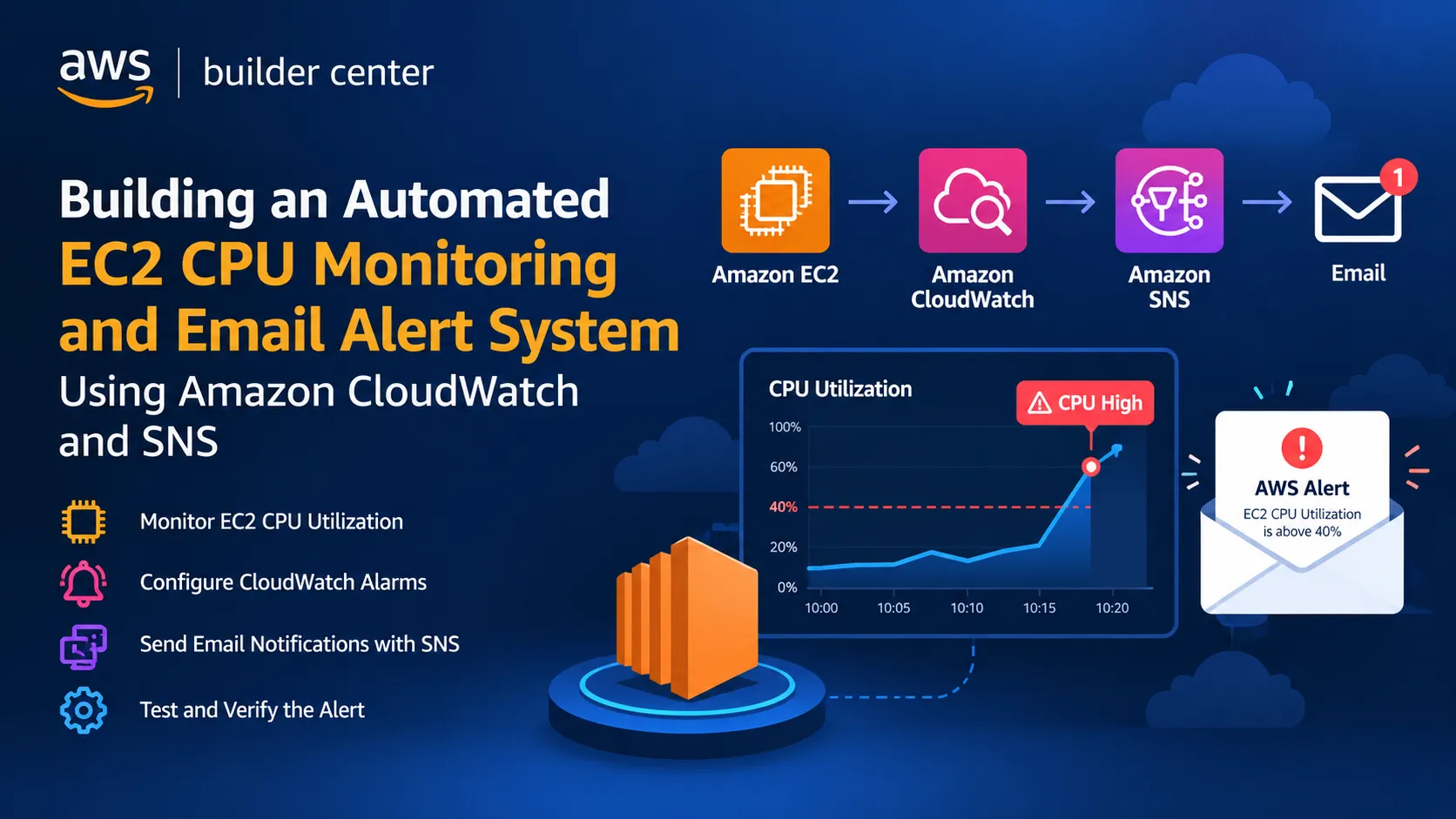
Building an Automated EC2 CPU Monitoring and Email Alert System Using Amazon CloudWatch and SNS
Implemented automated EC2 CPU monitoring using Amazon CloudWatch and SNS to trigger email alerts when CPU utilization exceeds a defined threshold. This project strengthened my understanding of AWS monitoring and alert automation. #AWS #CloudWatch #SNS #EC2 #DevOps #vishalcloudjourney

Monitor Amazon EC2 CPU with Amazon CloudWatch Alarms and Amazon SNS Email Notifications
Suggested description (1-2 lines): Build a real-time CPU alert for an Amazon EC2 instance. Create an Amazon CloudWatch alarm, connect it to an Amazon SNS topic, trigger it with a stress test, and receive the alarm email.
Suggested tags: Amazon CloudWatch, Amazon SNS, Amazon EC2, Monitoring, DevOps
Level: Beginner | Time: about 20 minutes | Cost: low; delete the resources when you finish (see Clean up)
Introduction
When an application server runs at high CPU for a long time, the application slows down or stops responding. If nobody is watching, the first sign of trouble is often a user complaint.
Think of a security guard in a shopping mall. While everything is normal, nothing happens. If there is an emergency, the guard calls the manager immediately. In this walkthrough, Amazon CloudWatch is the guard and Amazon SNS is the phone call.
You will build a setup that sends an email when the average CPU utilization of an Amazon EC2 instance reaches a threshold, and then prove it works by creating load on purpose. I built this as a project during a DevOps with AWS course.
Architecture
1
2
Amazon EC2  -->  Amazon CloudWatch alarm  -->  Amazon SNS topic  -->  Email
(CPU metric)     (Average CPU >= 40%)          (notification)          (administrator)
| Service | Role in this solution |
|---|---|
| Amazon EC2 | Runs the application and publishes CPU utilization metrics |
| Amazon CloudWatch | Evaluates the metric and changes the alarm state |
| Amazon SNS | Delivers the alarm notification to email subscribers |
Add an architecture diagram here (EC2, CloudWatch, SNS, email). Upload it with the editor's image option.
Prerequisites
- An AWS account with permission to use Amazon EC2, Amazon CloudWatch and Amazon SNS
- An email address you can open, because SNS sends a confirmation link
- Use the same AWS Region for all three services. I used US East (N. Virginia).
Step 1: Launch an Amazon EC2 instance
- Open the Amazon EC2 console and choose Launch instance.
- For Name, enter a name such as
cloudwatch-sns-demo. - For the AMI, choose Amazon Linux (this walkthrough used Amazon Linux 2023).
- For the instance type, choose t3.micro.
- For this lab I continued without a key pair and connected from the browser. For real workloads, use a key pair or AWS Systems Manager Session Manager.
- Choose Launch instance.
Step 2: Create the CloudWatch alarm
- In the EC2 console, choose Instances and select your instance.
- Choose Actions > Monitor and troubleshoot > Manage CloudWatch alarms.
- Under Alarm notification, enter a name for a new Amazon SNS topic, for example
cloud-watch-SNS. - Under Alarm thresholds, set the following values.
| Setting | Value |
|---|---|
| Group samples by | Average |
| Type of data to sample | CPU utilization |
| Alarm when | Greater than or equal to (>=) |
| Percent | 40 |
| Consecutive period | 1 |
| Period | 5 minutes |
- Review the sample metric graph. A line shows the 40 percent threshold.
- Choose Create.
A low threshold keeps the demo quick. For production workloads, choose a higher value (for example 70 to 80 percent) and require several consecutive periods, so short spikes do not generate noise.
Step 3: Subscribe your email to the SNS topic
An alarm only notifies people who are subscribed to its topic.
- Open the Amazon SNS console and choose Topics.
- Select your topic and choose Create subscription.
- For Protocol, choose Email. For Endpoint, enter your email address.
- Choose Create subscription.
- Open the message AWS Notification - Subscription Confirmation in your inbox and choose Confirm subscription.
- In the SNS console, verify that the subscription status is Confirmed.
An unconfirmed subscription does not receive notifications.
Step 4: Generate CPU load
- In the EC2 console, select the instance and choose Connect.
- Run the following commands.
1
2
3
sudo su
yum install stress -y
stress --cpu 9 --timeout 600
The
stress tool starts nine CPU workers. A t3.micro instance has 2 vCPUs, so this drives CPU utilization to its maximum. The --timeout 600 option stops the test after 10 minutes.Step 5: Verify
- In the EC2 console, open the Monitoring tab and view the CPU utilization (%) graph.
- In my test, CPU utilization stayed near 0 percent and then rose to about 50.9 percent in the 5-minute average, above the 40 percent threshold.
- After a few minutes, an email arrived with these key details:
| Field | Value |
|---|---|
| Subject | ALARM: "awsec2-...-GreaterThanOrEqualToThreshold-CPUUtilization" |
| State change | OK to ALARM |
| Reason | A datapoint of about 50.94 was greater than or equal to the threshold of 40 |
| Metric | AWS/EC2 CPUUtilization, 300 seconds, Average |
The email also includes a link to the alarm in the CloudWatch console, so an administrator can start investigating right away.
Add a screenshot of your CPU graph and the alarm email here. Blur your email address and AWS account ID first.
Optional: create the same setup with the AWS CLI
1
2
3
4
5
6
7
8
9
10
11
12
13
14
15
16
17
18
19
20
21
# 1. Create the SNS topic
aws sns create-topic --name cloud-watch-SNS

# 2. Subscribe your email (then confirm it from your inbox)
aws sns subscribe \
  --topic-arn <TOPIC_ARN> \
  --protocol email \
  --notification-endpoint you@example.com

# 3. Create the alarm
aws cloudwatch put-metric-alarm \
  --alarm-name ec2-high-cpu \
  --namespace AWS/EC2 \
  --metric-name CPUUtilization \
  --dimensions Name=InstanceId,Value=<INSTANCE_ID> \
  --statistic Average \
  --period 300 \
  --evaluation-periods 1 \
  --threshold 40 \
  --comparison-operator GreaterThanOrEqualToThreshold \
  --alarm-actions <TOPIC_ARN>
Troubleshooting
| Symptom | Likely cause | What to check |
|---|---|---|
| No email arrives | Subscription not confirmed, or email filtered | Confirm the subscription and check the spam folder |
| Alarm stays in OK | Load too low, or not enough time passed | Review the graph; the evaluation period is 5 minutes |
| Alarm shows INSUFFICIENT_DATA | The alarm was just created | Wait a few minutes for data points |
| stress: command not found | Package not installed | Run yum install stress -y again and read the output |
| Topic or instance not found | Different Regions used | Use one Region for EC2, CloudWatch and SNS |
Clean up
To avoid ongoing charges:
- Stop the stress test (
Ctrl+C). - Delete the alarm in the CloudWatch console.
- Delete the subscription and the topic in the Amazon SNS console.
- Terminate the Amazon EC2 instance.
Best practices
- Alarm on sustained load (several periods), not on a single spike.
- Send notifications for the OK state as well, so you know when the issue is resolved.
- Use detailed monitoring or the CloudWatch agent when you need 1-minute data or memory metrics.
- Combine alarms with Amazon EC2 Auto Scaling for automatic responses.
- Create alarms with infrastructure as code (for example Terraform or AWS CloudFormation) so they are repeatable.
Conclusion
With one alarm and one SNS topic, you now get an email as soon as an Amazon EC2 instance runs hot. The most important lesson from this build: an alarm and an SNS subscription are separate pieces, and both must be configured and confirmed. Testing the alarm on purpose is the best way to know your monitoring really works.
Learn more
- Using Amazon CloudWatch alarms (AWS documentation)
- Amazon SNS email notifications (AWS documentation)
- Project slides with screenshots and results: https://lnkd.in/p/dfxFhxMv
About the author
Vishal Patil, DevOps and AWS.
- LinkedIn: linkedin.com/in/vishalpatil-devops-aws
- LinkedIn project documentation: https://lnkd.in/p/dfxFhxMv
- dev.to: dev.to/vishal_patil_aws
- GitHub: github.com/VishalPatil-DevOps-AWS
Enjoyed reading this content? Let the author know!
Your likes, comments, shares, and saves help creators reach more builders.

Loading recommendations
Loading article