
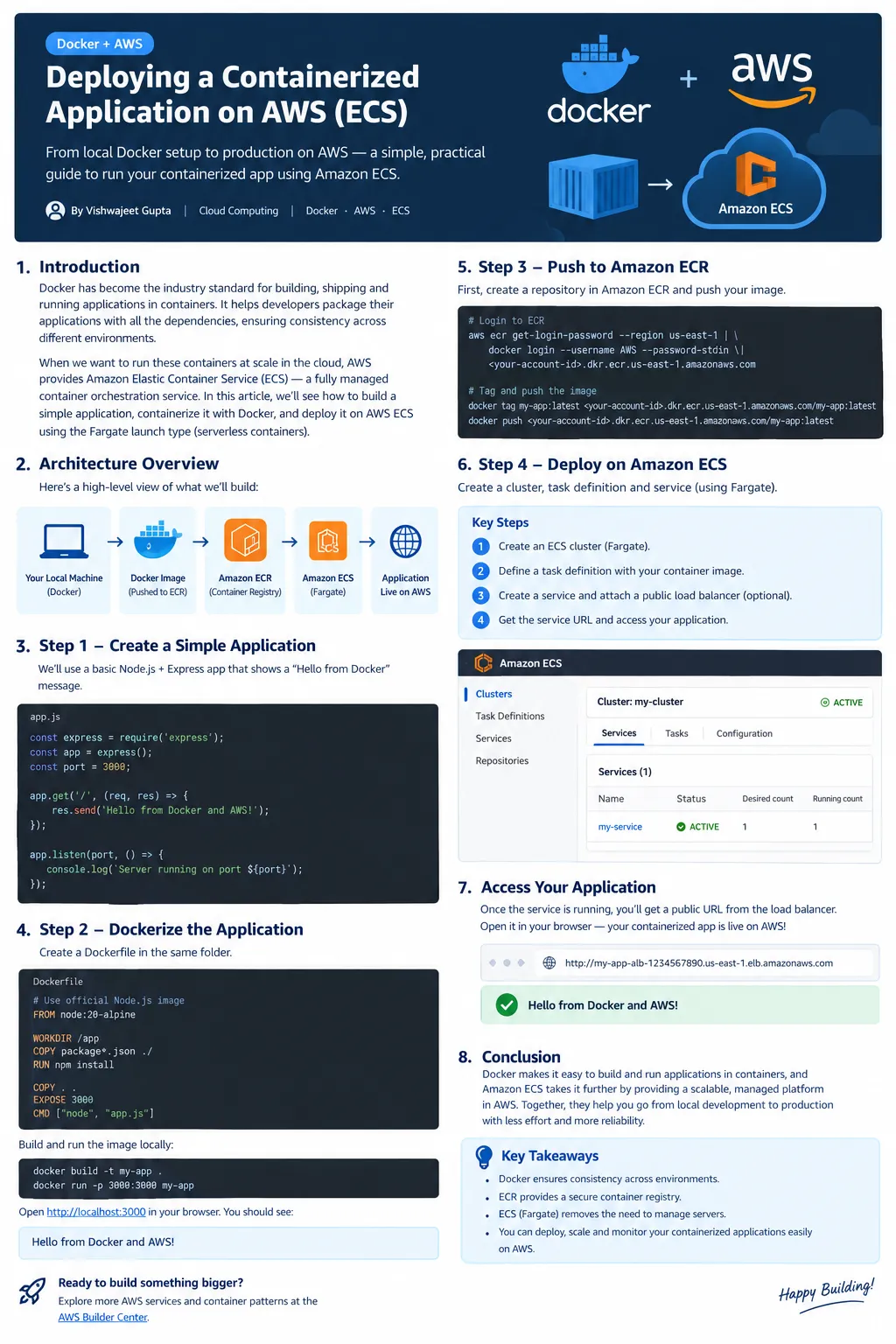
Deploying Docker Containers on AWS Using Amazon ECS and Amazon ECR
Learn how to deploy Docker containers on AWS using Amazon Elastic Container Registry (Amazon ECR), Amazon Elastic Container Service (Amazon ECS), and AWS Fargate. This article provides a practical, step-by-step guide to containerizing a Node.js application with Docker, building and testing the Docker image locally, pushing it to Amazon ECR, and deploying it on Amazon ECS using Fargate.

Introduction
In modern software development, building an application is only one part of the process. Deploying it consistently across development, testing, and production environments can be equally challenging.
This is where Docker comes in.
Docker is a containerization platform that packages an application and its dependencies into a portable unit called a container. Containers help developers run applications consistently across different environments without worrying about differences in operating systems, libraries, or configurations.
When Docker is combined with Amazon Web Services (AWS), developers can build, store, deploy, and scale containerized applications using managed cloud services.
In this article, we will explore how Docker works with Amazon Elastic Container Registry (Amazon ECR) and Amazon Elastic Container Service (Amazon ECS) to simplify application deployment.
1. Understanding Docker Containers
Traditionally, deploying an application requires installing its runtime, libraries, dependencies, and other configuration files on the target machine.
This can lead to the familiar problem: an application works on one machine but fails on another.
Docker addresses this problem by packaging the application and its required dependencies into a container image.
A Docker image is a read-only template used to create containers, while a container is a running instance of that image.
Some key benefits of Docker include:
- Portability: Run applications consistently across different environments.
- Isolation: Keep application processes and dependencies separated.
- Efficiency: Share the host operating system's kernel rather than running a separate guest operating system for every container.
- Scalability: Run multiple container instances when application demand increases.
- Reproducibility: Use the same image across development, testing, and production environments.
These features make Docker particularly useful for cloud-native applications and DevOps workflows.
2. Why Combine Docker with AWS?
Docker simplifies application packaging, but production applications also need infrastructure to run, a place to store container images, networking, monitoring, and scaling.
AWS provides services that help manage these requirements.
Three important components are:
Amazon ECR — Container Image Registry
Amazon Elastic Container Registry is a managed container image registry. Developers can push Docker images to ECR and retrieve them when deploying applications.
Amazon ECS — Container Orchestration
Amazon Elastic Container Service is a managed container orchestration service that helps deploy, manage, and scale containerized applications.
AWS Fargate — Serverless Compute for Containers
AWS Fargate provides compute capacity for containers without requiring developers to manage the underlying servers directly.
Together, these services provide a practical way to move an application from a developer's machine to a cloud environment.
3. Understanding the Deployment Architecture
A typical Docker deployment workflow on AWS follows these steps:
- Develop an application locally.
- Create a Dockerfile that defines how to package the application.
- Build a Docker image.
- Test the container on the local machine.
- Push the image to Amazon ECR.
- Configure an Amazon ECS task definition to reference the image.
- Create an ECS service to run and maintain the desired number of tasks.
- Configure networking and, if needed, an Application Load Balancer to expose the application.
For this example, we will use a simple Node.js application and deploy it using Amazon ECS with AWS Fargate.
4. Create a Simple Node.js Application
First, create a project directory containing two files:
app.js and package.json.In
app.js, write the following code:1
2
3
4
5
6
7
8
9
10
11
12
const express = require("express");
const app = express();
const port = 3000;
app.get("/", (req, res) => {
res.send("Hello from Docker and AWS!");
});
app.listen(port, "0.0.0.0", () => {
console.log(`Server running on port ${port}`);
});Next, create
package.json:1
2
3
4
5
6
7
8
9
10
11
12
{
"name": "docker-aws-demo",
"version": "1.0.0",
"description": "A simple Docker application for AWS",
"main": "app.js",
"scripts": {
"start": "node app.js"
},
"dependencies": {
"express": "^5.1.0"
}
}This application starts a web server on port 3000 and returns a simple message when someone accesses the root endpoint.
5. Dockerize the Application
Create a file named
Dockerfile in the same directory.1
2
3
4
5
6
7
8
9
10
11
12
13
FROM node:22-alpine
WORKDIR /app
COPY package*.json ./
RUN npm install --omit=dev
COPY app.js .
EXPOSE 3000
CMD ["npm", "start"]Let's understand the instructions:
FROMselects the base image.WORKDIRsets the working directory inside the container.COPYcopies application files into the image.RUNinstalls the required production dependencies.EXPOSEdocuments the port used by the application.CMDspecifies the command that runs when the container starts.
For production projects, consider using a supported Node.js release, pinning dependency versions, and maintaining a lockfile for reproducible builds.
6. Build and Test the Docker Image Locally
Before deploying the application to AWS, test it locally.
Build the image:
1
docker build -t docker-aws-demo .
Run the container:
1
docker run -d -p 3000:3000 --name docker-demo docker-aws-demo
Now open the following address in your browser:
http://localhost:3000You should see:
Hello from Docker and AWS!
You can also check whether the container is running:
1
docker ps
To stop and remove the container after testing:
1
2
docker stop docker-demo
docker rm docker-demo
At this point, the application is containerized and working locally.
7. Push the Docker Image to Amazon ECR
The next step is to store the image in Amazon ECR so that AWS can retrieve it during deployment.
First, create an ECR repository using the AWS Management Console or the AWS CLI.
For example, you can name the repository:
docker-aws-demoMake sure you have the AWS CLI configured with an identity that has the required ECR permissions.
Set your AWS account ID, region, and repository name:
1
2
3
AWS_ACCOUNT_ID=123456789012
AWS_REGION=ap-south-1
REPOSITORY=docker-aws-demo
Replace the account ID with your own AWS account ID.
Authenticate Docker with ECR:
1
2
3
4
5
aws ecr get-login-password --region "$AWS_REGION" \
  | docker login \
      --username AWS \
      --password-stdin \
      "$AWS_ACCOUNT_ID.dkr.ecr.$AWS_REGION.amazonaws.com"
Tag the local image:
1
2
docker tag docker-aws-demo:latest \
  "$AWS_ACCOUNT_ID.dkr.ecr.$AWS_REGION.amazonaws.com/$REPOSITORY:latest"
Push the image:
1
2
docker push \
  "$AWS_ACCOUNT_ID.dkr.ecr.$AWS_REGION.amazonaws.com/$REPOSITORY:latest"
After the push succeeds, the image will be available in your ECR repository.
Important: Use an appropriate IAM identity and grant only the permissions required for the task. Avoid hardcoding AWS access keys in application files or source control.
8. Deploy the Application Using Amazon ECS
Now that the image is available in ECR, we can deploy it using Amazon ECS.
Step 1: Create an ECS Cluster
Open the Amazon ECS console and create a cluster.
Choose AWS Fargate as the compute option for this example.
Fargate allows you to run containers without provisioning or managing EC2 instances yourself.
Step 2: Create a Task Definition
A task definition describes how ECS should run your container.
Configure the following:
- Container image: Your ECR image URI.
- Container port: 3000.
- CPU and memory: Select values appropriate for your application.
- Logging: Configure Amazon CloudWatch Logs.
- Task execution role: Allow the ECS task execution role to perform the necessary actions, such as pulling images from ECR and publishing logs.
The task definition acts as a blueprint for your application container.
Step 3: Create an ECS Service
Create an ECS service using your task definition.
Configure the desired number of running tasks, networking, and security groups.
For external access, you can place an Application Load Balancer in front of the service and configure its target group to forward traffic to container port 3000.
Make sure the security group rules allow only the required traffic.
Step 4: Access the Application
Wait until the ECS service reports that its tasks are running and healthy.
If you configured an Application Load Balancer, open its DNS address in your browser.
You should see:
Hello from Docker and AWS!
Congratulations! Your locally developed Docker application is now running on AWS.
9. Best Practices for Docker on AWS
A successful deployment involves more than getting a container to run. Security, reliability, and maintainability are equally important.
Consider the following practices:
1. Use Trusted Base Images
Select official or trusted images and keep them updated. Use supported software versions and scan images for known vulnerabilities.
2. Keep Images Small
Use lightweight base images when appropriate, avoid unnecessary packages, and use
.dockerignore to prevent unwanted files from entering the build context.3. Store Images in Amazon ECR
Use ECR to manage container images and configure image scanning and lifecycle policies according to your needs.
4. Follow the Principle of Least Privilege
Give IAM roles only the permissions they require. Keep application secrets out of Docker images and source code.
5. Monitor Your Application
Use Amazon CloudWatch Logs and metrics to investigate errors, monitor resource utilization, and understand application behavior.
6. Automate Deployment
Integrate Docker builds and deployments into a CI/CD pipeline using tools such as AWS CodePipeline, AWS CodeBuild, or Jenkins.
7. Plan for Scaling and Reliability
Configure ECS service scaling, health checks, appropriate resource limits, and load balancing based on your application's requirements.
10. Conclusion
Docker and AWS work together to simplify the journey from application development to cloud deployment.
Docker packages an application and its dependencies into a consistent, portable image. Amazon ECR stores that image, while Amazon ECS manages the deployment and operation of containers. AWS Fargate further reduces operational overhead by removing the need to manage the underlying container servers.
By understanding this workflow, developers can build a strong foundation in containerization, cloud computing, and DevOps.
A simple Node.js application is only the beginning. The same concepts can be extended to REST APIs, microservices, backend systems, and production applications that need reliable deployment and scaling.
My key takeaway: Learning Docker becomes much more valuable when you understand how to take a container from your local machine and run it as a managed service in the cloud.
Start with a small application, containerize it, deploy it to AWS, and gradually add monitoring, security, and CI/CD automation.
Happy building!
Enjoyed reading this content? Let the author know!
Your likes, comments, shares, and saves help creators reach more builders.

Loading recommendations
Loading article