
Deploy a Dockerized Application Using Amazon ECS and AWS Fargate
Learn how to deploy a Dockerized application on AWS using Amazon ECS, AWS Fargate, and Amazon ECR. This practical guide covers container images, task definitions, networking, monitoring, security, and cost management.

Deploy a Dockerized Application Using Amazon ECS and AWS Fargate
Introduction
Modern applications need deployment environments that are scalable, reliable, and easy to maintain. Containers help developers package an application and its dependencies into a consistent environment, making it easier to run the same application across different systems.
AWS provides several services for running containers in the cloud. In this article, we will explore how to deploy a Dockerized application using Amazon Elastic Container Service (Amazon ECS), AWS Fargate, and Amazon Elastic Container Registry (Amazon ECR).
This project is a useful introduction to container-based deployment without requiring you to manage the underlying servers.
1. Understanding the AWS Services
Before building the application, let's understand the role of each service.
Docker: Packages an application and its dependencies into a container image.
Amazon ECR: Stores container images so they can be retrieved for deployment.
Amazon ECS: Orchestrates containers and manages the desired state of containerized applications.
AWS Fargate: Provides serverless compute capacity for running containers without managing EC2 instances.
Amazon CloudWatch: Collects container logs and metrics to help troubleshoot application issues.
AWS IAM: Controls which AWS resources and actions are accessible to users and services.
Together, these services create a managed container deployment workflow.
2. Create a Simple Application
Start with a basic web application. You can use Node.js, Python, Java, or another supported runtime.
For example, a simple Node.js application could expose an HTTP endpoint that returns:
1
2
3
{
  "message": "Hello from AWS Fargate!"
}
Make sure the application listens on the appropriate network interface and port inside the container. For this example, assume the application listens on port 3000.
3. Create a Dockerfile
A Dockerfile defines how the container image is built.
For a Node.js application, a simplified example is:
1
2
3
4
5
6
7
8
9
10
11
12
FROM node:22-alpine

WORKDIR /app

COPY package*.json ./
RUN npm ci --omit=dev

COPY . .

EXPOSE 3000

CMD ["node", "server.js"]
This example assumes the project contains a
package.json, lockfile, and server.js.For production, use an appropriate supported base image, pin dependencies, scan images for vulnerabilities, and avoid copying secrets into the image.
4. Build the Container Image
Build the image locally using Docker:
1
docker build -t my-aws-app .
You can test the application locally by running:
1
docker run --rm -p 3000:3000 my-aws-app
Open the appropriate local URL and verify that the application responds correctly before moving to AWS.
Testing locally helps identify application and container configuration problems before deployment.
5. Store the Image in Amazon ECR
Amazon ECR is a managed container image registry.
Create an ECR repository for the application, authenticate Docker to the registry, and tag the image using the repository URI.
The general workflow is:
- Create an ECR repository.
- Authenticate Docker to Amazon ECR.
- Tag the local image with the repository URI.
- Push the image to ECR.
The resulting image can then be referenced by an Amazon ECS task definition.
Use the correct AWS account, Region, and repository URI for your environment. Avoid sharing credentials or hardcoding access keys into scripts.
6. Create an ECS Task Definition
An ECS task definition describes how containers should run.
For this application, configure:
- The container image from ECR
- CPU and memory allocations
- The container port, such as 3000
- The required environment variables
- The task execution role
- CloudWatch logging
Choose CPU and memory values appropriate for your workload.
The task execution role allows ECS to perform tasks such as pulling an image from ECR and sending logs to CloudWatch. The application task role should be configured separately if the application itself needs permission to access other AWS services.
7. Create an ECS Cluster and Fargate Service
Create an Amazon ECS cluster and select AWS Fargate as the compute option.
Then create a service using the task definition.
Configure the networking settings, including the VPC, subnets, and security groups.
For a simple demonstration, a task can run in a public subnet with the appropriate public IP and tightly restricted inbound rules. For a more secure production architecture, tasks are commonly placed in private subnets and exposed through an Application Load Balancer.
Remember that private-subnet tasks need an appropriate way to reach required AWS services and external endpoints, such as through VPC endpoints or NAT, depending on the architecture.
8. Expose the Application Securely
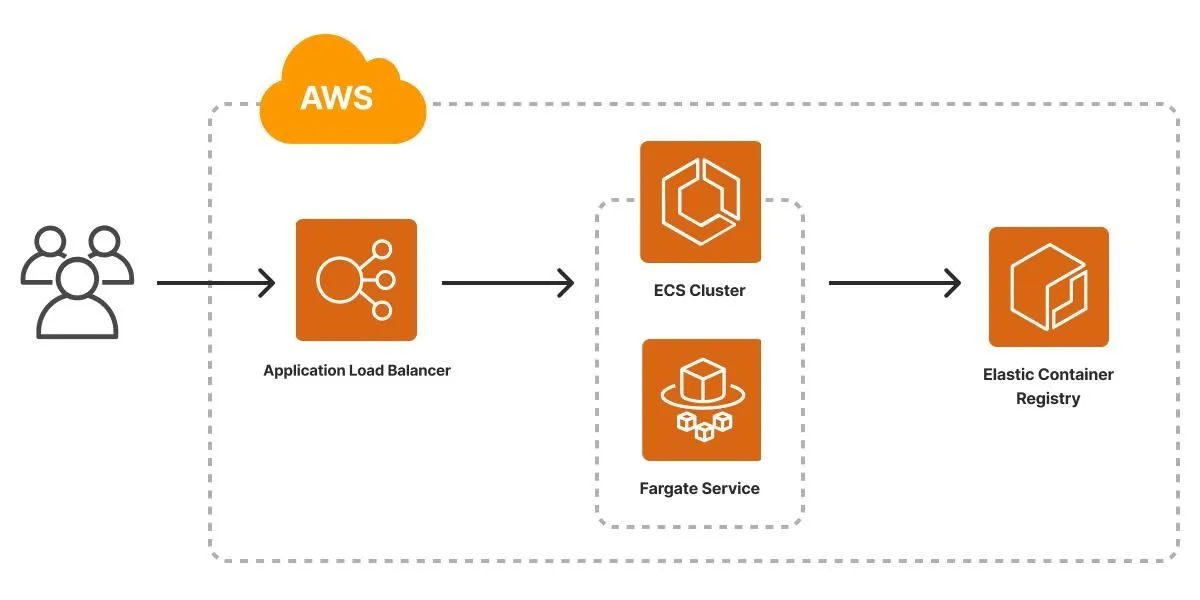
For a more production-oriented setup, use an Application Load Balancer in front of the ECS service.
The request flow becomes:
User → Application Load Balancer → ECS Service → Fargate Task
The load balancer receives incoming requests and forwards them to healthy application tasks.
Configure a target group, health check path, listener, and security groups. Allow inbound traffic to the application tasks only from the load balancer's security group.
For HTTPS, configure an appropriate TLS certificate, commonly using AWS Certificate Manager.
9. Monitor the Application
Deployment is only one part of operating an application. Monitoring helps you identify problems after it goes live.
Amazon CloudWatch can help you inspect:
- Application logs
- Container CPU and memory utilization
- Task startup failures
- Health check failures
- Application errors
Configure useful alarms and log retention settings rather than keeping unlimited logs indefinitely.
When something fails, check the ECS service events, task stopped reasons, container logs, IAM permissions, and network configuration.
10. Improve Reliability and Security
Once the basic application is running, consider these improvements:
- Run multiple tasks for better availability.
- Configure health checks and deployment settings.
- Use ECS service auto scaling when appropriate.
- Store sensitive values in AWS Secrets Manager or Systems Manager Parameter Store.
- Apply least-privilege IAM permissions.
- Scan container images and regularly update dependencies.
- Use private networking where appropriate.
- Add an Application Load Balancer for managed traffic distribution.
These practices help move a learning project closer to a production-ready deployment.
11. Understand the Cost
AWS Fargate removes the need to manage EC2 hosts, but it is not automatically free.
Charges can depend on requested compute resources, runtime, storage, networking, logging, and other services used.
Amazon ECR storage, load balancer usage, NAT gateways, and data transfer can also contribute to costs.
Before deploying, review current AWS pricing for your Region, configure billing alerts, and remove resources that you no longer need. Remember that deleting an ECS service alone may not remove every related resource.
12. What Can You Build Next?
After completing this project, you can extend it by:
- Deploying a Java Spring Boot REST API.
- Connecting the application to Amazon RDS.
- Automating builds and deployments with AWS CI/CD services.
- Adding HTTPS and a custom domain.
- Configuring autoscaling based on traffic.
- Running separate development and production environments.
You can also use infrastructure as code to recreate the environment consistently.
Conclusion
Deploying a Dockerized application with Amazon ECS and AWS Fargate is a practical way to understand modern cloud deployment.
Docker packages the application, ECR stores its image, ECS manages the service, and Fargate provides the compute capacity. CloudWatch and IAM help with monitoring and secure access.
Start with a small application, validate each stage, and gradually add load balancing, automation, monitoring, and stronger security controls.
By completing this project, developers can gain hands-on experience with containers and build a foundation for deploying more complex cloud applications.
Enjoyed reading this content? Let the author know!
Your likes, comments, shares, and saves help creators reach more builders.

Loading recommendations
Loading article