
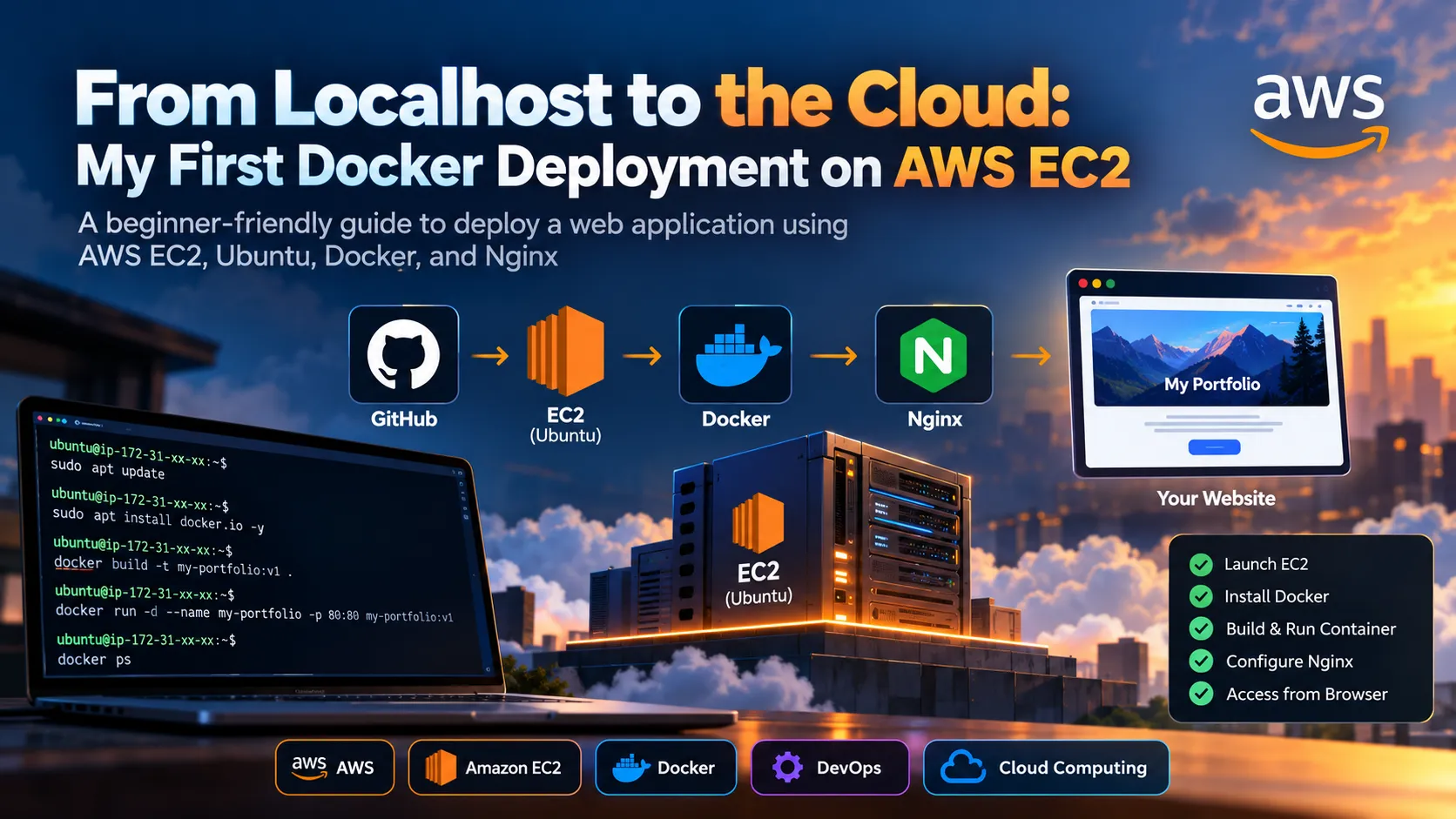
From Localhost to the Cloud: My First Docker Deployment on AWS EC2
Learn how to deploy a web application on AWS EC2 using Ubuntu, Docker, and Nginx. This beginner-friendly guide covers the deployment workflow, common troubleshooting issues, networking, and cloud cost management.

From Localhost to the Cloud: My First Docker Deployment on AWS EC2
Introduction
Have you ever built an application on your local machine and wondered how to make it accessible over the internet?
As a beginner learning DevOps, one of the most important skills is understanding how to deploy an application on a cloud server. In this article, we will explore how AWS EC2, Ubuntu, Docker, and Nginx work together to make this possible.
1. Understand the Deployment Architecture
Before starting, let's understand the basic workflow:
Developer → GitHub → AWS EC2 → Docker Container → Nginx → User's Browser
- GitHub: Stores the application's source code.
- AWS EC2: Provides a virtual server in the cloud.
- Ubuntu: Runs as the server's operating system.
- Docker: Packages the application and its dependencies into a container.
- Nginx: Serves the application and handles incoming HTTP requests.
Understanding how these components interact makes troubleshooting much easier.
2. Launch an AWS EC2 Instance
Launch an Ubuntu EC2 instance from the AWS Management Console and connect to it using SSH.
1
ssh -i my-key.pem ubuntu@YOUR_EC2_PUBLIC_IP
Update the package information:
1
sudo apt update
Install Docker:
1
sudo apt install docker.io -y
Start Docker and enable it at boot:
1
sudo systemctl enable --now docker
Verify the installation:
1
docker --version
3. Clone Your Project from GitHub
Install Git if it is not already available:
1
sudo apt install git -y
Clone your project:
1
git clone YOUR_GITHUB_REPOSITORY_URL
Navigate into the project directory:
1
cd YOUR_PROJECT_DIRECTORY
Make sure your project contains a suitable Dockerfile before proceeding.
4. Build a Docker Image
A Docker image contains the application and the environment needed to run it.
Build the image from the directory containing your Dockerfile:
1
sudo docker build -t my-portfolio:v1 .
Check the generated image:
1
sudo docker images
The
-t option assigns a name and tag to the image, while the dot specifies the current directory as the build context.5. Run the Docker Container
Start the application in the background:
1
2
3
4
5
sudo docker run -d \
  --name my-portfolio \
  --restart unless-stopped \
  -p 80:80 \
  my-portfolio:v1
Check whether the container is running:
1
sudo docker ps
View its logs:
1
sudo docker logs my-portfolio
The port mapping assumes that the application listens on port 80 inside the container.
6. Configure AWS Security Groups
Even when a container is running, the website may not be accessible from your browser.
Check the EC2 security group's inbound rules:
- Allow HTTP traffic on TCP port 80 if you want the website to be publicly accessible.
- Restrict SSH access on port 22 to your own IP address or another trusted network.
- Avoid opening unnecessary ports.
After configuring the security group, visit:
1
http://YOUR_EC2_PUBLIC_IP
For a production application, configure HTTPS with a valid TLS certificate.
7. Troubleshoot Common Problems
Docker permission denied
For learning, you can use
sudo with Docker commands. Remember that membership in the Docker group also grants highly privileged access.Website not opening
Check the container status and logs:
1
2
sudo docker ps
sudo docker logs my-portfolio
Verify the EC2 security group and port mapping.
Changes not appearing
Rebuilding an image does not automatically update an existing container. Rebuild the image and recreate the container using the updated version.
Container stopped unexpectedly
Inspect the logs and container status to identify the cause.
Troubleshooting is an important DevOps skill because real deployments rarely work perfectly on the first attempt.
8. Improve Your Deployment
Once your application is working, try these next steps:
- Use Docker Compose to manage services through YAML.
- Add health checks.
- Configure a custom domain and HTTPS.
- Build a CI/CD pipeline.
- Monitor server resources and application availability.
- Learn how to update applications with minimal downtime.
These exercises will help you move from a basic deployment toward a more realistic DevOps workflow.
9. Avoid Unexpected AWS Costs
Cloud resources can generate charges even when you are not actively using them.
Before starting, review the current AWS pricing and the free usage allowances available to your account.
After completing your experiment, check your EC2 instances, storage volumes, snapshots, public IP addresses, and other resources you created. Delete resources you no longer need after confirming that their data is safe to remove.
Stopping an EC2 instance does not necessarily eliminate every associated charge. Configure billing notifications and review your AWS costs regularly.
Final Thoughts
Deploying an application using AWS EC2, Docker, and Nginx is a great hands-on exercise for anyone learning DevOps.
It teaches you how to move code from a repository to a cloud server, package applications into containers, configure networking, and troubleshoot deployment issues.
The biggest lesson is that deploying an application is only the beginning. Understanding how to operate, secure, monitor, and maintain it is what makes you a better cloud engineer.
Let's discuss!
What was the most challenging part of your first cloud deployment: Docker configuration, SSH access, networking, or troubleshooting?
Share your experience in the comments so we can learn from each other.
#AWS #AmazonEC2 #Docker #DevOps #CloudComputing
Enjoyed reading this content? Let the author know!
Your likes, comments, shares, and saves help creators reach more builders.

Loading recommendations
Loading article