
Build a Serverless File Tracker with Amazon S3, AWS Lambda, and DynamoDB
A step-by-step beginner guide to triggering a Lambda function on every S3 upload and logging file metadata to DynamoDB, with a working Python handler, least-privilege IAM, and common pitfalls to avoid.

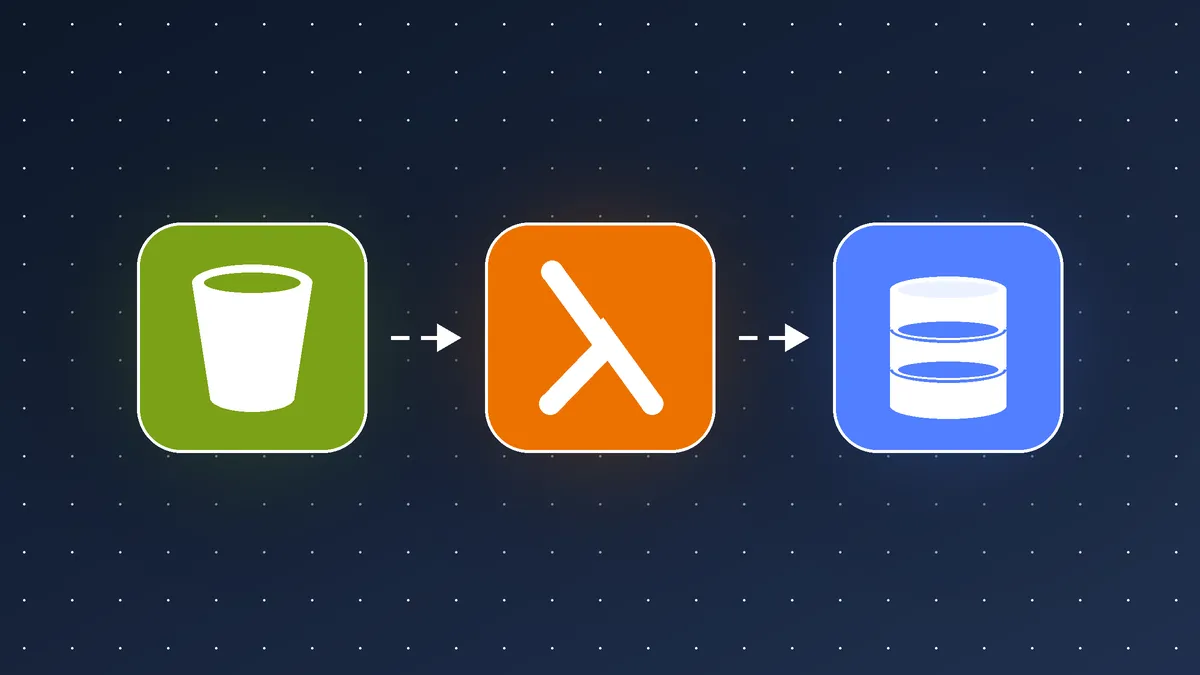
Event-driven architecture sounds intimidating, but one of the best ways to learn it is a small project: every time a file lands in an S3 bucket, a Lambda function records its details in DynamoDB. No servers, no polling, and it costs almost nothing at low volume.
In this guide you'll build that pipeline in about 20 minutes using the AWS Management Console.
Architecture
- A user or application uploads an object to an S3 bucket.
- S3 emits an
ObjectCreatedevent notification. - The event invokes a Lambda function.
- The function writes one item per file to a DynamoDB table.
Prerequisites
- An AWS account and a user or role with permissions to create these resources
- Basic familiarity with Python
- A Region you'll use for everything (the bucket, function, and table should all be in the same one)
Step 1: Create the DynamoDB table
- Open the DynamoDB console and choose Create table.
- Name it
FileUploads. - Set the partition key to
objectKey(String). - Keep the default settings, which use on-demand capacity, so you pay per request.
Step 2: Create the S3 bucket
Create a bucket with a globally unique name (for example,
my-upload-tracker-<your-initials>-<random>) and leave Block all public access enabled. The bucket never needs to be public for this pattern.Step 3: Create the Lambda function
- In the Lambda console, choose Create function and select Author from scratch.
- Name it
FileUploadLoggerand choose a current Python runtime. - Let Lambda create a new execution role with basic permissions (this covers CloudWatch Logs).
Paste in this code:
1
2
3
4
5
6
7
8
9
10
11
12
13
14
15
16
17
18
19
20
21
22
23
24
25
26
27
28
import os

import urllib.parse

from datetime import datetime, timezone


import boto3


table = boto3.resource("dynamodb").Table(os.environ["TABLE_NAME"])


def lambda_handler(event, context):

    for record in event["Records"]:

        bucket = record["s3"]["bucket"]["name"]

        # Keys arrive URL-encoded (spaces become '+'), so decode them

        key = urllib.parse.unquote_plus(record["s3"]["object"]["key"])

        size = record["s3"]["object"].get("size", 0)


        table.put_item(

            Item={

                "objectKey": key,

                "bucket": bucket,

                "sizeBytes": size,

                "eventTime": record["eventTime"],

                "processedAt": datetime.now(timezone.utc).isoformat(),

            }

        )

        print(f"Logged s3://{bucket}/{key} ({size} bytes)")


    return {"status": "ok"}
Then go to Configuration → Environment variables and add
TABLE_NAME with the value FileUploads. Choose Deploy to save the code.Step 4: Grant least-privilege access
The function only needs to write to one table. It doesn't need to read from S3, because the event already contains the metadata. On the function's execution role, add an inline policy:
1
2
3
4
5
6
7
8
9
10
{

  "Version": "2012-10-17",

  "Statement": [

    {

      "Effect": "Allow",

      "Action": "dynamodb:PutItem",

      "Resource": "arn:aws:dynamodb:REGION:ACCOUNT_ID:table/FileUploads"

    }

  ]

}
Replace
REGION and ACCOUNT_ID with your own values. Avoid wildcards like dynamodb:* on *. Narrow permissions limit the damage if the function is ever compromised.Step 5: Connect S3 to Lambda
- Open your bucket and go to Properties → Event notifications → Create event notification.
- Name it
OnUpload. - Under event types, select All object create events.
- For the destination, choose Lambda function and pick
FileUploadLogger.
When you configure this in the console, it adds the resource-based permission that lets S3 invoke your function.
Step 6: Test it
- Upload any file to the bucket, ideally one with a space in its name.
- In DynamoDB, open Explore items for
FileUploads. You should see a new item. - If nothing appears, open CloudWatch Logs → /aws/lambda/FileUploadLogger and read the latest log stream.
Common pitfalls
- Recursive triggers. If your function writes back to the same bucket that triggers it, you can create an infinite loop and a surprise bill. Use a separate bucket, or restrict the trigger with a prefix filter (for example,
uploads/). - Forgetting to decode keys. Without
unquote_plus, a file namedmy report.pdfis stored asmy+report.pdf. - Region mismatches. The S3 bucket and the Lambda function must be in the same Region for direct notifications.
- Silent failures. Asynchronous invocations are retried on error. Configure a dead-letter queue or an on-failure destination so failed events aren't lost.
- Overwriting items. Re-uploading the same key overwrites the DynamoDB item, since
objectKeyis the primary key. If you need history, add a sort key such aseventTime.
Clean up
To avoid ongoing charges, delete the test objects, the bucket, the Lambda function (and its log group), and the DynamoDB table.
Where to go next
- Add Amazon SNS or SES to send an alert on each upload.
- Use S3 Event Notifications with Amazon EventBridge for richer filtering and multiple targets.
- Define the whole stack with AWS SAM or AWS CDK so it's repeatable.
- Add validation: reject unexpected file types and quarantine them.
You've now built a complete event-driven workflow. The same S3 → Lambda → data store pattern underlies image processing, document ingestion, log analytics, and much more.
Enjoyed reading this content? Let the author know!
Your likes, comments, shares, and saves help creators reach more builders.

Loading recommendations
Loading article