
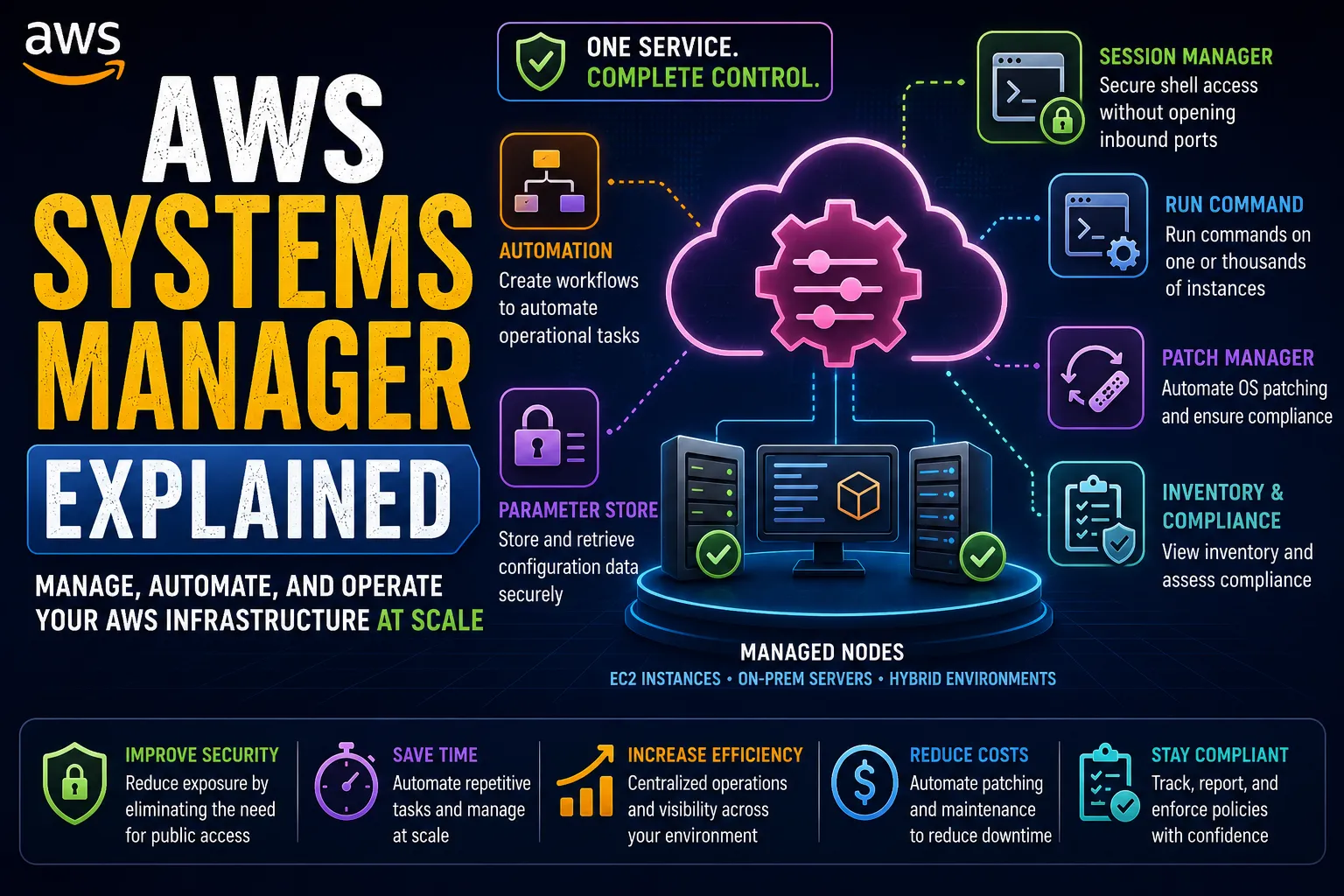
AWS Systems Manager Explained: Manage and Automate Your AWS Infrastructure from One Place
Managing multiple EC2 instances manually can quickly become time-consuming and error-prone. AWS Systems Manager helps simplify infrastructure operations with centralized visibility, remote access, automated workflows, patch management, and parameter storage. In this article, discover its key capabilities, explore practical use cases, and learn how Systems Manager can make AWS administration more efficient and secure.


Introduction: Managing Cloud Resources Shouldn't Mean Managing Everything Manually
Imagine you're responsible for 50 Amazon EC2 instances running applications across several environments.
You need to inspect system health, apply security patches, update configurations, and troubleshoot an application issue. Logging into every instance individually would be slow and difficult to manage consistently.
Now imagine handling hundreds or thousands of instances.
This is where AWS Systems Manager becomes valuable.
AWS Systems Manager provides tools to help you operate and manage AWS resources and supported hybrid environments from a centralized interface. It helps teams automate repetitive tasks, manage software and configurations, and improve operational visibility.
Let's explore how it works and why it's useful for AWS administrators, developers, and cloud engineers.
1. What Is AWS Systems Manager?
AWS Systems Manager is a collection of capabilities for managing infrastructure and performing operational tasks across AWS environments.
Depending on the feature and resource type, it can help you:
- Remotely access and manage supported instances.
- Automate operational procedures.
- Inspect and manage software patches.
- Store configuration parameters.
- Track operational issues and resource information.
- Run commands across selected managed nodes.
For example, an administrator can use Systems Manager to run an approved command on multiple managed EC2 instances without manually connecting to each server.
The goal is to make infrastructure management more consistent, repeatable, and scalable.
2. Systems Manager and Managed Nodes
A managed node is a server or machine that has been configured for management through Systems Manager.
Supported managed nodes can include Amazon EC2 instances and certain on-premises or other hybrid servers.
For many EC2 use cases, the AWS Systems Manager Agent (SSM Agent) enables communication between the instance and Systems Manager.
Successful management also depends on the correct IAM permissions, agent configuration, network connectivity, and feature-specific prerequisites.
For example, an EC2 instance in a private subnet may be managed through Systems Manager without needing a public IP address, provided the required connectivity and permissions are configured.
This can reduce the need to expose administration ports directly to the internet.
3. Session Manager: Access Instances Without Traditional SSH
One of the most useful Systems Manager capabilities is Session Manager.
Traditionally, administrators often connect to Linux servers using SSH or to Windows servers using remote desktop tools. Depending on the architecture, this may require opening inbound network ports and maintaining access infrastructure.
Session Manager offers an alternative for supported managed nodes.
It allows authorized users to establish interactive sessions through Systems Manager without requiring inbound SSH or RDP access to the instance.
Benefits include:
- Reduced dependence on publicly exposed administration ports.
- Centralized access control through IAM.
- Support for private instances with suitable connectivity.
- Integration with logging options, depending on configuration.
Practical example: A Linux EC2 instance runs in a private subnet and has no public IP address. With the SSM Agent, appropriate instance permissions, and connectivity to the required Systems Manager endpoints, an authorized administrator can open a Session Manager session.
This provides an alternative to maintaining a bastion host solely for interactive access.
Remember that Session Manager access should still follow least-privilege principles. Configure permissions carefully and enable appropriate session logging for your operational and security requirements.
4. Run Command: Execute Tasks Across Multiple Instances
Imagine that you need to inspect disk usage on 30 managed EC2 instances.
Connecting to each instance individually would take time and introduce opportunities for mistakes.
Systems Manager Run Command allows you to execute supported commands across selected managed nodes.
Common use cases include:
- Checking operating system information.
- Inspecting disk space.
- Running approved maintenance commands.
- Collecting diagnostic information.
- Applying configuration changes through controlled procedures.
A typical workflow looks like this:
- Open Systems Manager in the AWS Management Console.
- Select Run Command.
- Choose an appropriate document for the task.
- Select the managed nodes that should receive the command.
- Review the parameters and execution targets.
- Run the command and inspect its results.
Systems Manager documents define the actions and parameters used by features such as Run Command and Automation.
Always test commands carefully, especially when targeting production systems. A command that works on one machine could cause disruption when executed across an entire fleet.
5. Patch Manager: Simplify Patch Operations
Keeping operating systems updated is an important part of infrastructure security.
However, patching many instances consistently can be difficult without a defined process.
Systems Manager Patch Manager helps you manage patching for supported managed nodes.
It supports workflows for assessing patch compliance and applying updates according to configured patch policies and maintenance schedules.
A patching process might involve:
- Defining which patches are approved.
- Assessing the current patch state.
- Scheduling maintenance windows.
- Applying patches to selected instances.
- Reviewing compliance and execution results.
For example, a team could organize development instances into one patching group and production instances into another, allowing updates to be tested before being rolled out more broadly.
Patching behavior depends on the operating system, patch baseline or policy, and the configuration of the managed nodes.
Best practice: Establish backups, recovery procedures, and a maintenance plan before applying updates to critical workloads.
6. Parameter Store: Store Configuration Values Centrally
Applications often need configuration values such as API endpoints, environment names, feature flags, and database connection settings.
Keeping these values scattered across application files can make updates difficult and increase the risk of accidental exposure.
Systems Manager Parameter Store provides centralized storage for configuration data.
It supports parameter types such as:
- String: General text configuration values.
- StringList: A comma-separated list of values.
- SecureString: Values protected using AWS Key Management Service encryption.
For example, an application might retrieve a parameter such as:
/myapp/production/api-endpointThis allows configuration to be managed separately from application code.
SecureString is useful for sensitive parameter values, but storing a secret securely also requires appropriate access controls, key permissions, and operational practices. For workloads that need dedicated secret lifecycle management and rotation features, AWS Secrets Manager may be a better fit.
Avoid embedding passwords, access keys, or other sensitive values directly in source code.
7. Automation: Turn Operational Procedures into Repeatable Workflows
Some infrastructure tasks require several steps rather than a single command.
For example, troubleshooting a production issue might involve collecting logs, checking instance status, validating configuration, and restarting a service only when certain conditions are met.
Systems Manager Automation helps you define and execute operational workflows using Automation runbooks.
Depending on the runbook and permissions, an automation workflow can perform tasks such as:
- Inspecting resource configurations.
- Running operational commands.
- Starting or stopping supported resources.
- Executing predefined recovery procedures.
- Coordinating multiple steps with inputs and outputs.
Automation can reduce repetitive manual work and make operational procedures more consistent.
Before using an automated workflow in production, test its behavior, review its permissions, and consider failure handling and rollback procedures.
8. Inventory and Compliance: Understand Your Managed Environment
Managing infrastructure effectively requires knowing what is installed and how resources are configured.
Systems Manager Inventory can collect information about supported managed nodes, such as operating system details and installed applications, depending on the inventory configuration.
This information can help teams answer questions such as:
- Which software versions are installed?
- Which systems need updates?
- What operating systems are running?
- Which managed nodes require further investigation?
Systems Manager also provides capabilities that support patch and operational compliance reporting.
These features complement AWS Config, which focuses on recording AWS resource configurations and evaluating them against configuration rules.
Using both services can give administrators a broader view of their infrastructure and its operational state.
9. Systems Manager vs. AWS Config vs. CloudTrail
These services solve different but complementary problems.
AWS Systems Manager focuses on operating and managing supported resources, executing commands, automating procedures, and managing selected configurations.
AWS Config focuses on resource configuration history and evaluating configurations against rules.
AWS CloudTrail records supported account activity and API events, helping you investigate who or what performed an action.
Consider a server that suddenly stops working after a configuration update.
- Systems Manager may help you access the managed node and run diagnostic commands.
- AWS Config may help you review relevant AWS resource configuration changes.
- CloudTrail may help you investigate the API activity associated with those changes.
Understanding these distinctions makes it easier to select the right tool during real-world troubleshooting.
10. Security Best Practices
To use Systems Manager safely and effectively, consider these practices:
Use least-privilege IAM permissions. Give administrators and automation workflows only the permissions they need.
Avoid unnecessary public administration access. Where suitable, use Session Manager instead of exposing SSH or RDP to the internet.
Maintain agent and connectivity requirements. Ensure managed nodes have the necessary SSM Agent configuration and connectivity to required endpoints.
Control command execution. Restrict who can execute commands and which documents they can run.
Protect sensitive parameters. Use SecureString and suitable KMS permissions for sensitive values, and consider Secrets Manager when secret rotation and lifecycle management are required.
Log important operations. Configure appropriate CloudTrail, command output, and session logging where supported and required.
Test automation before production use. Validate permissions, inputs, failure scenarios, and recovery plans.
Review patch compliance. Establish a regular process for evaluating and addressing missing updates.
These practices help balance operational efficiency with security and reliability.
11. Why AWS Systems Manager Matters for AWS Certification
Systems Manager is worth studying because it connects several important cloud operations concepts.
For AWS certification preparation, focus on:
- What SSM Agent does.
- How Session Manager differs from traditional SSH access.
- How Run Command executes tasks on managed nodes.
- How Patch Manager supports patching workflows.
- The difference between Parameter Store and Secrets Manager.
- How Automation runbooks execute operational procedures.
- How Systems Manager complements AWS Config and CloudTrail.
A useful hands-on exercise is to launch a test EC2 instance, configure Systems Manager prerequisites, establish a Session Manager connection, and run a harmless command. This turns abstract service descriptions into practical understanding.
Conclusion
AWS Systems Manager helps simplify infrastructure operations by bringing together remote access, command execution, patch management, configuration storage, and automation capabilities.
Instead of treating every server as an isolated machine, you can build repeatable processes that help manage your environment more consistently.
My key takeaway: Automation is not just about saving time. When designed carefully, it also helps reduce manual errors, improve operational consistency, and make cloud infrastructure easier to manage at scale.
If you were managing 100 EC2 instances, which capability would you implement first: Session Manager, Run Command, or Patch Manager? Share your thoughts in the comments!
Enjoyed reading this content? Let the author know!
Your likes, comments, shares, and saves help creators reach more builders.

Loading recommendations
Loading article