
Kiro Crew in Practice: From Install to a Real Daily Workflow
A hands-on guide to Kiro Crew: what to turn on first, what to leave off, and how to contribute. Written against Kiro Crew 0.7.2 on macOS. Menu labels were checked against the build's own settings registry and UI strings

Kiro Crew in Practice: From Install to a Real Daily Workflow
A hands-on guide to Kiro Crew: what to turn on first, what to leave off, and how to contribute.
Written against Kiro Crew 0.7.2 on macOS. Menu labels were checked against the build's own settings registry and UI strings
Introduction
Kiro Crew is an open-source layer that runs on your own machine on top of Kiro CLI. It adds what a chat window doesn't have:
- memory that lasts across sessions, and rules it learns from your corrections
- scheduled jobs, background subagents and goal-driven multi-session work
- monitors that watch a pull request for you
- voice input and spoken replies
- a dashboard you can open from your phone, plus Slack, Discord, Telegram, WhatsApp and other channels
- one dashboard that can drive other machines running Kiro Crew
A common complaint from early users: "The docs cover installing it and configuring it, but not how to actually use it." That's fair. Turn every feature on at once and it feels like more work than plain Kiro CLI.
This guide starts with the smallest useful setup, then adds one capability at a time and gives each one a concrete job. Everything here comes from real daily use: reviewing pull requests, building data collectors, reviewing conference slides, and running a live demo.
The one idea to keep in mind: Kiro Crew isn't a better chat window. It's a teammate that lives on your machine, remembers what you told it, and keeps working when you aren't typing. Turn on a feature only when you have a job for it.
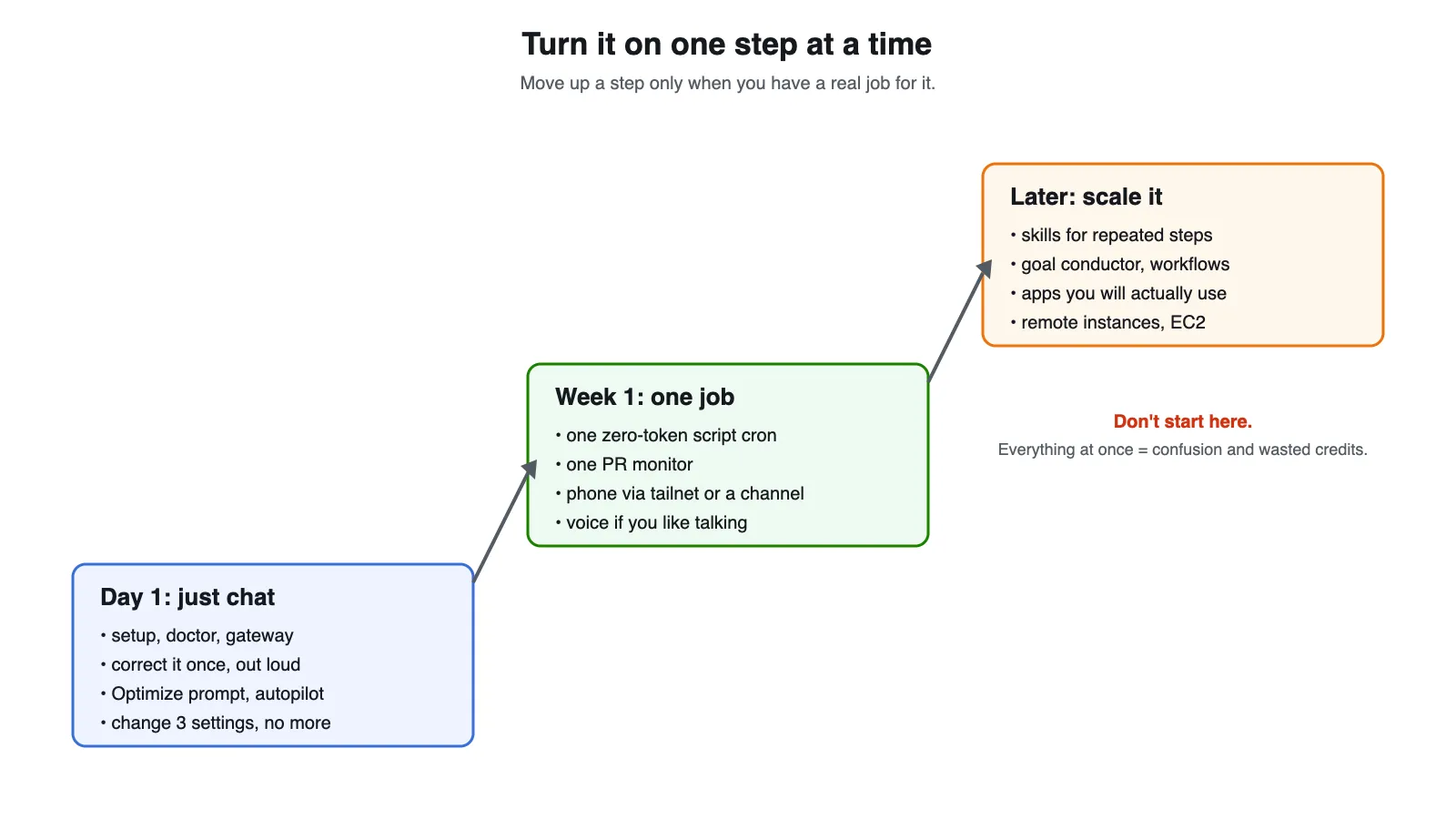
Figure 1: The adoption ladder this guide follows. Most frustration comes from starting at the top step.
Watch it live: the full walkthrough from the Builders Skill Sprint, Kiro Crew Month session is in section 14.
1. What Kiro Crew is (and isn't)
| Layer | What it does | You configure it? |
|---|---|---|
| Kiro CLI (ACP backend) | Runs the model and the tools. Kiro Crew starts it in ACP mode. | Once: kiro-cli login |
| Gateway | One local process serving the dashboard, scheduler, memory and channels | kirocrew gateway |
| Dashboard | Chat, Schedule, Apps, Settings, Artifacts and more | Mostly through Settings |
| Memory and lessons | Facts about your work and rules from your corrections, added to each new session | Works on its own |
| Skills | Markdown procedures the agent reads when a task matches | Optional |
| Automation | Cron, heartbeat, monitors, subagents, workflows, goal conductors | Only when needed |
| Apps | Installable bundles of tools, pages and crons | Optional |
1
2
3
4
5
6
7
8
9
10
11
12
13
14
15
16
17
18
19
20
21
graph LR
  subgraph IN["Ways in"]
    D["Dashboard<br />localhost:5476"]
    P["Phone<br />tailnet + QR"]
    C["Channels<br />Slack, Telegram, WhatsApp..."]
    T["Terminal<br />kirocrew chat / run"]
    V["Voice<br />dictation, spoken replies"]
    W["Webhooks<br />CI, bots, scripts"]
  end
  subgraph GW["Kiro Crew gateway: kirocrew gateway or kirocrew service install"]
    M["Memory + lessons<br />facts about your work<br />rules from your corrections"]
    S["Skills + apps<br />markdown procedures<br />installable tool bundles"]
    A["Automation<br />cron, heartbeat, monitors<br />subagents, workflows<br />goal conductor, task runner"]
    K["Knowledge + artifacts<br />search your own documents<br />versioned widgets and docs"]
    SF["Safety layer<br />approvals (interactive / reads / yolo) · deny list · git push guard<br />secret vault · tamper-evident audit log"]
  end
  CLI["Kiro CLI<br />kiro-cli login<br />model<br />tools + MCP servers<br />your repos and shell"]
  R["Remote instances<br />other gateways via SSH/SSM<br />kirocrew cloud launch (EC2)"]
  IN --> GW
  GW -- ACP --> CLI
  GW -.-> R
Figure 2: One local gateway sits between every way you reach it and Kiro CLI. Your data stays under
~/.kiro/crew. The dashboard binds to loopback only, channels connect outbound, and kirocrew snapshot backs it all up.What it isn't: a hosted service. The gateway runs on your machine (or an EC2 instance you own), and nothing needs to be reachable from outside.
2. Install and the first ten minutes
Prerequisites: macOS, Linux or Windows; Kiro CLI on your PATH, logged in with
kiro-cli login. A source build also needs Python 3.12+ and Node.js 22+.Use the desktop app or packaged installer from the official install guide [verify the exact command/link], or build from source:
1
2
3
4
git clone https://github.com/kirodotdev/KiroCrew.git
cd KiroCrew
make build
source .venv/bin/activate
Then run these three commands, one at a time:
1
kirocrew setup
1
kirocrew doctor1
kirocrew gatewaysetup creates your data home and a default agent (no messaging channel needed). doctor checks the install and backend. gateway starts everything and opens the dashboard. It runs in the foreground; for always-on, use kirocrew service install (launchd on macOS, systemd on Linux). Run only one of the two, because both bind the same port.Tip: with a source build, activate.venv(or put.venv/binon your PATH) in every new terminal tab, or you'll getcommand not found.
The rule that prevents most crashes
Don't hand-edit
~/.kiro/crew/config.json while the gateway is running. Most "it crashed" reports trace back to it. Instead:- Change settings in the dashboard's Settings, which has a search box for every setting.
- From the terminal, use
kirocrew config get <key>andkirocrew config set <key> <value>. - If the gateway warns about old defaults, review them with
kirocrew config defaults, then--adoptor--keep. - If something breaks, run
kirocrew doctor, and attachkirocrew doctor --bundle(redacted) to bug reports.
3. Day one: just chat
For the first day, just chat in the dashboard, and watch two things happen in the background.
It remembers
Tell it something real about your work: a project, a deadline, a preference. Open a new chat tomorrow and ask about it. It answers without you repeating yourself.
Each session has a memory mode: Persistent (default) remembers and learns, Incognito saves no new lessons, Temporary keeps nothing. Use the last two for anything you don't want remembered.
It learns from corrections
Correct it the way you'd correct a colleague:
Always give me one terminal command at a time, never a multi-line block.
That becomes a lesson: a short "do this / don't do that" rule added to every future session, on any project. List lessons with
kirocrew learn list or open the Lessons view [verify which page holds Lessons].Real example: that rule came from an actual failure. A pasted block with a password prompt in the middle sent the next line into the password field. After one correction, it never happened again.
Best practice: correct clearly and once, with "always" or "never". Don't use lessons for one-ticket facts; memory handles those.
Optimize prompt
The composer's Optimize prompt button (hover it to see its shortcut) rewrites a rough request into a clearer, more complete prompt in the message box, for you to edit before sending. If it fails, your original text comes back. Use it when a one-liner like "review my PR" should name the repo, the scope and what "done" means.
Autopilot mode
A New autopilot chat plans first, waits for your approval, then runs stage by stage. Make it the default with Settings → Chat → Default to Autopilot Mode. Use it when you want to approve the plan before anything changes.
Keep the front page clean
Group sessions in sidebar chat folders. Settings → Chat → Session summaries adds a per-session panel with goal, status and next step (off by default because it uses tokens). Settings → Chat → Response Verbosity controls reply length.
4. Voice: talk to it, have it talk back
Everything is in Settings → Voice.
Speech to text providers: local (default, no account; the
base model holds about 150 MB while in use), apple (on-device, macOS 26+), or transcribe (Amazon Transcribe, billed to your AWS account).- Streaming shows words while you speak.
- Auto-submit when I finish speaking sends once what you said reads as complete.
- Tidy up transcripts with AI fixes punctuation. It's off by default because it sends text (never audio) off your machine.
- Shortcut key and Tap vs. hold cutoff control dictation.
Spoken replies: turn on Auto-speak Responses and pick Amazon Polly (needs an AWS profile and region) or a local Piper voice. Voice notes sent over Telegram or WhatsApp are transcribed too. Short on memory? Pick a smaller local model or lower
stt.idle_evict_secs.5. Use it from your phone
1. The dashboard over your tailnet (best experience). With Tailscale:
1
kirocrew tailnet up
Open the address on a phone in the same tailnet, or use Show QR code / Connect via QR.
kirocrew tailnet status and kirocrew tailnet down check and stop it. A phone stays signed in until a gateway restart or 30 days idle.2. A messaging channel. Connect Telegram, WhatsApp, Slack, Discord, Teams, Webex, iMessage and others in Settings → Channels. Each has its own allow-list so only you can reach the agent. No browser needed, and voice notes work. Read the WhatsApp doc first; it links a personal account.
3. A one-off link from Slack.
!dashboard returns a signed, single-use, IP-pinned link.The dashboard never opens a public port by itself. Don't work around that with port forwarding.
6. Week one: add automation, one piece at a time
This is where people get stuck, because the options look alike:
| Feature | Think of it as | Use it when |
|---|---|---|
| Cron | A clock | Something should happen on a schedule |
| Heartbeat | A sticky note | A one-off task should run soon, in a fresh context, then disappear |
| Monitor | Babysitting one thing | Watching a PR until CI passes or reviews land |
| Subagent | A colleague with one task | Independent work can run in parallel |
| Workflow | A rerunnable multi-step plan | Long work where steps may need to run again |
| Goal conductor | A project lead | A goal too big for one session, like "get these 8 PRs green" |
1
2
3
4
5
6
7
8
9
10
11
12
13
14
15
16
17
18
19
graph TD
  Q1{"Does it repeat on a schedule,<br />with no thinking needed?"} -- yes --> A1["Script cron<br />your Python function, zero tokens"]
  Q1 -- no --> Q2{"Does it repeat on a schedule<br />and need judgement?"}
  Q2 -- yes --> A2["Agent cron<br />a full model turn each run, so keep it lean"]
  Q2 -- no --> Q3{"Is it a one-off that should run soon,<br />in a fresh context?"}
  Q3 -- yes --> A3["Heartbeat task<br />runs within ~60 s, then deletes itself"]
  Q3 -- no --> Q4{"Are you waiting on one PR's<br />CI or reviews?"}
  Q4 -- yes --> A4["Monitor (structured PR watch)<br />wakes you only on a real change"]
  Q4 -- no --> Q5{"Can it split into independent<br />pieces right now?"}
  Q5 -- yes --> A5["Subagents<br />parallel, results return to your chat"]
  Q5 -- no --> Q6{"Several phases, and you may<br />want to rerun one?"}
  Q6 -- yes --> A6["Workflow<br />rerun from any step, save for reuse"]
  Q6 -- no --> Q7{"A goal too big for one session,<br />with a checkable done?"}
  Q7 -- yes --> A7["Goal conductor<br />one worker session per item, claims verified"]
  Q7 -- no --> N["None of these? Just ask in chat."]
  classDef cheap fill:#eefaf1,stroke:#1d8102,color:#0b3d02
  classDef paid fill:#fff7ec,stroke:#ec7211,color:#5a2a00
  class A1,A3,A4 cheap
  class A2,A5,A6,A7 paid
Figure 3: Start at the top and take the first "yes". Green = cheapest. Orange = uses model turns.
6.1 Cron: most schedules don't need a model
| Kind | What runs | Token cost |
|---|---|---|
| Agent cron | A message to the model | A full model turn every time |
| Script cron | Your Python function | Zero |
| Command cron | A shell command | Zero |
The first mistake everyone makes is paying a model to run
git pull every morning. If the job is deterministic, write a script cron:1
2
3
4
5
6
7
8
9
# ~/.kiro/crew/crons/repo_pulse.py
import subprocess
def run(ctx):
out = subprocess.run(
["git", "-C", "/path/to/repo", "status", "-sb"],
capture_output=True, text=True, timeout=20,
).stdout.strip()
ctx.notify(f"Repo status:\n{out}")Dry-run it first:
1
kirocrew cron preview ~/.kiro/crew/crons/repo_pulse.py:run -m "dry run"
Then ask: "Register
repo_pulse.py:run as a script cron every weekday at 9 AM Asia/Kolkata." Always give an IANA timezone; otherwise the config timezone, then UTC, applies.What we learned running these:
- Output goes to the notification bell, not the Schedule page's History row (which shows only status and duration). Green with no text? Check the bell.
- Triggering a paused job resumes it. Pause it again if that was intentional.
- For polling and digest jobs, set
persistent_session=false,minimal_context=trueandhide_in_chat=true: about 200 tokens per wake instead of tens of thousands, and no chat clutter. - Fix or pause red rows. A failing agent cron burns tokens every wake. The built-in
cron-cost-optimizeskill flags agent crons that should be script crons.
6.2 Heartbeat: a task that deletes itself
The queue in
~/.kiro/crew/workspace/HEARTBEAT.md is read about every 60 seconds. Each entry runs in a fresh context and is removed when done. Add entries by asking in chat, not by editing the file (the helper holds a cross-process lock, and hand edits can get lost):Add a heartbeat task to report how many cron jobs are registered.
Include
HEARTBEAT_KEEP in a task to keep it for another cycle.6.3 Monitors: watch a pull request so you don't have to
Watchhttps://github.com/<owner>/<repo>/pull/123until it's review-ready, and wake me only if CI fails or a reviewer asks for changes.
The structured GitHub PR watch checks the provider without model turns and wakes you only on an actionable change. Use the timer loop when you need what the provider check can't see, such as the meaning of free-text comments. Always cap cycles and runtime; stop any monitor from the dashboard's monitor popover.
Lessons from reviewing several PRs at once: "mergeable" only means mergeable on its own, so two clean PRs can still conflict with each other. Run a pairwise
git merge-tree --write-tree before calling a batch safe, and recheck the rest after every merge.6.4 Subagents: parallel work, not delegation for its own sake
Spawn three subagents: one checks the re:Invent dates, one finds the submission deadline in IST, and one lists our last three meetup events.
Results come back in the same chat.
- Delegate independent work only. Splitting one coherent bug fix makes it slower.
- Turn memory and project context off for fully specified tasks, and put any needed fact in the task text.
- Keep lessons on for anything that edits files or runs git.
- If a subagent stalls, look for a permission prompt it's waiting on. In one session, subagents reading local files sat 21 minutes on a prompt nobody saw, while network-only tasks ran fine.
- Short on memory? Run fewer at once and use targeted tests.
6.5 Workflows
For phased work you may want to partly rerun (research, draft, review), ask for a workflow in plain language. It streams progress in the Workflows view, reruns from any step, and can be saved for reuse.
6.6 Goal-based work: one goal, many sessions
For goals too big for one chat, a goal conductor splits the goal into items in a work ledger, starts one worker session per item, reads each worker's status as data, checks every "done" claim against your acceptance condition, and decides each round what to retry, reassign or close.
Act as goal conductor: get PRs #12, #14 and #19 green. Done means CI passes and no unresolved review threads.
The built-in
goal-conductor skill holds the procedure. Workers appear in a sidebar folder named after the goal, so you can watch or take over any of them. Related: the session ledger keeps one session's goal and next step on disk across compaction and restarts, and the Research Lab app runs multi-cycle research campaigns.Best practice: always give a checkable acceptance condition (tests pass, PR merged, file exists). "Make it better" gives the conductor nothing to verify.
6.7 The task runner
For a fully specified unattended job, write a spec file and run
kirocrew run TASK.md. It checkpoints and resumes where it stopped (--fresh starts over).7. Approval modes, including YOLO
| Mode | What it does | When to use it |
|---|---|---|
interactive (default) | Prompts for every tool | Learning, sensitive repos |
reads | Auto-approves read-only tools; writes prompt | Day-to-day, when you want to see every change |
yolo | Auto-approves everything | Unattended runs, only in an isolated data home |
The gateway refuses
--approval yolo on your main data home, so give it its own:1
KIROCREW_HOME=~/.kirocrew-overnight kirocrew gateway --approval yolo --port 6800Run the overnight job there, have it open PRs, review them in the morning. Never point a
yolo instance at production credentials.- Read your stored mode with
kirocrew config get agent.approval_modebefore changing anything. - Settings → Security → How long auto-approve stays on limits session-level trust grants.
- Approval mode is separate from the deny list: even
yolocan't run a blocked command. - Before a live demo, check the mode first. Switching flags means stopping the gateway hosting your session.
8. Extending it: skills and apps
Skills: write a procedure down once
A skill is a folder with a
SKILL.md in ~/.kiro/crew/skills/: plain-English instructions, no plugin API, no SDK. If you keep explaining the same procedure, write it down once.| Mode | Set with | What happens |
|---|---|---|
| On demand (default) | nothing | Sessions see the name and description; the agent opens the file when the task matches |
| Always on | always: true | The whole skill joins every session. Keep these few and short. |
| Triggered | triggers: plus skills.max_triggered above 0 | A matching phrase adds the skill (off by default: skills.max_triggered is 0) |
Example: a release checklist
1
2
3
4
5
6
7
8
9
10
11
12
13
14
15
16
name: release-checklist
description: Cut a release of the orders service. Use when I say "cut a release" or "ship a version".
triggers: cut a release, ship a version, release checklist
# Release checklist
1. Confirm `main` is green in CI. If not, stop and tell me which check failed.
2. Run `make test` locally and paste the summary line.
3. Bump the version in `pyproject.toml` (patch unless I say minor or major).
4. Update `CHANGELOG.md` with the merged PR titles since the last tag.
5. Open a PR named `chore: release vX.Y.Z`. Never push to `main` directly.
## Gotchas
- The changelog script skips PRs labelled `internal`. That's intended.The
description matters most: it's what the agent sees before deciding to open the skill. A skill can also ship a helper script next to SKILL.md (for example shorten.sh); use scripts only for the parts that must be exact, and keep the judgement in prose.Built-in skills worth reading:
five-whys (one focused question at a time to a root cause), cron-cost-optimize, goal-conductor, crystallize (turns a finished session into a skill), explain-for, web-verify, and kirocrew-commands. Open one with cat ~/.kiro/crew/skills/<name>/SKILL.md, or browse them in the dashboard [verify the page name].Four ways to create a skill:
- From a session that worked: "crystallize this session into a skill". It's staged for your approval, and only when the procedure will recur on a different target.
- In chat: "Create a skill called release-checklist that does …"
- In the dashboard: Overview → Skills tab → + New (as documented) [verify].
- By hand: create
~/.kiro/crew/skills/<name>/SKILL.md.
Import from GitHub: Settings → Skills → Discover searches a public registry and accepts
acme/widgets (every skill) or acme/widgets@v2:skills/reviewer (one skill at a tag). Imports are pinned copies that never self-update; read them first, since they're third-party instructions.Auto-generated skills: Settings → Skills → Auto-generate skills from sessions. Keep Require approval before generated skills go live on.
Apps
Apps → Discover browses the catalogue; Apps → Library manages what's installed.
| Group | Examples |
|---|---|
| Engineering | Code Review Sage, Issue Radar, Auto-Improvement, Spec Builder, Dev Fleet |
| Design | Design Tweak, Design Critique |
| Writing and docs | Papyrus (LaTeX), PPTX Maker, Notes, Meetings |
| Orchestration | Task Runner, Workflows, Research Lab, Channels (several agents in one room) |
| Ops and cloud | Ops Mission Control, AWS Control |
| Everyday | Files, Command Bar, Mochi, Crew Companion, Personal Shopper |
| For fun | Agent Worlds: your running agents as animated pixel-art characters |
Install only what you'll use; every app adds tools the agent must consider.
Also built in: widgets the agent renders are saved as versioned artifacts (star to keep). The agent can drive the dashboard's Browser panel, and you can take over for CAPTCHAs or 2FA. Computer Use drives native desktop apps and is off until you enable it in Settings → Computer Use.
More building blocks
| Feature | What it does | Where |
|---|---|---|
| Knowledge Library | Cited semantic search over your documents and synced folders | Agent Capabilities → Knowledge |
| Steering files | Standing markdown rules; a project's .kiro/steering/*.md applies when it's active | Agent Capabilities → Steering files |
| Saved prompts | Reusable messages by name; save an optimized prompt once | Agent Capabilities → Prompts |
| Chat lifecycle hooks | Shell commands on events: session start, prompt, tool call | /hooks |
| Inbound webhooks | CI or a bot POSTs to /api/hooks/agent to trigger one agent turn (preview-gated) | Developer → Webhooks |
| Crew Members | Named assistants, each with its own memory, workspace and model | Developer → Crew Members [verify] |
| MCP Apps | A tool's ui:// resource renders as a live component instead of JSON | Developer → MCP Management |
9. Remote instances and the cloud
Your own EC2 instance:
kirocrew cloud launch provisions one in your AWS account, and kirocrew cloud connect opens its dashboard over an SSM tunnel. There are also list, status, stop, start, destroy, and iam-policy to see the permissions it needs. Configure your AWS profile first (aws configure or aws sso login).Several machines, one dashboard: a Remote Instance is another machine running its own gateway. You switch between machines from a header strip, run sessions over there, and search every machine's history. Turn it on (off by default) and restart:
1
kirocrew config set instances.enabled true
1
kirocrew restartOr use Settings → Instances → Enable remote instance management. The hub reaches remotes over SSH or AWS Systems Manager, so no port opens on the remote. Keep long-running crons and goal conductors on an always-on box and check in from your laptop.
10. Security and control
- Deny list. Built-in rules block destructive commands and credential access; add your own in Settings → Security → Your custom denies. A block shows its rule: it's a policy decision, not a bug to route around.
- Git safety. Pushes to
main,masterandmainlineare blocked, and so is a push whose branch comes from shell substitution ($(git rev-parse …)in the same command). Run checks separately, then push a plain branch name:git push -u origin feat/my-branch. - Secrets. Move
.envcredentials into the encrypted vault withkirocrew secrets(Settings → Secrets). - Audit log.
kirocrew security events -n 10shows recent events;kirocrew security verifyproves the log wasn't edited. Totals can drop overnight as retention trims entries. - Network. The dashboard binds to loopback. Remote access goes over your tailnet, SSH, SSM or a signed Slack link.
- Backups.
kirocrew snapshotandkirocrew restore.
11. A recommended daily workflow
- Morning: script crons have posted overnight status to the bell. Read it on your phone.
- Front-desk chat: one long-running chat for quick questions. Big tasks get their own session in the right folder, or an autopilot chat.
- Draft roughly, then optimize anything non-trivial.
- Hand off the waiting: open a PR, start a monitor, close the tab.
- Big goals go to a conductor with a checkable acceptance condition.
- Correct out loud, once and clearly.
- Write recurring procedures down as skills.
- Check crons weekly: remove dead jobs, fix red ones.
What not to do: turn on every channel, app, voice option and automation on day one.
Recipes you can copy
- Morning briefing (agent cron): "Every weekday at 9am Asia/Kolkata, list my open PRs with CI and review status, and flag anything waiting on me. Skip public holidays." (
skip_dateshandles holidays.) - Repo pulse (script cron): the
repo_pulse.pyexample in section 6.1. - PR babysitter (monitor): "Watch
https://github.com/<owner>/<repo>/pull/<N>until it's review-ready. Fix lint failures yourself. Wake me for anything else." - Slack to issues (agent cron): "Every hour, check #my-channel for new requests and create issues for the actionable ones."
- Parallel research (subagents): "Spawn three subagents: one compares pricing, one summarises the docs, one finds known issues. Merge the results into one table."
- Multi-PR goal (goal conductor): see section 6.6.
Backlog crusher (task runner). Save as
backlog-crusher.md:1
2
3
4
5
6
7
8
# Backlog crusher
1. List open issues in the project's tracker.
2. Pick the highest-priority unassigned issue.
3. Read the issue and the code it links to.
4. Implement the change and run the tests.
5. Open a pull request targeting the correct branch.
6. Move to the next issue.1
kirocrew run backlog-crusher.mdFor an overnight run, use
yolo in an isolated KIROCREW_HOME (section 7) and review the PRs in the morning.12. Troubleshooting quick reference
| Symptom | Likely cause | Fix |
|---|---|---|
kirocrew: command not found in a new tab | .venv not active | Activate it or add .venv/bin to PATH |
| Gateway won't start after a settings change | Hand-edited config.json | kirocrew doctor, revert, use Settings or config set |
| Cron succeeds with no output | Script output goes to the bell | Open the bell |
| A paused job ran again | Triggering resumes it | Pause it again |
| Subagent stuck for minutes | Hidden permission prompt | Do it in the main session, or give it network-only work |
| Push "denied" on a valid branch | Branch computed in the same command | Check separately, push a plain name |
| Clean PRs fail to merge as a batch | Sibling PRs conflict | Pairwise git merge-tree --write-tree |
--approval yolo refused | Main data home | Use a separate KIROCREW_HOME |
| Phone can't open the dashboard | Not on the tailnet, or not published | kirocrew tailnet status, then tailnet up |
| Dictation slow or memory tight | Local model too large | Smaller model in Settings → Voice |
| Remote Instances change has no effect | Read only at startup | kirocrew restart |
13. Contributing: quickstart
Kiro Crew is Apache 2.0. The canonical rules are in CONTRIBUTING.md ; this is the shortest path through them.
Step 1: Pick or open an issue. Search the open issues (filter by
area: and type labels) and comment to claim one. Bug reports need repro steps, kirocrew --version, OS, surface (dashboard, CLI or channel) and a trace or kirocrew doctor --bundle. Feature requests start from the problem, not the design. Public-interface changes need an RFC in docs/request-for-change/. Security issues go through SECURITY.md, never a public issue.Step 2: Set up (Python 3.12+, Node.js 22+, Kiro CLI logged in), one command at a time:
1
git clone https://github.com/<you>/KiroCrew.git
1
cd KiroCrew1
make build1
source .venv/bin/activateOn Windows:
.\make.ps1 build and .venv\Scripts\Activate.ps1.Step 3: Run a dev instance next to your real one:
1
KIROCREW_HOME=.kirocrew-dev KIROCREW_PORT=6777 kirocrew gateway
For frontend work, also run
npm run dev in website/ with KIROCREW_PORT=6777 and use localhost:3000. Restart the backend after Python changes.Step 4: Branch and change.
1
git fetch origin
1
git checkout -b feat/my-feature origin/mainKeep changes small, add tests, and update any doc whose behaviour you change in the same commit (then run
./scripts/docs-lint.sh). Working with an agent? Point it at src/kiro_crew/builtin_skills/kirocrew-dev/ (kirocrew-worktree-dev, kirocrew-prepare-pr, babysit).Step 5: Run the gate:
python3 scripts/local-gate.py. The full suite is CI's job.Step 6: Commit and open the PR. Use Conventional Commits (
feat, fix, docs, style, refactor, perf, test, chore, ci, build, revert) with a lowercase, imperative summary of at most 72 characters, for example fix: keep cron history after pause. Keep one or two commits, and put Closes #N (or Part of #N) on its own line in the description.Step 7: Keep it green. Rebase; don't merge. GitHub's default "Update branch" adds a merge commit and fails the hygiene check. Use "Update with rebase", or:
1
git rebase origin/main
1
git push --force-with-lease origin feat/my-featureAI-assisted PRs: you're still the author. Read every line, delete what isn't needed, and be ready to explain why it works.
Credit is automatic: merged authors,
Co-authored-by: co-authors, and reporters whose issue a merged PR closed join the README's contributor list. The easiest first contribution is a documentation issue about anything this guide left unclear.14. Watch the session
The full live walkthrough: Builders Skill Sprint, Kiro Crew Month (YouTube) .
Conclusion
Kiro Crew's features aren't a checklist. Day one is just chat, while memory and lessons build up. In week one, give one job you already do by hand, like a morning status check or watching a PR, to a script cron or a monitor. After that, add voice, phone access, goal conductors, apps and remote instances only when you have a real job for them.
Start small, correct it out loud, and it gets more useful every week. If you hit a gap, open an issue; that's how the docs get better.
Appendix: the dashboard at a glance
Kiro Crew 0.7.2 has 11 main pages (plus one per installed app), 213 searchable settings across 20 Settings tabs, 42
kirocrew CLI commands and 24 apps in the catalogue. Counts change between releases.| Page | What it's for |
|---|---|
| Chat | Sessions, folders, composer (Optimize prompt, voice, uploads), approvals, memory mode |
| Settings | Every setting, with search |
| Agent Capabilities | Crews, agents, MCP connections, skills, knowledge, steering, hooks, prompts, workflows |
| Schedule | Cron jobs: list, calendar and execution views |
| Developer | Logs, metrics, storage, memory, configuration, debug tools |
| Logs | Live gateway log |
| Hooks | Chat lifecycle hooks |
| Apps | Discover and Library |
| Notifications | The bell feed |
| Artifacts | Saved widgets and documents with versions |
| Deploy | Artifact deployment |
What to change on day one: Chat → Default Model and Response Verbosity, Display → Theme. Nothing else until you have a reason. For a specific setting, type its name into the Settings search box.
Enjoyed reading this content? Let the author know!
Your likes, comments, shares, and saves help creators reach more builders.

Loading recommendations
Loading article