
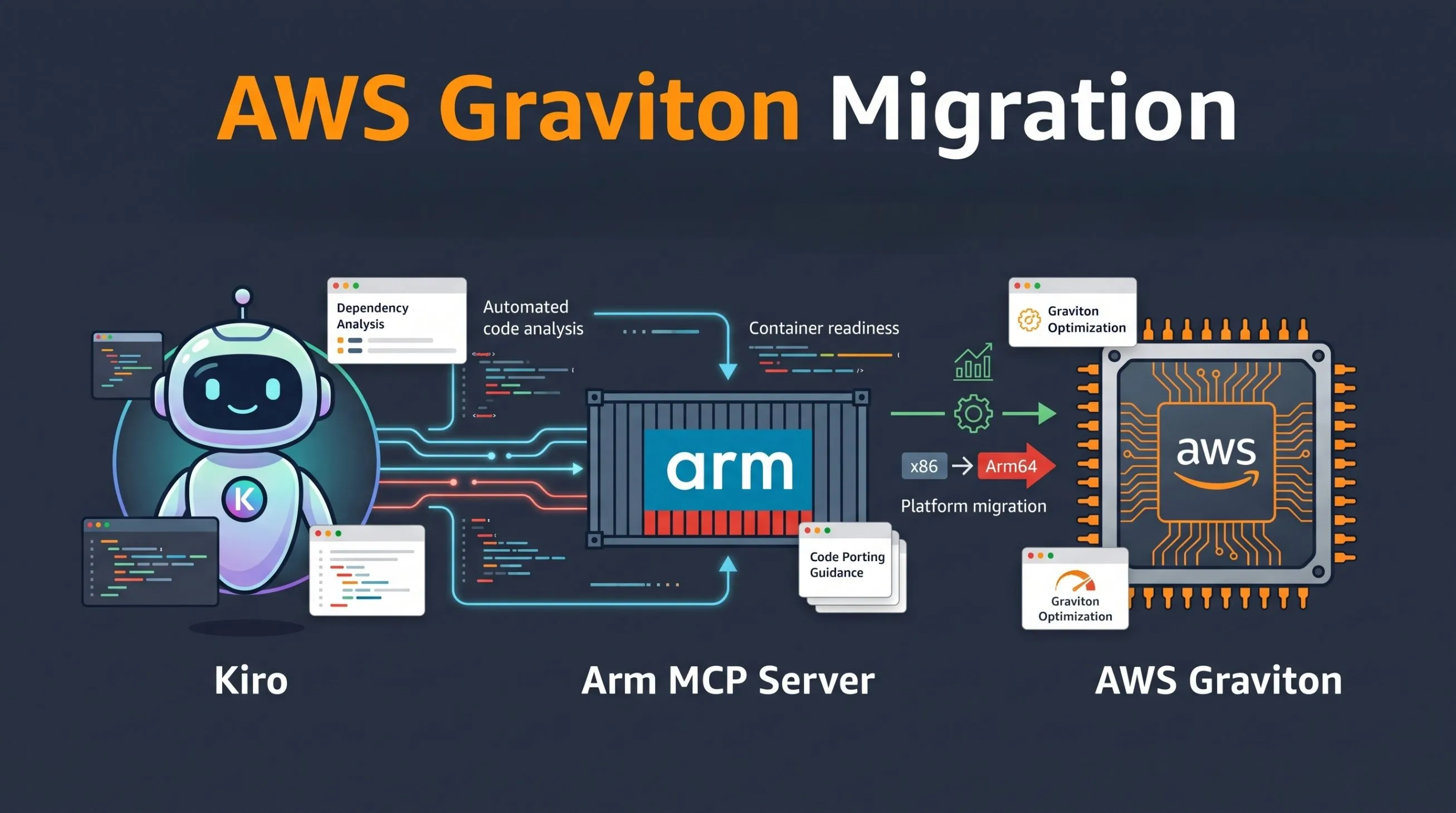
Migrate x86 applications to AWS Graviton using Kiro and the Arm MCP Server
Learn how to use Kiro CLI with the Arm MCP Server to automate x86-to-Arm migrations for AWS Graviton. You'll verify Docker image compatibility, migrate C++ SIMD code from AVX2 to Neon, and validate your application on Graviton-based instances.

What is the Arm MCP Server?
The Arm MCP Server enables AI-powered developer tools to become Arm cloud migration and optimization experts. It implements the Model Context Protocol (MCP), an open standard that allows AI assistants to access external tools and data sources.
Think of the Arm MCP Server as a bridge between AI coding assistants and Arm-specific migration tools. By connecting Kiro to the Arm MCP Server, you gain access to container image inspection, code analysis capabilities, and Arm-specific knowledge that streamline the process of migrating applications from x86 to AWS Graviton.
Before you begin
You need:
- Kiro CLI installed and configured
- Docker installed
- A C++ compiler installed
- Basic familiarity with Docker and C++ development
- Access to an AWS Graviton-based EC2 instance or a local Arm computer running Linux or macOS
Set up Kiro with the Arm MCP Server
The Arm MCP Server runs as a Docker container. Pull the pre-built image from Docker Hub:
1
docker pull armlimited/arm-mcp:latest
Create a workspace directory for the migration exercise:
1
mkdir -p ~/arm-migration
Configure Kiro to use the Arm MCP Server by creating
~/.kiro/settings/mcp.json:1
mkdir -p ~/.kiro/settingsAdd the following configuration to
~/.kiro/settings/mcp.json:1
2
3
4
5
6
7
8
9
10
11
12
13
14
15
16
{
"mcpServers": {
"arm-mcp": {
"command": "docker",
"args": [
"run",
"--rm",
"-i",
"--pull=always",
"-v", "/home/ubuntu/arm-migration:/workspace",
"armlimited/arm-mcp"
],
"timeout": 60000
}
}
}Change
/home/ubuntu/arm-migration to match your system. On macOS, use /Users/yourname/arm-migration.The
-v flag mounts your workspace directory to /workspace inside the container, allowing the MCP server to analyze your code.Restart Kiro after updating the configuration. To confirm the MCP server is connected, use the
/mcp command in Kiro chat:1
/mcpYou should see
arm-mcp listed among the active MCP servers. To verify the tools are working, ask:1
How do I install the AWS CLI on AWS Graviton?If you receive a response with Arm-specific guidance sourced from the knowledge base (rather than generic text), the MCP server is connected and working. You should see Arm-specific instructions, such as using the
aarch64 variant of the AWS CLI installer.Available Arm MCP Server tools
The Arm MCP Server provides several specialized tools for migration and optimization:
- knowledge_base_search: Searches Arm learning resources, intrinsics documentation, and software compatibility information using semantic similarity.
- check_image: Checks Docker image architectures. Provide an image in
name:tagformat and get a report of supported architectures. - skopeo: Inspects container images remotely without downloading them to check architecture support.
- migrate_ease_scan: Scans codebases to identify x86-specific code that needs attention. Supports C++, Python, Go, JavaScript, and Java.
- mca (Machine Code Analyzer): Analyzes assembly code performance and predicts behavior on different CPU architectures.
Verify Docker image compatibility
A common first step when migrating a containerized application to Graviton is verifying that your base container images support the
arm64 architecture. The Arm MCP Server simplifies this by letting you ask natural language questions.Example: Legacy CentOS 6 application
Consider an application built on CentOS 6, a legacy Linux distribution that has reached end of life. Before migrating, you need to check if the base image supports Graviton.
Here's a typical legacy Dockerfile with x86-specific elements:
1
2
3
4
5
6
7
8
9
10
11
12
13
14
15
16
FROM centos:6

# CentOS 6 reached EOL, need to use vault mirrors
RUN sed -i 's|^mirrorlist=|#mirrorlist=|g' /etc/yum.repos.d/CentOS-Base.repo && \
    sed -i 's|^#baseurl=http://mirror.centos.org|baseurl=http://vault.centos.org|g' /etc/yum.repos.d/CentOS-Base.repo

# Install build tools
RUN yum install -y gcc gcc-c++ make && yum clean all

WORKDIR /app
COPY *.cpp *.h ./

# Build with x86 AVX2 optimizations
RUN g++ -O2 -mavx2 -o benchmark main.cpp matrix_operations.cpp -std=c++11

CMD ["./benchmark"]
This Dockerfile has several x86-specific elements: the
centos:6 base image, the -mavx2 compiler flag for x86 AVX2 SIMD instructions, and C++ source files with x86 intrinsics.Check the base image
In Kiro, ask:
1
Check if centos:6 supports Arm architecture
Kiro uses the Arm MCP Server to inspect the image and returns:
1
2
3
4
5
6
The centos:6 image does not support Arm architecture.

- Available architectures: amd64, 386 (both x86-based)
- Missing: arm64

So you can't run centos:6 on AWS Graviton or any Arm64 host.
The
centos:6 image doesn't support arm64, so you need to find an alternative base image for Graviton.Find a Graviton-compatible base image
Ask Kiro to check AWS-native alternatives:
1
Check if amazonlinux:2023 supports Arm architecture
The response confirms full support:
1
2
3
4
5
6
7
The amazonlinux:2023 image does support Arm architecture.

- Supported architectures: amd64, arm64

This makes it a solid choice for AWS Graviton. It's a multi-arch image,
so Docker will automatically pull the arm64 variant when you run it on
a Graviton host.
Amazon Linux 2023 is an excellent choice for Graviton workloads because it's optimized for AWS, supports both x86 and arm64, and receives regular security updates.
Migrate x86 SIMD code to Arm Neon
When migrating applications from x86 to Graviton, you might encounter SIMD (Single Instruction, Multiple Data) code written with architecture-specific intrinsics. On x86, SIMD is commonly implemented with SSE, AVX, or AVX2 intrinsics. Graviton processors use Arm Neon (and SVE/SVE2 on newer generations) for similar vectorized operations.
Sample x86 code with AVX2 intrinsics
The following matrix multiplication implementation uses x86 AVX2 intrinsics. This represents performance-critical code found in compute benchmarks and scientific workloads.
Change to the workspace directory you created earlier:
1
cd ~/arm-migration
Create
matrix_operations.h:1
2
3
4
5
6
7
8
9
10
11
12
13
14
15
16
17
18
19
20
21
22
23
24
25
class Matrix {
private:
std::vector<std::vector<double>> data;
size_t rows;
size_t cols;
public:
Matrix(size_t r, size_t c);
void randomize();
Matrix multiply(const Matrix& other) const;
double sum() const;
size_t getRows() const { return rows; }
size_t getCols() const { return cols; }
};
void benchmark_matrix_ops();
Create
matrix_operations.cpp with AVX2 intrinsics:1
2
3
4
5
6
7
8
9
10
11
12
13
14
15
16
17
18
19
20
21
22
23
24
25
26
27
28
29
30
31
32
33
34
35
36
37
38
39
40
41
42
43
44
45
46
47
48
49
50
51
52
53
54
55
56
57
58
59
60
61
62
63
64
65
66
67
68
69
70
71
72
73
74
75
76
77
78
79
80
81
82
83
84
85
86
87
88
89
90
91
92
93
94
95
96
97
98
99
Matrix::Matrix(size_t r, size_t c) : rows(r), cols(c) {
data.resize(rows, std::vector<double>(cols, 0.0));
}
void Matrix::randomize() {
std::random_device rd;
std::mt19937 gen(rd());
std::uniform_real_distribution<> dis(0.0, 10.0);
for (size_t i = 0; i < rows; i++) {
for (size_t j = 0; j < cols; j++) {
data[i][j] = dis(gen);
}
}
}
Matrix Matrix::multiply(const Matrix& other) const {
if (cols != other.rows) {
throw std::runtime_error("Invalid matrix dimensions for multiplication");
}
Matrix result(rows, other.cols);
// x86-64 optimized using AVX2 for double-precision
for (size_t i = 0; i < rows; i++) {
for (size_t j = 0; j < other.cols; j++) {
__m256d sum_vec = _mm256_setzero_pd();
size_t k = 0;
// Process 4 elements at a time with AVX2
for (; k + 3 < cols; k += 4) {
__m256d a_vec = _mm256_loadu_pd(&data[i][k]);
__m256d b_vec = _mm256_set_pd(
other.data[k+3][j],
other.data[k+2][j],
other.data[k+1][j],
other.data[k][j]
);
sum_vec = _mm256_add_pd(sum_vec, _mm256_mul_pd(a_vec, b_vec));
}
// Horizontal add using AVX
__m128d sum_high = _mm256_extractf128_pd(sum_vec, 1);
__m128d sum_low = _mm256_castpd256_pd128(sum_vec);
__m128d sum_128 = _mm_add_pd(sum_low, sum_high);
double sum_arr[2];
_mm_storeu_pd(sum_arr, sum_128);
double sum = sum_arr[0] + sum_arr[1];
// Handle remaining elements
for (; k < cols; k++) {
sum += data[i][k] * other.data[k][j];
}
result.data[i][j] = sum;
}
}
return result;
}
double Matrix::sum() const {
double total = 0.0;
for (size_t i = 0; i < rows; i++) {
for (size_t j = 0; j < cols; j++) {
total += data[i][j];
}
}
return total;
}
void benchmark_matrix_ops() {
std::cout << "\n=== Matrix Multiplication Benchmark ===" << std::endl;
const size_t size = 200;
Matrix a(size, size);
Matrix b(size, size);
a.randomize();
b.randomize();
auto start = std::chrono::high_resolution_clock::now();
Matrix c = a.multiply(b);
auto end = std::chrono::high_resolution_clock::now();
auto duration = std::chrono::duration_cast<std::chrono::milliseconds>(end - start);
std::cout << "Matrix size: " << size << "x" << size << std::endl;
std::cout << "Time: " << duration.count() << " ms" << std::endl;
std::cout << "Result sum: " << c.sum() << std::endl;
}Create
main.cpp:1
2
3
4
5
6
7
8
9
10
11
int main() {
std::cout << "Matrix Operations Benchmark" << std::endl;
std::cout << "===========================" << std::endl;
benchmark_matrix_ops();
return 0;
}Create a
Dockerfile that uses the legacy CentOS 6 base image with x86-specific build flags:1
2
3
4
5
6
7
8
9
10
11
12
13
14
15
16
FROM centos:6
# CentOS 6 reached EOL, need to use vault mirrors
RUN sed -i 's|^mirrorlist=|#mirrorlist=|g' /etc/yum.repos.d/CentOS-Base.repo && \
sed -i 's|^#baseurl=http://mirror.centos.org|baseurl=http://vault.centos.org|g' /etc/yum.repos.d/CentOS-Base.repo
# Install build tools
RUN yum install -y gcc gcc-c++ make && yum clean all
WORKDIR /app
COPY *.cpp *.h ./
# Build with x86 AVX2 optimizations
RUN g++ -O2 -mavx2 -o benchmark main.cpp matrix_operations.cpp -std=c++11
CMD ["./benchmark"]This Dockerfile won't build on Graviton because the
centos:6 base image doesn't support arm64, the -mavx2 flag is x86-specific, and the C++ code uses AVX2 intrinsics.Use Kiro to migrate the code
Start Kiro from the workspace directory:
1
2
cd ~/arm-migration
kiro-cli
Request the migration, specifying Amazon Linux as the target base image:
1
2
3
Migrate this codebase from x86 to Arm. The target is AWS Graviton.
Use amazonlinux:2023 as the base image in the Dockerfile and convert
the AVX2 SIMD intrinsics to Arm Neon. Build and run the container.
Kiro uses the Arm MCP Server's
migrate_ease_scan tool to analyze the codebase and identify x86-specific code. It then migrates the code and builds it on Graviton.After the migration completes, Kiro reports what changed:
1
2
3
4
5
6
7
8
9
10
11
12
13
The only Arm-incompatible code was the AVX2 SIMD matrix multiply in
matrix_operations.cpp. The migrate-ease scan confirmed exactly 9 issues
(1 incompatible header + 8 AVX2 intrinsics), all in that one function.

matrix_operations.cpp — replaced the x86-only SIMD path with a portable
preprocessor-guarded implementation:
- __aarch64__ → Arm NEON (arm_neon.h), the path Graviton uses
- __AVX2__ → original AVX2 (kept so x86 builds still work)
- otherwise → scalar fallback

Key translation: NEON registers are 128-bit (2 doubles) vs AVX2's 256-bit
(4 doubles), so the loop stride dropped from 4 to 2, and the x86
horizontal-reduction became a single vaddvq_f64.
Kiro rewrites the code, builds it, and runs the benchmark on Graviton — all in one workflow.
Verify the migration
Kiro builds and runs the container as part of the migration. You should see output similar to:
1
2
3
4
5
6
7
Matrix Operations Benchmark
===========================

=== Matrix Multiplication Benchmark ===
Matrix size: 200x200
Time: 4 ms
Result sum: 1.99179e+08
The migrated code now runs natively on Graviton inside a container using Arm Neon SIMD instructions.
To rebuild and run the container yourself:
1
2
docker build -t arm-matrix-benchmark .
docker run --rm arm-matrix-benchmark
Summary
You've learned how to use Kiro with the Arm MCP Server to migrate x86 applications to AWS Graviton. The workflow covers verifying Docker image compatibility, migrating SIMD code from AVX2 to Neon, and validating the application on Graviton-based instances.
For more information:
Enjoyed reading this content? Let the author know!
Your likes, comments, shares, and saves help creators reach more builders.

Loading recommendations
Loading article