
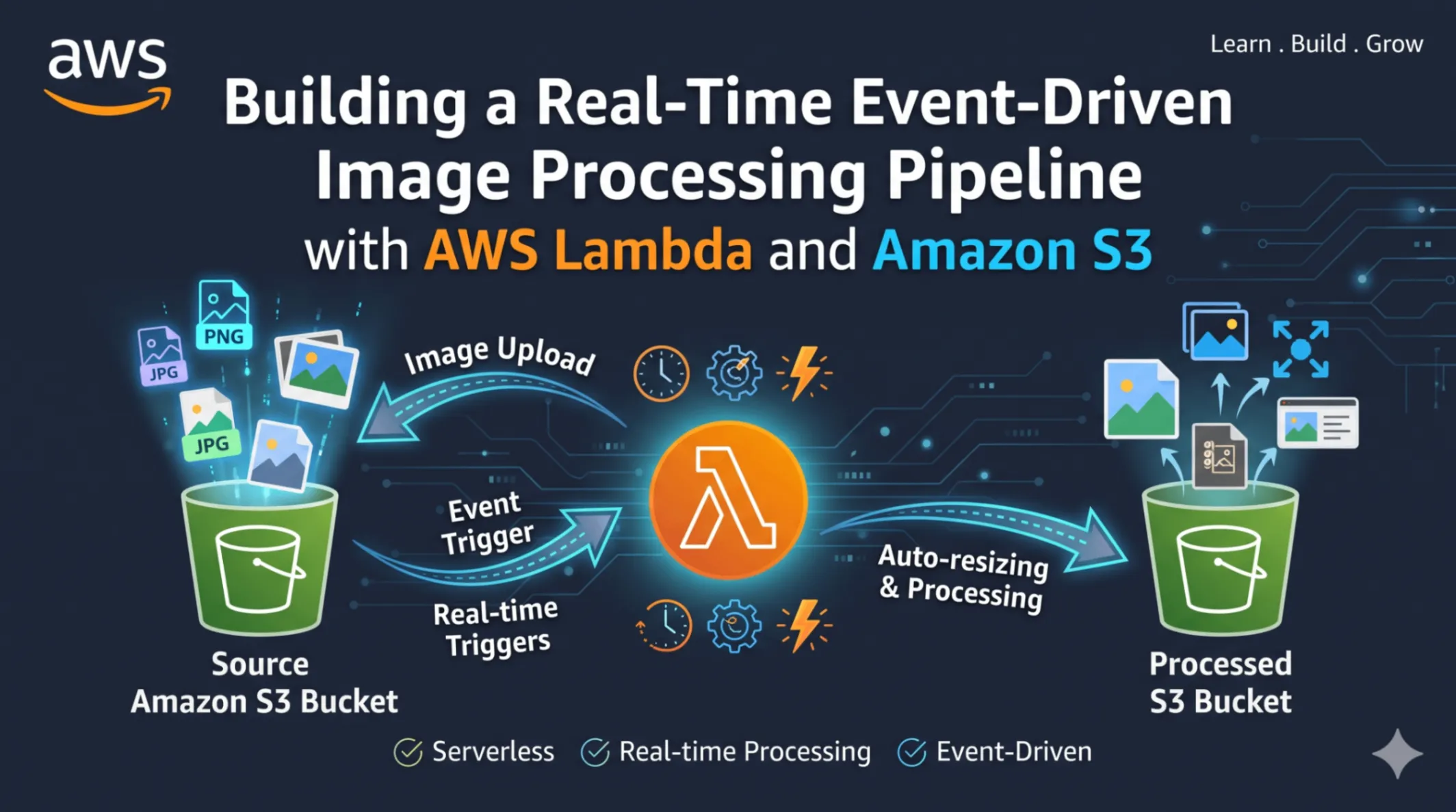
Building a Real-Time Event-Driven Image Processing Pipeline with AWS Lambda and Amazon S3
Learn how to create an automated, scalable image processing workflow on AWS using Amazon S3 triggers and AWS Lambda to automatically resize, convert, and store uploaded images in real time.

# Building a Real-Time Event-Driven Image Processing Pipeline with AWS Lambda and Amazon S3
## Introduction
In modern web applications, handling user uploads efficiently is crucial. Processing images—such as generating thumbnails, stripping metadata, or converting formats—on your primary web application server can lead to performance bottlenecks and unnecessary compute costs.
By leveraging an event-driven serverless architecture on AWS, you can automatically run code in response to user uploads without managing any server infrastructure. In this guide, we will walk through building an automated image processing pipeline using **Amazon Simple Storage Service (Amazon S3)** and **AWS Lambda**.
---
## Architecture Overview
Here is how the event-driven workflow operates:
1. **Upload:** A user or application uploads an image to an incoming **Amazon S3 Bucket (`input-bucket`)**.
2. **Trigger:** Amazon S3 detects the upload (`s3:ObjectCreated:*` event) and automatically invokes an **AWS Lambda function**.
3. **Process:** The Lambda function fetches the uploaded image, resizes or optimizes it, and converts it to the target format.
4. **Storage:** The processed image is saved into a separate destination **Amazon S3 Bucket (`output-bucket`)**.
2. **Trigger:** Amazon S3 detects the upload (`s3:ObjectCreated:*` event) and automatically invokes an **AWS Lambda function**.
3. **Process:** The Lambda function fetches the uploaded image, resizes or optimizes it, and converts it to the target format.
4. **Storage:** The processed image is saved into a separate destination **Amazon S3 Bucket (`output-bucket`)**.
---
## Step 1: Set Up the Amazon S3 Buckets
First, create two separate S3 buckets in your AWS Management Console:
* `my-app-image-uploads-source` (stores original uploads)
* `my-app-image-uploads-resized` (stores processed thumbnails)
* `my-app-image-uploads-resized` (stores processed thumbnails)
> **Note:** Keeping input and output buckets separate prevents infinite recursive loops where a new upload triggers the function continuously.
---
## Step 2: Create the IAM Role for Lambda
Your Lambda function requires permissions to read from the source bucket and write to the destination bucket.
1. Go to the **IAM Console** > **Roles** > **Create Role**.
2. Select **AWS Service** and choose **Lambda**.
3. Attach the managed policy `AWSLambdaBasicExecutionRole` (for CloudWatch Logs).
4. Add an inline policy granting permissions for S3 actions:
* `s3:GetObject` on `arn:aws:s3:::my-app-image-uploads-source/*`
* `s3:PutObject` on `arn:aws:s3:::my-app-image-uploads-resized/*`
2. Select **AWS Service** and choose **Lambda**.
3. Attach the managed policy `AWSLambdaBasicExecutionRole` (for CloudWatch Logs).
4. Add an inline policy granting permissions for S3 actions:
* `s3:GetObject` on `arn:aws:s3:::my-app-image-uploads-source/*`
* `s3:PutObject` on `arn:aws:s3:::my-app-image-uploads-resized/*`
---
## Step 3: Write the AWS Lambda Function
Here is a Python Lambda function outline that retrieves the bucket name and object key from the incoming event record:
```python
import json
import urllib.parse
import boto3
import json
import urllib.parse
import boto3
s3 = boto3.client('s3')
def lambda_handler(event, context):
# Retrieve bucket name and key from the S3 event record
source_bucket = event['Records'][0]['s3']['bucket']['name']
object_key = urllib.parse.unquote_plus(
event['Records'][0]['s3']['object']['key'],
encoding='utf-8'
)
target_bucket = 'my-app-image-uploads-resized'
print(f"Processing image {object_key} from bucket {source_bucket}...")
# 1. Download file from source_bucket
# 2. Resize/process image using PIL (Pillow) or Sharp
# 3. Upload processed image to target_bucket
return {
'statusCode': 200,
'body': json.dumps(f'Successfully processed {object_key}')
}
# Retrieve bucket name and key from the S3 event record
source_bucket = event['Records'][0]['s3']['bucket']['name']
object_key = urllib.parse.unquote_plus(
event['Records'][0]['s3']['object']['key'],
encoding='utf-8'
)
target_bucket = 'my-app-image-uploads-resized'
print(f"Processing image {object_key} from bucket {source_bucket}...")
# 1. Download file from source_bucket
# 2. Resize/process image using PIL (Pillow) or Sharp
# 3. Upload processed image to target_bucket
return {
'statusCode': 200,
'body': json.dumps(f'Successfully processed {object_key}')
}
Enjoyed reading this content? Let the author know!
Your likes, comments, shares, and saves help creators reach more builders.

Loading recommendations
Loading article