
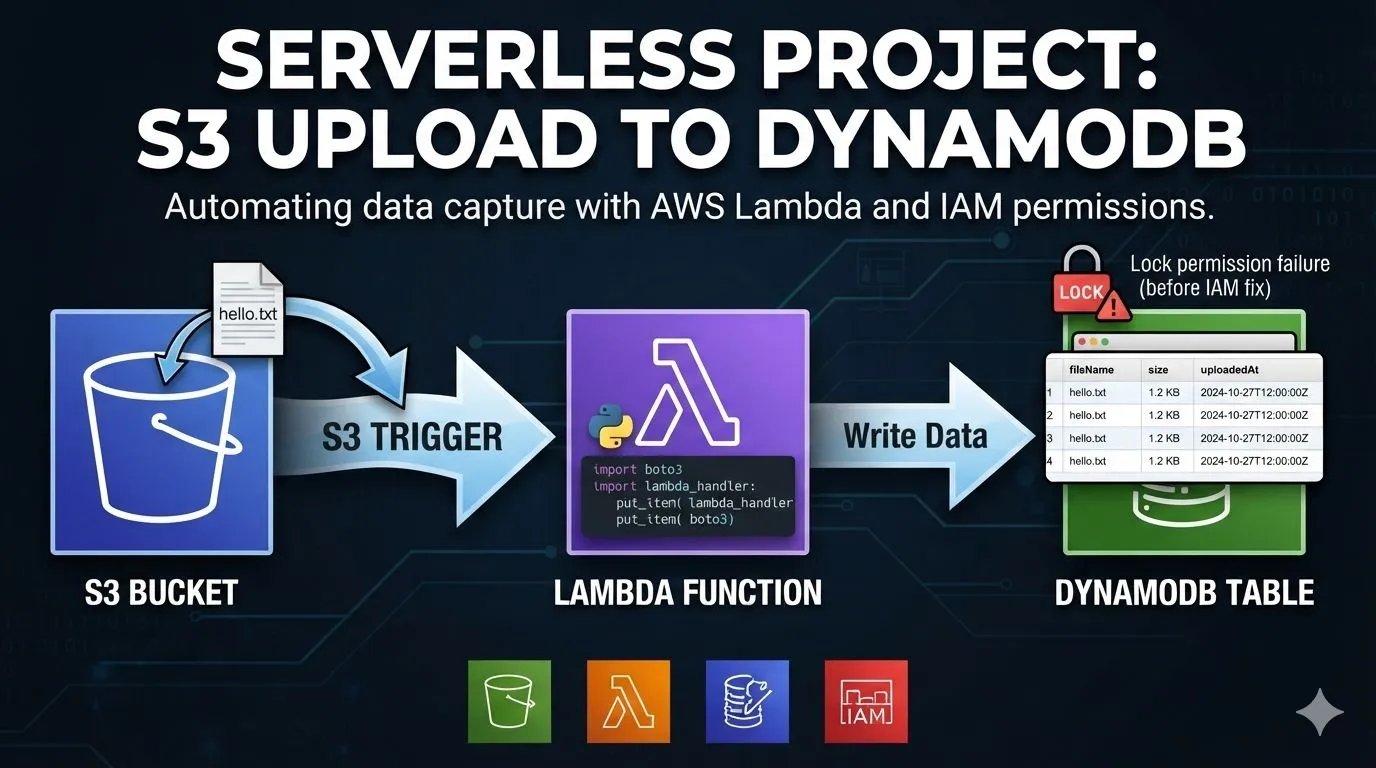
🚀 Project: Save S3 Uploads into DynamoDB with Lambda
In my last posts, I learned about S3, Lambda, IAM, and DynamoDB. Now let’s combine them in one small project. When you upload a file to S3, Lambda runs automatically and saves the file’s details in a DynamoDB table.

🧠 The Plan
Upload file → S3 → Lambda → DynamoDB
You’ll reuse what you already built:
the S3 bucket from my earlier post
the Lambda function that S3 triggers
the UploadedFiles table (partition key: fileName)
the Lambda function that S3 triggers
the UploadedFiles table (partition key: fileName)
🛠️ Step 1: Update the Lambda Code
Open your function (the one already triggered by your bucket) and replace the code:
1
2
3
4
5
6
7
8
9
10
11
12
13
14
15
16
17
18
19
import boto3
from urllib.parse import unquote_plus

table = boto3.resource("dynamodb").Table("UploadedFiles")

def lambda_handler(event, context):
    record = event["Records"][0]
    key = unquote_plus(record["s3"]["object"]["key"])
    size = record["s3"]["object"]["size"]
    uploaded_at = record["eventTime"]

    table.put_item(Item={
        "fileName": key,
        "size": size,
        "uploadedAt": uploaded_at
    })

    print("Saved:", key)
    return {"statusCode": 200}
put_item writes one item to the table.
size and eventTime come straight from the S3 event, so Lambda doesn’t need to read the file at all.
unquote_plus decodes special characters in file names.
size and eventTime come straight from the S3 event, so Lambda doesn’t need to read the file at all.
unquote_plus decodes special characters in file names.
Click Deploy.
💡 Why reuse the same function? S3 doesn’t allow two overlapping triggers for the same event on the same bucket. If you create a second function with the same trigger, S3 will reject it. Updating the existing function avoids that.
💥 Step 2: Watch It Fail First
Upload a file, such as hello.txt, then check CloudWatch Logs. You’ll see an error like:
AccessDeniedException: ... is not authorized to perform: dynamodb:PutItem
This is the same lesson as in my IAM post: Lambda’s role doesn’t have permission to write to DynamoDB yet. 🔒
🔧 Step 3: Give Lambda Permission
Open your function → Configuration → Permissions → click the role name.
In IAM, click Add permissions → Create inline policy → JSON tab.
Paste this, replacing the region and account ID with your own (you can copy the table’s ARN from the DynamoDB table details page):
In IAM, click Add permissions → Create inline policy → JSON tab.
Paste this, replacing the region and account ID with your own (you can copy the table’s ARN from the DynamoDB table details page):
1
2
3
4
5
6
7
8
9
10
{
  "Version": "2012-10-17",
  "Statement": [
    {
      "Effect": "Allow",
      "Action": "dynamodb:PutItem",
      "Resource": "arn:aws:dynamodb:YOUR-REGION:YOUR-ACCOUNT-ID:table/UploadedFiles"
    }
  ]
}
Name the policy (for example write-uploaded-files) and click Create policy.
It allows only PutItem on one table, which is least privilege again.
✅ Step 4: Test the Whole Flow
Upload a new file to your bucket.
Open DynamoDB → your table → Explore table items.
You’ll see a new item with the file name, size, and upload time. 🎉
Open DynamoDB → your table → Explore table items.
You’ll see a new item with the file name, size, and upload time. 🎉
You never ran the function yourself. The upload did everything.
📝 Good to Know
Same file name = same item. Uploading a file with a name that already exists overwrites that item, because fileName is the partition key.
The code handles only the first record in the event. Real applications loop through all records.
No infinite loop risk here. Lambda writes to DynamoDB, not back to the bucket.
🧹 Cleanup
When you finish the series, delete the table, the function, the S3 trigger, and the test files so your account stays tidy. I’m keeping them for now because I’ll reuse them.
🔮 Next Up
So far, the data comes from file uploads. Next, I’m moving into my own field, IoT. I’ll set a billing alarm first, then connect a device to AWS IoT Core, and start sending sensor data into this same kind of pipeline.
Sensor → IoT Core → Lambda/DynamoDB
💬 Your turn: Upload three different files. Does each one appear as its own item? What happens if you upload the same file name twice?
Enjoyed reading this content? Let the author know!
Your likes, comments, shares, and saves help creators reach more builders.

Loading recommendations
Loading article