
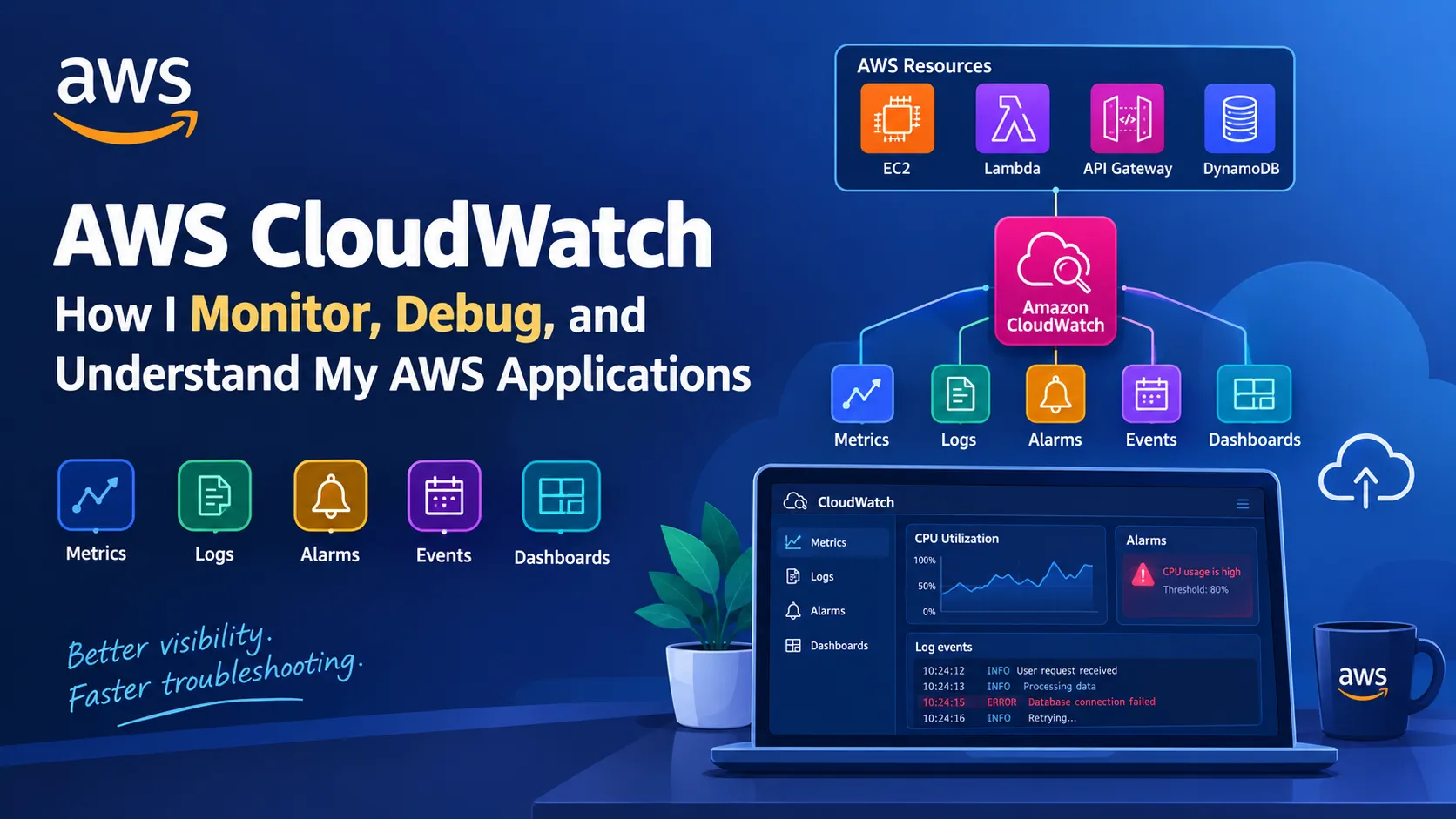
AWS CloudWatch Explained: How I Monitor, Debug, and Understand My AWS Applications
A beginner-friendly guide to Amazon CloudWatch and how it helps monitor AWS resources, collect logs, create alarms, and troubleshoot applications before small problems become big ones.


📊 AWS CloudWatch Explained: How I Monitor, Debug, and Understand My AWS Applications
After learning how to create AWS resources, I started thinking about another important question:
How do I know whether my application is actually working properly?
Launching an EC2 instance is easy.
Creating a Lambda function is easy.
Building an API is possible.
But what happens when something goes wrong?
Maybe:
- CPU usage suddenly increases.
- A Lambda function starts failing.
- An API becomes slow.
- An application generates errors.
- A service stops behaving as expected.
This is where Amazon CloudWatch becomes extremely useful.
My simple mental model is:
1
2
3
4
5
6
7
8
9
10
11
AWS Resources
     │
     ▼
┌─────────────────┐
│  Amazon         │
│  CloudWatch     │
└────────┬────────┘
         │
    ┌────┼────┐
    ▼    ▼    ▼
 Metrics Logs Alarms
CloudWatch gives me visibility into what's happening inside my AWS environment.
🧠 What Is Amazon CloudWatch?
Amazon CloudWatch is an AWS monitoring and observability service.
It can help me collect and work with information such as:
1
2
3
4
5
Metrics
Logs
Alarms
Events
Dashboards
Instead of checking every AWS service manually, I can use CloudWatch to get a centralized view of application and infrastructure behavior.
📈 What Is a Metric?
A metric is a numerical measurement collected over time.
For example, an EC2 instance might have metrics related to:
1
2
3
CPU utilization
Network traffic
Disk-related activity
Imagine my server normally uses:
1
CPU → 20%
But suddenly:
1
CPU → 95%
That could indicate something unusual.
CloudWatch allows me to observe these kinds of changes.
🚨 CloudWatch Alarms
This is where monitoring becomes more useful.
Suppose I want to know when CPU usage becomes unusually high.
I could create an alarm based on a threshold.
Conceptually:
1
2
3
4
5
6
7
8
9
10
11
12
CPU Usage
│
│
│
│
│──────────── Alarm Threshold
│ 🚨
│ /
│ /
│─────
│
└──────────────────── TimeThe idea is:
If a metric crosses a condition, CloudWatch can trigger an alarm.
This means I don't have to constantly watch the dashboard myself.
🔔 Why Alarms Matter
Imagine an application running 24/7.
I don't want to sit in front of CloudWatch all day asking:
"Is the CPU okay?"
Instead:
1
2
3
4
5
6
7
8
9
10
11
12
13
Application
     │
     ▼
CloudWatch
     │
     ▼
Metric
     │
     ▼
Alarm
     │
     ▼
Notification / Action
This is much closer to how real monitoring systems work.
📝 CloudWatch Logs
Metrics tell me what is happening numerically.
Logs can help me understand what actually happened.
For example, an application might produce:
1
2
3
INFO: User request received
INFO: Processing order
ERROR: Database connection failed
These messages can be extremely useful when troubleshooting.
CloudWatch Logs gives me a centralized place to work with logs generated by supported AWS services and applications.
⚡ Lambda + CloudWatch Logs
This becomes especially useful with AWS Lambda.
Suppose my Lambda function fails.
Instead of guessing why, I can inspect its logs.
The architecture looks like:
1
2
3
4
5
6
7
8
              API Gateway
                   │
                   ▼
                Lambda
                   │
                   │ Logs
                   ▼
             CloudWatch Logs
A Lambda function might produce:
1
2
3
4
5
START RequestId: ...
Processing request
Fetching user data
ERROR: Invalid input
END RequestId: ...
Now I have clues about what went wrong.
🐍 Example: Adding Logging to Python
When writing Python code for Lambda, I can use Python's logging functionality.
For example:
1
import logginglogger = logging.getLogger()logger.setLevel(logging.INFO)def lambda_handler(event, context):    logger.info("Lambda function started")    name = event.get("name")    logger.info("Received name: %s", name)    return {        "statusCode": 200,        "body": "Hello!"    }
These log messages can help me understand what the function is doing when it executes.
🔍 Debugging With Logs
Suppose my API suddenly returns an error.
My first instinct might be:
"Something is broken."
But that's not enough information.
I can instead follow a troubleshooting process:
1
2
3
4
5
6
7
8
9
10
11
12
13
API Request
     │
     ▼
API Gateway
     │
     ▼
Lambda
     │
     ▼
CloudWatch Logs
     │
     ▼
Find Error
Maybe the logs show:
1
ERROR: KeyError: 'userId'
Now I have a much better starting point.
This is one of the biggest lessons I've learned:
Good logs turn guessing into troubleshooting.
📊 CloudWatch Dashboards
Another useful feature is dashboards.
Instead of looking at individual metrics separately, I can create a dashboard that shows important information together.
For example:
1
2
3
4
5
6
7
8
9
┌──────────────────────────────────────┐
│        My AWS Application            │
├──────────────────┬───────────────────┤
│ EC2 CPU          │ API Requests      │
│       32%        │      1,240        │
├──────────────────┼───────────────────┤
│ Lambda Errors     │ Response Time     │
│       3           │      180 ms       │
└──────────────────┴───────────────────┘
This gives me a high-level view of the application.
🔄 Monitoring My Previous AWS Architecture
Let's connect CloudWatch with the services I've already learned.
My serverless architecture was:
1
2
3
4
5
6
7
8
9
10
                    🌍 User
                       │
                       ▼
                 API Gateway
                       │
                       ▼
                    Lambda
                       │
                       ▼
                   DynamoDB
Now I can add monitoring:
1
2
3
4
5
6
7
8
9
10
11
12
13
14
15
16
17
18
19
20
                    🌍 User
                       │
                       ▼
                 API Gateway
                       │
                       ▼
                    Lambda
                       │
                       ▼
                   DynamoDB
                       │
                       │
                       ▼
                ┌─────────────┐
                │ CloudWatch  │
                │             │
                │ Logs        │
                │ Metrics     │
                │ Alarms      │
                └─────────────┘
Now I don't just have an application.
I have an application that I can observe.
🖥️ Monitoring EC2
CloudWatch is also useful with EC2.
Imagine my EC2 server normally has:
1
CPU: 25%
Then suddenly:
1
CPU: 98%
I might investigate:
1
2
3
4
1. What process is consuming CPU?
2. Did traffic increase?
3. Did an application change?
4. Is there an unexpected workload?
CloudWatch doesn't necessarily tell me the complete answer automatically.
Instead, it gives me useful signals that help me investigate.
⚠️ Monitoring Isn't Just About Errors
This was an important realization for me.
Monitoring isn't only:
"Did something crash?"
It can also answer:
"Is the system behaving differently than normal?"
For example:
1
2
3
4
5
6
7
Requests
   ↑
   │          /\
   │         /  \
   │________/    \____
   │
   └────────────────── Time
A sudden traffic increase might be perfectly normal.
Or it could indicate a problem.
Monitoring gives me the information needed to investigate.
🎯 Metrics vs Logs
This distinction is useful.
Metrics
Metrics answer:
"How much?"
Examples:
1
2
3
4
CPU = 70%
Requests = 1,000
Latency = 200 ms
Errors = 5
Logs
Logs answer:
"What happened?"
Examples:
1
2
3
4
User request received
Database connection failed
Invalid input
Payment processing completed
So I remember:
1
2
Metrics → Numbers
Logs    → Details
Both are important.
🚨 Creating a Simple Monitoring Strategy
For a small application, I can start with a few important signals.
For example:
1
2
3
4
5
6
7
8
9
10
11
12
Application
    │
    ├── Errors
    ├── Latency
    ├── Request Count
    └── Resource Utilization
              │
              ▼
         CloudWatch
              │
              ▼
           Alarms
I don't need hundreds of alarms.
Too many alerts can become noise.
A better approach is to monitor the signals that actually matter to the application.
🧠 A Better Troubleshooting Workflow
CloudWatch changed how I think about debugging AWS applications.
Instead of:
1
2
3
4
5
6
7
Something is broken
       ↓
Guess
       ↓
Change something
       ↓
Hope it works
I want to follow:
1
2
3
4
5
6
7
8
9
10
11
12
13
Something is broken
       ↓
Check metrics
       ↓
Check logs
       ↓
Identify pattern
       ↓
Find likely cause
       ↓
Make a change
       ↓
Monitor again
This is a much more systematic approach.
⚠️ Common Beginner Mistakes
❌ Mistake 1: Only checking logs after something breaks
Monitoring should be proactive too.
❌ Mistake 2: Creating too many alarms
An alert should provide useful information.
Too many alerts can make important notifications easier to miss.
❌ Mistake 3: Writing no useful application logs
A log saying:
1
ERROR
isn't very helpful.
A log with useful context can make debugging much easier.
❌ Mistake 4: Ignoring metrics
Logs tell me details, but metrics can reveal trends and abnormal behavior.
❌ Mistake 5: Forgetting that monitoring itself needs planning
I need to decide:
1
2
3
4
What should I monitor?
What is normal?
What is abnormal?
When should I be alerted?
🔐 Security and Monitoring
Logs can sometimes contain sensitive information.
So I should be careful about what my applications write to logs.
For example, I shouldn't casually log:
1
2
3
4
Passwords
Private keys
Secrets
Sensitive personal information
A good monitoring system should improve visibility without creating unnecessary security risks.
💡 My Biggest CloudWatch Lesson
Before learning CloudWatch, I thought AWS was mainly about creating resources.
Now I'm starting to see another important part:
Creating infrastructure is only half the job. Understanding what that infrastructure is doing is equally important.
A production mindset looks more like:
1
2
3
4
5
6
7
8
9
10
11
Build
  ↓
Deploy
  ↓
Monitor
  ↓
Detect
  ↓
Troubleshoot
  ↓
Improve
CloudWatch fits directly into that cycle.
🏗️ My Updated AWS Architecture
After adding CloudWatch to the services I've learned, my mental model now looks like:
1
2
3
4
5
6
7
8
9
10
11
12
13
14
15
16
17
18
19
20
21
                         🌍 Users
                            │
                            ▼
                      API Gateway
                            │
                            ▼
                         Lambda
                            │
                            ▼
                        DynamoDB
                            │
                            │
                            ▼
                    ┌───────────────┐
                    │  CloudWatch   │
                    │               │
                    │ Metrics       │
                    │ Logs          │
                    │ Alarms        │
                    │ Dashboards    │
                    └───────────────┘
And for EC2:
1
2
3
4
5
6
7
8
9
10
11
12
                       EC2
                        │
              ┌─────────┴─────────┐
              │                   │
           Metrics              Logs
              │                   │
              └─────────┬─────────┘
                        ▼
                   CloudWatch
                        │
                        ▼
                      Alarm
🎯 Final Takeaway
The biggest thing I learned is:
If I can't observe my application, I can't confidently operate it.
CloudWatch gives me the tools to understand what's happening through:
📈 Metrics — What is happening?
📝 Logs — What happened?
🚨 Alarms — When should I take action?
📊 Dashboards — What does the system look like overall?
My simple mental model is:
1
2
3
4
5
6
7
AWS Resources
      │
      ▼
 CloudWatch
   /  |  \
  ▼   ▼   ▼
Metrics Logs Alarms
I'm slowly realizing that becoming good at AWS isn't just about memorizing services.
It's about learning how to build, secure, monitor, troubleshoot, and improve cloud systems.
One AWS concept at a time. 🚀☁️
Enjoyed reading this content? Let the author know!
Your likes, comments, shares, and saves help creators reach more builders.

Loading recommendations
Loading article