
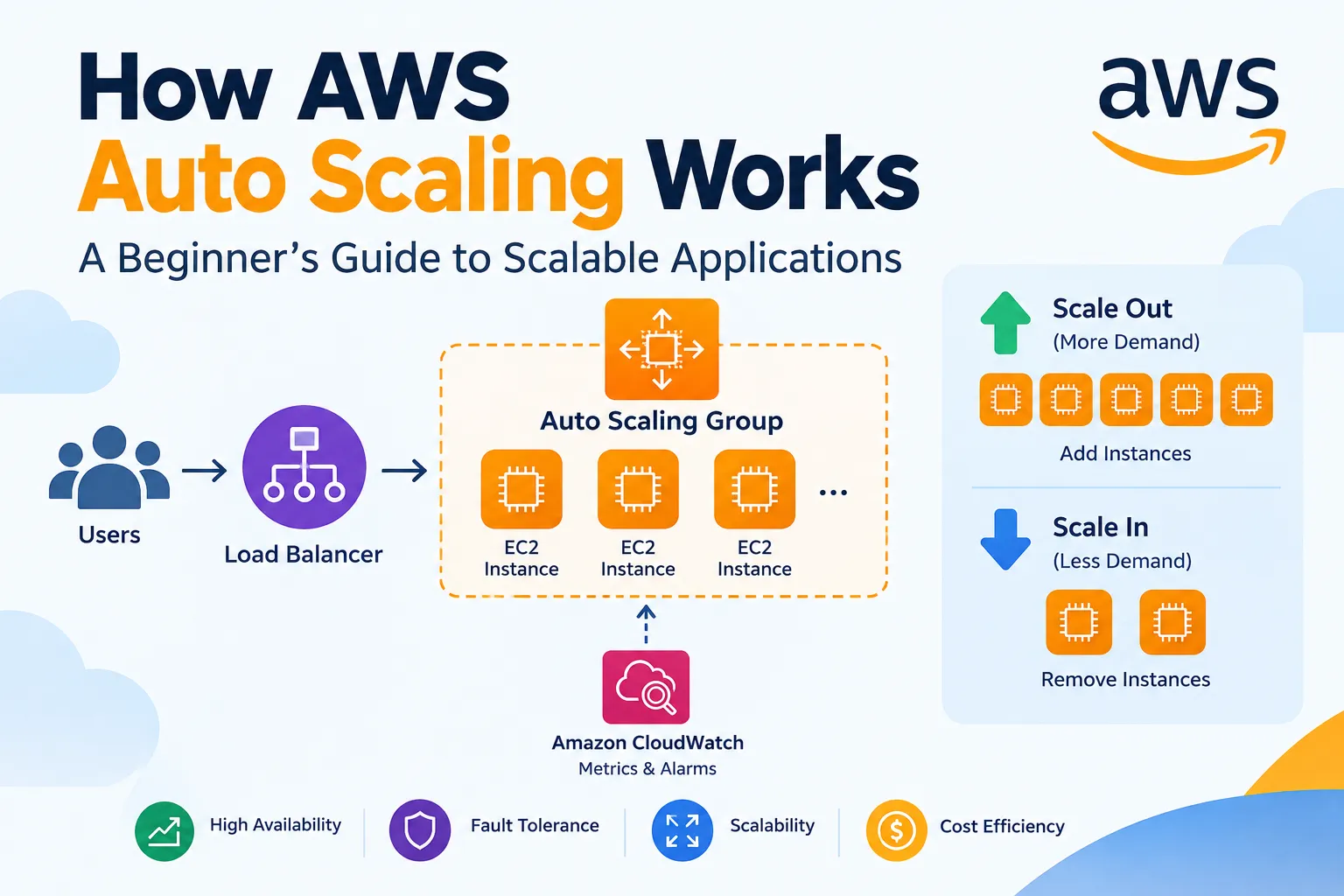
How AWS Auto Scaling Works: A Beginner’s Guide to Scalable Applications
This beginner-friendly article explains how Amazon EC2 Auto Scaling automatically adjusts the number of EC2 instances based on application demand. It covers Auto Scaling Groups, minimum, desired, and maximum capacity, scaling out and scaling in, health checks, scaling policies, and the role of Amazon CloudWatch. A simple real-world example shows how Auto Scaling can improve application availability while helping manage infrastructure costs.

How AWS Auto Scaling Works: A Beginner’s Guide to Scalable Applications
Introduction
Introduction
Cloud applications often experience changes in the number of users and the amount of traffic they receive. For example, an online shopping website may have normal traffic during the day but receive much higher traffic during a sale. If the application does not have enough computing capacity, it may become slow or unavailable.
Amazon EC2 Auto Scaling helps solve this problem by automatically adjusting the number of Amazon EC2 instances running an application. It can increase capacity when demand increases and reduce capacity when demand decreases. It can also replace unhealthy instances automatically.
What Is Amazon EC2 Auto Scaling?
Amazon EC2 Auto Scaling is an AWS service that automatically manages EC2 instances according to defined requirements.
The main component is an Auto Scaling Group (ASG). An Auto Scaling Group is a logical collection of EC2 instances that are managed together.
For example, instead of manually managing 2, 5, or 10 EC2 instances, an Auto Scaling Group can automatically adjust the number of instances according to application requirements.
An Auto Scaling Group normally uses three important capacity settings:
Minimum capacity – The minimum number of instances that should run.
Desired capacity – The number of instances AWS tries to maintain.
Maximum capacity – The maximum number of instances that can run.
Desired capacity – The number of instances AWS tries to maintain.
Maximum capacity – The maximum number of instances that can run.
These settings help control how far the application can scale.
How Does AWS Auto Scaling Work?
The basic Auto Scaling process can be understood in four steps:
Monitor → Detect → Scale → Maintain
First, AWS monitors the application and its resources using metrics such as those provided by Amazon CloudWatch.
When the demand changes or an instance becomes unhealthy, Auto Scaling evaluates the configured rules.
If more capacity is required, it launches additional EC2 instances. This is called scale out.
If less capacity is required, it can remove EC2 instances. This is called scale in.
Auto Scaling also monitors the health of instances and can replace unhealthy instances automatically.
Scale Out and Scale In
Scale Out
Scale Out
Scale out means increasing the computing capacity of an application.
For example, suppose an application is running on two EC2 instances. If the application receives a sudden increase in traffic, Auto Scaling can launch additional instances.
The application might then run on four EC2 instances instead of two.
Scale In
Scale in means reducing computing capacity.
When traffic decreases, running unnecessary instances can increase costs. Auto Scaling can terminate some instances while maintaining the required capacity.
This allows applications to adapt to changing workloads instead of running a fixed number of servers all the time.
Launch Templates
A Launch Template defines how new EC2 instances should be created.
It can contain configuration information such as:
Amazon Machine Image (AMI)
Instance type
Security groups
Key pair
Storage configuration
Network settings
Instance type
Security groups
Key pair
Storage configuration
Network settings
When Auto Scaling needs to launch a new instance, it uses the Launch Template to create the instance with the required configuration.
AWS recommends using Launch Templates because they provide more features than older Launch Configurations.
Different Ways to Scale
AWS provides several methods for scaling an Auto Scaling Group.
- Manual Scaling
With manual scaling, the user changes the desired capacity manually.
For example, an administrator can increase the desired capacity from 2 instances to 5 instances.
- Scheduled Scaling
Scheduled scaling is useful when application demand follows a predictable schedule.
For example, if a website normally receives high traffic every evening, additional capacity can be scheduled before that period.
- Dynamic Scaling
Dynamic scaling responds to changes in application demand.
For example, a scaling policy could monitor a CloudWatch metric and increase the number of EC2 instances when the workload increases.
AWS supports different dynamic scaling approaches, including target tracking and step scaling.
- Predictive Scaling
Predictive scaling uses historical workload information to forecast future demand.
For applications with predictable traffic patterns, this can help prepare computing capacity before the expected increase in demand.
Role of Amazon CloudWatch
Amazon CloudWatch can provide metrics that Auto Scaling policies use to make scaling decisions.
For example, an Auto Scaling policy can monitor a metric such as average CPU utilization and adjust capacity according to a configured target.
This creates an automated relationship between application demand and computing capacity.
Health Checks and Automatic Replacement
Auto Scaling is not only about increasing and decreasing the number of instances.
It can also improve application reliability by monitoring instance health.
If an instance becomes unhealthy, Auto Scaling can remove it from the group and launch a replacement instance.
This is especially useful because applications do not always fail because of increased traffic. Individual servers can also experience problems.
Auto Scaling with Load Balancing
Auto Scaling is commonly used together with Elastic Load Balancing (ELB).
A load balancer distributes incoming requests across multiple EC2 instances.
When Auto Scaling launches new instances, they can be registered with the load balancer so that they can receive application traffic.
This combination helps applications handle changing traffic while improving availability and reliability.
Real-World Example
Consider an online shopping website running on AWS.
During normal hours, the website may require only two EC2 instances.
During a major sale, thousands of additional customers may visit the website. The increased traffic can cause the application workload to rise.
An Auto Scaling policy can detect the increased demand and launch additional EC2 instances.
After the sale ends and traffic decreases, Auto Scaling can reduce the number of instances.
The result is an application that can respond to changing demand without requiring an administrator to manually launch and terminate servers.
Benefits of AWS Auto Scaling
AWS Auto Scaling provides several important benefits:
- Better Availability
Applications can maintain appropriate computing capacity as demand changes.
- Improved Fault Tolerance
Unhealthy EC2 instances can be replaced automatically.
- Scalability
Applications can increase or decrease their capacity according to workload requirements.
- Cost Management
When demand decreases, unnecessary EC2 capacity can be reduced, helping avoid paying for resources that are no longer required.
- Automation
Administrators do not need to manually monitor and adjust the number of EC2 instances every time application traffic changes.
Conclusion
Amazon EC2 Auto Scaling is an important AWS service for building scalable and reliable cloud applications. It allows applications to automatically adjust their computing capacity according to workload requirements.
By using Auto Scaling Groups, Launch Templates, CloudWatch metrics, scaling policies, health checks, and load balancing, organizations can create applications that are better prepared for changing traffic and unexpected failures.
For beginners learning AWS, understanding Auto Scaling is important because it demonstrates one of the major advantages of cloud computing: resources can be adjusted according to application needs instead of relying on a fixed amount of infrastructure.
Enjoyed reading this content? Let the author know!
Your likes, comments, shares, and saves help creators reach more builders.

Loading recommendations
Loading article