
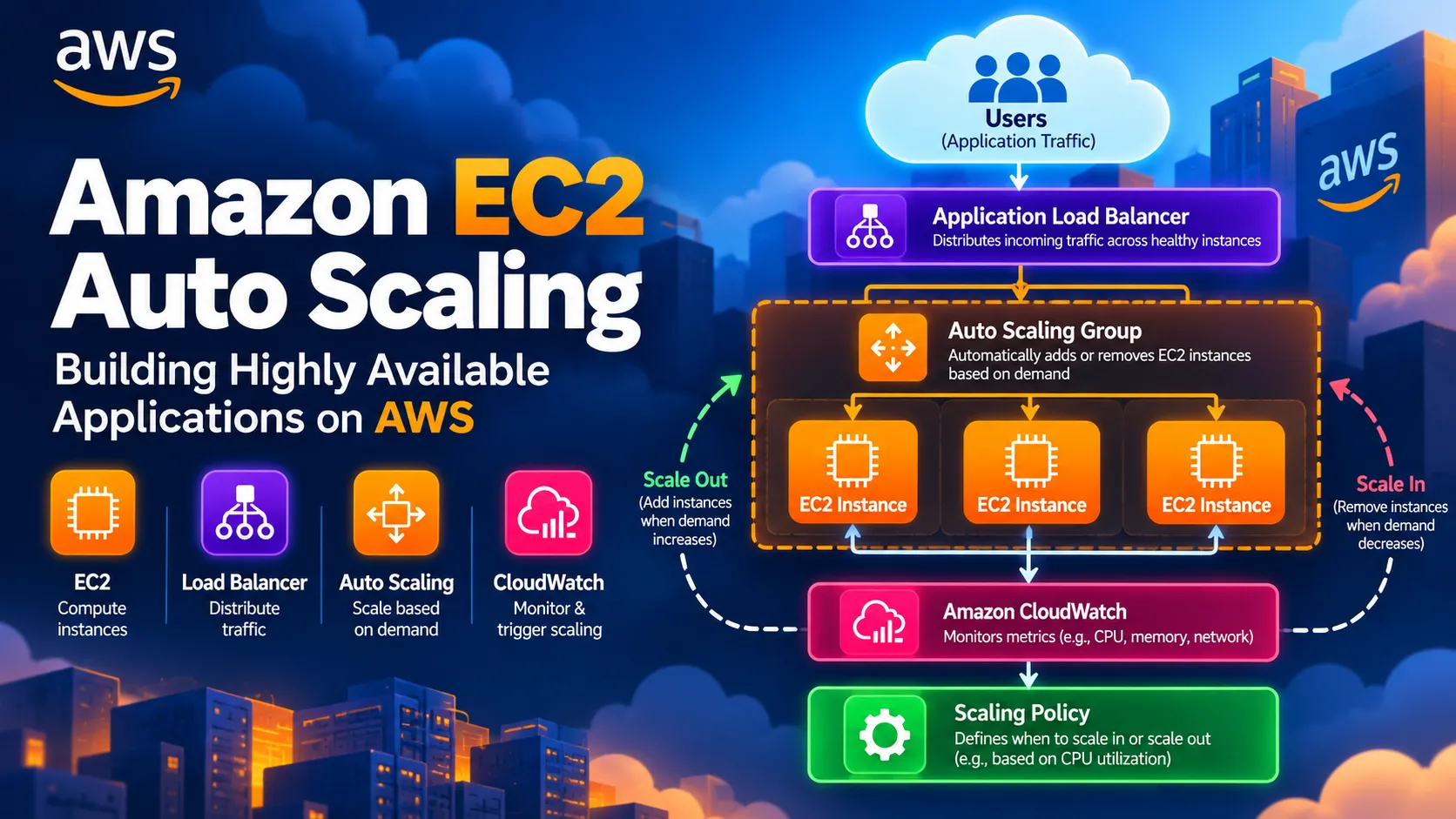
EC2 Auto Scaling: Build Highly Available AWS Apps
Learn how Amazon EC2 Auto Scaling, Load Balancing, and CloudWatch work together to build scalable and highly available applications on AWS.

As applications grow, handling changing traffic becomes an important challenge for cloud and DevOps teams.
If an application suddenly receives thousands of requests, a single EC2 instance may not be enough. On the other hand, running many instances all the time can increase costs.
Amazon EC2 Auto Scaling helps solve this problem by automatically adjusting the number of EC2 instances based on application demand.
In this article, we will understand how EC2 Auto Scaling works and how it can be combined with Elastic Load Balancing and Amazon CloudWatch to build a highly available application on AWS.
What is Amazon EC2 Auto Scaling?
Amazon EC2 Auto Scaling automatically adds or removes EC2 instances according to the configured scaling policies and application demand.
For example:
Low Traffic
↓
2 EC2 Instances
↓
2 EC2 Instances
When traffic increases:
High Traffic
↓
4 EC2 Instances
↓
4 EC2 Instances
When traffic decreases:
Low Traffic
↓
2 EC2 Instance
↓
2 EC2 Instance
This is called horizontal scaling because we increase or decrease the number of instances instead of increasing the size of a single instance.
Why Do We Need Auto Scaling?
Without Auto Scaling, we might have to manually create EC2 instances whenever traffic increases.
For example:
Users
↓
EC2 Instance
↓
High CPU / High Traffic
↓
Performance Problems
↓
EC2 Instance
↓
High CPU / High Traffic
↓
Performance Problems
With Auto Scaling:
Users
↓
Load Balancer
↓
Auto Scaling Group
↓
EC2 Instances
↓
Load Balancer
↓
Auto Scaling Group
↓
EC2 Instances
The number of EC2 instances can automatically change based on demand.
This provides:
- Better availability
- Automatic scaling
- Improved performance
- Better resource utilization
- Reduced manual operations
- Potential cost optimization
What is an Auto Scaling Group?
An Auto Scaling Group (ASG) is a collection of EC2 instances that are managed together.
An ASG allows us to define:
Minimum capacity
The minimum number of instances that should be running.
Desired capacity
The number of instances we normally want running.
Maximum capacity
The maximum number of instances the ASG can launch.
For example:
Minimum = 2
Desired = 2
Maximum = 5
Desired = 2
Maximum = 5
This means:
Normal traffic
↓
2 instances
↓
2 instances
Higher traffic
↓
3 → 4 → 5 instances
↓
3 → 4 → 5 instances
Traffic decreases
↓
5 → 4 → 3 → 2 instances
↓
5 → 4 → 3 → 2 instances
The ASG will not normally go below the minimum or above the maximum capacity.
Launch Template
Before an Auto Scaling Group can launch EC2 instances, AWS needs to know how those instances should be configured.
A Launch Template provides this configuration.
It can specify:
• AMI
• Instance type
• Key pair
• Security groups
• Storage configuration
• IAM role
• User data
• Network configuration
• Instance type
• Key pair
• Security groups
• Storage configuration
• IAM role
• User data
• Network configuration
For example:
Launch Template
↓
AMI
↓
t3.micro
↓
Security Group
↓
IAM Role
↓
EC2 Instance
↓
AMI
↓
t3.micro
↓
Security Group
↓
IAM Role
↓
EC2 Instance
When the Auto Scaling Group needs another instance, it uses the launch template to create it.
Elastic Load Balancing
Auto Scaling becomes even more useful when combined with an Elastic Load Balancer.
The Load Balancer distributes incoming requests across healthy EC2 instances.
For example:
Users
↓
Application Load
Balancer
↙ ↓ ↘
EC2 EC2 EC2
↓
Application Load
Balancer
↙ ↓ ↘
EC2 EC2 EC2
If another instance is launched:
Users
↓
Application Load
Balancer
↙ ↓ ↘
EC2 EC2 EC2
↓
EC2
↓
Application Load
Balancer
↙ ↓ ↘
EC2 EC2 EC2
↓
EC2
The new instance can become part of the load-balanced application after it passes the relevant health checks.
How Auto Scaling Works
A typical architecture looks like this:

The main components work together:
Application Load Balancer
Distributes incoming traffic.
Auto Scaling Group
Manages the EC2 instances.
CloudWatch
Provides monitoring metrics such as CPU utilization.
Scaling Policy
Determines when the ASG should add or remove instances.
Scale Out vs Scale In
There are two important scaling operations.
Scale Out
Scale out means adding more EC2 instances.
For example:
2 Instances
↓
High CPU / High Traffic
↓
3 Instances
↓
4 Instances
↓
High CPU / High Traffic
↓
3 Instances
↓
4 Instances
This helps handle increased traffic.
Scale In
Scale in means removing EC2 instances when demand decreases.
4 Instances
↓
Low Traffic
↓
3 Instances
↓
2 Instances
↓
Low Traffic
↓
3 Instances
↓
2 Instances
This can help reduce unnecessary infrastructure costs.
CPU-Based Scaling Example
One simple approach is scaling based on average CPU utilization.
Suppose we configure:
Target CPU Utilization = 60%
Minimum Instances = 2
Maximum Instances = 5
Minimum Instances = 2
Maximum Instances = 5
If CPU usage increases significantly:
CPU > 60%
↓
Scaling Policy Triggered
↓
Launch EC2 Instance
↓
Traffic Distributed
↓
Scaling Policy Triggered
↓
Launch EC2 Instance
↓
Traffic Distributed
When traffic decreases:
CPU < Target
↓
Scale-In Policy
↓
Remove Unnecessary Instance
↓
Scale-In Policy
↓
Remove Unnecessary Instance
AWS provides different scaling approaches, so CPU utilization is only one possible metric.
What Happens When an EC2 Instance Fails?
One of the major advantages of an Auto Scaling Group is that it can help maintain the desired capacity.
Suppose we have:
Desired Capacity = 3
EC2-1 → Healthy
EC2-2 → Failed
EC2-3 → Healthy
EC2-2 → Failed
EC2-3 → Healthy
The ASG can detect that an instance is unhealthy and terminate/replace it according to its configuration.
The goal is to return the group toward the desired capacity:
EC2-1 → Healthy
EC2-2 → Failed
EC2-3 → Healthy
↓
Replacement
↓
EC2-4 → Healthy
EC2-2 → Failed
EC2-3 → Healthy
↓
Replacement
↓
EC2-4 → Healthy
This reduces the need for manually replacing failed instances.
Availability Zones
For better availability, EC2 instances should be distributed across multiple Availability Zones.
For example:
Application
Load Balancer
/ \
AZ-1 AZ-2
↓ ↓
EC2 EC2
EC2 EC2
Load Balancer
/ \
AZ-1 AZ-2
↓ ↓
EC2 EC2
EC2 EC2
If one Availability Zone experiences a problem, instances in another Availability Zone can continue serving traffic.
This helps improve application resilience.
A Real-World Example
Imagine an e-commerce application.
During normal hours:
100 Users
↓
2 EC2 Instances
↓
2 EC2 Instances
During a promotional sale:
10,000 Users
↓
High Traffic
↓
CloudWatch Metrics
↓
Auto Scaling Policy
↓
2 → 3 → 4 → 5 EC2 Instances
↓
High Traffic
↓
CloudWatch Metrics
↓
Auto Scaling Policy
↓
2 → 3 → 4 → 5 EC2 Instances
The Load Balancer distributes the increased traffic across the available instances.
After the sale:
Traffic Decreases
↓
Scale In
↓
5 → 4 → 3 → 2 Instances
↓
Scale In
↓
5 → 4 → 3 → 2 Instances
The application can therefore adapt to changing demand automatically.
EC2 Auto Scaling and CloudWatch
Amazon CloudWatch plays an important role in monitoring AWS resources.
Metrics can be used to understand application and infrastructure behavior.
For example:
EC2
↓
CPU Utilization
↓
CloudWatch
↓
Scaling Policy
↓
Auto Scaling Group
↓
Launch / Terminate Instances
↓
CPU Utilization
↓
CloudWatch
↓
Scaling Policy
↓
Auto Scaling Group
↓
Launch / Terminate Instances
This creates an automated feedback loop.
EC2 Auto Scaling and DevOps
EC2 Auto Scaling is particularly useful in DevOps because it reduces manual infrastructure operations.
A DevOps workflow might look like:
Developer
↓
Git Repository
↓
CI/CD Pipeline
↓
Build & Test
↓
Deploy Application
↓
EC2 Auto Scaling
↓
Load Balancer
↓
Users
↓
CloudWatch Monitoring
↓
Git Repository
↓
CI/CD Pipeline
↓
Build & Test
↓
Deploy Application
↓
EC2 Auto Scaling
↓
Load Balancer
↓
Users
↓
CloudWatch Monitoring
The application deployment and infrastructure scaling can therefore work together as part of an automated cloud environment.
Best Practices
When using EC2 Auto Scaling, consider the following practices:
- Use Launch Templates for consistent instance configuration.
- Set appropriate minimum, desired, and maximum capacities.
- Distribute instances across multiple Availability Zones.
- Use Elastic Load Balancing for traffic distribution.
- Configure health checks appropriately.
- Monitor applications using CloudWatch.
- Choose scaling policies based on application requirements.
- Avoid setting unnecessarily high maximum capacity.
- Test scaling behavior before relying on it in production.
- Use IAM roles instead of storing AWS credentials on EC2 instances.
Complete Architecture
The complete architecture can be summarized as:

This architecture allows an application to automatically respond to changing workloads while improving availability and reducing manual intervention.
Conclusion
Amazon EC2 Auto Scaling is an important AWS service for building scalable and highly available applications.
By combining:
EC2 + Auto Scaling Groups + Launch Templates + Elastic Load Balancing + CloudWatch
we can create an infrastructure that automatically responds to changing traffic and replaces unhealthy instances.
The key idea is simple:
When demand increases, scale out. When demand decreases, scale in. When an instance fails, replace it.
This is one of the fundamental concepts behind building resilient applications on AWS.
Enjoyed reading this content? Let the author know!
Your likes, comments, shares, and saves help creators reach more builders.

Loading recommendations
Loading article