
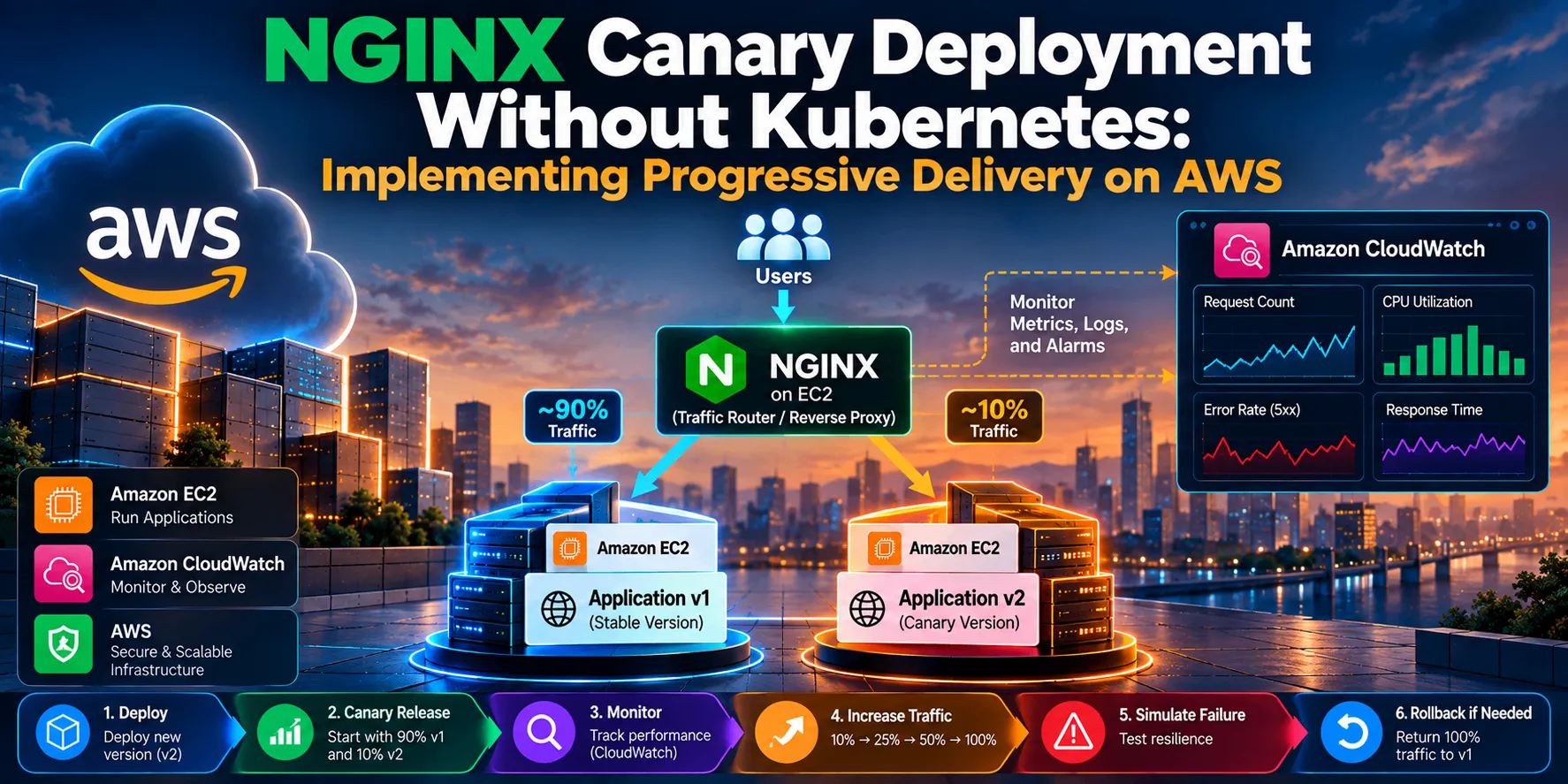
NGINX Canary Deployments Without Kubernetes: Implementing Progressive Delivery on AWS
A hands-on guide to implementing NGINX canary deployments on AWS without Kubernetes. Learn how to route traffic between stable and canary application versions, progressively increase traffic, monitor the deployment, simulate failures, and perform a rollback using Amazon EC2 and AWS monitoring services.

Introduction
Deploying a new application version directly to 100% of production traffic can be risky. A small bug, configuration error, or unexpected performance issue can affect every user immediately.
One approach to reducing this risk is canary deployment.
A canary deployment introduces a new application version to only a small portion of production traffic. The new version is then monitored before gradually increasing its traffic. If the new version behaves unexpectedly, traffic can be shifted back to the stable version.
In this article, we will implement a simple canary deployment architecture using NGINX and Amazon EC2 without Kubernetes.
We will deploy two application versions, use NGINX to control traffic distribution, monitor the environment, intentionally introduce a failure into the canary version, and demonstrate a rollback.
The objective is not simply to configure NGINX as a load balancer. Instead, this project demonstrates the core idea behind progressive delivery: controlled exposure, observation, and safe rollout.
What We Are Building
The architecture consists of three EC2 instances:
- NGINX EC2 — acts as the traffic router.
- Application v1 EC2 — represents the stable production version.
- Application v2 EC2 — represents the new canary version.
The initial traffic distribution will be approximately:
1
2
3
4
5
6
7
8
9
10
11
12
13
14
15
16
17
18
                    Internet
                       |
                       v
                +-------------+
                |    NGINX    |
                |   Router    |
                +------+------+
                       |
              +--------+--------+
              |                 |
           ~90%              ~10%
              |                 |
              v                 v
        +-----------+     +-----------+
        | Application|     | Application|
        |     v1     |     |     v2     |
        |   Stable   |     |   Canary   |
        +-----------+     +-----------+
The 90/10 ratio refers approximately to request distribution, not CPU, memory, or server capacity.
For example, if NGINX receives a sufficiently large number of requests, approximately 90% can be directed to v1 and approximately 10% to v2.
Why Canary Deployment?
Consider an application that receives 100,000 requests.
With a traditional deployment, we might move all traffic directly to the new version:
1
2
3
4
traffic
|
v
Application v2If v2 contains a critical problem, all users may be affected.
With a canary deployment:
1
2
3
4
5
6
7
8
9
                 100,000 requests
                        |
                      NGINX
                     /     \
                    /       \
                 ~90%       ~10%
                   |           |
                   v           v
                  v1          v2
Approximately 90,000 requests reach the stable version while approximately 10,000 requests are exposed to the new version.
This gives us an opportunity to observe the new release under real traffic before exposing every user to it.
The goal is therefore not simply to split traffic. The goal is to reduce the blast radius of a failed deployment.
Canary Deployment Is More Than 90/10 Traffic Splitting
The initial 90/10 distribution is only the starting point.
A progressive rollout can look like:
1
2
3
4
5
6
7
8
9
10
11
12
13
v1 / ~10% v2
|
v
v1 / ~25% v2
|
v
v1 / ~50% v2
|
v
v1 / ~75% v2
|
v
v1 / ~100% v2At each stage, we evaluate the behavior of the new version.
If the canary is healthy, we increase its traffic.
If the canary shows abnormal behavior, we stop the rollout and return traffic to the stable version.
This gives us a controlled deployment process:
1
2
3
4
5
6
7
8
9
10
11
12
13
Deploy
  ↓
Expose a small amount of traffic
  ↓
Observe
  ↓
Validate
  ↓
Increase traffic
  ↓
Observe again
  ↓
Complete rollout
Architecture and AWS Components
The project uses the following components:
| Component | Purpose |
|---|---|
| Amazon EC2 | Hosts NGINX and the two application versions |
| NGINX | Routes requests between v1 and v2 |
| Ubuntu | Operating system for the EC2 instances |
| Amazon CloudWatch | Monitoring and observability |
| IAM | Provides controlled AWS permissions |
The architecture is intentionally simple so that the mechanics of canary deployment are easy to understand.
A production architecture would require additional high-availability, security, automation, and networking considerations.
Prerequisites
Before starting, you should have:
- An AWS account
- Basic knowledge of Amazon EC2
- Basic Linux command-line knowledge
- Basic understanding of NGINX
- An SSH client
- A key pair for accessing the EC2 instances
For this demonstration, we will use three EC2 instances running Ubuntu.
Cost note: Use appropriately sized instances for the demonstration and stop or terminate resources when they are no longer needed to avoid unnecessary AWS charges.
Step 1: Create the EC2 Infrastructure
Create three EC2 instances.
Instance 1 — NGINX Router
1
2
Name: nginx-router
Role: Traffic routing
Instance 2 — Application v1
1
2
Name: app-v1
Role: Stable application
Instance 3 — Application v2
1
2
Name: app-v2
Role: Canary application
For the demonstration, use a current Ubuntu LTS image and an instance type appropriate for your AWS account.
Security Groups
The NGINX server needs HTTP access from clients and SSH access for administration.
The application servers should not need to be directly exposed to the public internet. Their application traffic can be restricted to the NGINX security group.
The intended traffic path is:
1
2
3
4
5
6
7
8
Internet
   |
   v
NGINX
   |
   +------> Application v1
   |
   +------> Application v2
rather than exposing all three servers directly.
[Insert Screenshot: EC2 instances showing nginx-router, app-v1, and app-v2]
Step 2: Configure the NGINX Server
Connect to the NGINX EC2 instance using SSH.
1
ssh -i "your-key.pem" ubuntu@YOUR_NGINX_PUBLIC_IP
Verify the operating system:
1
uname -a
Install NGINX:
1
2
sudo apt update
sudo apt install nginx -y
Check its status:
1
sudo systemctl status nginx
Test the local NGINX installation:
1
curl http://localhost
At this point, NGINX is running and ready to act as the traffic-routing layer.
[Insert Screenshot: NGINX systemctl status]
Step 3: Deploy Application v1
Connect to the
app-v1 EC2 instance.Install NGINX:
1
2
sudo apt update
sudo apt install nginx -y
Create the application page:
1
sudo nano /var/www/html/index.html
Add:
1
2
3
4
5
6
7
8
9
10
<html>
<head>
<title>Application v1</title>
</head>
<body>
<h1>Application v1</h1>
<p>Stable Production Version</p>
</body>
</html>Save the file.
Test the application locally:
1
curl http://localhost
The response should identify the server as Application v1.
1
2
Application v1
Stable Production Version
[Insert Screenshot: v1 terminal response]
Step 4: Deploy Application v2
Now connect to the
app-v2 EC2 instance.Install NGINX:
1
2
sudo apt update
sudo apt install nginx -y
Edit the web page:
1
sudo nano /var/www/html/index.html
Add:
1
2
3
4
5
6
7
8
9
10
<html>
<head>
<title>Application v2</title>
</head>
<body>
<h1>Application v2</h1>
<p>Canary Release</p>
</body>
</html>Test:
1
curl http://localhost
The response should identify Application v2.
1
2
Application v2
Canary Release
The two versions are deliberately different so that we can easily determine which application handled a request.
[Insert Screenshot: v2 terminal response]
Step 5: Test Communication From NGINX to the Applications
Before configuring traffic routing, verify that the NGINX server can communicate with both application servers.
From
nginx-router, test v1:1
curl http://APP_V1_PRIVATE_IPExpected response:
1
2
Application v1
Stable Production Version
Test v2:
1
curl http://APP_V2_PRIVATE_IP
Expected response:
1
2
Application v2
Canary Release
At this stage, we have confirmed:
1
2
3
4
5
NGINX
  |
  +----> v1 ✓
  |
  +----> v2 ✓
This connectivity test is important because it isolates networking problems before we introduce traffic-routing logic.
Step 6: Configure NGINX for Canary Traffic
Now we configure NGINX to distribute requests between the two application versions.
Edit the default NGINX configuration:
1
sudo nano /etc/nginx/sites-available/default
Configure the upstream servers:
1
2
3
4
5
6
7
8
9
10
11
12
13
upstream application {
    server APP_V1_PRIVATE_IP weight=9;
    server APP_V2_PRIVATE_IP weight=1;
}

server {
    listen 80 default_server;
    listen [::]:80 default_server;

    location / {
        proxy_pass http://application;
    }
}
The important part is:
1
2
v1 → weight 9
v2 → weight 1
The total weight is:
1
9 + 1 = 10
Therefore, the intended distribution is approximately:
1
2
v1 → 9/10 ≈ 90%
v2 → 1/10 ≈ 10%
The distribution should be understood as approximate over many requests rather than an exact guarantee for every small batch of requests.
Validate the configuration:
1
sudo nginx -t
If the configuration is valid, reload NGINX:
1
sudo systemctl reload nginx
Step 7: Test the Canary Deployment
Now send requests to the public IP address of the NGINX server.
1
http://NGINX_PUBLIC_IP
We can also generate multiple requests from the terminal:
1
2
3
for i in {1..50}; do
    curl -s http://NGINX_PUBLIC_IP | grep -E "Application v1|Application v2"
done
The output should contain mostly v1 responses with a smaller number of v2 responses.
For example:
1
2
3
4
5
6
7
8
Application v1
Application v1
Application v2
Application v1
Application v1
Application v1
Application v2
...
The exact distribution will vary because the weights represent routing preferences rather than a guarantee that every fixed batch of requests will match the ratio exactly.
[Insert Screenshot: terminal showing v1/v2 responses]
This is the first point where we can observe our canary deployment working.
Step 8: Progressive Traffic Shifting
The next step is to gradually increase the amount of traffic reaching v2.
Our initial configuration is approximately:
1
2
v1 → 90%
v2 → 10%
We can then change the relative weights.
For example:
1
2
server APP_V1_PRIVATE_IP weight=3;
server APP_V2_PRIVATE_IP weight=1;
This creates an approximate:
1
2
v1 → 75%
v2 → 25%
distribution.
After validating the new version, we can move toward:
1
2
v1 → 50%
v2 → 50%
and later:
1
2
v1 → 25%
v2 → 75%
before eventually reaching:
1
2
v1 → 0%
v2 → 100%
At every stage, the decision to increase traffic should be based on observed application behavior.
Step 9: Monitor the Deployment
Traffic shifting without monitoring does not provide much protection.
We need to know whether v2 is actually behaving correctly.
Useful signals include:
- HTTP 5xx errors
- response latency
- application health
- EC2 status checks
- CPU utilization
- network activity
- application logs
Amazon CloudWatch can be used to collect and visualize relevant AWS metrics and create alarms.
The general workflow is:
1
2
3
4
5
6
7
8
9
10
11
Application
     |
     v
Metrics / Logs
     |
     v
CloudWatch
     |
     +------ Healthy ------> Continue rollout
     |
     +------ Problem ------> Stop / Rollback
[Insert Screenshot: CloudWatch metrics/dashboard]
The specific metrics and alarms should be selected according to the application and production requirements.
Step 10: Simulate a Canary Failure
A useful deployment demonstration should test both success and failure.
To demonstrate the value of canary deployment, intentionally introduce a failure into v2.
For example, configure v2 to return an HTTP 500 error for a test request or otherwise make the canary unhealthy.
The resulting state is:
1
2
Application v1 → Healthy
Application v2 → Failing
Because only a portion of traffic is directed to v2, the failure has a smaller blast radius than a deployment where v2 immediately receives 100% of traffic.
Generate requests again and observe the difference.
[Insert Screenshot: v2 failure / HTTP error]
Step 11: Stop the Rollout
Once the canary demonstrates abnormal behavior, we should not continue increasing its traffic.
Instead, stop the rollout.
The deployment state changes from:
1
2
v1 ≈ 50%
v2 ≈ 50%
back toward:
1
2
v1 ≈ 100%
v2 ≈ 0%
This is the rollback stage.
Step 12: Roll Back to the Stable Version
Update the NGINX upstream configuration so that production traffic is directed back to v1.
For example:
1
2
3
upstream application {
    server APP_V1_PRIVATE_IP;
}
Then validate the configuration:
1
sudo nginx -t
Reload NGINX:
1
sudo systemctl reload nginx
Now the traffic path becomes:
1
2
3
4
5
6
7
Users
  |
  v
NGINX
  |
  v
Application v1
Application v2 is no longer receiving production traffic.
Step 13: Verify the Rollback
Generate requests again:
1
2
3
for i in {1..20}; do
    curl -s http://NGINX_PUBLIC_IP | grep "Application"
done
The expected result is that the requests are served by v1:
1
2
3
4
5
Application v1
Application v1
Application v1
Application v1
...
This verifies that production traffic has returned to the stable application.
[Insert Screenshot: terminal showing v1 responses after rollback]
Results
The experiment demonstrates the complete canary deployment lifecycle:
| Stage | Approximate Traffic | Purpose |
|---|---|---|
| Initial | v1 90% / v2 10% | Introduce the canary |
| Progressive rollout | v1 75% / v2 25% | Increase exposure |
| Progressive rollout | v1 50% / v2 50% | Continue validation |
| Failure | v2 becomes unhealthy | Stop rollout |
| Rollback | v1 100% / v2 0% | Restore stable version |
The exact traffic percentages observed during testing can vary because NGINX weighted routing provides an approximate distribution over multiple requests.
What We Learned
This project demonstrates several important DevOps and deployment principles.
1. Deployment success does not mean application success
An application can deploy successfully while still containing runtime problems.
2. Small exposure reduces risk
Starting with a small amount of traffic limits the potential impact of a faulty release.
3. Monitoring is part of deployment
Traffic should not be increased blindly. Metrics and application behavior should influence rollout decisions.
4. Rollback is essential
A deployment strategy should include a clear recovery path when the new version behaves unexpectedly.
5. Progressive delivery is the bigger concept
The important idea is not simply 90/10 traffic splitting.
The important process is:
1
2
3
4
5
6
7
8
9
10
11
Expose
  ↓
Observe
  ↓
Validate
  ↓
Increase
  ↓
Observe again
  ↓
Complete or rollback
Production Considerations
This project intentionally uses a simplified architecture for learning.
A production implementation would require additional considerations, including:
- HTTPS/TLS
- high availability for the traffic-routing layer
- automated health checks
- CloudWatch alarms
- automated rollback
- CI/CD integration
- infrastructure as code
- centralized logging
- secure networking
- appropriate IAM permissions
- application-level monitoring
- automated testing before deployment
A single NGINX EC2 instance can become a single point of failure, so production environments should use a highly available architecture.
The objective of this demonstration is to understand the mechanics and reasoning behind canary deployments, not to present the architecture as a complete production reference architecture.
Conclusion
Canary deployment provides a safer way to introduce new application versions into production.
Instead of immediately exposing every user to a new release, we start with limited traffic, observe the application's behavior, and gradually increase exposure when the evidence indicates that the release is healthy.
Using NGINX and Amazon EC2, we demonstrated these core principles without requiring Kubernetes:
1
2
3
4
5
6
7
8
9
10
11
Small traffic exposure
        ↓
Real-world observation
        ↓
Progressive rollout
        ↓
Failure detection
        ↓
Rollback
        ↓
Stable production
The most important lesson is not the specific 90/10 configuration.
It is the principle of controlled exposure combined with monitoring and rapid recovery.
This approach helps turn application deployment from a single high-risk event into a controlled, measurable process.
Enjoyed reading this content? Let the author know!
Your likes, comments, shares, and saves help creators reach more builders.

Loading recommendations
Loading article