
IAM from Zero: Who Gets the Keys to Your AWS Account (and Why It Matters on Day 1)
IAM explained like a hotel keycard: users, groups, roles and policies for absolute beginners, plus a 10-minute hands-on to see least privilege in action.
Series: AWS for Students: Start from Zero (2 articles)
- 2IAM from Zero: Who Gets the Keys to Your AWS Account (and Why It Matters on Day 1) This article
In my last guide, AWS for Students: Start from Zero, I promised to answer your most common questions. One came up again and again: IAM. One reader asked: "Who gets access to what, and why does it matter so much on Day 1?" This guide is my answer.
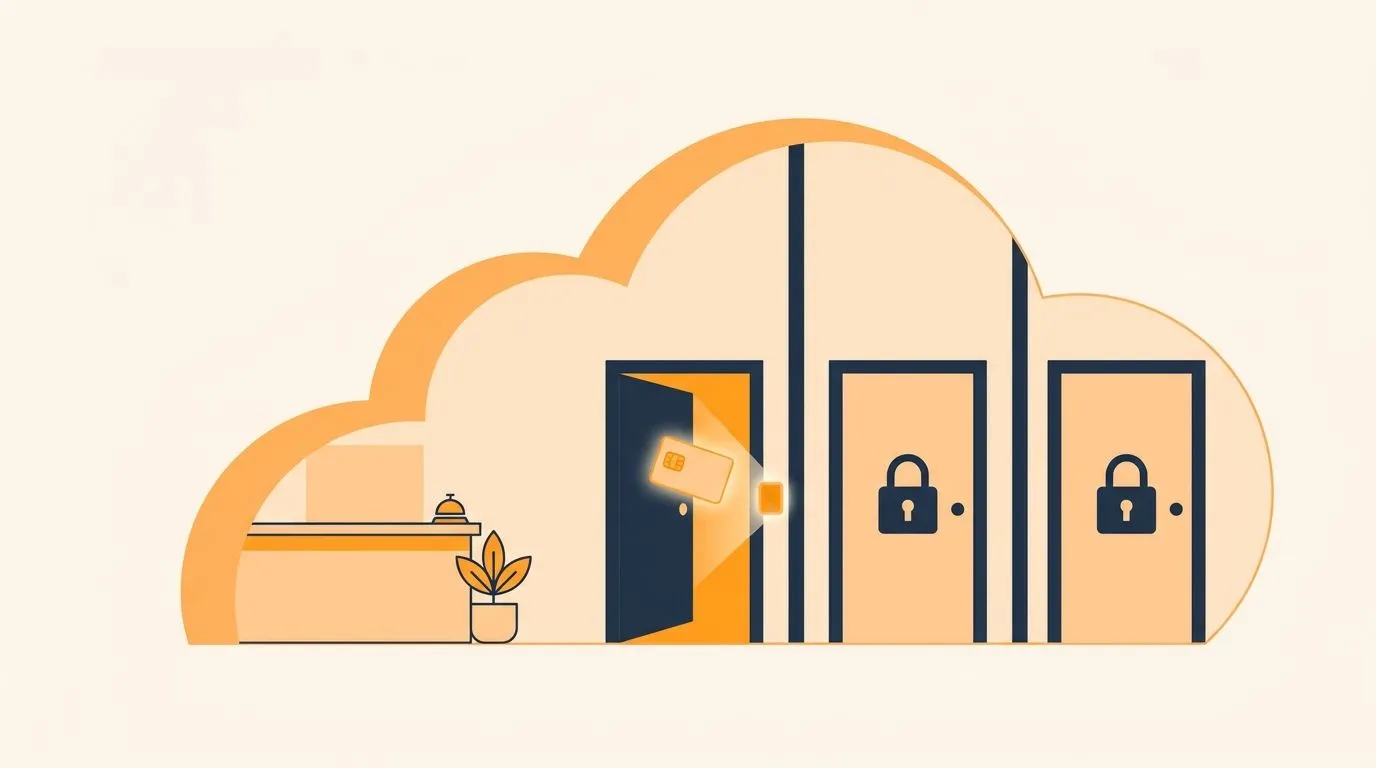
Start with a hotel, not AWS
You walk into a hotel. The front desk asks for your ID.
That's authentication: Who are you?
That's authentication: Who are you?
They hand you a keycard. It opens room 512 and the gym. It does not open room 513 or the kitchen.
That's authorization: What are you allowed to do?
That's authorization: What are you allowed to do?
IAM (Identity and Access Management) is the front desk and the keycard system for your AWS account. Every click in the console, every CLI command and every API call goes through IAM, which asks those two questions.
Two quick facts:
- IAM is global. It's one front desk for the whole hotel chain, not one per Region.
- IAM is free. You can practise everything in this guide at no cost.

The master key: the root user
When you create an AWS account, you get the root user. Think of it as the hotel owner's master key. It opens every door, and it can even close the hotel (change billing or close the account).
So treat it that way:
- Use it only for setup and the few tasks that require it.
- Turn on MFA right away.
- Never create access keys for root.
- Never share it with anyone.
The 4 pillars of IAM
1. Users: guests with their own keycard
- One user = one person. Never share logins.
- A friend wants to learn on your account? Create a separate user for them. Don't give them your password.
- Note: for real teams, AWS recommends IAM Identity Center for people. IAM users are fine for learning and for exams.
2. Groups: teams with shared access
Housekeeping staff all need the same floors. Instead of programming each card one by one, you program "Housekeeping" once.
Picture a student cloud club:
- Workshop team: Rafi, Nusrat and Tanvir
- Content team: Mim and Arif
- Finance team: Tanvir again
The rules:
- A group contains users only. Groups can't be put inside other groups.
- A user can be in several groups. Tanvir gets permissions from both of his teams.
- Permissions add up. A user gets everything their groups allow, plus anything attached directly to them.

3. Roles: a temporary visitor badge
A delivery robot needs to drop food on floor 5. You don't give it a permanent guest card. You give it a badge that works for a short time.
Roles are badges, mostly for AWS services:
- An EC2 server reading images from S3
- A Lambda function writing to DynamoDB
A role gives short-lived credentials that rotate automatically, so nothing secret is stored on the server.
Real-world example: if your app on EC2 needs files from S3, attach a role. Never paste access keys into your code.

4. Policies: the yes/no permission slip
A policy is a small JSON document. It's not programming; it reads like a permission slip:
"Yes, you may read files in the bucket my-class-notes."
1
2
3
4
5
6
7
8
9
10
11
12
13
{
  "Version": "2012-10-17",
  "Statement": [
    {
      "Effect": "Allow",
      "Action": ["s3:GetObject", "s3:ListBucket"],
      "Resource": [
        "arn:aws:s3:::my-class-notes",
        "arn:aws:s3:::my-class-notes/*"
      ]
    }
  ]
}
How to read it:
- Effect: Yes (
Allow) or No (Deny) - Action: what they can do
- Resource: which thing they can do it to
- Condition (optional): when it applies, for example only if they signed in with MFA
Two rules that clear up most confusion:
- The default answer is No. If nothing says Allow, the request is denied.
- Deny beats Allow. An explicit Deny anywhere always wins.
A
* means "anything". The AdministratorAccess policy is simply "Action": "*" on "Resource": "*", so hand it out very carefully.Try it: see "Access Denied" in 10 minutes
- Sign in as your admin user (not root).
- Create a group called
readersand attach the AmazonS3ReadOnlyAccess policy. - Create a user called
test-student, give it console access, and add it toreaders. - Open a private browser window and sign in as
test-studentwith your account's sign-in URL. - Go to S3. You can view buckets. Now try Create bucket: you'll get Access Denied. 📸 [your screenshot]
- Clean up: delete
test-studentand the group.
That error isn't a bug. It's least privilege working.

How people (and code) talk to AWS
- Console: password + MFA
- CLI and SDKs: access keys. The access key ID is like a username; the secret access key is like a password.
- Tip: use AWS CloudShell in the console for CLI practice. It uses your signed-in session, so you don't need keys on your laptop.
- Never push keys to GitHub. [Your line from Dev Days: "Share code, not secrets."]
Day-1 best-practices checklist
- ✅ Lock root: MFA on, no access keys, setup only
- ✅ One person, one identity. No shared logins.
- ✅ Give permissions through groups, not user by user
- ✅ Least privilege: start small and add permissions only when needed
- ✅ Roles for services, never keys in code
- ✅ MFA for everyone, plus a strong password policy
- ✅ Audit regularly:
- The Credentials Report (whole account) shows who has MFA and whose keys are old.
- Access Advisor (per user) shows which services a user has actually used, so you can remove the rest.
- ✅ Set a billing alarm. It's not part of IAM, but it's a Day-1 must.
Why least privilege matters: if a leaked key has admin access, an attacker can launch expensive servers in minutes. A read-only key limits the damage.
Wrap-up
Good security isn't about memorizing JSON. It comes down to two questions:
- Who is this?
- What do they actually need?
Answer those honestly and IAM stops being scary.
Comment the AWS topic that confuses you most. Vote in the poll to pick my next guide 👉 Poll Link
Series: AWS for Students: Start from Zero (2 articles)
- 2IAM from Zero: Who Gets the Keys to Your AWS Account (and Why It Matters on Day 1) This article
Enjoyed reading this content? Let the author know!
Your likes, comments, shares, and saves help creators reach more builders.

Loading recommendations
Loading article