
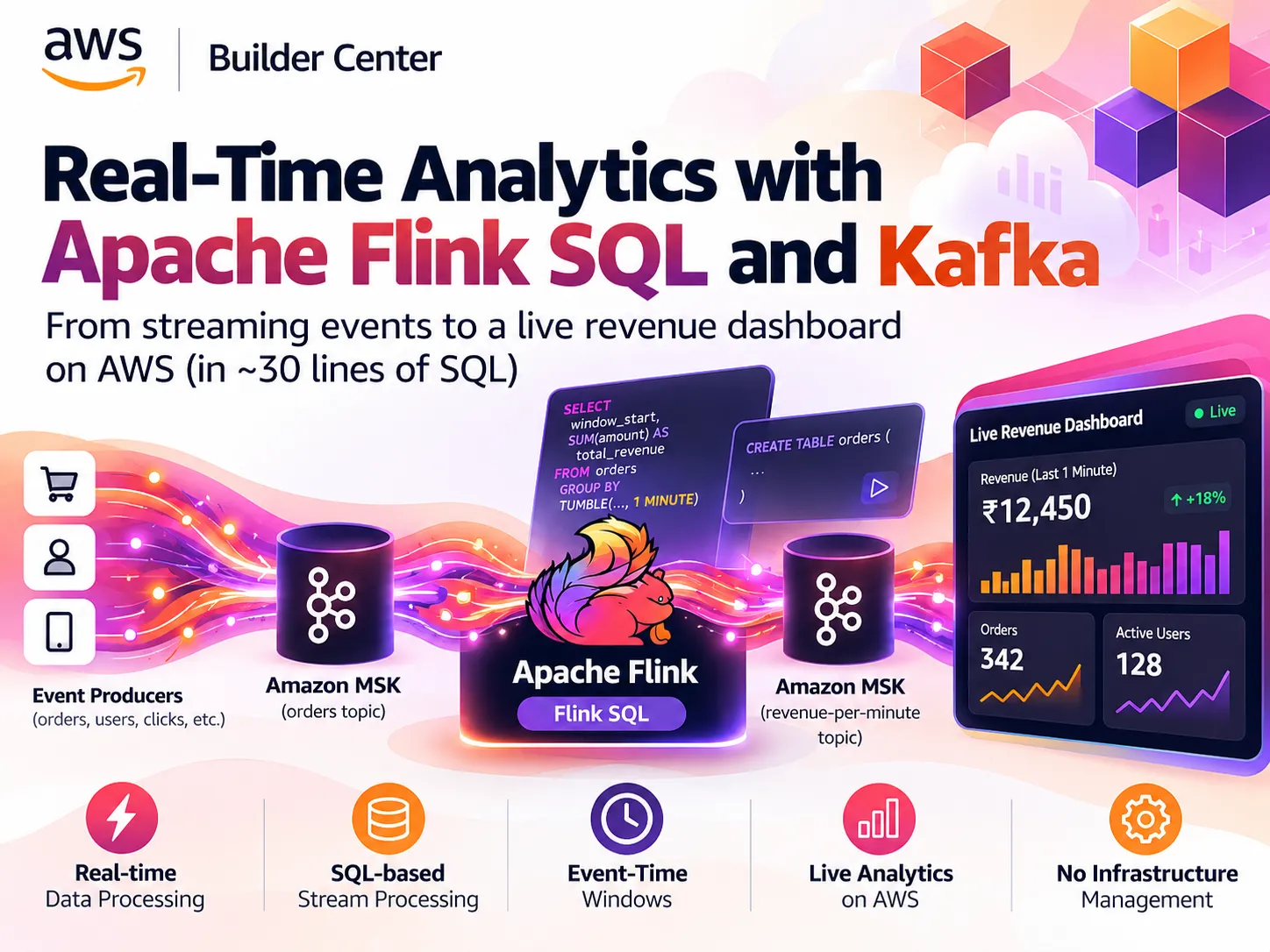
Real-Time Analytics Without Writing Java: Streaming Kafka Data with Flink SQL on AWS
Learn how to turn a raw Kafka topic into live, windowed analytics using only SQL. This walkthrough uses Apache Flink on AWS with Amazon MSK, with copy-paste code and the pitfalls to avoid.

Batch dashboards that refresh every hour feel slow when your data arrives every second. Apache Kafka solves moving events in real time, but a topic is just a log. To get answers like "revenue in the last minute" or "which users are spiking right now?", you need a stream processor.
Apache Flink is built for this, and Flink SQL lets you do it with queries instead of Java or Scala code. In this post, we'll connect Flink SQL to Kafka (Amazon MSK) and build a live revenue dashboard feed in about 30 lines of SQL.
Why Flink SQL + Kafka?
| Kafka alone | Kafka + Flink SQL |
|---|---|
| Stores and transports events | Transforms, joins and aggregates them |
| Consumers must write custom code | Anyone who knows SQL can build pipelines |
| No built-in event-time windows | Tumbling, hopping and session windows |
The key idea is that a Kafka topic becomes a table, and a SQL query becomes a never-ending job. The results update continuously as new events arrive.
Architecture
1
Producers → Amazon MSK (orders topic) → Flink SQL → Amazon MSK (revenue-per-minute topic) → Dashboard / Lambda / S3
On AWS, you can run Flink SQL using Amazon Managed Service for Apache Flink. Studio notebooks let you write and test SQL interactively, then promote the job to a running application. Amazon MSK provides the managed Kafka cluster.
Step 1: Map a Kafka topic to a Flink table
Assume our
orders topic receives JSON events like:1
{"order_id": "o-1001", "user_id": "u-42", "amount": 249.50, "order_ts": "2026-10-04 10:15:03.123"}We declare it as a table:
1
2
3
4
5
6
7
8
9
10
11
12
13
14
CREATE TABLE orders (

  order_id  STRING,

  user_id   STRING,

  amount    DECIMAL(10, 2),

  order_ts  TIMESTAMP(3),

  WATERMARK FOR order_ts AS order_ts - INTERVAL '5' SECOND

) WITH (

  'connector' = 'kafka',

  'topic' = 'orders',

  'properties.bootstrap.servers' = '<MSK_BOOTSTRAP_BROKERS>',

  'properties.group.id' = 'flink-orders-demo',

  'scan.startup.mode' = 'earliest-offset',

  'format' = 'json'

);
The most important line is the WATERMARK. It tells Flink to use the time the order happened (event time), not the time it arrived, and to tolerate events up to 5 seconds late. Without it, windowed queries can't close.
Step 2: Query the stream
1
2
3
SELECT user_id, SUM(amount) AS total_spent

FROM orders

GROUP BY user_id;
This query never finishes. Every new order updates the result, which is how stream processing differs from a normal database query.
Step 3: Aggregate with time windows
Let's compute revenue and order count for every one-minute window:
1
2
3
4
5
6
7
8
9
SELECT

  window_start,

  window_end,

  SUM(amount) AS total_revenue,

  COUNT(*)    AS order_count

FROM TABLE(

  TUMBLE(TABLE orders, DESCRIPTOR(order_ts), INTERVAL '1' MINUTE)

)

GROUP BY window_start, window_end;
Flink also supports
HOP (sliding) and CUMULATE windows, so you can change the window type without rewriting your pipeline.Step 4: Write results back to Kafka
Define an output table. We use the upsert-kafka connector because windowed aggregates can be updated, and it needs a primary key:
1
2
3
4
5
6
7
8
9
10
11
12
13
14
15
16
17
18
19
20
CREATE TABLE revenue_per_minute (

  window_start  TIMESTAMP(3),

  window_end    TIMESTAMP(3),

  total_revenue DECIMAL(10, 2),

  order_count   BIGINT,

  PRIMARY KEY (window_start, window_end) NOT ENFORCED

) WITH (

  'connector' = 'upsert-kafka',

  'topic' = 'revenue-per-minute',

  'properties.bootstrap.servers' = '<MSK_BOOTSTRAP_BROKERS>',

  'key.format' = 'json',

  'value.format' = 'json'

);


INSERT INTO revenue_per_minute

SELECT window_start, window_end, SUM(amount), COUNT(*)

FROM TABLE(

  TUMBLE(TABLE orders, DESCRIPTOR(order_ts), INTERVAL '1' MINUTE)

)

GROUP BY window_start, window_end;
Any downstream consumer (a Lambda function, a Kafka Connect S3 sink, a dashboard) can now read live per-minute revenue from a normal Kafka topic.
Connecting to MSK with IAM authentication
If your MSK cluster uses IAM auth, add these properties to the
WITH clause of each Kafka table:1
2
3
4
'properties.security.protocol' = 'SASL_SSL',
'properties.sasl.mechanism' = 'AWS_MSK_IAM',
'properties.sasl.jaas.config' = 'software.amazon.msk.auth.iam.IAMLoginModule required;',
'properties.sasl.client.callback.handler.class' = 'software.amazon.msk.auth.iam.IAMClientCallbackHandler'You'll also need the
aws-msk-iam-auth library and the Flink Kafka connector available to your application. Your Flink application's IAM role must allow the relevant kafka-cluster:* actions on the cluster and topics.Five pitfalls to avoid
- Missing watermarks. No watermark means event-time windows never emit results.
- Idle partitions stall progress. If one Kafka partition receives no data, the watermark can get stuck. Set
table.exec.source.idle-timeout(for example'30 s') to fix this. - Parallelism above partition count. Extra Flink subtasks beyond the number of Kafka partitions sit idle. Match them.
- Using
kafkainstead ofupsert-kafkafor updating results. A plain Kafka sink only supports append-only streams. - Forgetting state growth. Unbounded
GROUP BYqueries keep state forever. Use windows or configure a state TTL (table.exec.state.ttl).
Key takeaways
- A Kafka topic maps to a Flink table with a single
CREATE TABLE. - Watermarks and windows are what make real-time aggregation correct.
upsert-kafkalets you publish continuously updating results.- With Amazon MSK and Managed Service for Apache Flink, you don't manage any servers.
Try it yourself
- Create an Amazon MSK cluster (or MSK Serverless) and an
orderstopic. - Create a Managed Service for Apache Flink Studio notebook in the same VPC.
- Paste the SQL above, produce a few test events, and watch the windows fill up.
What would you build with streaming SQL: fraud alerts, clickstream analytics, or IoT monitoring? Let me know in the comments!
Enjoyed reading this content? Let the author know!
Your likes, comments, shares, and saves help creators reach more builders.

Loading recommendations
Loading article