
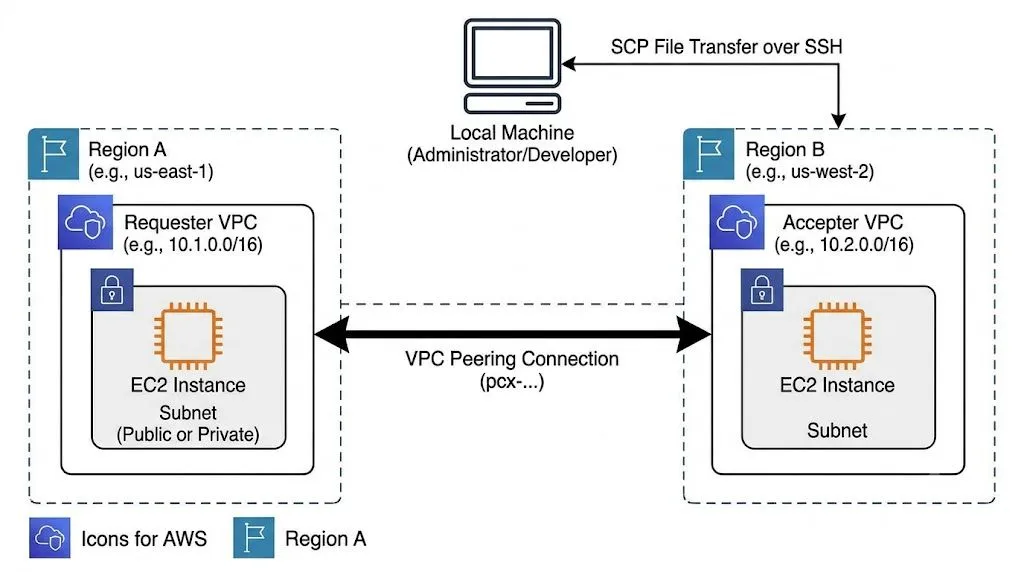
Configuring Cross-Region VPC Peering and Secure EC2 File Transfers via SCP
A practical guide to connecting two AWS VPCs across different regions. This walkthrough covers peering connection setup, route table configuration, security group rules, and securely transferring local files to an EC2 instance using SCP.

Introduction
Connecting infrastructure across different geographic locations is a core requirement for highly available AWS architectures. Cross-region VPC peering allows routing of traffic between two VPCs using private IPv4 or IPv6 addresses. This guide covers how to establish a cross-region VPC peering connection and subsequently use Secure Copy Protocol (SCP) to transfer files securely to an EC2 instance within the peered network.
Prerequisites
- Two VPCs in different AWS Regions with non-overlapping CIDR blocks.
- One EC2 instance launched in each VPC.
- The private SSH key (.pem file) associated with your EC2 instances.
Step 1: Request the VPC Peering Connection
- Navigate to the VPC Dashboard in your requester region.
- Select Peering connections and click Create peering connection.
- Select your local VPC as the requester.
- Choose Another Region and enter the Region and VPC ID of the accepter VPC.
- Click Create.
Step 2: Accept the Peering Connection
- Switch your AWS console to the accepter region.
- Navigate to Peering connections. The new request will show as Pending Acceptance.
- Select the connection, click Actions, and choose Accept request.
Step 3: Update Route Tables
Traffic will not flow until route tables in both VPCs are updated to point to the peering connection.
- In the requester region, edit the route table associated with your EC2 instance's subnet. Add a route where the Destination is the CIDR block of the accepter VPC, and the Target is the Peering Connection ID (starts with
pcx-). - In the accepter region, repeat this process, setting the Destination to the CIDR block of the requester VPC and the Target to the same Peering Connection ID.
Step 4: Configure Security Groups
Your EC2 instances need permission to communicate.
- Open the Security Group for the target EC2 instance.
- Add an Inbound Rule for SSH (Port 22) and set the source to the CIDR block of the peered VPC.
- Add an Inbound Rule for All ICMP - IPv4 from the peered CIDR to allow ping tests.
Step 5: Secure File Transfer using SCP
With the network established, transfer files from your local machine to the EC2 instance over the secure connection. Open your local terminal and use the following syntax:
scp -i /path/to/your-key.pem /path/to/local/file.txt ec2-user@:/home/ec2-user/
scp -i /path/to/your-key.pem /path/to/local/file.txt ec2-user@:/home/ec2-user/
If you are transferring files from one peered EC2 instance to another, use the private IP address. If transferring from a local machine over the internet, use the public IP address. Replace
ec2-user with ubuntu or the appropriate default user for your AMI.Enjoyed reading this content? Let the author know!
Your likes, comments, shares, and saves help creators reach more builders.

Loading recommendations
Loading article