
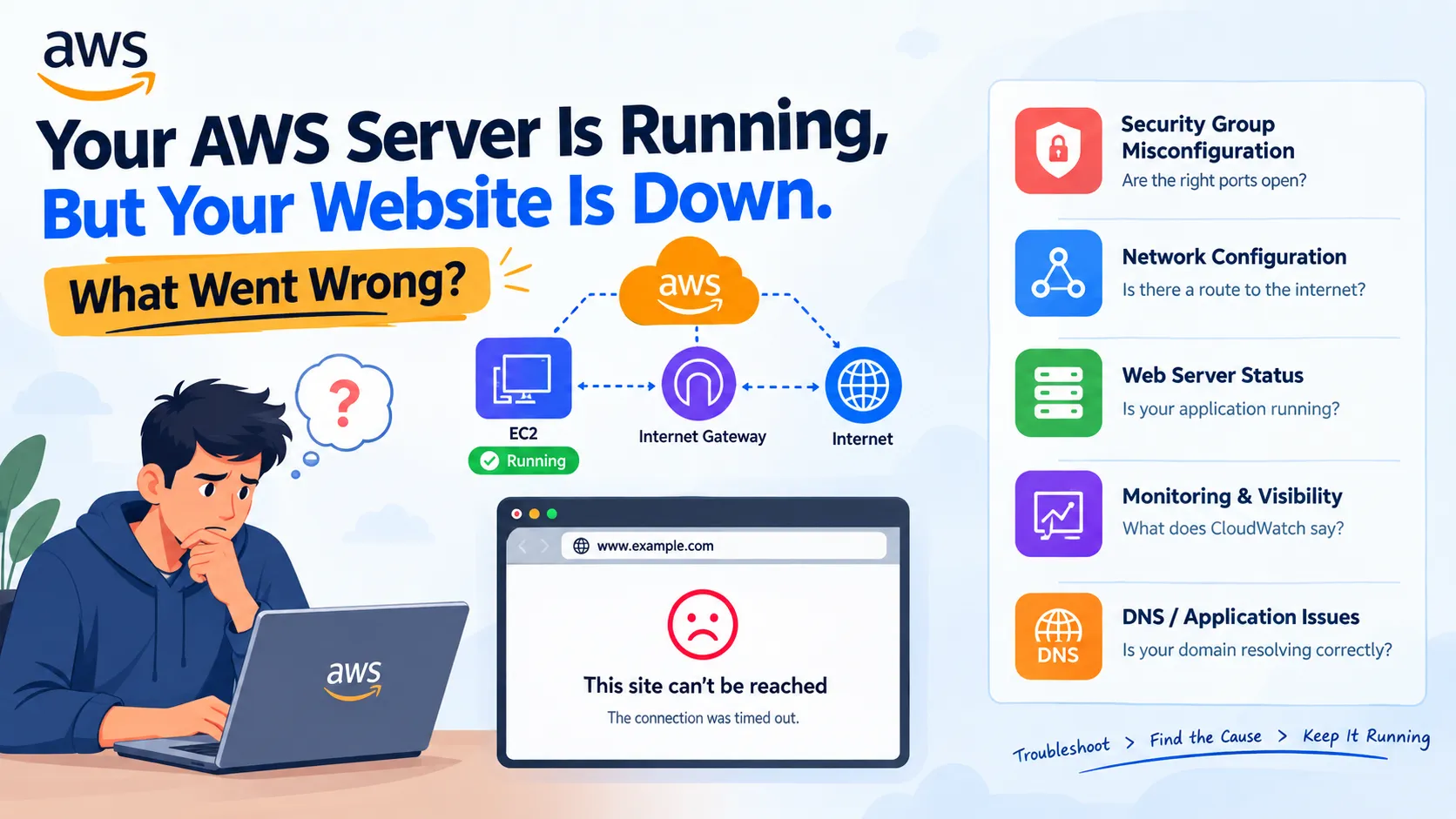
🚨 Your AWS Server Is Running, But Your Website Is Down. What Went Wrong?
Your EC2 instance says Running, but your website is not loading. 🤔 Is it a network issue, a security misconfiguration, or a server failure? In the cloud, a running server doesn't always mean a working application. Let's explore 5 common reasons behind website failures on AWS and learn how to troubleshoot them using practical cloud engineering techniques. ☁️🔍

🌐 Your Server Is Running. So Why Is Your Website Down?
Imagine this scenario.
You've launched an Amazon EC2 instance, installed a web server such as Nginx, and deployed your application. Everything seems perfect.
You open your browser, enter your public IP address, and...
❌ Connection timed out.
You check the AWS console. Your EC2 instance status is Running.
So, what's happening?
This is a common situation in cloud environments. An instance being in the running state only tells us that the virtual machine is running. It doesn't guarantee that the application is accessible to users.
Let's investigate the possible causes.
🔍 1. Security Group Misconfiguration
Security groups act as virtual firewalls for your EC2 instances.
They control which inbound and outbound traffic is allowed.
For example, if you're hosting a website using HTTP, your instance needs an inbound rule that allows traffic on port 80.
Example inbound rules:
| Type | Protocol | Port | Source |
|---|---|---|---|
| SSH | TCP | 22 | Your IP |
| HTTP | TCP | 80 | 0.0.0.0/0 |
| HTTPS | TCP | 443 | 0.0.0.0/0 |
If port 80 is missing, visitors may not be able to access your website over HTTP.
💡 Solution: Check your EC2 instance's attached security groups and verify that the necessary ports are allowed. Avoid opening SSH to the entire internet.
🌐 2. Incorrect Network Configuration
Your EC2 instance may be running inside a subnet that doesn't have a route to the internet.
For a typical public IPv4 web server, you generally need:
- A public subnet.
- A route table with a route to an internet gateway.
- A public IPv4 address or Elastic IP.
- Appropriate security group and network ACL rules.
A public IP alone doesn't guarantee internet connectivity.
How to troubleshoot:
- Open the VPC console.
- Find the subnet associated with your EC2 instance.
- Check its route table.
- Verify that the route
0.0.0.0/0points to an internet gateway. - Review the network ACL rules if connectivity still fails.
💡 Remember: A private subnet typically uses a NAT gateway for outbound internet access. A NAT gateway doesn't provide unsolicited inbound internet access to instances in that subnet.
⚙️ 3. Your Web Server Is Not Running
Sometimes, the problem isn't AWS networking at all.
Your EC2 instance may be perfectly healthy, but the web server process might have stopped or failed to start.
For example, if you're using Nginx on a Linux instance, run:
1
sudo systemctl status nginx
If the service is inactive, try:
1
sudo systemctl start nginx
To enable it at startup:
1
sudo systemctl enable nginx
You can also check whether the server is listening on port 80:
1
sudo ss -tulnp | grep :80
If the application is listening on a different port, make sure your reverse proxy and network configuration match that port.
💡 Lesson: Always check the application and web server before assuming the cloud infrastructure is at fault.
📊 4. No Monitoring or Visibility
Imagine your website becomes unavailable at 2 AM.
Without monitoring, you might not know when the problem started or what caused it.
This is where Amazon CloudWatch becomes useful.
CloudWatch helps you monitor metrics, collect logs, and configure alarms.
You can monitor metrics such as:
- CPU utilization
- Network traffic
- Status check failures
- Application logs, when configured
For example, you can create an alarm that notifies you when CPU utilization remains above a threshold for a certain period.
However, high CPU usage isn't the only cause of website downtime. A server may have low CPU utilization and still be unreachable because of a network or application problem.
💡 Lesson: Monitoring helps you detect and investigate failures before they affect more users.
🔐 5. DNS or Application-Level Issues
Sometimes the server works perfectly when accessed directly, but users still cannot reach the website using its domain name.
Possible causes include:
- Incorrect DNS records.
- An expired domain.
- Incorrect load balancer configuration.
- An invalid TLS certificate.
- Application errors or incorrect reverse proxy settings.
You can test DNS resolution using:
1
nslookup example.com
You can check HTTP response headers using:
1
curl -I http://example.com
For HTTPS, try:
1
curl -Iv https://example.com
These commands can help you distinguish DNS resolution problems, connection failures, TLS issues, and HTTP response errors.
💡 Lesson: A healthy EC2 instance doesn't guarantee a healthy end-to-end application.
🛠️ A Simple AWS Troubleshooting Workflow
When your website goes down, don't randomly change AWS configurations. Follow a structured troubleshooting process.
Step 1: Check the EC2 instance state and status checks.
Step 2: Verify that the web server and application are running.
Step 3: Test connectivity locally using
curl or other appropriate tools.Step 4: Check security groups, subnet configuration, route tables, and network ACLs.
Step 5: Investigate DNS, load balancer settings, and TLS certificates if applicable.
Step 6: Review CloudWatch metrics, logs, and alarms for useful evidence.
This approach helps you identify the actual root cause instead of making unnecessary changes.
🚀 Final Thoughts
Cloud engineering isn't just about launching servers. It's about making applications reliable, secure, and accessible.
A server showing Running is only the beginning. Real cloud engineers need to understand networking, security, monitoring, and application behavior to keep systems healthy.
Enjoyed reading this content? Let the author know!
Your likes, comments, shares, and saves help creators reach more builders.

Loading recommendations
Loading article