
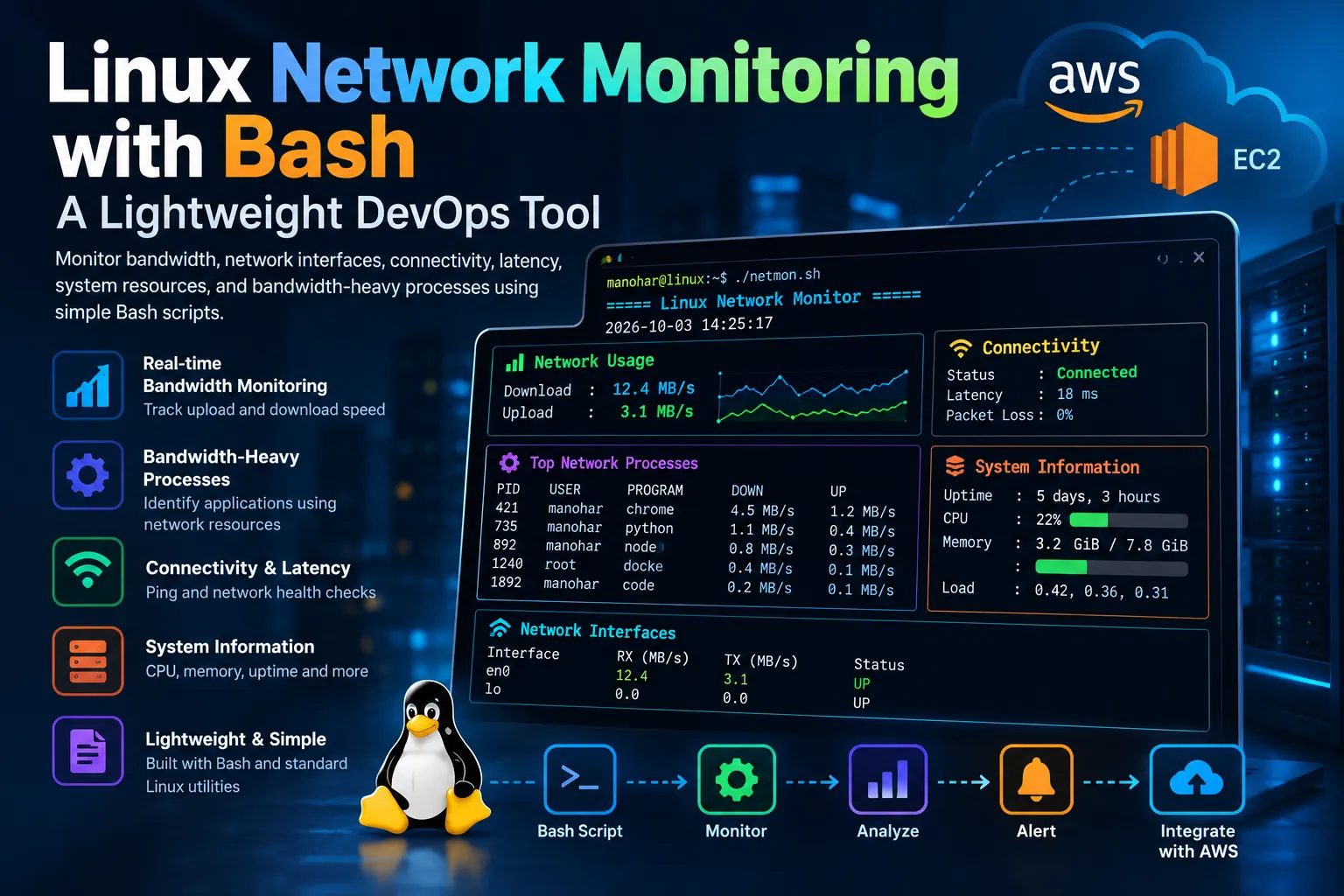
Linux Network Monitoring with Bash: A Lightweight DevOps Tool
Learn how to build a lightweight Linux network monitoring tool using Bash. Monitor bandwidth, network interfaces, connectivity, latency, system resources, and bandwidth-heavy processes while exploring practical DevOps troubleshooting techniques

Building a Lightweight Linux Network Monitoring Tool with Bash
Network performance issues are often difficult to diagnose because several factors can contribute to them at the same time: bandwidth-heavy processes, packet loss, high latency, or unusual traffic patterns.
Instead of relying entirely on large monitoring platforms, we can build a lightweight Linux network monitoring tool using Bash and standard Linux utilities. This approach is useful for learning system monitoring, troubleshooting, and DevOps automation while keeping the implementation simple.
What We Want to Monitor
A useful network monitoring script should provide more than just the current network speed. It should help answer questions such as:
- How much network traffic is being transmitted and received?
- Which processes are consuming the most bandwidth?
- Is the network connection healthy?
- What is the current latency?
- Are there obvious system-level resource problems?
The goal is to combine these checks into a single command-line tool.
Architecture
The monitoring workflow can be divided into four components:
- Network statistics — collect received and transmitted bytes from Linux network interfaces.
- Bandwidth processes — identify processes responsible for significant network activity.
- Connectivity checks — use ping to measure reachability and latency.
- System statistics — display useful CPU, memory, and uptime information.
The script periodically collects these values and prints them in a readable format.
Checking Network Interfaces
Linux exposes network interface statistics through
/proc/net/dev.A simplified example is:
1
cat /proc/net/dev
The output contains received and transmitted byte counters for each interface.
For example:
1
2
3
Inter-|   Receive                                                |  Transmit
 face |bytes    packets errs drop fifo frame compressed multicast|bytes    packets
en0   : 12582912  10234    0    0    0     0          0         0  7340032  8912
The important values are the received and transmitted byte counters.
Because these counters continuously increase, we can calculate bandwidth by comparing the current value with the value from the previous measurement.
Calculating Bandwidth
Suppose the previous received-byte value is:
1
10,000,000 bytes
and one second later it becomes:
1
11,000,000 bytes
The difference is:
1
1,000,000 bytes
Therefore, the approximate receive rate is:
1
1,000,000 bytes/sec
Converting this into megabytes per second:
1
1,000,000 / 1,048,576 ≈ 0.95 MB/s
This simple difference-based approach avoids continuously running a heavy monitoring application.
Checking Network Health
Bandwidth alone does not tell us whether the connection is healthy.
A connection can have available bandwidth but still suffer from high latency or packet loss.
The
ping command can provide a basic connectivity test:1
ping -c 4 8.8.8.8A successful response provides latency measurements such as:
1
64 bytes from 8.8.8.8: icmp_seq=0 ttl=117 time=18.2 ms
The script can extract the response time and display an average latency value.
For example:
1
2
Network Status : Connected
Average Latency: 18 ms
Identifying Bandwidth-Heavy Processes
Finding the process responsible for network traffic is often more useful than knowing the total bandwidth.
Tools such as
nethogs can associate network activity with individual processes:1
sudo nethogsExample output:
1
2
3
PID     USER      PROGRAM                 DEV      SENT     RECEIVED
421     user      chrome                  eth0     1.2 MB/s 4.5 MB/s
735     user      python                  eth0     0.4 MB/s 1.1 MB/s
This makes it easier to identify applications generating unexpected traffic.
One practical scenario is a cloud server where an application suddenly begins downloading large files. Process-level monitoring can help identify the application responsible for the traffic.
Adding System Information
Network problems are sometimes related to resource exhaustion.
For that reason, the monitoring output can also include:
1
2
uptime
free -h
For example:
1
2
3
System Uptime : 5 days
Memory Usage  : 3.2 GiB / 7.8 GiB
Load Average  : 0.42
Combining system and network metrics provides better context during troubleshooting.
Example Monitoring Loop
A basic Bash monitoring loop can look like this:
1
2
3
4
5
6
7
8
9
10
11
12
13
14
15
16
17
18
19
20
21
while true
do
    clear

    echo "===== Linux Network Monitor ====="
    echo

    echo "System:"
    uptime
    free -h

    echo
    echo "Network Interfaces:"
    cat /proc/net/dev

    echo
    echo "Connectivity:"
    ping -c 2 8.8.8.8

    sleep 5
done
This is only the foundation. A production-quality implementation should parse the output, calculate bandwidth differences, handle interface selection, and format the results cleanly.
Using the Tool on AWS EC2
This type of monitoring tool can also be useful on Amazon EC2 instances.
For example, consider an EC2 instance running a web application.
The administrator might observe:
1
2
3
4
5
6
CPU Usage       : Normal
Memory Usage    : Normal
Network RX      : 25 MB/s
Network TX      : 3 MB/s
Latency         : 20 ms
Top Process     : application-server
The information can help with initial troubleshooting before moving to more sophisticated monitoring systems.
AWS provides managed monitoring capabilities such as Amazon CloudWatch, which is appropriate for production observability. A Bash-based tool serves a different purpose: it provides lightweight host-level diagnostics and is also useful for understanding what is happening underneath higher-level monitoring systems.
Why Build This Instead of Using a Monitoring Platform?
Managed monitoring platforms provide considerably more functionality, but building a small tool from scratch has educational value.
It teaches several core Linux and DevOps concepts:
- Linux filesystem interfaces
- Shell scripting
- Process inspection
- Network interfaces
- Command-line pipelines
- Text processing
- Basic performance measurement
- Troubleshooting methodology
- Automation
The project also demonstrates an important engineering principle: start with the minimum information required to diagnose a problem before adding unnecessary complexity.
Possible Improvements
The initial Bash version can be extended in several ways.
Logging
Write monitoring data to a timestamped log file:
1
2026-10-03 14:00:00 RX=12.4MB/s TX=2.1MB/s LATENCY=19ms
This allows historical analysis.
Alerts
The script can trigger an alert when a threshold is exceeded.
For example:
1
2
3
if [ "$LATENCY" -gt 200 ]; then
    echo "Warning: High network latency"
fi
Another useful threshold could detect unusually high bandwidth consumption.
JSON Output
Instead of displaying only human-readable text, the tool could generate JSON:
1
2
3
4
5
6
{
  "receive_mbps": 12.4,
  "transmit_mbps": 2.1,
  "latency_ms": 19,
  "status": "connected"
}
This makes integration with other automation tools easier.
Containerization
The monitoring application could be packaged into a Docker container, making deployment more consistent across Linux systems.
Cloud Integration
A later version could publish selected metrics to Amazon CloudWatch, allowing the lightweight local collector to work alongside AWS monitoring infrastructure.
Conclusion
A network monitoring tool does not need to begin as a large observability platform. A relatively small Bash project can collect network statistics, identify bandwidth-heavy processes, test connectivity, and provide system information in one place.
Beyond the project itself, the implementation provides hands-on experience with Linux internals, shell scripting, networking, troubleshooting, and DevOps automation.
The same concepts can later be extended with CloudWatch, containers, dashboards, alerting, and automated remediation to build a more complete monitoring solution.
Enjoyed reading this content? Let the author know!
Your likes, comments, shares, and saves help creators reach more builders.

Loading recommendations
Loading article