
10 Essential AWS CLI Commands Every Cloud Operator Needs to Know
Managing cloud infrastructure through a graphical interface does not scale. Discover the exact terminal commands senior engineers use to securely access instances, query P99 metrics, and execute throttle-controlled deployments without touching a mouse.

The AWS Console is a Trap: 10 CLI Commands for True Cloud Operators
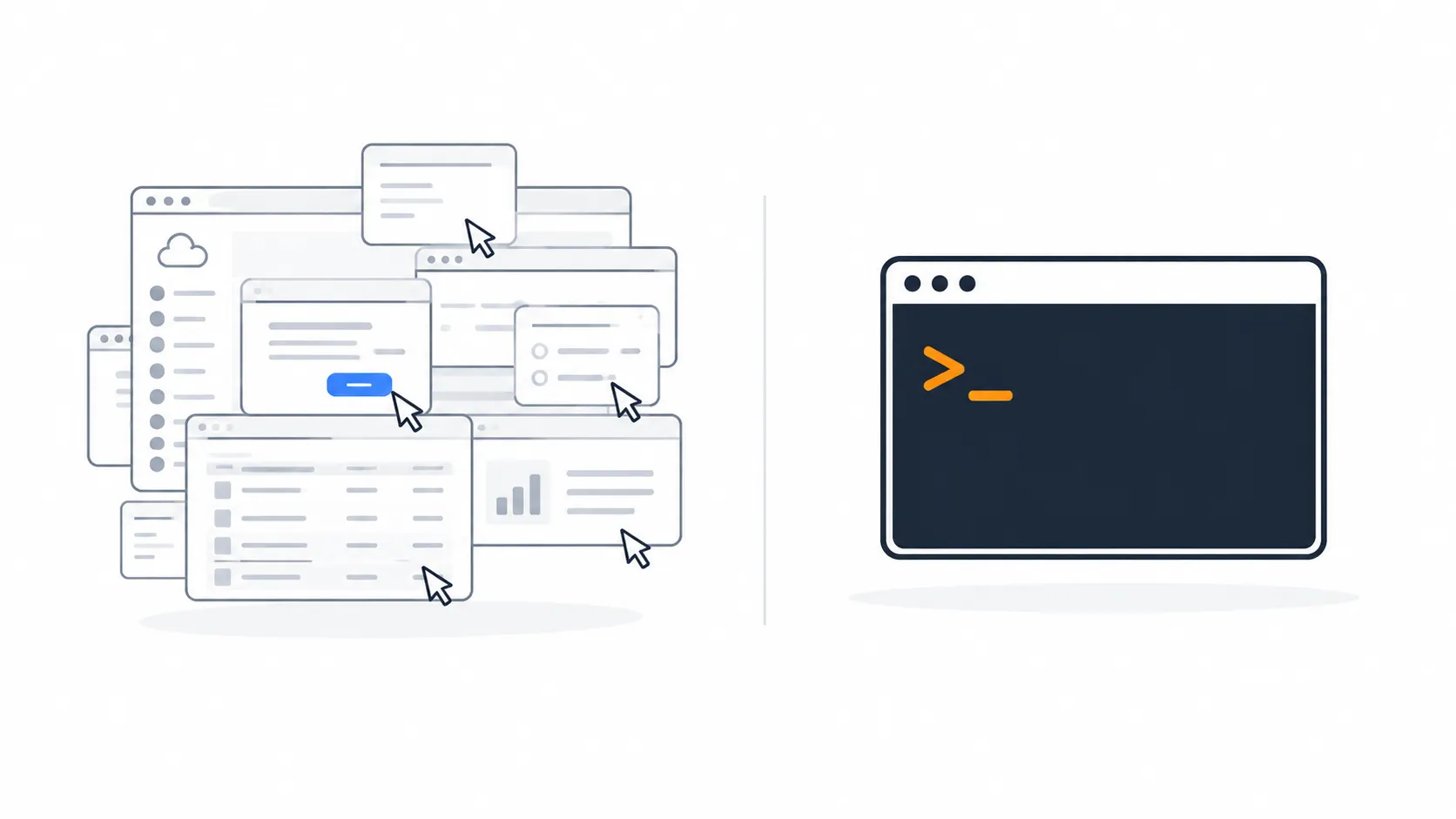
Clicking through the AWS Management Console is comfortable. It is also a massive bottleneck. The UI changes constantly, and you cannot version-control a mouse click.
To be clear: Infrastructure as Code (IaC) like Terraform or CloudFormation is how you deploy and manage state. But the AWS Command Line Interface (CLI) is how you inspect, audit, and respond to incidents imperatively. If your production environment is on fire, you don't rewrite a Terraform module to check a log file. You hit the terminal. ClickOps is the enemy.
Here are the 10 essential AWS CLI v2 commands that separate beginners from true cloud operators, designed for safety and speed.
Before you begin: Ensure you are using AWS CLI v2, or launch AWS CloudShell directly from your browser. Never hardcode access keys; always authenticate using
aws sso login.1. The Ultimate Sanity Check
Before you run any destructive command, you must know exactly what identity your terminal has assumed.
1
aws sts get-caller-identity
Why it matters: When you are juggling multiple environments, running this prevents a resume-generating event where you accidentally tear down production thinking you are in staging.
2. Kill the Bastion Host
If you are still managing SSH keys and opening port 22 to the public internet, your perimeter is vulnerable.
1
aws ssm start-session --target i-0abcdef1234567890
Why it matters: This drops you into a secure, fully logged shell without inbound open ports.
Prerequisites: Your instance needs the
Prerequisites: Your instance needs the
AmazonSSMManagedInstanceCore IAM profile, VPC endpoints (if in a private subnet), and your local machine needs the Session Manager plugin. Enable session logging to S3 or CloudWatch to guarantee a perfect audit trail.3. Safe, Throttle-Controlled Fleet Management
Running a raw
yum update -y across all of production simultaneously is a recipe for a catastrophic outage. Use Patch Manager with strict concurrency limits.1
2
3
4
5
6
7
aws ssm send-command \
--document-name "AWS-RunPatchBaseline" \
--targets "Key=tag:Environment,Values=Production" \
--parameters "Operation=Install" \
--max-concurrency "10%" \
--max-errors "1" \
--output-s3-bucket-name "my-audit-bucket"
Why it matters: This executes the patch baseline, but only updates 10% of your fleet at a time and halts the entire operation if a single instance fails. You can then check the exact output using
aws ssm get-command-invocation --command-id <id> --instance-id <id>.4. The Surgical Data Extraction
The default JSON output of the CLI is overwhelming. JMESPath queries allow you to extract exactly what you need.
1
2
3
aws ec2 describe-instances \
    --query "Reservations[*].Instances[*].{ID:InstanceId,IP:PrivateIpAddress,State:State.Name}" \
    --output table
Why it matters: Instead of scrolling through 5,000 lines of JSON to find an IP address, this returns a clean, highly readable ASCII table of your instances and their current states.
5. Previewing Infrastructure Changes
CloudFormation deploy commands can be dangerous if executed blindly. Always preview your changes.
1
2
3
4
aws cloudformation deploy \
    --template-file ./infrastructure.yml \
    --stack-name production-network-stack \
    --no-execute-changeset
Why it matters: Appending
--no-execute-changeset creates the change set but halts execution. You can then review exactly what will be added, modified, or destroyed before committing.6. Querying Golden Metrics Correctly
You do not need to open the CloudWatch dashboard to check system health, but you must query it accurately. Averages lie; you need the 99th percentile (P99).
1
2
3
4
5
6
7
8
aws cloudwatch get-metric-statistics \
    --namespace AWS/ApplicationELB \
    --metric-name TargetResponseTime \
    --dimensions Name=LoadBalancer,Value=app/my-alb/1234567890 \
    --extended-statistics p99 \
    --period 300 \
    --start-time 2026-10-03T00:00:00Z \
    --end-time 2026-10-03T01:00:00Z
Why it matters: Without specific dimensions (like the exact ALB), CloudWatch returns nothing. Using a 300-second (5-minute) period with
--extended-statistics p99 gives you the true performance of your slowest 1% of requests.7. Auditing the Network Boundary
When troubleshooting connectivity, you need a quick view of what your security groups are allowing.
1
2
3
aws ec2 describe-security-groups \
    --group-ids sg-0123456789abcdef0 \
    --query "SecurityGroups[*].IpPermissions[*].[IpProtocol, FromPort, ToPort, IpRanges]"
Why it matters: This rapidly exposes your IPv4 ingress rules. Keep in mind: port 80 is perfectly legitimate if used strictly for HTTPS redirects. For a complete audit, you must also check
Ipv6Ranges and Security-Group-to-Security-Group references. For enterprise environments, pair this with continuous AWS Config rules.8. Finding the Ghost in the Machine
When something breaks, you need to know exactly who executed the change.
1
2
3
4
aws cloudtrail lookup-events \
    --lookup-attributes AttributeKey=ResourceName,AttributeValue=production-database \
    --query "Events[*].{Time:EventTime,User:Username,Action:EventName}" \
    --output table
Why it matters: This cuts through the noise and immediately identifies which IAM entity modified your resources. Note:
lookup-events only covers management events for the last 90 days. For deeper forensic investigations, use CloudTrail Lake or Amazon Athena.9. Validating IAM Policies
The Policy Simulator (
aws iam simulate-principal-policy) is useful, but it doesn't account for complex Organizations Service Control Policies (SCPs) or resource-based policies perfectly. For true validation, use IAM Access Analyzer.1
2
3
aws accessanalyzer validate-policy \
--policy-document file://my-policy.json \
--policy-type IDENTITY_POLICY
Why it matters: This performs formal reasoning checks on your policy syntax and logic before you deploy it, flagging overly permissive actions or missing conditions.
10. The Ultimate Quality-of-Life Command: Tailing Logs
Real operators do not sit in the AWS Console clicking the "refresh" button on CloudWatch Log streams.
1
aws logs tail /aws/lambda/production-auth-function --follow --format short
Why it matters: This streams the log events directly to your terminal in real-time. It is the single fastest way to debug a live application issue.
Operator Safety Checklist:
- Always test complex commands in a sandbox account first.
- Never pass plaintext secrets, passwords, or database credentials using
--parametersin the CLI, as they will be saved in your local~/.bash_historyor~/.zshrchistory. - Speed is a byproduct of precision. Master the terminal, and you will fundamentally change how fast you can operate.

Throttled fleet management with AWS SSM Patch Manager: only 10% of the production fleet is updated at a time, limiting the blast radius of changes.
Enjoyed reading this content? Let the author know!
Your likes, comments, shares, and saves help creators reach more builders.

Loading recommendations
Loading article