
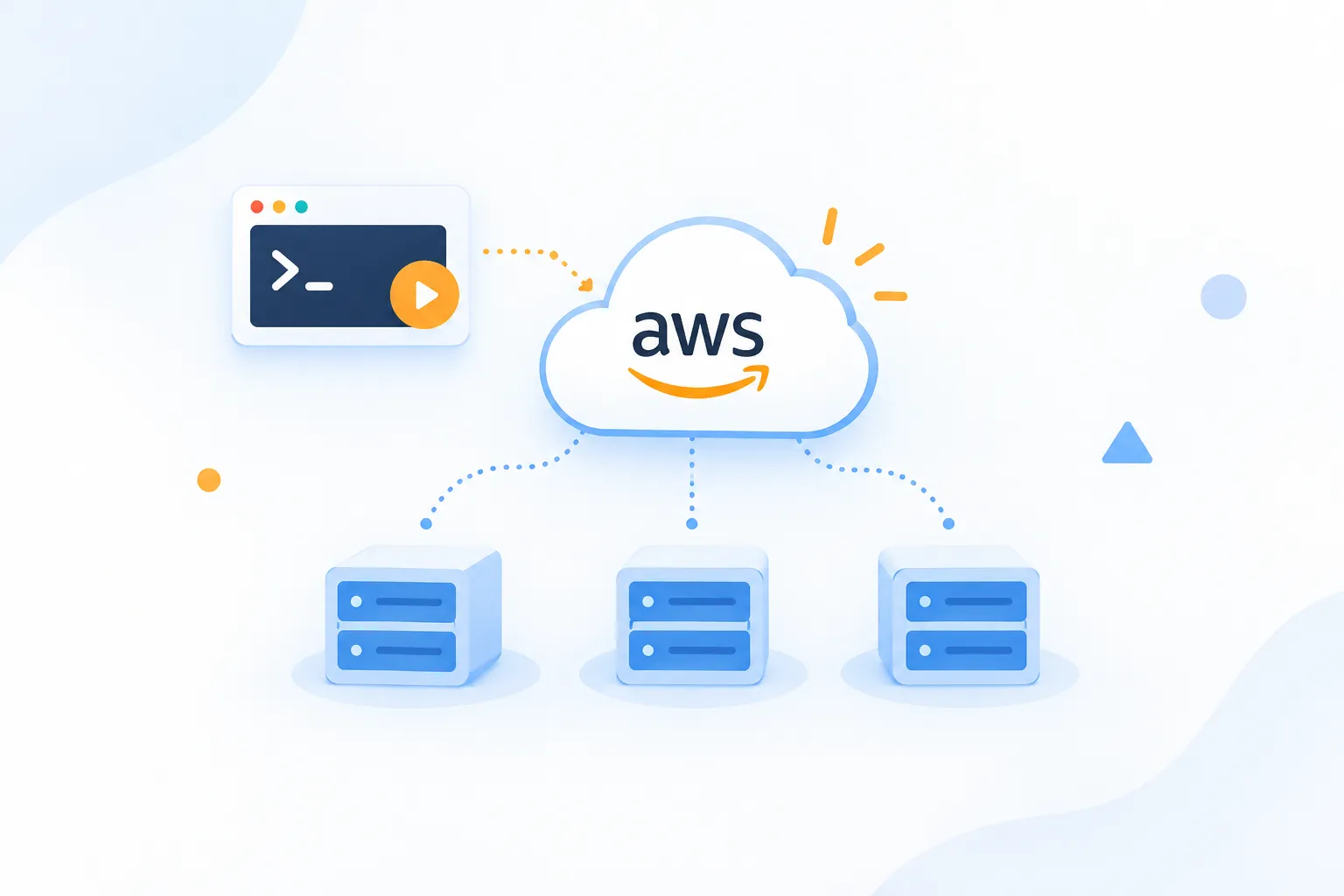
From SSH to Zero: Managing EC2 at Scale with AWS Run Command
Discover how AWS Systems Manager Run Command lets you execute commands across your EC2 fleet without SSH, bastion hosts, or open ports — secure, scalable, and fully audited.

Overview
Run Command is a feature of AWS Systems Manager that lets you remotely and securely manage the configuration of your managed nodes. A managed node can be an EC2 instance or a non-EC2 machine in a hybrid/multicloud environment. With Run Command, you can automate administrative tasks and perform configuration changes at scale — without needing SSH or opening port 22.
Run Command is free (no additional cost) and can be accessed via the AWS Console, CLI, PowerShell, or SDK.
Prerequisites
- AWS Account with access to EC2 and Systems Manager
- At least 1 EC2 instance (Amazon Linux 2023 or Ubuntu 22.04)
- AWS CLI installed and configured
- Basic knowledge of Linux commands
Theory & Concepts
What is Run Command?
Run Command is a feature in AWS Systems Manager that lets you execute commands remotely on managed instances (EC2, on-premises servers, or VMs in other clouds).
Unlike SSH which is point-to-point, Run Command can:
- Execute commands on hundreds of servers simultaneously
- Automatically log to CloudWatch/S3
- Provide complete audit trail in CloudTrail
- Eliminate the need to manage SSH keys or open port 22
Why is Run Command Important?
Security:
- No need to open port 22 in security groups
- No need to distribute SSH keys to all servers
- IAM-based access control
- All commands are audited in CloudTrail
Scalability:
- Run commands on 1 or 1000 servers with the same effort
- Target by tags, resource groups, or instance IDs
- Rate control for rolling execution
Operational Efficiency:
- Centralized command execution
- Output is stored and can be reviewed
- Integration with automation workflows
Key Components
| Component | Description |
|---|---|
| SSM Agent | Agent running on the instance that receives and executes commands |
| SSM Document | Command template that can be executed (predefined or custom) |
| Managed Instance | Instance registered with Systems Manager (agent running + IAM role) |
| Command | Execution of a document to one or more instances |
SSM Agent
The SSM Agent is software that must be running on an instance for it to be managed by Systems Manager.
Pre-installed on:
- Amazon Linux 2 / 2023
- Ubuntu 16.04, 18.04, 20.04, 22.04
- Windows Server 2016+
Manual installation required for:
- RHEL/CentOS (some versions)
- Debian
- Custom AMIs
SSM Documents
Documents are "recipes" that define what actions will be executed. AWS provides many predefined documents:
| Document | Use Case |
|---|---|
| AWS-RunShellScript | Run shell commands (Linux) |
| AWS-RunPowerShellScript | Run PowerShell (Windows) |
| AWS-UpdateSSMAgent | Update SSM Agent |
| AWS-ConfigureAWSPackage | Install/uninstall AWS packages |
| AWS-RunPatchBaseline | Apply patches |
Architecture Diagram

architecture
Flow:
- User/Automation → Run Command with target (tags/IDs)
- Systems Manager → Send command to SSM Endpoints
- SSM Agent → Poll endpoints, receive command, execute
- SSM Agent → Send output back to Systems Manager
- Output → Stored in SSM, optionally to S3/CloudWatch
Hands-on Implementation
Security Warning: Do not include sensitive information (passwords, secrets) in plaintext in commands. All API activity is logged to CloudTrail and can be viewed in S3. UseSecureStringparameters in Parameter Store for sensitive data.
Step 1: Create IAM Role for EC2
First, create an IAM role that allows EC2 to communicate with Systems Manager.
Via Console:
- Open IAM Console → Roles → Create Role
- Select "AWS Service" → "EC2"
- Attach policy:
AmazonSSMManagedInstanceCore - Name:
EC2-SSM-Role
Via CLI:
1
2
3
4
5
6
7
8
9
10
11
12
13
14
15
16
17
18
19
20
21
22
23
24
25
26
27
28
29
30
31
32
33
34
# Create trust policy
cat > trust-policy.json << 'EOF'
{
  "Version": "2012-10-17",
  "Statement": [
    {
      "Effect": "Allow",
      "Principal": {
        "Service": "ec2.amazonaws.com"
      },
      "Action": "sts:AssumeRole"
    }
  ]
}
EOF

# Create role
aws iam create-role \
  --role-name EC2-SSM-Role \
  --assume-role-policy-document file://trust-policy.json

# Attach policy
aws iam attach-role-policy \
  --role-name EC2-SSM-Role \
  --policy-arn arn:aws:iam::aws:policy/AmazonSSMManagedInstanceCore

# Create instance profile
aws iam create-instance-profile \
  --instance-profile-name EC2-SSM-Profile

# Add role to instance profile
aws iam add-role-to-instance-profile \
  --instance-profile-name EC2-SSM-Profile \
  --role-name EC2-SSM-Role
Step 2: Launch EC2 with IAM Role
1
2
3
4
5
6
7
# Launch EC2 with SSM role
aws ec2 run-instances \
  --image-id ami-0c02fb55956c7d316 \
  --instance-type t3.micro \
  --iam-instance-profile Name=EC2-SSM-Profile \
  --tag-specifications 'ResourceType=instance,Tags=[{Key=Name,Value=SSM-Demo},{Key=Environment,Value=Production}]' \
  --count 1
Explanation:
--iam-instance-profile: Attach the IAM role created earlier--tag-specifications: Add tags for targeting later- The AMI ID above is for Amazon Linux 2023 in us-east-1 (adjust for your region)
Step 3: Verify Instance Registration
Wait 2-3 minutes after the instance is running, then check if it's registered with Systems Manager.
Via Console:
- Systems Manager → Fleet Manager → Managed Instances
Via CLI:
1
2
3
4
# List all managed instances
aws ssm describe-instance-information \
  --query "InstanceInformationList[*].[InstanceId,PingStatus,AgentVersion,PlatformName]" \
  --output table
Expected Output:
1
2
3
4
5
-------------------------------------------------------------
|                  DescribeInstanceInformation              |
+----------------------+--------+------------+--------------+
|  i-0abc123def456789  | Online |  3.2.1234  | Amazon Linux |
+----------------------+--------+------------+--------------+
Step 4: Run Command via Console
- Open Systems Manager → Run Command
- Click Run command
- In "Command document", search for and select
AWS-RunShellScript - In "Command parameters", enter:
```bash
whoami
hostname
uptime
df -h
``` - In "Targets", select "Choose instances manually" and select your instance
- Scroll down, click Run
- Click the command ID to view output
Step 5: Run Command via CLI
1
2
3
4
5
6
7
8
9
10
11
12
# Save instance ID
INSTANCE_ID="i-0abc123def456789"  # Replace with your instance ID

# Run command
COMMAND_ID=$(aws ssm send-command \
  --instance-ids "$INSTANCE_ID" \
  --document-name "AWS-RunShellScript" \
  --parameters 'commands=["whoami","hostname","uptime","df -h"]' \
  --query "Command.CommandId" \
  --output text)

echo "Command ID: $COMMAND_ID"
1
2
3
4
5
6
# Wait a moment, then check output
aws ssm get-command-invocation \
--command-id "$COMMAND_ID" \
--instance-id "$INSTANCE_ID" \
--query "[Status,StandardOutputContent]" \
--output textExpected Output:
1
2
3
4
5
6
Success
root
ip-10-0-1-123.ec2.internal
 10:23:45 up 2 days,  3:45,  0 users,  load average: 0.00, 0.01, 0.05
Filesystem      Size  Used Avail Use% Mounted on
/dev/xvda1       8.0G  1.5G  6.6G  19% /
Step 6: Targeting Multiple Instances by Tags
The power of Run Command lies in its targeting capabilities. There are several ways to target:
- By Tags —
Key=tag:TagName,Values=Value1,Value2 - By Instance IDs —
Key=instanceids,Values=i-xxx,i-yyy - By Resource Group —
Key=resource-groups:Name,Values=GroupName
You can specify max 5 keys and 5 values per key.
Example: Target by tags
1
2
3
4
5
6
# Target by tags - all instances with Environment=Production
aws ssm send-command \
  --document-name "AWS-RunShellScript" \
  --targets "Key=tag:Environment,Values=Production" \
  --parameters 'commands=["echo $(hostname): $(uptime)"]' \
  --comment "Check uptime on production servers"
1
2
3
4
5
6
# List command results across all targets
aws ssm list-command-invocations \
--command-id "$COMMAND_ID" \
--details \
--query "CommandInvocations[*].[InstanceId,Status,StandardOutputContent]" \
--output tableStep 7: Rate Control for Safe Rollout
When you have many servers, don't execute all at once. Use concurrency controls and error controls:
--max-concurrency— number or percentage of instances to run simultaneously--max-errors— error threshold before the command is cancelled
1
2
3
4
5
6
7
aws ssm send-command \
  --document-name "AWS-RunShellScript" \
  --targets "Key=tag:Environment,Values=Production" \
  --parameters 'commands=["sudo yum update -y httpd"]' \
  --max-concurrency "10%" \
  --max-errors "10%" \
  --comment "Update Apache - rolling deployment"
Explanation:
--max-concurrency "10%": Only 10% of instances execute simultaneously--max-errors "10%": Stop execution if error rate > 10%
Step 8: Handling Exit Codes
By default, the exit code from the last command in the script is reported as the overall exit code. If a step in the middle fails but the last step succeeds, the status will be "succeeded".
Solution: Add
set -e or conditional exit in the script:1
2
3
4
aws ssm send-command \
--document-name "AWS-RunShellScript" \
--targets "Key=tag:Environment,Values=Production" \
--parameters 'commands=["set -e","apt update","apt install -y nginx","systemctl start nginx"]'Best Practices
Do:
- Always use tags for targeting (more maintainable than hardcoded IDs)
- Set reasonable timeout for long-running commands
- Use rate control (
--max-concurrency,--max-errors) for production - Enable output logging to S3/CloudWatch for audit
- Test commands in staging before production
Don't:
- Don't hardcode credentials in commands (use IAM roles)
- Don't run commands without rate control on large fleets
- Don't ignore failed invocations — always check status
- Don't use Run Command for long-running processes (use State Manager or custom daemon)
Summary
Run Command is a powerful and free tool for managing EC2 fleets:
- No need for SSH or opening port 22
- Execute commands on hundreds of servers simultaneously
- Complete audit trail
- Rate control for safe deployment
References
Enjoyed reading this content? Let the author know!
Your likes, comments, shares, and saves help creators reach more builders.

Loading recommendations
Loading article