
Why Your AWS Application Can Fail Even When Every Service Is “Working”
An AWS application can fail even when its individual services appear healthy. This article explores a practical, layer-by-layer approach to troubleshooting AWS applications—from DNS and VPC networking to routing, security groups, EC2, application health, and CloudWatch monitoring. Learn how to move from symptoms to evidence, isolate the root cause, and troubleshoot cloud workloads with a Cloud Engineer mindset.

Why Your AWS Application Can Fail Even When Every Service Is “Working”
One of the most important lessons I am learning while exploring AWS is that an application can fail even when the individual AWS services appear to be running normally.
An EC2 instance can be running.
A database can be available.
CloudWatch can be collecting metrics.
IAM can be configured.
A database can be available.
CloudWatch can be collecting metrics.
IAM can be configured.
And yet, a user may still be unable to access the application.
This is where cloud troubleshooting becomes more than simply knowing AWS services. It requires understanding how those services work together.
In this article, let us look at a simple troubleshooting approach that can help beginners think like cloud engineers.
Understanding the Request Path
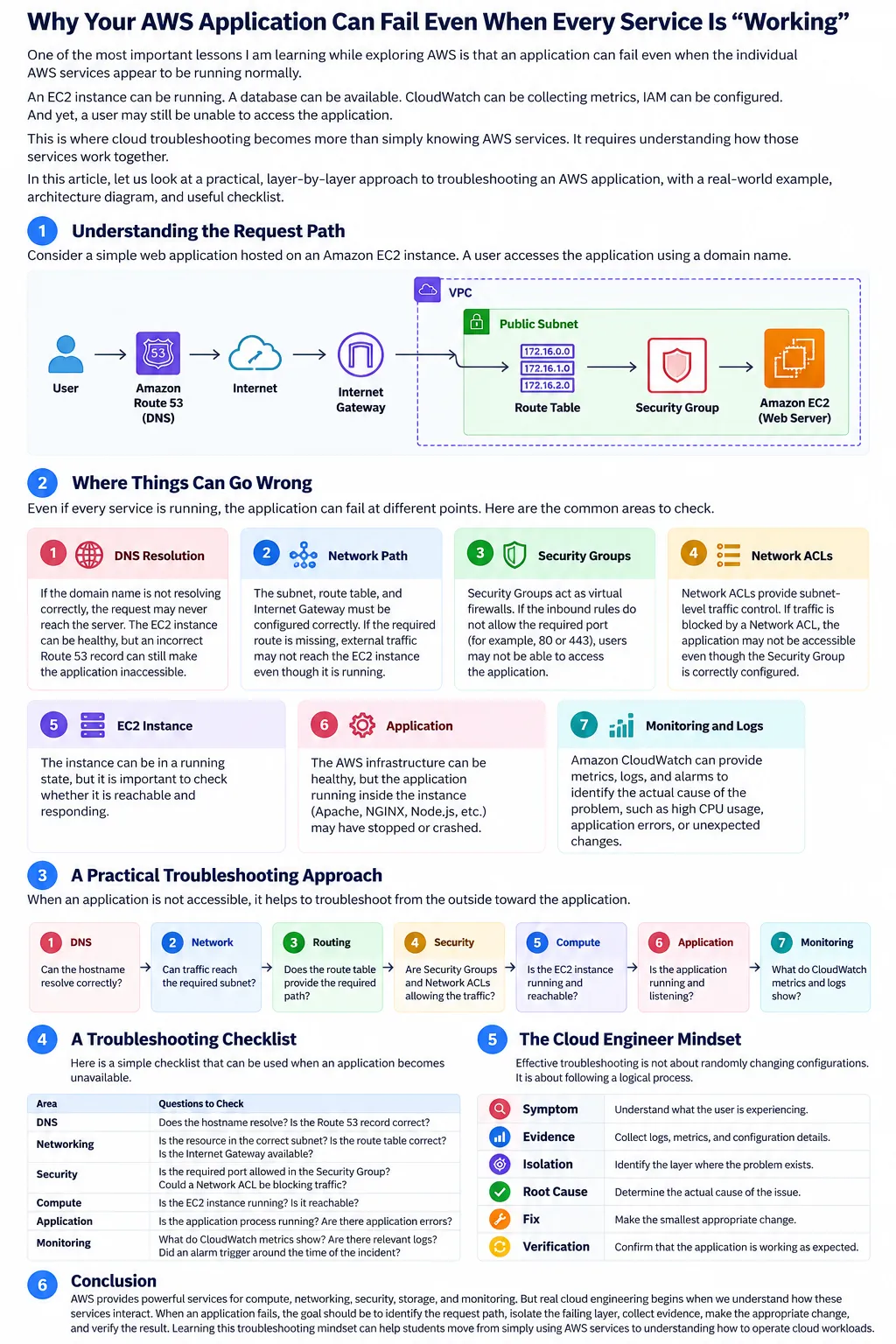
Consider a web application hosted on an Amazon EC2 instance.
A simplified request path could look like:
User → DNS → Internet Gateway → VPC → Subnet → Route Table → Security Group → EC2 → Application
If the application is not accessible, the problem can exist at any point along this path.
The important lesson is:
Don't immediately change configurations. First identify where the request is failing.
1. Start With the Symptom
Suppose a user reports:
“The website is not opening.”
This statement tells us what the user sees, but not where the problem exists.
Instead of restarting the EC2 instance immediately, we can break the problem into smaller questions:
- Is the domain name resolving?
- Is the EC2 instance running?
- Is the instance reachable?
- Is the required port allowed?
- Is the subnet configured correctly?
- Is there a route to the Internet?
- Is the application actually running?
- Are there errors in the logs?
This turns a large problem into smaller, testable problems.
2. Check DNS Resolution
If users access an application using a domain name, DNS is one of the first layers to consider.
Amazon Route 53 can be used to manage DNS records.
For example:
www.example.com → EC2 public endpoint
If the DNS record is incorrect or does not resolve correctly, the request may never reach the server.
The important point is that an EC2 instance can be perfectly healthy while the user still cannot reach the application because the DNS layer is incorrect.
3. Check the Network Path
AWS networking determines how traffic moves between resources and external users.
Amazon VPC provides the network environment for AWS resources.
Important components include:
- VPC
- Subnets
- Route tables
- Internet Gateway
- Security Groups
- Network ACLs
For a publicly accessible application, the subnet and routing configuration need to support the required traffic flow.
For example:
Public Subnet → Route Table → Internet Gateway
If the required route is missing, the EC2 instance may be running normally but external traffic may not reach it.
4. Check Security Groups
Security Groups act as virtual firewalls for AWS resources such as EC2 instances.
Suppose a web server is listening on port 80.
If the Security Group does not allow the required inbound traffic, users may not be able to access the website.
For HTTPS applications, port 443 is commonly required.
This creates an important troubleshooting distinction:
EC2 Status: Running
does not automatically mean:
Application: Reachable
The instance can be healthy while network access is blocked.
5. Check Network ACLs
Network ACLs provide another layer of network traffic control at the subnet level.
When troubleshooting connectivity, it is useful to understand the difference:
Security Group → Resource-level traffic control
Network ACL → Subnet-level traffic control
If traffic is unexpectedly blocked, both layers may need to be considered.
However, it is better to change these configurations only after identifying evidence that they are responsible for the problem.
6. Check the Application Itself
Suppose the network configuration is correct.
The next question is:
Is the application actually running?
An EC2 instance can show:
Instance state: Running
while the web server or application process has stopped.
For example, an application may depend on:
- Apache
- NGINX
- Node.js
- Python
- Java
The operating system and application logs can provide useful evidence.
This is why cloud troubleshooting should not stop at the AWS Console.
Sometimes the AWS infrastructure is healthy, but the application running inside the instance has failed.
7. Use CloudWatch as Evidence
Amazon CloudWatch can help monitor AWS resources and applications through metrics, logs, alarms, and other monitoring capabilities.
Instead of asking:
“Is something wrong?”
we can ask more specific questions:
- Did CPU utilization suddenly increase?
- Did the application generate errors?
- Did memory or disk-related indicators change?
- Did the problem start at a particular time?
- Did an alarm change state?
Monitoring helps us connect the problem with evidence.
For example:
Application issue → Error logs → CloudWatch Logs → Identify failure → Take corrective action
This is much more reliable than guessing.
A Simple Troubleshooting Model
A useful way to approach an AWS connectivity problem is to troubleshoot from the outside toward the application.
Layer 1 — DNS
Can the hostname resolve correctly?
↓
Layer 2 — Network
Can traffic reach the required network and subnet?
↓
Layer 3 — Routing
Does the route table provide the required path?
↓
Layer 4 — Security
Are Security Groups and Network ACLs allowing the required traffic?
↓
Layer 5 — Compute
Is the EC2 instance running and reachable?
↓
Layer 6 — Application
Is the application process running and listening on the expected port?
↓
Layer 7 — Monitoring and Logs
What evidence explains the failure?
This approach helps avoid making multiple random configuration changes.
Why This Matters in Cloud Operations
In a real cloud environment, troubleshooting is not just about fixing one server.
Cloud engineers need to understand relationships between services.
For example:
Route 53 handles DNS.
VPC provides networking.
Security Groups control resource-level network access.
EC2 provides compute capacity.
CloudWatch provides monitoring and observability.
Each service has a specific responsibility, but the application depends on all of them working together correctly.
That is why learning AWS service-by-service is useful, but understanding the connections between services is even more important.
A Practical Troubleshooting Checklist
When an application becomes unavailable, I would start with this checklist:
DNS
- Does the hostname resolve?
- Is the DNS record correct?
Networking
- Is the resource in the expected subnet?
- Is the route table configured correctly?
- Is the required Internet Gateway or network path available?
Security
- Is the required port allowed by the Security Group?
- Could a Network ACL be blocking traffic?
Compute
- Is the EC2 instance running?
- Is the instance reachable?
Application
- Is the application process running?
- Is it listening on the expected port?
- Are there application errors?
Monitoring
- What do CloudWatch metrics show?
- Are there relevant logs?
- Did an alarm trigger around the time of the incident?
The Cloud Engineer Mindset
One of the biggest lessons from this type of troubleshooting is that “running” does not always mean “working.”
A cloud engineer should move from:
Symptom → Evidence → Isolation → Root Cause → Fix → Verification
rather than:
Problem → Random Configuration Changes
This mindset becomes increasingly important as applications grow and involve more AWS services.
Conclusion
AWS provides powerful services for compute, networking, security, storage, and monitoring. But real cloud engineering begins when we understand how these services interact.
When an application fails, the goal should not be to immediately restart resources or change configurations.
Instead, identify the request path, isolate the failing layer, collect evidence, make the smallest appropriate change, and verify the result.
Learning this troubleshooting mindset can help students move from simply using AWS services to understanding how to operate cloud workloads.
Keep learning. Keep troubleshooting. And always follow the evidence.
#aws #amazon-ec2 #amazon-vpc #amazon-cloudwatch #amazon-route53 #iam #cloudcomputing #cloudoperations
Enjoyed reading this content? Let the author know!
Your likes, comments, shares, and saves help creators reach more builders.

Loading recommendations
Loading article