
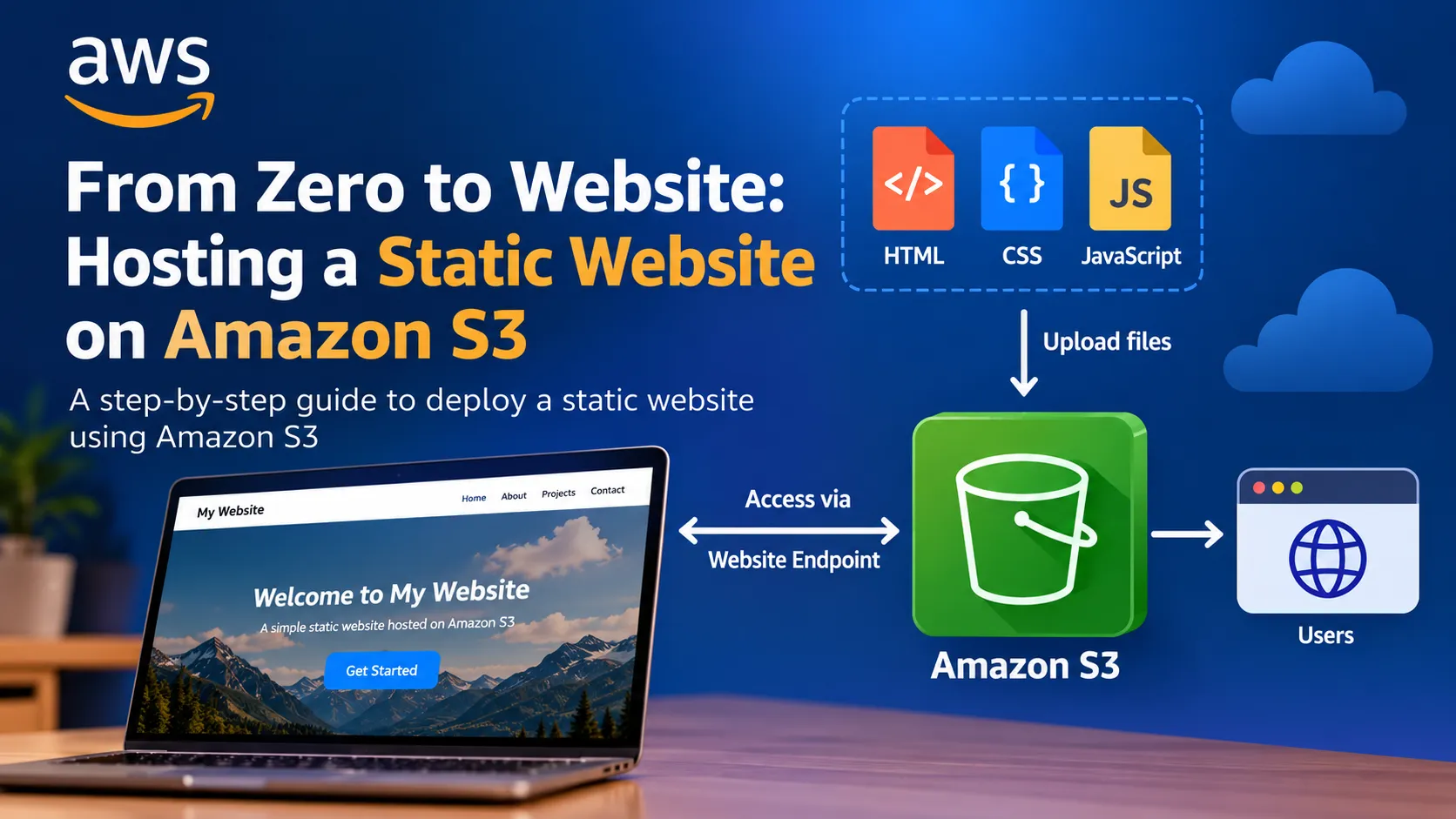

From Zero to Website: Hosting a Static Website on Amazon S3
Introduction
Cloud computing has changed how we build, deploy, and manage websites. Traditionally, hosting a website required managing physical servers, operating systems, storage, and networking. Today, cloud services allow developers to host websites without maintaining traditional web servers.
In this article, I will explain how to host a static website using Amazon Simple Storage Service (Amazon S3), one of the fundamental storage services in AWS. This project is suitable for beginners who want to understand cloud storage, website deployment, and basic cloud infrastructure.
What Is Amazon S3?
Amazon S3 is an object storage service that allows users to store and retrieve data over the internet. It is commonly used for storing images, documents, backups, application files, and static website content.
A static website consists of files such as:
- HTML for webpage structure
- CSS for styling
- JavaScript for interactivity
- Images and other static assets
Amazon S3 can host these files and make website content available through a website endpoint.
Project Architecture
The basic architecture of this project is straightforward:
User → Web Browser → Amazon S3 Static Website Endpoint → Website Files
When a user opens the website URL, the browser requests the webpage, and Amazon S3 serves the configured website content.
Prerequisites
Before starting, you need:
- An AWS account
- Access to the AWS Management Console
- Basic knowledge of HTML and CSS
- A simple website containing HTML, CSS, and JavaScript files
Step 1: Create an S3 Bucket
First, sign in to the AWS Management Console and open Amazon S3.
- Select Create bucket.
- Enter a globally unique bucket name.
- Select the AWS Region.
- Review the bucket settings.
- Create the bucket.
The bucket will act as the storage location for the website files.
Step 2: Upload Website Files
Open the newly created bucket and select Upload.
Upload the required website files, such as:
index.htmlstyle.cssscript.js- Images used by the website
Ensure that the main HTML file is named
index.html, because this will be configured as the website's index document.Step 3: Enable Static Website Hosting
Open the S3 bucket and navigate to the Properties tab.
- Locate the Static website hosting section.
- Select Edit.
- Enable static website hosting.
- Choose Host a static website.
- Enter
index.htmlas the index document. - Save the changes.
AWS will provide a website endpoint that can be used to access the hosted website.
Step 4: Configure Permissions
By default, S3 objects are not publicly accessible. For a public static website, the website files must be accessible to visitors.
For a learning project, review the bucket's Block Public Access settings and configure the required access permissions only if you intend to make the website publicly available.
A bucket policy can grant public read access to the website objects. For example, the following policy grants read access to objects in a bucket named
your-unique-bucket-name.Replace the placeholder with your actual bucket name.
1
2
3
4
5
6
7
8
9
10
11
12
{
  "Version": "2012-10-17",
  "Statement": [
    {
      "Sid": "PublicReadForWebsite",
      "Effect": "Allow",
      "Principal": "*",
      "Action": "s3:GetObject",
      "Resource": "arn:aws:s3:::your-unique-bucket-name/*"
    }
  ]
}
Security note: This policy allows anyone to read the objects covered by the policy. Use it only when public access is intentional. For production websites, consider using Amazon CloudFront with a private S3 bucket and Origin Access Control.
Step 5: Access the Website
After configuring static website hosting and the required permissions, return to the Properties tab.
Find the Static website hosting section and open the website endpoint.
If everything is configured correctly, your website should load in the browser.
If the website does not open, check the following:
- The
index.htmlfile exists. - Static website hosting is enabled.
- The bucket policy and public access settings are consistent.
- The correct website endpoint is being used.
- The object names and paths are correct.
Step 6: Test the Website
Once the website is accessible, test it in a browser.
Verify that:
- The homepage loads successfully.
- CSS styles are applied correctly.
- JavaScript functions work as expected.
- Images and other assets load properly.
- Links navigate to the correct pages.
Testing helps identify configuration errors and missing files.
Understanding the Benefits
This project demonstrates several important cloud computing concepts.
1. Serverless website hosting: For a basic static website, there is no need to manage a traditional web server.
2. Scalable storage: Amazon S3 is designed to store large amounts of data and handle requests at scale.
3. Cost awareness: Charges depend on usage, storage, requests, data transfer, and applicable pricing. Review AWS pricing before deploying a public website.
4. Practical cloud experience: The project provides hands-on experience with buckets, object storage, permissions, and website configuration.
Limitations and Production Considerations
Amazon S3 static website hosting serves static content. It does not execute server-side application code such as Python, PHP, or Java.
For dynamic functionality, you may need additional services such as AWS Lambda, Amazon API Gateway, or a separate application server.
Also, the S3 website endpoint does not itself provide HTTPS. For a production website requiring HTTPS, a common approach is to use Amazon CloudFront with an appropriate TLS certificate and a private S3 origin.
Conclusion
Hosting a static website on Amazon S3 is a useful beginner project for understanding AWS storage, website deployment, and access permissions.
By completing this project, I gained practical experience in creating an S3 bucket, uploading website files, enabling static website hosting, configuring access permissions, and testing the website through a browser.
This project also provides a foundation for exploring more advanced AWS services, including CloudFront, Route 53, IAM, and automated deployment pipelines using DevOps tools.
What I Learned
- How Amazon S3 stores website files.
- How to configure static website hosting.
- How bucket policies control access to objects.
- How to troubleshoot common website hosting issues.
- How static website hosting fits into a broader AWS architecture.
I hope this walkthrough helps other beginners take their first step toward building and deploying applications on AWS.
#AWS #AmazonS3 #CloudComputing #AWSCloud #DevOps #CloudLearning #WebHosting
Enjoyed reading this content? Let the author know!
Your likes, comments, shares, and saves help creators reach more builders.

Loading recommendations
Loading article