
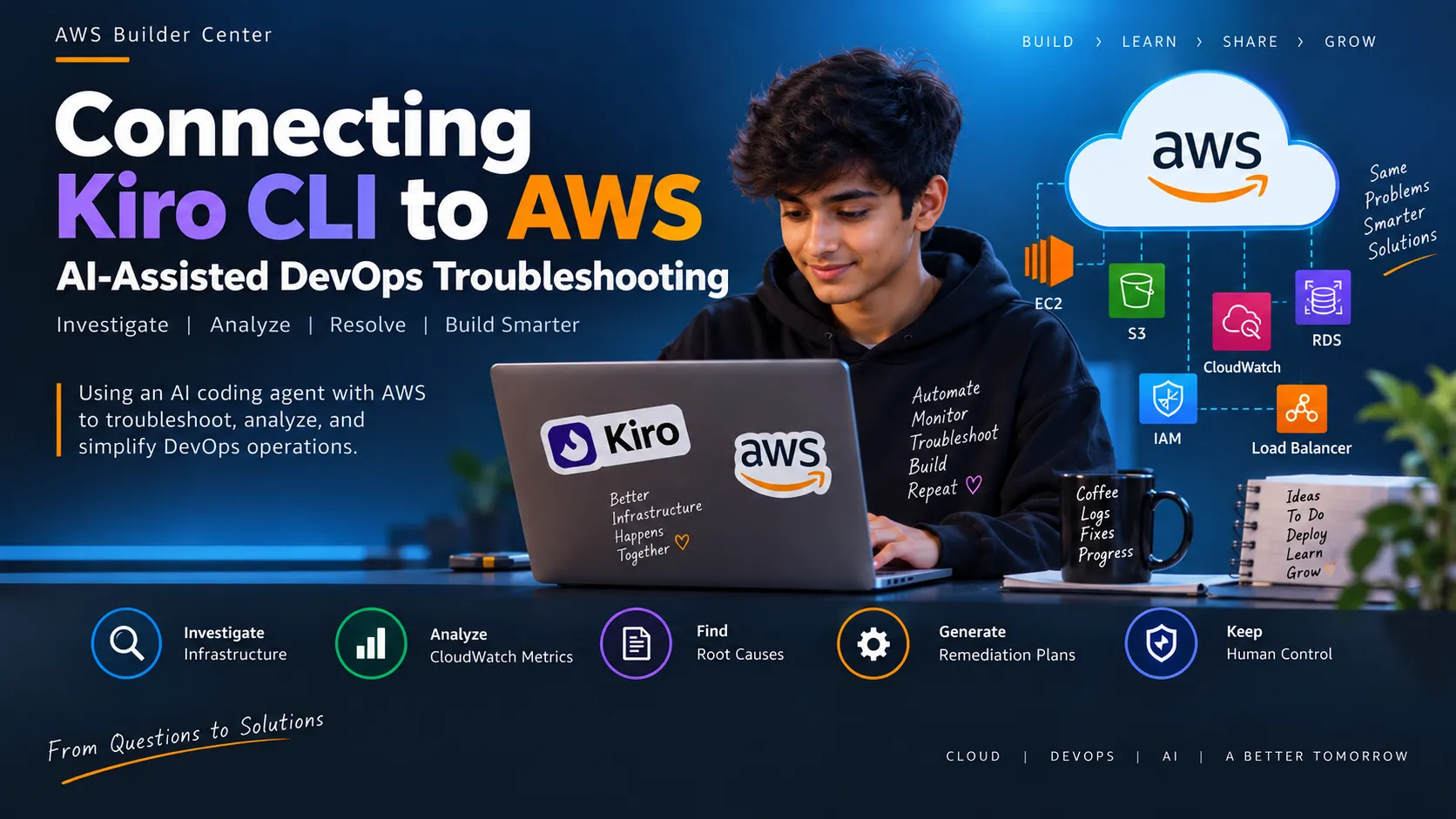
Kiro CLI + AWS: AI-Assisted DevOps Troubleshooting
Learn how I use Kiro CLI with AWS for infrastructure troubleshooting, CloudWatch analysis, root-cause investigation, and safer remediation.

1
2
3
4
5
6
7
8
9
10
11
12
13
14
15
16
17
18
19
20
21
22
23
24
25
26
27
28
29
30
31
32
33
34
35
36
37
38
39
40
41
42
43
# 1. Introduction
AI coding agents are becoming useful beyond traditional application development.
As a DevOps engineer, I use Kiro CLI to investigate production and infrastructure issues. Connecting an AI coding agent with AWS creates an opportunity to combine AI-assisted reasoning with real cloud infrastructure, monitoring data, configuration, and AWS documentation.
The goal is not to give an AI agent unrestricted control over production.
Instead, my approach is:
**Observe → Analyze → Recommend → Human Approval → Change**
This article explains how I use Kiro CLI as an AI-assisted DevOps troubleshooting companion and how this workflow can help reduce the time spent investigating AWS infrastructure issues.
# 2. Why I Connected Kiro CLI to AWS
Production troubleshooting often requires information from multiple places.
For example, when an application becomes slow, the issue could be related to:
- EC2 CPU utilization
- Memory or disk pressure
- Network traffic
- CloudWatch metrics
- Application logs
- Load balancers
- Security groups
- IAM permissions
- RDS
- S3
- Recent deployments
- Infrastructure configuration
Normally, a DevOps engineer needs to collect and correlate this information manually.
By connecting an AI coding agent to AWS, I can use natural-language prompts to help investigate infrastructure and organize the available evidence.
Instead of only asking:
```text
Why is my application slow?I can provide a structured troubleshooting request:
1
2
3
4
5
6
7
8
9
10
11
12
Investigate the production EC2 environment.

Check the infrastructure, monitoring data, and configuration
that could help explain the issue.

Do not make any changes.

Return:
- Observations
- Evidence
- Possible causes
- Recommended next steps
This makes the AI agent useful as an investigation assistant rather than simply a code generator.
3. My Existing DevOps Workflow
I already use Kiro CLI during production and infrastructure troubleshooting.
My workflow can be represented as:
1
2
3
4
5
6
7
8
9
10
11
12
13
14
15
16
17
18
19
20
21
22
23
24
25
26
27
28
29
30
31
32
33
Production / Infrastructure Issue
              |
              v
          Kiro CLI
              |
              v
       AWS-aware tooling
              |
              v
    +---------+----------+
    |         |          |
    v         v          v
   EC2    CloudWatch    IAM
    |         |          |
    +---------+----------+
              |
              v
       Evidence Gathering
              |
              v
       Incident Analysis
              |
              v
      Root Cause Hypothesis
              |
              v
      Remediation Plan
              |
              v
       Human Approval
              |
              v
        Apply Changes
The important part of this workflow is that the agent helps with investigation and analysis while the engineer remains responsible for production decisions.
4. Connecting Kiro CLI to AWS
The first step is connecting the coding agent to the AWS environment using the AWS integration described by AWS Builder Center.
The basic concept is:
1
2
3
4
5
6
7
8
9
10
11
12
13
Kiro CLI
    |
    v
AWS Agent Toolkit
    |
    +---- AWS-specific context
    |
    +---- AWS documentation
    |
    +---- AWS tools / capabilities
    |
    v
AWS Account
Before using an AI agent against production infrastructure, I consider authentication and permissions carefully.
I start by verifying that my local AWS environment can authenticate successfully.
1
aws --version
Then:
1
aws sts get-caller-identity
The purpose of this step is to verify which AWS identity is being used.
Security note: Never publish AWS access keys, secret keys, session tokens, private credentials, or sensitive infrastructure information in screenshots.
5. Verifying AWS Access
After configuring the AWS connection, I verify the environment before asking the agent to perform any operational task.
A simple AWS identity check is:
1
aws sts get-caller-identity
A successful response confirms the AWS identity available to the current environment.
For example:
1
2
3
4
5
{
  "UserId": "REDACTED",
  "Account": "REDACTED",
  "Arn": "REDACTED"
}
I can then ask Kiro to verify the environment:
1
2
3
4
5
6
7
8
9
10
11
Verify my AWS connection.

Tell me:

1. Which AWS account is connected
2. Which IAM identity is being used
3. Which AWS region is configured
4. Whether AWS APIs are accessible
5. Which resources can be inspected

Do not create, modify, restart, or delete anything.
Screenshot

AWS identity verification / Kiro AWS connection
6. Production/Infrastructure Troubleshooting Workflow
For production troubleshooting, I prefer an evidence-first workflow.
1
2
3
4
5
6
7
8
9
10
11
12
13
14
15
16
17
18
19
20
21
22
23
24
25
26
27
28
29
Incident
   |
   v
Collect Evidence
   |
   +---- EC2
   +---- CloudWatch
   +---- Logs
   +---- Networking
   +---- IAM
   +---- Application
   |
   v
Analyze Evidence
   |
   v
Identify Possible Causes
   |
   v
Validate Hypothesis
   |
   v
Create Remediation Plan
   |
   v
Human Review
   |
   v
Controlled Change
A useful prompt is:
1
2
3
4
5
6
7
8
9
10
11
12
13
14
Act as my AWS DevOps troubleshooting assistant.

Investigate the specified infrastructure using read-only access.

Collect relevant infrastructure and monitoring information.

For every finding:
- Explain what you found
- Provide the available evidence
- Separate confirmed facts from hypotheses
- Explain the possible impact
- Recommend the next troubleshooting step

Do not make production changes.
This approach helps prevent the agent from jumping directly from an error message to an unverified conclusion.
7. EC2 Investigation Example
EC2 is one of the first places I investigate when troubleshooting an application running on AWS.
I can ask Kiro to inspect:
- Instance state
- Instance type
- Availability Zone
- VPC
- Subnet
- Security groups
- EBS configuration
- CloudWatch monitoring
- Network configuration
For example:
1
2
3
4
5
6
7
8
9
10
11
12
13
14
15
Using read-only AWS access, investigate my EC2 environment.

Identify:
- EC2 instances
- Instance IDs
- Instance types
- Current states
- VPC and subnet
- Security groups
- Monitoring configuration

Do not modify anything.

Summarize the infrastructure and highlight anything
that may require further investigation.
Screenshot

The objective here is not to allow the AI to make changes automatically.
The objective is to reduce the amount of manual information gathering required during an investigation.
8. CloudWatch Investigation
CloudWatch is an important source of operational information during an AWS incident.
Depending on the workload, useful metrics can include:
- CPU utilization
- Network traffic
- Status checks
- EBS-related metrics
- Application metrics
- Load balancer metrics
- RDS metrics
For example, when an application becomes slow, I can ask the agent to correlate the available monitoring information:
1
2
3
4
5
6
7
8
9
10
11
12
13
Analyze the available CloudWatch information for this
EC2 workload.

Look for:
- CPU utilization changes
- Network traffic changes
- Status-check problems
- Recent abnormal behavior

Compare the observations and explain what additional
evidence should be collected.

Do not make any changes.
Screenshot

The agent's output should be treated as analysis to validate, not as unquestionable truth.
9. AI-Assisted Root Cause Analysis
One of the most useful applications is helping organize evidence into a root-cause investigation.
For example:
1
2
3
4
5
6
7
8
9
10
11
CPU increased
      +
Network traffic increased
      +
Application latency increased
      +
Recent deployment detected
      |
      v
Investigate deployment-related
resource utilization
The important distinction is between evidence and hypothesis.
For example:
1
2
3
4
5
6
7
8
9
Confirmed:
EC2 CPU utilization increased.

Possible cause:
Application workload increased.

Needs validation:
A recent deployment may have contributed
to the increased resource utilization.
This structure helps avoid treating an AI-generated assumption as a confirmed root cause.
A useful troubleshooting output can contain:
1
2
3
4
5
6
7
8
9
10
11
12
13
Incident
   |
   +-- Observations
   |
   +-- Evidence
   |
   +-- Timeline
   |
   +-- Possible Causes
   |
   +-- Validation Steps
   |
   +-- Recommended Remediation
Screenshot

[Add Screenshot: Kiro root-cause analysis]
Figure 4 — Structuring infrastructure evidence during troubleshooting.
10. Generating a Safe Remediation Plan
After investigating an issue, the next step is to create a remediation plan.
I prefer the agent to generate the proposed change rather than immediately applying it.
For example:
1
2
3
4
5
6
7
8
9
10
11
12
13
Based on the evidence collected, create a remediation plan.

For each recommended change provide:

1. Problem being addressed
2. Evidence supporting the recommendation
3. Proposed change
4. Expected impact
5. Potential risks
6. Rollback approach
7. Validation steps after the change

Do not apply the changes.
For infrastructure managed with Terraform, the workflow can become:
1
2
3
4
5
6
7
8
9
10
11
12
13
14
15
16
17
18
19
20
21
22
Investigation
     |
     v
Proposed Terraform Change
     |
     v
terraform fmt
     |
     v
terraform validate
     |
     v
terraform plan
     |
     v
Engineer Review
     |
     v
Approval
     |
     v
terraform apply
This creates a useful safety boundary between AI-generated recommendations and actual production changes.
Screenshot

11. Security and Least-Privilege Approach
Connecting an AI agent to AWS introduces security considerations.
The agent should receive only the permissions required for the task.
For troubleshooting, read-only access is a useful starting point.
The basic principle is:
1
2
3
4
5
6
7
8
9
10
11
12
13
14
15
16
Least Privilege
      |
      v
Read-only Investigation
      |
      v
AI Analysis
      |
      v
Human Review
      |
      v
Controlled Permission
      |
      v
Production Change
Important practices include:
- Use least-privilege IAM permissions.
- Avoid long-lived credentials where possible.
- Separate development, staging, and production environments.
- Protect secrets and credentials.
- Review AI-generated commands before execution.
- Avoid automatic destructive operations.
- Keep infrastructure changes auditable.
- Use Terraform plans or equivalent change previews where appropriate.
- Require human approval for sensitive production changes.
The AI agent should not become an unrestricted production administrator.
12. What I Learned
The biggest thing I learned is that connecting an AI coding agent to AWS is not only about generating infrastructure code.
The more interesting capability is combining:
1
2
3
4
5
6
7
8
9
10
11
AI Reasoning
     +
AWS Context
     +
Infrastructure Data
     +
Monitoring Information
     +
AWS Documentation
     +
Human Oversight
This creates a workflow where the agent can help with the investigation process.
I also learned that the quality of the result depends heavily on the quality of the prompt.
A vague request such as:
1
Fix my EC2 problem.
does not provide enough operational boundaries.
A better request defines:
- What should be investigated
- What evidence should be collected
- What should not be changed
- How findings should be reported
- Which actions require approval
This makes the workflow more predictable and safer.
13. Future: AI DevOps Incident Assistant
This experiment gives me an idea for a larger project: an AI DevOps Incident Assistant.
The long-term architecture could look like this:
1
2
3
4
5
6
7
8
9
10
11
12
13
14
15
16
17
18
19
20
21
22
23
24
25
26
27
28
29
30
31
32
                AWS Monitoring
                      |
                      v
                  Incident
                      |
                      v
             AI DevOps Assistant
                      |
       +--------------+--------------+
       |              |              |
       v              v              v
      EC2        CloudWatch         Logs
       |              |              |
       +--------------+--------------+
                      |
                      v
              Evidence Analysis
                      |
                      v
              Root Cause Analysis
                      |
                      v
             Remediation Plan
                      |
                      v
              Human Approval
                      |
                      v
           Controlled Automation
                      |
                      v
               Incident Report
The assistant could eventually help with:
- Incident investigation
- CloudWatch analysis
- Infrastructure inspection
- Log analysis
- Root-cause investigation
- Terraform change generation
- Remediation planning
- Incident report generation
- Post-incident analysis
The key design principle would remain:
AI assists. Humans approve. Automation executes controlled changes.
14. Conclusion
Connecting Kiro CLI to AWS provides a practical way to explore AI-assisted DevOps operations.
For me, the value is not simply asking an AI agent to create AWS resources.
The bigger opportunity is using an AI coding agent to help investigate real infrastructure problems by combining AWS context, monitoring information, configuration, documentation, and structured reasoning.
The workflow I want to follow is:
1
2
3
4
5
6
7
8
9
10
11
12
13
14
15
Observe
   ↓
Collect Evidence
   ↓
Analyze
   ↓
Validate
   ↓
Recommend
   ↓
Human Approval
   ↓
Controlled Change
   ↓
Verify
AI coding agents can become useful DevOps assistants when they are given the right context, carefully scoped permissions, and clear operational boundaries.
My next step is to take this workflow further and build an AI-powered AWS DevOps Incident Assistant that can help reduce the repetitive work involved in investigating production and infrastructure issues while keeping humans in control of production changes.
Enjoyed reading this content? Let the author know!
Your likes, comments, shares, and saves help creators reach more builders.

Loading recommendations
Loading article