
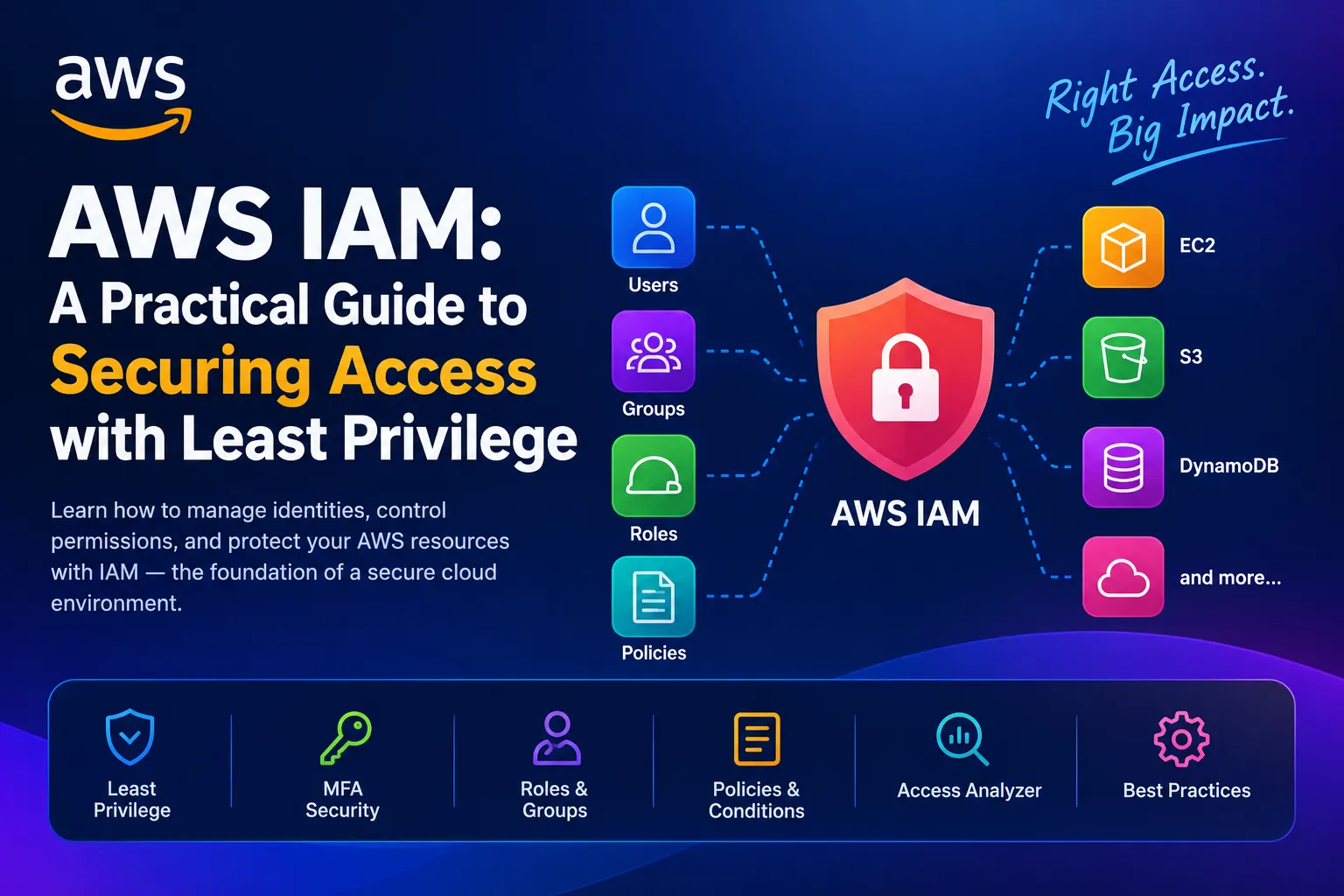
AWS IAM: A Practical Guide to Securing Access with Least Privilege
Learn how AWS Identity and Access Management (IAM) helps you securely manage identities, permissions, and access to AWS resources. This practical guide explains users, groups, roles, policies, least privilege, MFA, conditions, and Access Analyzer, with real-world examples and best practices for building secure AWS environments.

Cloud/DevOps
When building applications on AWS, we often focus on compute, storage, databases, networking, and deployment. But there is another component that determines who can actually access those resources: AWS Identity and Access Management (IAM).
IAM is one of the most important AWS services to understand because a poorly designed permission model can turn a small security mistake into a major cloud security incident.
In this guide, we will explore AWS IAM from a practical perspective, including users, groups, roles, policies, permissions, least privilege, MFA, and IAM Access Analyzer.
What is AWS IAM?
AWS Identity and Access Management allows you to control who can access AWS resources, what they can do, and under what conditions.
In simple terms:
IAM answers the question: "Who can do what, to which AWS resource, and under which conditions?"
For example, you might want:
- A developer to read objects from an S3 bucket.
- A Lambda function to write records to DynamoDB.
- A DevOps engineer to manage EC2 instances.
- A CI/CD pipeline to deploy applications.
- An administrator to manage multiple AWS services.
Instead of giving everyone full access, IAM allows you to define specific permissions for each identity or workload.
AWS describes IAM as a service for controlling access to AWS services and resources, including the conditions under which access is permitted.
Understanding the Main IAM Components
Before creating policies, it is important to understand the main building blocks of IAM.
1. IAM Users
An IAM user represents an individual identity within an AWS account.
For example:
text
AliceBobCharlie
Historically, organizations often created one IAM user for every employee.
However, AWS now recommends that human users use federation and temporary credentials where possible rather than relying on long-lived IAM user credentials.
For centralized workforce access, AWS IAM Identity Center is generally a better approach.
2. IAM Groups
An IAM group allows you to organize users and apply permissions to multiple users.
For example:
text
Developers├── Alice├── Bob└── CharlieOperations├── David└── Sarah
You can attach a policy to the
Developers group instead of attaching the same policy individually to every developer.This makes permission management easier as an organization grows.
3. IAM Roles
IAM roles are extremely important for modern AWS architectures.
A role provides permissions that can be assumed by an AWS service, user, application, or another trusted identity.
For example:
text
Lambda Function|| assumesvIAM Role|vDynamoDB
The Lambda function does not need you to place an AWS access key directly inside your application code.
Instead, the Lambda function assumes an IAM role and receives temporary credentials.
AWS recommends using IAM roles and temporary credentials for workloads accessing AWS resources.
This is one of the most important concepts for anyone learning AWS, especially if you are interested in DevOps or cloud engineering.
4. IAM Policies
Policies define permissions.
An IAM policy is normally written as JSON.
Here is a simple example:
JSON
{"Version": "2012-10-17","Statement": [{"Effect": "Allow","Action": ["s3:GetObject"],"Resource": "arn:aws:s3:::my-example-bucket/*"}]}
This policy allows the identity to read objects from a specific S3 bucket.
The important parts are:
text
EffectActionResource
Effect
Defines whether access is allowed or denied.
JSON
"Effect": "Allow"
or:
JSON
"Effect": "Deny"
Action
Defines what operation is allowed.
For example:
JSON
"Action": "s3:GetObject"
Other examples include:
text
ec2:StartInstancesec2:StopInstancesdynamodb:GetItemdynamodb:PutItems3:ListBucket
Resource
Defines which resource the action applies to.
For example:
JSON
"Resource": "arn:aws:s3:::my-example-bucket/*"
AWS provides a detailed reference for IAM policy elements, including
Effect , Action , Resource , Principal , and Condition .
The Principle of Least Privilege
One of the most important IAM concepts is least privilege.
The idea is simple:
Give an identity only the permissions it actually needs to perform its job.
Suppose a Lambda function only needs to read records from DynamoDB.
You could give it:
text
AdministratorAccess
But that would be excessive.
A better policy would allow only:
text
dynamodb:GetItemdynamodb:Query
and only against the required DynamoDB table.
This reduces the potential blast radius if the workload is compromised.
AWS recommends granting only the permissions required for a task and progressively reducing broader permissions toward least privilege.
OWASP also recommends enforcing least privilege as a core authorization security principle.
Avoid This IAM Policy
One of the most dangerous patterns for everyday workloads is:
JSON
{"Effect": "Allow","Action": "*","Resource": "*"}
This essentially grants unrestricted access to everything covered by that policy.
There are legitimate situations where administrative access is required, but it should not be the default permission model for applications and workloads.
AWS Security Hub includes a control that identifies customer-managed IAM policies granting
Action: "*" over Resource: "*" , because this can violate least-privilege principles.Instead of:
JSON
"Action": "*"
try to identify the specific operations your application requires.
For example:
JSON
"Action": ["s3:GetObject","s3:PutObject"]
And instead of:
JSON
"Resource": "*"
scope the policy to the required resource whenever the AWS service supports it.
IAM Policy Conditions
IAM policies can become much more powerful when you use conditions.
For example:
JSON
{"Version": "2012-10-17","Statement": [{"Effect": "Allow","Action": "s3:GetObject","Resource": "arn:aws:s3:::my-example-bucket/*","Condition": {"Bool": {"aws:SecureTransport": "true"}}}]}
The
Condition element allows additional restrictions to be applied to a permission.Conditions can be based on things such as:
- MFA
- IP address
- tags
- encryption
- secure transport
- request context
- time
- identity attributes
AWS documents the
Condition element and its operators in the IAM policy reference.
How AWS Decides Whether to Allow a Request
A useful way to understand IAM is to imagine a request like this:
text
Developer|| "Read this S3 object"vAWS|| AuthenticationvPolicy Evaluation|+---- Identity-based policies|+---- Resource-based policies|+---- Permissions boundaries|+---- SCPs / RCPs|vAllow or Deny
AWS starts with requests being implicitly denied in the general policy evaluation model. An explicit allow is required, while an explicit deny overrides an allow.
This explains an important IAM rule:
text
Explicit Deny↓Overrides↓Explicit Allow
Understanding policy evaluation becomes especially important when working with multiple AWS accounts, resource policies, permissions boundaries, and AWS Organizations.
IAM for a Serverless Application
Let's connect IAM to a practical architecture.
Imagine we have a serverless task-management application:
text
Users|vCloudFront|vS3Frontend|vAPI Gateway|vLambda|IAM Role|vDynamoDB
The Lambda function should not have access to every AWS service.
Instead, we create a dedicated IAM role:
text
TaskLambdaRole
and give it only the permissions it needs.
For example:
JSON
{"Version": "2012-10-17","Statement": [{"Effect": "Allow","Action": ["dynamodb:GetItem","dynamodb:PutItem","dynamodb:UpdateItem","dynamodb:DeleteItem"],"Resource": "arn:aws:dynamodb:us-east-1:123456789012:table/Tasks"}]}
Now the Lambda function can work with the
Tasks table without automatically receiving administrative access to the rest of the AWS account.This is a much better security model than embedding access keys in application code.
Why You Should Not Put AWS Access Keys in Your Code
A common beginner mistake looks like this:
Python
AWS_ACCESS_KEY_ID = "AKIA..."AWS_SECRET_ACCESS_KEY = "..."
inside application code.
This is dangerous.
If the source code is pushed to GitHub, included in a Docker image, copied into a public artifact, or exposed through a compromised system, the credentials may also be exposed.
For AWS workloads, prefer IAM roles and temporary credentials whenever possible. AWS explicitly recommends temporary credentials for workloads.
For secrets that genuinely need to be stored, consider services such as:
- AWS Secrets Manager
- AWS Systems Manager Parameter Store
Protect the AWS Root User
The AWS account root user is extremely powerful.
It should not be used for normal daily administration.
AWS recommends protecting the root user credentials and using other identities for everyday operations. AWS also recommends MFA for the root user and advises against creating root-user access keys.
A good mental model is:
text
Root User|+-- Emergency / account-level tasks|X-- Not everyday developmentX-- Not application workloadsX-- Not CI/CD
For normal administration, use appropriate IAM roles or IAM Identity Center.
Enable MFA
Multi-factor authentication adds another security layer.
Instead of relying only on:
text
Username + Password
MFA requires another authentication factor.
AWS recommends MFA and specifically recommends phishing-resistant options such as passkeys and security keys where possible.
For organizations, centralized identity management with IAM Identity Center can also provide a more scalable approach to workforce access.
IAM Access Analyzer
One of my favorite IAM tools is IAM Access Analyzer.
IAM Access Analyzer can help identify unintended external access, validate policies, and generate least-privilege policies based on access activity.
For example:
text
Existing IAM Role|vCloudTrail Access Activity|vIAM Access Analyzer|vRequired Permissions|vMore Restrictive Policy
AWS states that Access Analyzer can generate policies based on access activity recorded in AWS CloudTrail and can also provide policy validation checks and recommendations.
A Practical IAM Workflow
When creating permissions for a new application, I recommend thinking through the following process:
Step 1: Identify the workload
Ask:
text
Who or what needs access?
Examples:
text
DeveloperLambdaEC2ECSCI/CD pipelineGitHub Actions
Step 2: Identify the required resources
For example:
text
S3 bucketDynamoDB tableSecrets Manager secretECR repositoryCloudWatch logs
Step 3: Identify required actions
Instead of:
text
*
identify the specific actions:
text
s3:GetObjectdynamodb:GetItemdynamodb:PutItemlogs:CreateLogGroup
Step 4: Restrict the resources
Whenever possible, replace:
text
Resource: *
with a specific ARN.
Step 5: Add conditions
Ask whether access can be restricted further using:
text
MFATagsIP addressEncryptionSecure transportPrincipal attributes
Step 6: Test the policy
Use IAM policy validation and Access Analyzer to identify potential problems.
Step 7: Monitor and refine
Permissions should not be treated as something you configure once and forget.
Review unused permissions and reduce access as your understanding of the workload improves.
AWS recommends regularly reviewing and removing unused users, roles, permissions, policies, and credentials.
IAM Best Practices Checklist
Here is my practical IAM checklist:
- ✅ Protect the AWS root user.
- ✅ Enable MFA.
- ✅ Prefer temporary credentials.
- ✅ Use IAM roles for workloads.
- ✅ Avoid hard-coded AWS credentials.
- ✅ Follow least privilege.
- ✅ Avoid unnecessary
Action: "*"permissions.
- ✅ Avoid unnecessary
Resource: "*"permissions.
- ✅ Use IAM policies with conditions when appropriate.
- ✅ Use IAM Access Analyzer.
- ✅ Review unused permissions.
- ✅ Remove unused credentials.
- ✅ Use IAM Identity Center for centralized workforce access where appropriate.
- ✅ Use permissions boundaries when delegating permissions management.
- ✅ Use AWS Organizations guardrails as your environment grows.
AWS's current IAM security guidance covers these practices in detail.
Final Thoughts
AWS IAM may look complicated when you first encounter users, groups, roles, policies, trust policies, resource policies, permissions boundaries, and SCPs.
But the fundamental idea is actually simple:
Give the right identity the minimum permissions required to perform the required task.
If you are learning AWS, don't treat IAM as something you learn only when you encounter an
AccessDenied error.Learn IAM early.
Understanding IAM will help you build more secure applications, design better DevOps pipelines, troubleshoot AWS permissions, and work confidently with services such as Lambda, EC2, S3, DynamoDB, ECS, and CloudFormation.
For cloud and DevOps engineers, IAM is not just another AWS service. It is one of the foundations of secure cloud architecture.
Further Reading
AWS Resources
External Security Resources
Enjoyed reading this content? Let the author know!
Your likes, comments, shares, and saves help creators reach more builders.

Loading recommendations
Loading article