
What is an EC2 Instance? A Beginner's Guide to AWS
New to AWS? Learn what an EC2 instance is, how it works, and how to launch your first virtual server on Amazon Web Services, explained simply for beginners.
Series: AWS Beginners Guide (4 articles)
- 1What is an EC2 Instance? A Beginner's Guide to AWS This article

If you're just starting with AWS, chances are the first term you keep bumping into is EC2. It shows up in every tutorial, every certification course, every "getting started" guide. And yet, somehow, nobody explains it in plain language before throwing you into a console full of dropdowns and acronyms.
So let's fix that. No jargon, no assumptions that you already know what a "virtual machine" is. Just a clear explanation of what an EC2 instance actually is, why it exists, and how to launch your first one.
Let's Start with the Basic Problem EC2 Solves
Before cloud computing existed, if you wanted to run a website or an application, you had to buy an actual physical computer, a server, and keep it running somewhere. Maybe in your office. Maybe in a data center where you rented space.
This came with real headaches. You had to buy the hardware upfront, even if you weren't sure how much power you'd need. If your app suddenly got popular, your server might not be able to handle the traffic, and buying a bigger one takes time. If your app didn't take off, you'd waste money on a server sitting mostly idle.
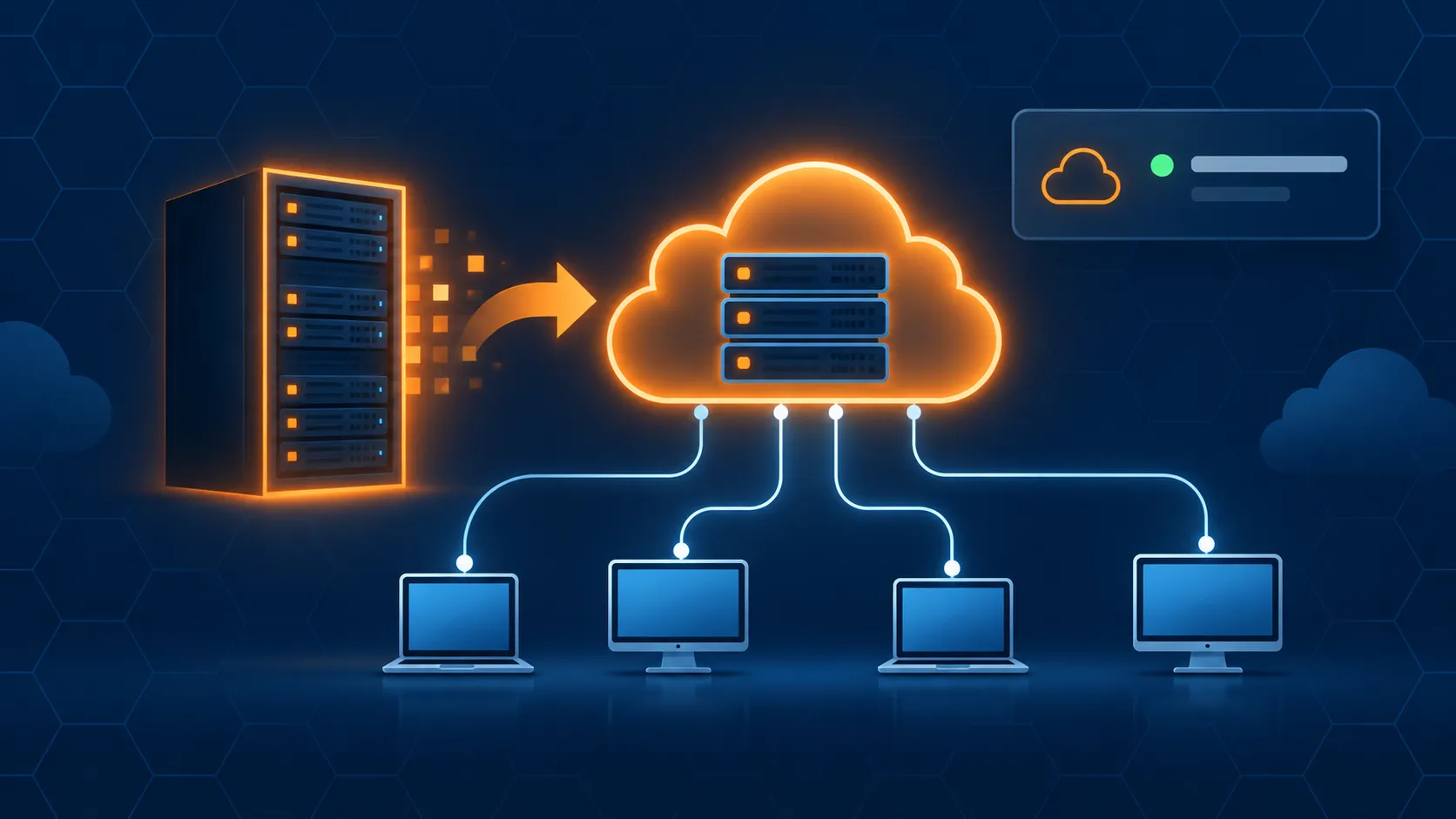
AWS EC2 solves this by letting you rent a virtual server instead of owning a physical one. You get a computer that lives in Amazon's data centers, accessible over the internet, and you only pay for the time you actually use it. Need more power? Upgrade in a few clicks. Don't need it anymore? Shut it down and stop paying.
That's the entire idea behind EC2, and it's why it's one of the most widely used AWS services in the world.
So, What Does EC2 Actually Stand For?
EC2 stands for Elastic Compute Cloud.
Let's break that phrase down, because each word is doing real work:
- Elastic - it can scale up or down based on what you need. You're not locked into one fixed size forever.
- Compute - it's about processing power. CPU, memory, the ability to run software and handle requests.
- Cloud - it lives on AWS's infrastructure, not on a physical machine sitting in your room.
Put together: Elastic Compute Cloud is a service that gives you flexible, on-demand computing power over the internet.
What is an EC2 Instance?
Here's the part that trips people up: EC2 is the service. An instance is what you actually get when you use that service.
Think of it like this: EC2 is the car rental company. An instance is the specific car you drive off the lot. You don't rent "EC2." You launch an EC2 instance, which is your own individual virtual server running in the cloud.
Each EC2 instance is essentially a virtual computer that behaves just like a physical one would. It has:
- A CPU (processing power)
- RAM (memory)
- Storage (a hard drive, essentially)
- Networking (a public and/or private IP address so it can talk to the internet or other resources)
- An operating system (Linux, Windows, Amazon Linux, Ubuntu you choose)
You can install software on it, run a website, host a database, deploy an app, or use it for pretty much anything you'd use a regular computer for except it runs in Amazon's data centers instead of your desk, and you can access it from anywhere.
What Can You Actually Do With an EC2 Instance?
This is where it clicks for most beginners - seeing real use cases instead of abstract definitions.
- Host a website. Install a web server like Nginx or Apache and serve your site to the world.
- Run a backend API. Deploy your Node.js, Python, or Java application so your mobile or web app has something to talk to.
- Learn Linux and DevOps. Spin up a Linux server for free (under the AWS Free Tier) and practice commands, scripting, and server administration without needing your own hardware.
- Host a database. Some developers run their own database server on EC2 instead of using a managed service.
- Run development or testing environments. Need a clean environment to test something without touching your local machine? Launch an instance, test, and terminate it when done.
- Practice for AWS certifications. Most AWS certification labs revolve around EC2, because it's the foundation almost everything else builds on.
If you're a student learning cloud computing, DevOps, or backend development, an EC2 instance is very likely the first real AWS resource you'll touch - and understanding it well pays off across nearly every other AWS service you'll learn afterward.
Key EC2 Concepts You Should Know
Before you launch your first instance, here are the essential pieces of vocabulary you'll run into. Understanding these upfront will save you a lot of confusion later.
Amazon Machine Image (AMI)
An AMI is the template your instance is built from. It defines the operating system and any pre-installed software. When you launch an instance, you choose an AMI first; for example, "Amazon Linux 2023" or "Ubuntu Server 24.04." Think of it as choosing which OS disk image to boot from.
Instance Type
| Instance Type | Family Meaning | Best For |
|---|---|---|
| t2.micro / t3.micro | Burstable, low-cost general purpose | Learning, testing, small websites (Free Tier eligible) |
| t3.medium | Burstable, general purpose | Small apps, dev/staging environments |
| m5.large | Balanced compute, memory, networking | Web servers, small-to-mid databases |
| c5.xlarge | Compute-optimized (high CPU) | Batch processing, video encoding, gaming servers |
| r5.large | Memory-optimized | In-memory databases, caching layers |
Key Pair
A key pair is how you securely log into your instance. AWS generates a public and private key the public key stays on your instance, and you keep the private key file (usually a
.pem file) on your own computer. You'll use this key to SSH into your server. Losing this file means losing easy access to your instance, so keep it safe.Security Group
A security group is essentially a firewall for your instance. It controls what traffic is allowed in and out, for example, allowing SSH access on port 22, or web traffic on port 80 and 443. By default, everything is blocked until you explicitly allow it, which is a good security posture to keep in mind.
Elastic IP
By default, your instance gets a public IP address that changes every time you stop and start it. An Elastic IP is a static IP address you can attach to your instance so it never changes. (I wrote a full guide on this if you want to dig deeper; it's one of the first surprises beginners run into.)
Instance State
An instance can be running (active and billable), stopped (turned off, not billable for compute but you may still pay for storage), or terminated (permanently deleted). Understanding the difference matters for your AWS bill: a stopped instance isn't free; it just isn't charging you for compute time.

How to Launch Your First EC2 Instance (Step-by-Step)
Let's actually do this. Here's the process using the AWS Console.
Step 1: Sign in to the AWS Console: Go to the AWS Management Console and search for "EC2" in the services search bar.

Step 2: Click "Launch Instance.e": This starts the setup wizard.

Step 3: Name your instance: Give it something descriptive, like
my-first-server or portfolio-web-server.
Step 4: Choose an AMI: Pick an operating system. For beginners, Amazon Linux 2023 or Ubuntu Server are both solid, well-documented choices.

Step 5: Choose an instance type: Select
t2.micro or Bothth are Free Tier eligible, meaning you can run one for free for up to 750 hours per month during your first 12 months on AWS.
Step 6: Create or select a key pair: If this is your first instance, click "Create new key pair," give it a name, and download the
.pem file. Store it somewhere safe; you cannot download it again later.
Step 7: Configure network settings. Leave the default VPC and subnet unless you have a specific reason to change them. Make sure "Allow SSH traffic" is checked so you can connect to your instance afterward.

Step 8: Configure storage: The default 8GB is fine for a basic test instance. You can adjust this later if needed.

Step 9: Click "Launch Instance": Review your settings and launch. Within a minute or two, your instance will show a "running" state.

Step 10: Connect to your instance: From the EC2 dashboard, select your instance and click "Connect." You can connect through your browser (EC2 Instance Connect) or via SSH from your terminal using the key pair you downloaded.

That's it; you now have a live virtual server running in the cloud, accessible from anywhere in the world.
Is EC2 Free?
Partially, and only for a limited time.
AWS's Free Tier includes 750 hours per month of a t2.micro or t3.micro instance, for the first 12 months after creating your AWS account. That's enough to run one instance continuously, 24/7, at no cost, perfect for learning, testing, and small personal projects.
After the 12-month Free Tier period ends, or if you exceed the limits, you'll be billed based on the instance type and how long it runs. Pricing varies by region and instance size, so it's worth checking the AWS Pricing Calculator before committing to anything beyond the free tier.
One habit worth building early: always set up a billing alert. It takes five minutes in AWS Budgets, and it will save you from an unpleasant surprise if you forget to stop an instance you're no longer using.

Common Mistakes Beginners Make with EC2
Forgetting to stop unused instances. A running instance is billed by the hour (or second, for many instance types), whether you're using it or not. If you're done for the day, stop it.
Losing the key pair file. Without your
.pem file, reconnecting to your instance becomes significantly harder. Back it up somewhere secure the moment you download it.Leaving security groups too open. Allowing SSH access (port 22) from anywhere (
0.0.0.0/0is convenient but risky. Where possible, restrict it to your own IP address.Confusing "stopped" with "terminated." Stopping an instance pauses it; your data and configuration remain intact, and you can start it again. Terminating an instance deletes it permanently, along with (typically) its attached storage. Double-check before you terminate anything you might need again.
Expecting the public IP to stay the same. As mentioned earlier, the default public IP changes every time you stop and start your instance. If you need a fixed IP, allocate an Elastic IP.
Where to Go From Here
Once you're comfortable launching and connecting to an EC2 instance, the natural next steps are:
- Learn how to install and configure a web server (Nginx or Apache) to host a website
- Set up an Elastic IP so your instance keeps the same public IP address
- Learn about Security Groups in more depth to properly secure your instance
- Explore Auto Scaling and Load Balancers once you're building something that needs to handle real traffic
- Try deploying a simple app, a static website, or a small API just to see the full journey from local code to a live, publicly accessible server.
EC2 is the foundation a huge portion of AWS is built on top of. Once it clicks, a lot of other services Auto Scaling, Load Balancers, VPC networking start making a lot more sense too, because they all exist to manage, protect, or scale the same basic idea: a virtual server running your code in the cloud.
Just launched your first EC2 instance? Drop a comment about what you're planning to build on it always curious what people are working on.
Series: AWS Beginners Guide (4 articles)
- 1What is an EC2 Instance? A Beginner's Guide to AWS This article
Enjoyed reading this content? Let the author know!
Your likes, comments, shares, and saves help creators reach more builders.

Loading recommendations
Loading article