
Automate Daily Infrastructure Monitoring with AWS DevOps Agent
A step-by-step guide to building an automated daily health check pipeline using AWS DevOps Agent deployed as a single SAM stack with no manual monitoring required.
Series: AWS DevOps Agent (2 articles)
- 1Automate Daily Infrastructure Monitoring with AWS DevOps Agent This article

Introduction
If you're running workloads across multiple AWS services, such as ECS, RDS, Lambda, MSK, or anything else, you've probably dealt with the cognitive load of manually checking health dashboards, combing through CloudWatch alarms, and hoping nothing slipped through the cracks overnight.
In this post, I'll walk you through an automated solution that uses AWS DevOps Agent as your infrastructure investigator. A scheduled Lambda triggers the agent daily via webhook, the agent inspects your services autonomously, and when it finishes, an EventBridge rule captures the completion event, stores the findings in S3, and emails you a full report.
What you'll learn:
- How to trigger DevOps Agent investigations on a schedule using webhooks
- How to capture investigation results via EventBridge integration
- How to structure monitoring prompts for consistent, actionable output
- How to deploy the entire stack with a single
sam deploy
GitHub repo: github.com/alisonip/devops-agent-daily-monitoring
Problem statement
Manually monitoring infrastructure doesn't scale. Even with dashboards and alarms, you miss the bigger picture, including degradation patterns, cost drift, and issues that only surface when you look at services holistically. Common pain points:
- Inconsistency: Different team members check different things on different days
- Reactive posture: You find out about problems after they impact users, not before
- No audit trail: Ad-hoc checks leave no record of what was reviewed or when
- Alert fatigue: Too many individual alarms, not enough synthesis
The approach: DevOps Agent as your daily investigator
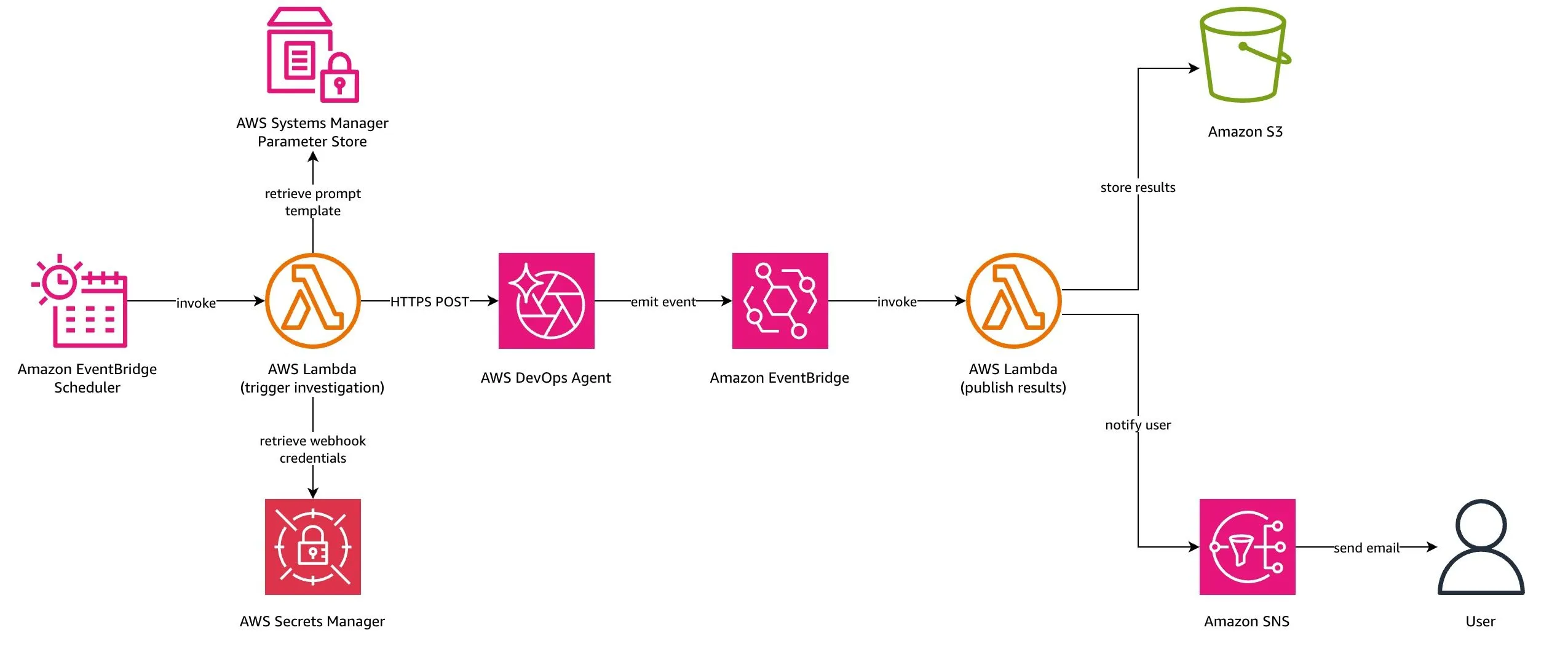
The solution treats DevOps Agent as an autonomous investigator that runs every morning:
1
2
3
4
5
EventBridge Scheduler → Lambda (webhook trigger) → DevOps Agent investigates
                                                          ↓
                                          Investigation completes (EventBridge event)
                                                          ↓
                                          Lambda (results handler) → S3 + SNS email
The pipeline is event-driven end-to-end. The trigger Lambda fires and returns in under a second, without waiting for the investigation to complete. Instead, DevOps Agent emits a completion event to EventBridge, which invokes a separate results handler.
Architecture
The stack consists of:
- EventBridge Scheduler that fires daily at your configured time (default 08:00 UTC+8)
- Trigger Lambda that reads the prompt template from SSM, signs and sends a webhook payload to DevOps Agent
- DevOps Agent that receives the webhook, runs an autonomous investigation of your specified services
- EventBridge Rule that matches
Investigation Completed/Failed/Timed Outevents from DevOps Agent - Results Handler Lambda that fetches investigation findings via the DevOps Agent API, stores them in S3, sends email via SNS
- Weekly Digest with a Monday schedule that aggregates the past week's reports and emails a trend summary
Project structure
1
2
3
4
5
6
7
8
9
10
├── src/trigger_monitor/
│   ├── app.py                    # Lambda handlers (trigger + results)
│   └── requirements.txt          # Runtime dependencies
├── prompts/
│   └── daily_monitoring.txt      # Prompt template reference
├── tests/
│   └── test_trigger_monitor.py   # Unit tests
├── template.yaml                 # SAM infrastructure template
├── samconfig.toml.example        # Deployment config template
└── README.md
Step-by-step setup
Prerequisites
- AWS SAM CLI installed
- AWS credentials configured
- A DevOps Agent space with a Generic Webhook event channel configured (note the webhook URL and HMAC secret)
- An email address for receiving monitoring reports
Step 1: Create a DevOps Agent Space with webhook event channel
In the AWS Console:
- Navigate to DevOps Agent → Agent Spaces
- Create a new space (or use an existing one)
- Go to Capabilities → Webhooks → Add
- Choose HMAC as the webhook authentication type
- Note the Webhook URL and HMAC Secret. You'll need these for deployment
Step 2: Configure your deployment parameters
1
cp samconfig.toml.example samconfig.toml
Edit
samconfig.toml with your values:1
2
3
4
5
6
[default.deploy.parameters]
stack_name = "devops-agent-daily-monitor"
resolve_s3 = true
capabilities = "CAPABILITY_IAM"
region = "us-east-1"
parameter_overrides = "DevOpsAgentSpaceId=\"your-space-id\" WebhookUrl=\"https://event-ai.us-east-1.api.aws/webhook/generic/your-id\" WebhookSecret=\"your-secret\" MonitoringScope=\"ecs,rds,lambda\" AlertEmail=\"you@example.com\""Step 3: Deploy
1
2
sam build
sam deploy
Or pass parameters inline:
1
2
3
4
5
6
7
sam build
sam deploy --parameter-overrides \
  DevOpsAgentSpaceId="your-space-id" \
  WebhookUrl="https://event-ai.us-east-1.api.aws/webhook/generic/your-id" \
  WebhookSecret="your-secret" \
  AlertEmail="you@example.com" \
  MonitoringScope="ecs,rds,lambda"
Step 4: Confirm email subscription
After deployment, check your inbox and confirm the SNS subscription to start receiving reports.
Design decisions
Why webhooks instead of the Chat API?
Webhooks give you a fire-and-forget pattern. The trigger Lambda completes in under a second, which keeps costs minimal and avoids Lambda timeout concerns. The investigation runs asynchronously in DevOps Agent, and you get notified via EventBridge when it's done.
Why EventBridge for results?
DevOps Agent natively emits events to EventBridge when investigations complete. This means no polling, no wasted compute, and clean separation between triggering and processing. The EventBridge rule filters on your specific
agent_space_id, so you only handle events from your own space.Why SSM Parameter Store for the prompt?
Storing the prompt in SSM lets you iterate on the monitoring instructions without redeploying the stack. Just update the parameter and the next scheduled run picks up the new prompt automatically.
Why structured prompt output?
The monitoring prompt asks the agent to respond in a specific format (
OVERALL_HEALTH:, SERVICE:, RECOMMENDATIONS:) so the results handler can parse it into structured JSON. This enables:- Machine-readable health status for downstream automation
- Consistent S3 reports you can query with Athena
- Conditional alerting (only email on RED status)
How the monitoring prompt works
The prompt template uses two placeholders,
{services} and {date} , which get substituted at runtime:1
2
3
4
5
6
7
8
9
10
You are a DevOps monitoring assistant. Today's date is {date}.
Please perform a comprehensive health check of the following AWS services: {services}
For each service, provide:
1. Current health status (GREEN, YELLOW, or RED)
2. Any active issues or alerts
3. Key performance metrics summary
4. Potential concerns or degradation patterns
...You control which services get monitored by setting the
MonitoringScope parameter. Set it to ecs,rds,lambda or msk,emr,mwaa or whatever combination makes sense for your workloads.Customization
Modify the monitoring prompt
After deployment, update the prompt without redeploying:
1
2
3
4
5
aws ssm put-parameter \
  --name "/devops-agent-daily-monitor/monitoring-prompt" \
  --value "Your custom prompt with {services} and {date} placeholders" \
  --type String \
  --overwrite
Change the schedule
Deploy with a different cron expression:
1
2
3
sam deploy --parameter-overrides \
  DailyScheduleExpression="cron(0 6 * * ? *)" \
  ...
Add more services
Just update
MonitoringScope — no code changes needed:1
2
3
sam deploy --parameter-overrides \
MonitoringScope="ecs,rds,lambda,dynamodb,sqs" \
...What you get
Daily investigation email
Every day after the investigation completes, you receive an email with:
- Investigation status (completed, failed, timed out)
- Priority level
- Full investigation findings from DevOps Agent
- S3 link to the complete report
Weekly digest (Mondays)
A trend summary aggregating the past week:
- Day-by-day health status (🟢 🟡 🔴)
- Recurring issues across the week
- Top recommendations by frequency
- Presigned S3 link to the full digest JSON
S3 reports
| Report Type | S3 Key Pattern |
|---|---|
| Investigation result | reports/{YYYY-MM-DD}/investigation-{task-id}.json |
| Weekly digest | digests/{YYYY-Www}/weekly-digest.json |
Security considerations
- Webhook credentials are stored in AWS Secrets Manager (never in environment variables or code)
- HMAC signing ensures webhook payloads can't be spoofed
- S3 bucket has encryption enabled and all public access blocked
- IAM roles follow least privilege, each Lambda only has permissions for the resources it needs
- NoEcho parameters prevent sensitive values from appearing in CloudFormation outputs
Troubleshooting
| Issue | Check |
|---|---|
| No investigation created | Verify webhook URL and secret are correct in Lambda logs |
| No email after investigation | EventBridge rule's agent_space_id filter matches your space; SNS subscription confirmed |
| Webhook returns non-200 | Webhook credentials in Secrets Manager |
| Weekly digest empty | Confirm daily reports exist in S3 for the past week |
Conclusion
This setup gives you consistent, automated infrastructure health checks with zero daily effort. DevOps Agent handles the investigative work, examining your services, identifying issues, and providing recommendations, while the serverless pipeline handles scheduling, delivery, and historical tracking.
The entire stack deploys with
sam build && sam deploy. You define which services to monitor, set your schedule, and let it run. Reports accumulate in S3 for trend analysis, and you get emailed when something needs attention.If you're manually checking dashboards every morning, give this a try and reclaim that time for actual engineering work.
GitHub repo: github.com/alisonip/devops-agent-daily-monitoring
Series: AWS DevOps Agent (2 articles)
- 1Automate Daily Infrastructure Monitoring with AWS DevOps Agent This article
Enjoyed reading this content? Let the author know!
Your likes, comments, shares, and saves help creators reach more builders.

Loading recommendations
Loading article