
Day 14 Of Cloud with AWS: Attach an EBS Volume to an EC2 Instance
#100DaysOfCloud challenge using AWS

Objective: Attach an EBS Volume to an EC2 Instance
1
datacenter-volume
to the EC2 instance:
1
datacenter-ec2
in the:
1
us-east-1
region using the device name:
1
/dev/sdb
Step 1: Open AWS Console
- Login to the AWS Management Console.
- Select region:
1
us-east-1
from the top-right corner.
Step 2: Open EC2 Dashboard
- Search for:
1
EC2
- Open the EC2 service.
Step 3: Open Volumes Section
- In the left sidebar, under:
1
Elastic Block Store
- Click:
1
Volumes
Step 4: Locate the Volume
- Find the volume named:
1
datacenter-volume
- Select the checkbox next to it.
Make sure:
- Volume state is:
1
Available
If it already says:
In-use
then it is already attached somewhere else.
Step 5: Attach the Volume
- Click:
1
Actions
- Select:
1
Attach volume
Step 6: Configure Attachment
In the attachment window:
| Setting | Value |
|---|---|
| Instance | datacenter-ec2 |
| Device name | /dev/sdb |
Important:
- Type exactly:
1
/dev/sdb
Step 7: Complete Attachment
- Click:
1
Attach volume
AWS will now attach the EBS volume to the EC2 instance.
Step 8: Verify
After a few seconds:
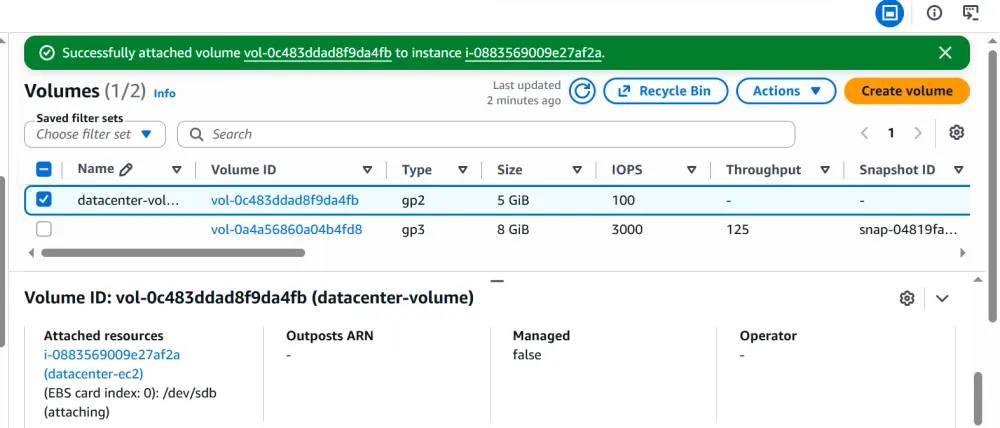
- Refresh the Volumes page.
- Confirm:
- Volume state shows:
1
In-use
- Attached instance is:
1
datacenter-ec2
- Device name is:
1
/dev/sdb
EBS volume:
- Elastic → Storage size and performance can be scaled.
- Block → Data is stored in fixed-size blocks like a hard disk/SSD.
- Store → Used for storing operating systems, applications, and files.
An EBS volume behaves like a virtual hard drive attached to an EC2 instance.
What Does Device Name Mean?
The device name represents how the storage volume appears inside the operating system.
For Linux EC2 instances:
/dev/sda→ usually root disk/dev/sdb→ additional attached disk
Once attached, the instance can mount and use this volume as extra storage.
Enjoyed reading this content? Let the author know!
Your likes, comments, shares, and saves help creators reach more builders.

Loading recommendations
Loading article