
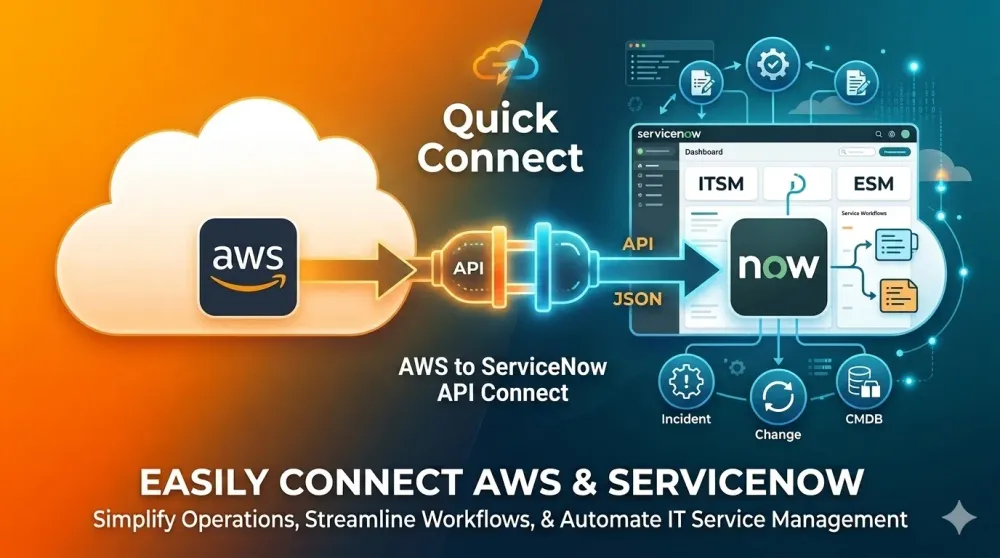
Integrating Amazon Quick with ServiceNow
Step-by-Step OAuth Setup Guide Using Authorization Code Grant with Custom User-Based OAuth Last Updated: June 2026

Overview
This guide walks through connecting Amazon Quick Suite to a ServiceNow instance using OAuth 2.0 Authorization Code grant. Once connected, Quick Suite can query and act on ServiceNow records (incidents, cases, tasks) through the REST Table API.
Architecture
| Component | Role |
|---|---|
| Amazon Quick Suite | OAuth client — initiates authorize flow, stores tokens, makes API calls |
| ServiceNow Instance | OAuth provider + REST API server — issues tokens, serves data |
| Integration User | Service account whose roles govern what Quick Suite can access |
| Custom Role | Least-privilege role bundle (itil + rest_service) assigned to integration user |
Prerequisites
• Amazon Quick Suite account (sign in at quick.amazon.dev with account name "amazonbi")
• ServiceNow instance with admin or oauth_admin access
• ServiceNow user account for integration (or admin account for dev/testing)
Step 1: Create OAuth Application in ServiceNow
Navigate to: All → System OAuth → Application Registry → New → "Create an OAuth API endpoint for external clients"
Screenshot: ServiceNow Application Registry — "Amazon Quick Suite Connector" configuration

Required Settings
| Field | Value | Notes |
|---|---|---|
| Name | Amazon Quick Suite Connector | Descriptive |
| Client ID | Auto-generated on save | Copy this |
| Client Secret | Auto-generated on first save | Copy immediately |
| Redirect URL | https://us-east-1.quicksight.aws.amazon.com/sn/oauthcallback | Exact match! |
| Active | ☑ Checked | Required |
| Public Client | ☐ UNCHECKED | ⚠️ See below |
| Auth Scope | useraccount | Standard |
| Refresh Token Lifespan | 8,640,000 (100 days) | Default OK |
| Access Token Lifespan | 1,800 (30 min) | Default OK |
⚠️ CRITICAL: Public Client must be UNCHECKED. Quick Suite sends a Client Secret, making it a confidential client.
⚠️ Redirect URL must match EXACTLY what Quick Suite sends — no trailing slash, correct region, no whitespace.
Step 2: Create a Custom Integration Role
Navigate to: All → User Administration → Roles → New

Role Configuration
| Field | Value |
|---|---|
| Name | AWS Quicksight (or any descriptive name) |
| Application | Global (CRITICAL — must be Global scope) |
| Description | Least-privilege role for Amazon Quick Suite |
Contains Roles (Add These 3)
| Role | Purpose |
|---|---|
| itil | Access to ITSM records (incidents, problems, changes, tasks) |
| rest_service | Allows REST API calls (CRITICAL — most commonly missed role) |
| rest_api_explorer | Access to REST API Explorer for testing (optional) |
⚠️ Role MUST be in Global scope. Scoped roles (x_app_*) cannot access global tables → causes 403.
⚠️ rest_service is the #1 most missed role for integration users.
Step 3: Assign the Role to Users
Navigate to: All → User Administration → Users → [select user] → Roles tab

Steps
1. Open the user record
2. Click the "Roles" tab
3. Click "Edit"
4. Search and add your custom role (e.g., "AWS Quicksight")
5. Save
6. Verify: Active = true, Inherited = false
⚠️ For production: Use a dedicated service account, not a personal account.
⚠️ User MUST NOT hold the admin role — admin blocks token grants.
Step 4: Configure the Quick Suite Connector
In Quick Suite, go to the ServiceNow connector settings:

Field Values
| Field | Value |
|---|---|
| Base URL | https://<your-instance>.service-now.com |
| Client ID | From ServiceNow Application Registry |
| Client Secret | From ServiceNow Application Registry (one-time value) |
| Token URL | https://<instance>.service-now.com/oauth_token.do |
| Authorization URL | https://<instance>.service-now.com/oauth_auth.do |
| Redirect URL | https://us-east-1.quicksight.aws.amazon.com/sn/oauthcallback |
⚠️ CRITICAL: Token URL = /oauth_token.do | Authorization URL = /oauth_auth.do. Swapping these causes "Missing grant_type" errors and "Access Denied with no login page."
Step 5: Authorize the Connection
7. Save the connector configuration
8. Click "Connect" or "Authorize"
9. ServiceNow login page should appear
10. Log in with the user that has the custom role
11. Approve the OAuth consent
12. Browser redirects to callback → Quick Suite receives tokens
13. Connection shows as "Connected"
If "Access Denied" with No Login Page
14. Open F12 → Network tab → Preserve log
15. Click Authorize → capture the /oauth_auth.do URL
16. Verify URL shows /oauth_auth.do (NOT /oauth_token.do)
17. URL-decode redirect_uri → compare to App Registry
18. Verify Client ID matches
19. Verify Public Client is UNCHECKED
20. Verify App Registry type = "OAuth API endpoint for external clients"
Troubleshooting Quick Reference
| Symptom | Likely Cause | Fix |
|---|---|---|
| Access denied, no login page | Redirect URL mismatch | Delete & re-paste redirect URL |
| Missing grant_type error | Auth URL and Token URL swapped | Auth=/oauth_auth.do Token=/oauth_token.do |
| 403 on API calls | Missing rest_service role | Add rest_service to custom role |
| 403 + Cross-scope denied | Role in scoped app | Recreate role in Global scope |
| 403 + admin user | admin blocks token grants | Remove admin, use custom role |
| 401 Unauthorized | Bad credentials | Verify user Active, not locked |
| Connection timeout | IP allow-list | Add AWS IPs or disable filter |
Key Log Locations
| What to Check | Navigation |
|---|---|
| API requests + response codes | System Logs → Transactions (syslog_transaction.list) |
| OAuth token details | System OAuth → Manage Tokens (oauth_credential.list) |
| Login failures | System Logs → Events → filter "login" |
| OAuth errors | System Log → All → filter Source "OAuth" |
Enjoyed reading this content? Let the author know!
Your likes, comments, shares, and saves help creators reach more builders.

Loading recommendations
Loading article