
Day 10 Of Cloud with AWS: Enable Stop Protection for an EC2 Instance
#100DaysOfCloud challenge using AWS

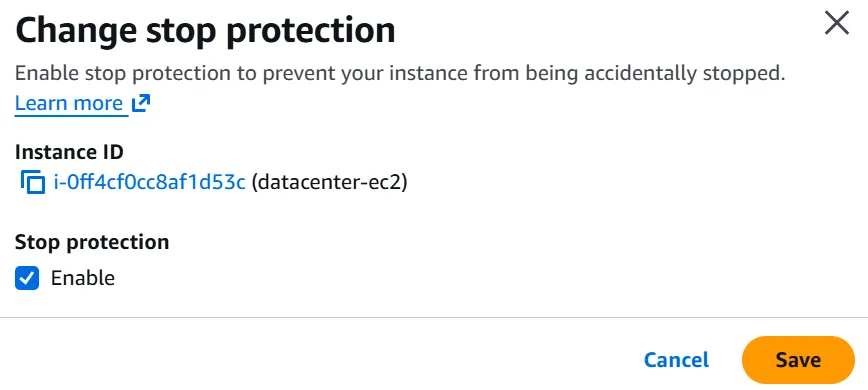
In today's task: Enable Stop Protection for the EC2 instance named.
Steps followed:
Step 1: Retrieve AWS Credentials
- Log in to the
aws-clienthost. - Run the following command:
1
showcreds- Copy the displayed:
- AWS Access Key
- AWS Secret Key
- Region information
Use these credentials to log in if required.
Step 2: Open AWS Console
- Log in to the AWS Management Console.
- Ensure the selected region is:
1
us-east-1
You can verify this from the top-right corner of the console.
Step 3: Open EC2 Dashboard
- Search for EC2 in the AWS services search bar.
- Open the EC2 Dashboard.
Step 4: Locate the Instance
- In the left navigation pane, click Instances.
- Search for:
1
xfusion-ec2- Select the instance.
Step 5: Enable Stop Protection
- With the instance selected, click:
1
Actions- Navigate to:
1
Instance settings- Click:
1
Change stop protection- Enable:
1
Enable stop protection- Click Save.
What is Stop Protection?
Stop protection prevents users from accidentally stopping an EC2 instance.
When enabled:
- The instance cannot be stopped from the AWS Console, CLI, or API unless stop protection is disabled first.
- It helps protect critical production workloads from accidental downtime.
Enjoyed reading this content? Let the author know!
Your likes, comments, shares, and saves help creators reach more builders.

Loading recommendations
Loading article