
Comprehensive Guide: Deploying a 3-Tier App on Amazon EKS with Prometheus & Grafana Observability
When deploying multi-tier applications to Amazon Elastic Kubernetes Service (Amazon EKS), encountering configuration drift or missing environment variables is a common hurdle. This step-by-step walkthrough details how to reliably provision an EKS cluster, deploy a containerized 3-tier application, configure robust cluster observability, and gracefully clean up resources to manage costs.

🛠️ Note on Deployment Strategy: To ensure a clean, reproducible, and easily managed state, the entire application and observability stack deployment in this guide is handled using Helm. You can follow along directly by executing the provided Helm commands within your local workspace.
Architectural Overview & Prerequisites
The target application consists of a classic 3-tier architecture:
- Frontend Tier: A Docker container exposing port 3000, serving as the primary user entry point.
- Backend Tier: A Docker container running on port 3000 that processes frontend endpoints.
- Database Tier: A PostgreSQL database instance running on its default port 5432.
Both frontend and backend containers are continuously built and pushed to Docker Hub via a GitHub Actions CI/CD pipeline triggered on every code push.

Required Toolkit
Before starting, ensure you have installed and configured the following tools on your local machine:
- An active AWS Account
- AWS CLI v2
- kubectl (Kubernetes command-line tool)
- Helm (Kubernetes package manager)
- eksctl (The official CLI tool for Amazon EKS)
- Source code to follow along
AWS CLI Authentication & Environment Setup
Amazon EKS deployment via the command line requires authenticated IAM credentials with permissions to provision networking and compute resources.
Step 1: Authenticate via AWS IAM Identity Center
Initiate a secure browser-based login session using your configured profile:
```Bash
1
aws login --profile YourProfileName

📌 Important VPC Limits: Ensure your selected AWS region has at least one Virtual Private Cloud (VPC) allotment remaining. By default, AWS limits accounts to 5 VPCs per region. If your region is at its limit,
eksctl cluster provisioning will fail.Step 2: Set Your Active Profile Context
By default, your terminal session may not automatically switch to the newly authenticated profile. Set your environment variable explicitly:
- Linux / macOS:
Bash
1
export AWS_PROFILE=YourProfileName- Windows (CMD):
DOS
1
set AWS_PROFILE=YourProfileName
Verify your active authenticated identity:
1
aws sts get-caller-identity
3. Provisioning the Amazon EKS Cluster
Instead of running long, imperative CLI commands, we use a declarative YAML configuration file (k8s/eks/cluster-config.yaml) to define the infrastructure state.
Cluster Configuration (
cluster-config.yaml)1
2
3
4
5
6
7
8
9
10
11
12
13
14
15
16
17
18
19
20
21
22
23
24
25
26
apiVersion: eksctl.io/v1alpha5
kind: ClusterConfig
metadata:
name: e-commerce-observability
region: eu-west-1
version: "1.30"
iam:
withOIDC: true
managedNodeGroups:
- name: app-ng
instanceType: t3.medium
desiredCapacity: 2
minSize: 1
maxSize: 4
volumeSize: 20
labels:
role: app
addons:
- name: vpc-cni
- name: kube-proxy
- name: coredns
- name: aws-ebs-csi-driverDeep Dive: Core Components Defined
- OIDC Provider (
withOIDC: true): Configures an OpenID Connect identity provider for the cluster. This enables IAM Roles for Service Accounts (IRSA), allowing your Kubernetes pods to securely assume specific AWS IAM roles instead of inheriting broad permissions from the underlying EC2 node instance profile. - Managed Node Groups: Provisions highly available
t3.mediumEC2 compute nodes scaling dynamically between 2 and 4 instances, backed by 20GB Amazon EBS volumes. - Essential EKS Add-ons:
vpc-cni: Implements AWS VPC native networking by assigning actual VPC IP addresses directly to individual Kubernetes pods, enabling native pod-to-pod and external communication.kube-proxy: Directs and manages network rules (IP tables/IPVS rules) on nodes to load-balance traffic cleanly to backend pods.coredns: Provides internal cluster name resolution, ensuring microservices can discover each other using local DNS strings.- aws-ebs-csi-driver: the EBS CSI driver add-on, so persistent volumes can be provisioned from EBS
Create the Cluster
Execute the following deployment command (this process typically takes approximately 7 to 10 minutes)
1
eksctl create cluster -f k8s/eks/cluster-config.yaml
Once provisioning completes, update your local
kubeconfig to point to the new cluster context so that your terminal commands interact with AWS rather than a local engine like Minikube:1
2
kubectl config get-contexts
kubectl config use-context <your-arn-context-string>
4. Deploying the Application & Observability Stack
Step 1: Install the Prometheus-Operator Stack
Monitoring cloud-native applications requires time-series metrics capture. Install the kube-prometheus-stack via Helm to automatically configure Prometheus and Grafana dashboards:
1
2
3
4
helm install kube-prometheus-stack prometheus-community/kube-prometheus-stack \
  --namespace monitoring \
  --create-namespace \
  --set grafana.adminPassword='admin'
Prometheus will now leverage Kubernetes service discovery to continuously pull application and infrastructure metrics into its Time-Series Database (TSDB).
Step 2: Deploy the 3-Tier Application Chart
Navigate directly into your application's Helm directory to apply its templates:
1
2
cd k8s/helm/ecommerce-app
helm install ecommerce-app . --namespace app --create-namespace -f values.yaml
5. Troubleshooting & Post-Setup Verification
⚠️ Common Pitfall: Crashing Database/Backend Tiers
If you notice your backend application pods throwing errors or the database tier failing readiness probes, inspect the pod configuration details immediately:
1
kubectl describe pod/ecommerce-app-db-0 -n app
Look closely at the
Environment outputs:
🔍 Troubleshooting Lesson Learned: A common point of failure during multi-tier deployment is forgetting to apply the Kubernetes
Secret or ConfigMap resources prior to launching the Helm charts. Always double-check that your secrets are securely injected into the namespace before the backend tries to connect to PostgreSQL.Accessing the Web Application
To locate the public endpoint of your newly deployed application, check your running app services:
1
kubectl get svc -n app
Identify the line for your frontend service. The EXTERNAL-IP column will display an AWS Elastic Load Balancing (ELB) DNS address (e.g.,
ad5e5148de...eu-west-1.elb.amazonaws.com). Paste that URL into any web browser to interact with the application live!Launching the Grafana Dashboard
To log into your monitoring interface, establish a secure port-forward session from your local station directly to the cluster control plane:
1
2
3
4
5
# Extract the active Grafana pod name
export POD_NAME=$(kubectl --namespace monitoring get pod -l "app.kubernetes.io/name=grafana,app.kubernetes.io/instance=kube-prometheus-stack" -o name)

# Forward traffic locally
kubectl --namespace monitoring port-forward $POD_NAME 3000
Open
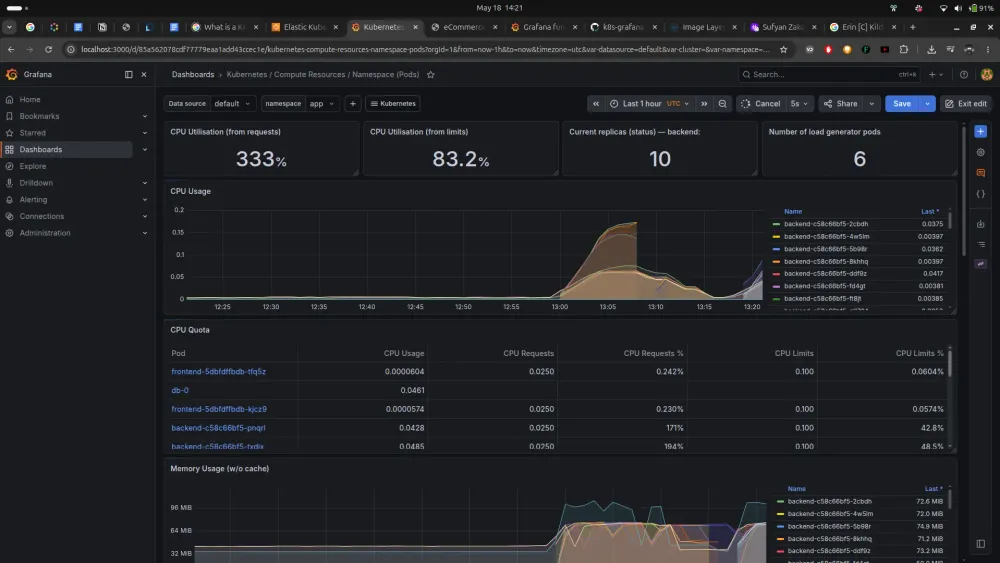
http://localhost:3000 in your browser. Log in using the username admin and the password configured during installation (admin). Navigate to Dashboards in the upper left corner to monitor your EKS nodes, memory consumption, and pod statuses in real time.
6. Resource Clean-Up
To avoid unexpected charges on your AWS bill, always dismantle resources when you are finished testing. Uninstall Application Releases:
- Uninstall Application Releases:
1
helm uninstall ecommerce-app -n app- Delete the EKS Cluster Infrastructure: This single command targets and safely removes all related cloud resources managed by CloudFormation, including the compute nodes, networks, and configured OIDC integrations.
1
eksctl delete cluster --name e-commerce-observability --region eu-west-1Enjoyed reading this content? Let the author know!
Your likes, comments, shares, and saves help creators reach more builders.

Loading recommendations
Loading article