
From Blog Post to Slide Deck in Minutes — With Kiro and Slidev
Hand a URL to Kiro, get a polished, themed slide deck back three minutes later — no manual layout, exportable to PowerPoint, PDF, or PNG. Built on Slidev with a custom AWS dark theme, custom Vue components for stats and timelines, and a steering file that codifies what makes a deck land.
The Problem
You read a great blog post. Now you need to present it — for a team meeting, a meetup, an internal share-out. Traditionally that means:
- Opening PowerPoint or Keynote
- Copy-pasting paragraphs into bullet points
- Hunting for icons, tweaking fonts, fighting layout
- An hour or two of design work for content that already existed
What if the conversation itself was the workflow? You give an AI agent a URL — it reads the article, picks the right structure, applies a consistent theme, and hands you a finished deck. That's what this project does.
What You Get
This repository is a Slidev-based PPT generator designed to be driven by Kiro . The core pieces:
theme-aws-dark/— a custom Slidev theme with AWS branding, dark gradient backgrounds, and three purpose-built Vue components (StatCard,Timeline,ComparisonTable)ppt-aws-theme-demo/andppt-aws-theme-demo-cn/— English and Chinese reference templates that demonstrate every available layout.kiro/steering/skill.md— a steering file that teaches Kiro the conventions: directory naming, language detection, content density rules, when to use each layout- Pre-built Mermaid architecture snippets — common AWS patterns (basic web, serverless, AI agent, data pipeline) that the agent copies and adapts instead of drawing from scratch
The result: ask in plain English, get a presentation back.
The Workflow
Step 1: Ask Kiro
Open Kiro in this workspace and send a message like:
Convert this blog post into a presentation:
https://builder.aws.com/content/3EcuvO5GFJY06xS7DyCvk6KQMKk/
Or with constraints:
Convert this blog post into a presentation of no more than 20 slides:
https://builder.aws.com/content/3EcuvO5GFJY06xS7DyCvk6KQMKk/
That's the entire input. Kiro handles the rest.
Step 2: What Kiro Does
Behind the scenes, the agent runs a deterministic pipeline:
- Fetches the URL. Tries a default fetch first; if the page is JavaScript-heavy (common on
builder.aws.com, Substack, Medium), retries in rendered mode with a real browser engine. - Detects the language. Mostly Chinese characters in the source →
lang: zh. Otherwise →lang: en. The theme's body fonts and Mermaid label fonts switch automatically. - Reads the reference template. It opens
ppt-aws-theme-demo/slides.mdand all chapter files inpages/to refresh on syntax, layouts, and components before generating anything. - Creates a new project directory. Naming convention is
ppt-{sanitized-topic-name}/— never modifies the templates, never works in the root. - Generates the deck. Cover slide, four section dividers, fourteen-ish content slides, end slide. Long presentations are split into chapter files under
pages/. - Picks the right components. A single metric →
StatCard. A sequence of events →Timeline. A vs B →ComparisonTable. More than four numbers on one slide → fall back to a Markdown table.
The whole pipeline takes about three minutes for a 20-slide deck.
Step 3: Preview
Kiro prints a single command:
1
npm install && npx slidev ppt-{topic-name}/slides.md
Run it once. The dev server opens at
http://localhost:3030/ with hot reload — every edit to a slide file refreshes the browser.There's also a presenter mode at
/presenter/ and an overview grid at /overview/.Step 4: Iterate
Want a slide split? A different metric called out? A different background gradient on the closing? Just say so:
The cost slide has too much text — split it into two slides.
Use a forest gradient on the wrap-up section.
Replace the bar chart with a Timeline component showing the three breakthroughs.
Kiro edits the relevant Markdown file. The dev server picks up the change automatically.
Step 5: Export
When the deck is ready, export to a real PowerPoint file:
1
npx slidev export ppt-{topic-name}/slides.md --format pptx
Or to PDF:
1
npx slidev export ppt-{topic-name}/slides.md
First export prompts you to install
playwright-chromium. Accept once and it's cached.The Full Recipe: URL to PPTX in Four Commands
Once the project is cloned and
npm install has run once, every future blog-to-deck conversion is the same four moves. Suppose tomorrow you have a new URL, e.g. https://example.com/my-new-post.1. Ask Kiro
Open Kiro in this workspace and send:
Convert this blog post into a presentation:
https://example.com/my-new-post
Kiro creates a new directory, e.g.
ppt-my-new-post/, and prints the project path back to you when it's done.2. Preview in the browser
1
npx slidev ppt-my-new-post/slides.md
Opens at
http://localhost:3030/. Hot reload is on — every edit refreshes the page. Use this to scan the deck and request changes from Kiro.3. Iterate
Stay in the chat with Kiro. Sample requests:
Slide 7 has too much text — split it into two slides.
Replace the cost section with a Timeline of the three milestones.
The closing slide should use the forest gradient.
Kiro edits the Markdown files. The browser auto-refreshes.
4. Export to PowerPoint
Stop the dev server (Ctrl+C). Then:
1
npx slidev export ppt-my-new-post/slides.md --format pptx
The first time you ever run an export, Slidev prompts you to install
playwright-chromium. Press y. After that it's cached forever.Output lands in
ppt-my-new-post/ppt-my-new-post-export.pptx. Open it in PowerPoint or Keynote. Done.Cheat Sheet
| Goal | Command |
|---|---|
| Convert URL to deck | Send URL to Kiro in chat |
| Preview locally | npx slidev ppt-{topic}/slides.md |
| Export PPTX | npx slidev export ppt-{topic}/slides.md --format pptx |
| Export PDF | npx slidev export ppt-{topic}/slides.md |
| Export PNG images | npx slidev export ppt-{topic}/slides.md --format png |
That's the entire workflow. Nothing else to remember.
A Real Example

Yesterday I gave Kiro this URL:
About three minutes later, I had
ppt-openclaw-aws-ec2/ — 17 slides organized as:| Chapter | Slides |
|---|---|
| Part 1: What is OpenClaw? | Features, motivation, what you get |
| Part 2: Architecture | Mermaid diagram, design decisions, cost estimate, prerequisites |
| Part 3: Deployment Guide | US one-click steps, parameters, SSM tunnel, non-US region config |
| Part 4: Configuration & FAQ | Common tasks, troubleshooting, takeaways |
Total time from URL to running deck: about three minutes. No manual layout work. Code blocks were syntax-highlighted automatically.

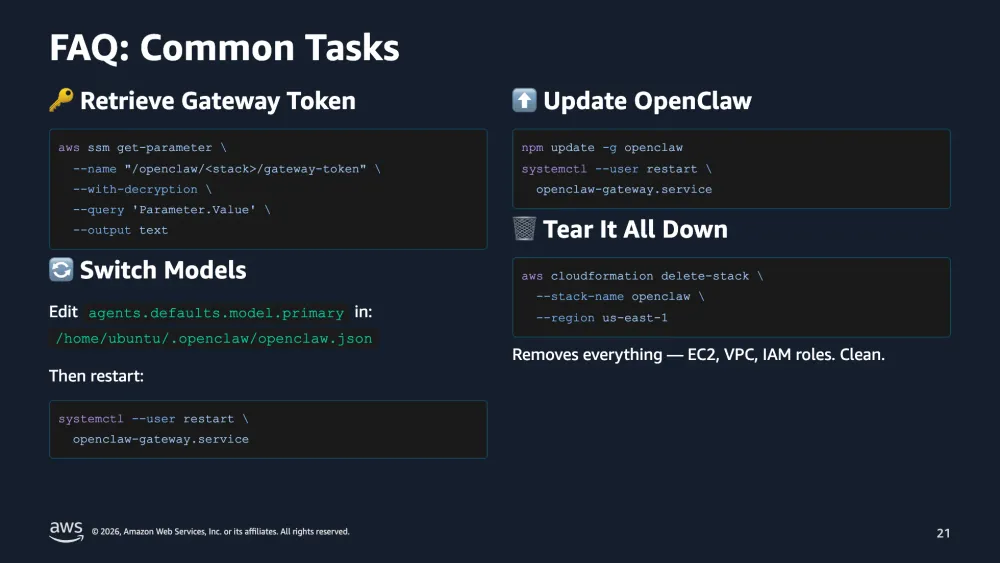
A later FAQ slide packs four practical tasks into a clean two-column layout — bash snippets included, no manual alignment:
Inside skill.md: The Brain of the Operation
The
.kiro/steering/skill.md file is where the magic gets specified. Kiro auto-loads it at the start of every session in this workspace, so the rules apply consistently across conversations. It's worth understanding what's in there — these are exactly the constraints that make blog-to-deck conversion repeatable.The file has six major sections:
1. Working Directory Strategy
- Every new presentation lives in its own
ppt-{sanitized-topic-name}/directory - The reference templates (
ppt-aws-theme-demo/,ppt-aws-theme-demo-cn/) are read-only — never modified - Nothing is ever written to the workspace root
- Default theme is always
theme: ../theme-aws-dark
2. Blog URL Fetching Strategy
A deterministic fallback chain handles flaky pages:
- Try
webFetch(url, mode="full")first - If the result is too small (<500 bytes), looks like a login wall, or is just navigation chrome → retry with
mode="rendered"(real browser engine, executes JavaScript) - If both fail → tell the user explicitly and offer alternatives (paste the text, try a different URL)
The file lists known JS-heavy sites that always need rendered mode:
builder.aws.com, Substack, Notion, some Cloudflare-protected blogs. Crucially, the rule says never hallucinate content if fetching fails.3. Language Detection and i18n
- Mostly Chinese characters in the source →
lang: zh - Otherwise →
lang: en - Explicit user override always wins ("make it in Chinese" / "用中文")
lang: zhautomatically switches the body font stack toPingFang SC / HarmonyOS Sans SC / Noto Sans SCand the Mermaid label font- A backup font config is documented for users in regions where Google Fonts is slow
4. The Eight-Step Execution Workflow
Every PPT generation follows the same numbered sequence:
- Read the entire reference template (
slides.md+ allpages/*.md) - Create the new project directory
- Generate complete content (cover, sections, content slides, end slide)
- Split into chapters under
pages/if there are 10+ slides - Add static assets if needed
- Provide the preview command
- Iterate on user feedback
- Done
Step 1 is non-negotiable — the agent re-reads the templates every time, so it never drifts on syntax or layout choices.
5. Content Creation Rules
This is the largest section, and it covers the things that make a deck either land or look amateurish:
- Component library:
StatCardfor a single metric,Timelinefor sequential events,ComparisonTablefor A vs B. Anything beyond those falls back to standard Markdown. - Architecture snippets: five pre-built Mermaid templates (basic web, serverless, AI agent simple, AI agent production, data pipeline). If a template covers 70% of what's needed, copy and rename — don't draw from scratch.
- Layout selection:
defaultfor ≤10 lines;two-cols(with title and scrolling) for longer content;left-rightfor short side-by-side;sectionbetween major chapters. - Content density: max 7 bullets per slide; split slides instead of cramming.
- Diagrams: 3-5 nodes per Mermaid block, short labels,
{scale: 0.7}or{scale: 0.8}to fit. - Icons: prefer emoji (🚀 ✅ 💡) over unverified icon components like
<carbon:xxx />. - Images: prefer external URLs; always control size with
{width=500px}or{width=60%}. - No animations:
v-click,v-clicks,v-motionare forbidden — they break in PDF/PPTX export and obscure content.
6. Quality Checklist
A 20-plus item self-check the agent runs before declaring the deck done. It includes things like "all images have width controls," "diagrams have appropriate scale," "long content uses
two-cols," "no animations," "preview command provided."The takeaway: this isn't a one-shot system prompt. It's a specification of what a good deck looks like, formalized once, applied every time. That's why the same input ("convert this URL into a presentation") consistently produces the same quality of output across different topics, languages, and source articles.
If you want to adapt this project to your own theme or organization, the steering file is the place to start. Change the directory naming convention, swap the theme path, add your own component library — the rest of the workflow keeps working.
Design Decisions That Make This Work
A steering file, not a system prompt
The instructions live in
.kiro/steering/skill.md — Kiro reads it once at the start of every session. It encodes:- Working directory rules (always create
ppt-{topic}/, never modify templates) - Language detection logic (source language →
lang:setting) - Content density limits (max 7 bullets per slide, switch to
two-colsif longer) - Layout selection (when to use
defaultvstwo-colsvsleft-right) - Component preferences (
StatCardfor one metric, table for many) - The blog-fetch fallback chain (default → rendered → ask user)
This is more durable than a one-off prompt because it survives across conversations.
A small, opinionated theme
The
theme-aws-dark/ directory has eight layouts and three custom components. Not eighty. Not thirty. The agent doesn't have to choose between near-duplicates, which means the output stays consistent.Pre-built architecture diagrams
Most AWS presentations need one of: a basic web app, a serverless API, an AI agent, or a data pipeline. The theme ships with a Mermaid block for each in
theme-aws-dark/snippets/architectures/. The agent copies and renames nodes — it almost never has to draw an architecture from scratch.No animations
The steering file explicitly forbids
v-click, v-clicks, and v-motion. Animations look impressive in the editor and break in three places: PDF export, PPTX export, and presenter timing. Static slides are predictable, which matters more than flashiness.What's Next
The same workflow applies to any source you can hand the agent:
- A blog post URL
- A pasted article
- A meeting transcript
- A spec document
- A README
If it's text and it has structure, the agent can shape it into a deck.
The slides are Markdown. The theme is Vue. The build is Vite. Everything is editable, exportable, version-controllable. No proprietary file format, no cloud lock-in, no "open in PowerPoint to fix the formatting" surprises.
Try it: clone the repo, open Kiro , paste a URL.
1
2
3
git clone <this-repo>
cd kiro-slidev-ppt-maker
# Open Kiro, then send: "Convert this blog post into a presentation: <url>"
The conversation is the workflow.

Resources
- 📦 Repository: https://github.com/hanyun2019/kiro-slidev-ppt-maker
- 📖 Slidev: sli.dev
- 🤖 Kiro: kiro.dev
Built with Kiro, Slidev, and a stubborn dislike of manual layout work.
Enjoyed reading this content? Let the author know!
Your likes, comments, shares, and saves help creators reach more builders.

Loading recommendations
Loading article