
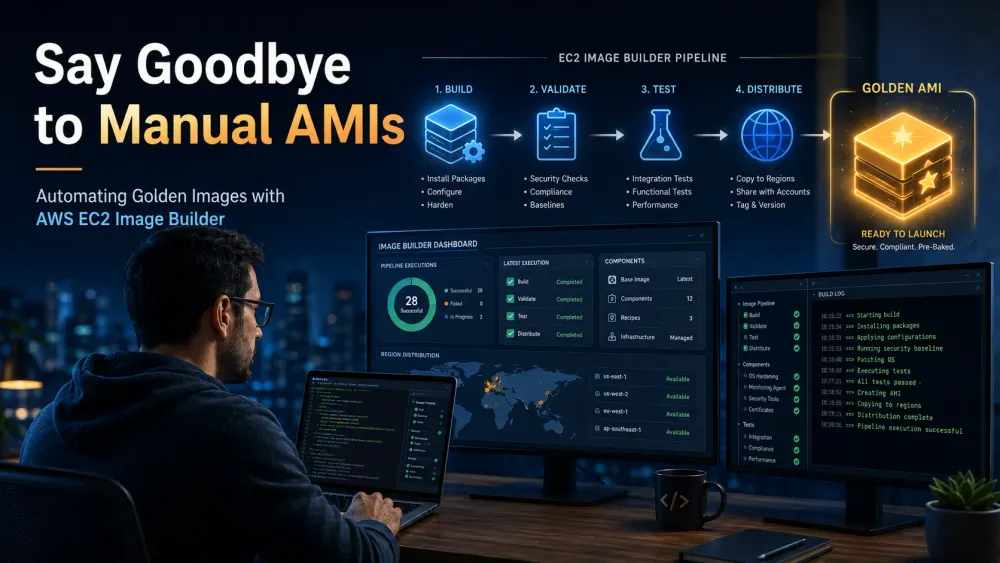
Say Goodbye to Manual AMIs: Automating Golden Images with AWS EC2 Image Builder
A practical guide — why you should stop building AMIs by hand (or with Packer) and let AWS do the heavy lifting.

1. The Problem — Why Building AMIs Manually Is So Painful
Imagine you run a pizza shop. Every time someone orders a pizza, you start from scratch — grow the wheat, milk the cow for cheese, plant the tomatoes. Sounds ridiculous, right? You'd never finish a single order.
That's exactly what we do when we build EC2 instances without a pre-baked image. Every new server boots up empty, then installs Docker, then pulls security patches, then sets up the CloudWatch agent — every single time. Slow, wasteful, and inconsistent.
The solution is a golden image — a pre-baked AMI (Amazon Machine Image) that already has everything your team needs. Think of it as a frozen pizza: dough ready, toppings on, just heat and serve. New EC2 instances launch in seconds because all the heavy work is already done.
But here's the catch — how do you bake that pizza?
Most teams I've seen do one of these:
- The manual way: Launch an EC2 instance, SSH in, install software by hand, take a snapshot, create an AMI, copy it to other regions. Repeat every month for patches. Error-prone and slow.
- The Packer way: Write HashiCorp Packer templates in HCL, integrate with Jenkins or Bitbucket Pipelines, manage plugins, debug syntax. Better, but still a lot of moving parts.
- The "we'll deal with it later" way: Use the same AMI for 8 months. Then a critical CVE drops, and the whole team panics.
None of these scale well. Especially if you're running services across multiple regions (like Tokyo and Singapore), the manual overhead multiplies.
Enter AWS EC2 Image Builder — a fully managed AWS service that bakes, patches, tests, and distributes your golden images automatically. No Packer. No Jenkins gymnastics. Just AWS-native pipelines you can manage through the console, CLI, or Terraform.
2. Why This Topic Matters
| Reason | Detail |
|---|---|
| 🔥 Real DevOps pain | Most teams still rely on Packer or manual snapshots |
| 📣 AWS native | AWS actively amplifies content about its own tools |
| 💰 Free service | No charge for Image Builder itself — only for underlying EC2/EBS |
| 🛡️ Built-in security | Amazon Inspector, STIG, CIS hardening — all AWS-managed |
| 🌍 Multi-region | One pipeline distributes to as many regions as you want |
3. Key Concepts — Explained Like You're Building a Burger Chain
Let's say you own a burger chain with 100 outlets across multiple cities. You want every burger to taste identical, no matter which outlet makes it. To achieve this, you need five things — and these are exactly the five concepts Image Builder uses.
🍳 Recipe — Your Burger Blueprint
A recipe is a document that describes what your image should contain. Like a chef's recipe card, it has two main parts:
- Base image (the bun): Where you start. Examples: Amazon Linux 2023, Ubuntu 24.04 LTS, Windows Server 2025.
- Components (the toppings): What you add on top. Examples: Docker, CloudWatch agent, security patches, your company's monitoring tools.
Recipes are versioned (
1.0.0, 1.0.1, 2.0.0) so you can track changes over time, just like Git tracks code changes.Real-world example: Your recipe could say "Start with Ubuntu 24.04, then add Docker, then add the CloudWatch agent, then run latest security updates." That's it.
🧱 Components — The Individual Toppings
A component is a single, reusable building block. Each component is written in YAML (a simple, human-readable format) and gets executed by a tool called AWSTOE (AWS Task Orchestrator and Executor) on the build server.
Components come in three flavors:
- Build components: Install or configure things (e.g., "install Docker").
- Test components: Verify the image works after building (e.g., "run a test container and make sure it exits cleanly").
- AWS-managed components: Pre-built by AWS, ready to use. Examples include
update-linux,update-windows, CIS hardening, STIG compliance.
Real-world example: Think of components as Lego blocks. You build one "Install Docker" block once, and reuse it in 20 different recipes. Change the block in one place, and all 20 recipes inherit the update.
🏗️ Infrastructure Configuration — The Kitchen Where You Cook
The infrastructure configuration defines where Image Builder builds your image. It's the temporary kitchen used to assemble the burger:
- Which EC2 instance type to use (e.g.,
t3.medium) - Which VPC, subnet, and security group
- Which IAM role
- Where to send build notifications (SNS topic)
- Where to store logs (S3 bucket)
This kitchen exists only during the build — Image Builder spins it up, makes the image, and then tears it down. You don't pay for it the rest of the month.
🌍 Distribution Configuration — Sending Burgers to All Outlets
Once the burger is made, you need to send it to every outlet in your chain. The distribution configuration controls this:
- Which AWS regions to copy the AMI to (e.g., Tokyo, Singapore, Frankfurt)
- Which KMS encryption key to use
- Which other AWS accounts to share with
- Tags to apply to the AMI
Real-world example: One configuration block can ship your golden AMI to 5 regions and 12 AWS accounts in a single pipeline run. No scripts. No copy-paste.
🔄 Pipeline — The Whole Restaurant System
A pipeline ties everything together:
Pipeline = Recipe + Infrastructure Config + Distribution Config + Schedule
The schedule uses cron syntax (e.g., "every Sunday at 2 AM"), and AWS runs the pipeline automatically. No human needs to click anything.
4. How It Actually Works (Behind the Scenes)
1
2
3
4
5
6
7
8
9
10
11
12
13
14
15
16
17
18
19
┌──────────────┐    ┌──────────────┐    ┌──────────────┐    ┌──────────────┐
│   PIPELINE   │ →  │    BUILD     │ →  │   VALIDATE   │ →  │     TEST     │
│   triggers   │    │    stage     │    │    phase     │    │    stage     │
└──────────────┘    └──────────────┘    └──────────────┘    └──────────────┘
                            │                                       │
                            ▼                                       ▼
                    Launch EC2 instance              Launch new instance from snapshot
                    Run build components             Run test components
                    Take snapshot                    Cleanup & terminate
                                                            │
                                                            ▼
                                                    ┌──────────────┐
                                                    │ DISTRIBUTION │
                                                    │    stage     │
                                                    └──────────────┘
                                                            │
                                                            ▼
                                                  AMI copied to all
                                                  configured regions
Image Builder runs in two main stages:
Build stage: Downloads the base image, launches a temporary EC2 instance, runs your build components, validates everything worked, takes a snapshot, and creates the AMI.
Test stage: Launches another temporary instance from the new AMI and runs your test components. If everything passes, the AMI is distributed. If any test fails, the pipeline stops and the broken AMI never reaches production.
This separation matters — your AMI only graduates to "production ready" if it passes its own tests. Think of it like a quality control inspector who checks every burger before it leaves the kitchen.
5. Step-by-Step Implementation — Hands-On
Let's build a real pipeline. Goal:
- Start with Ubuntu 24.04 LTS
- Install Docker + CloudWatch agent
- Apply the latest OS patches
- Distribute the AMI to Tokyo and Singapore
- Rebuild automatically every month
Step 1: Create a Custom Component (YAML)
Save this as
install-docker-cw.yaml:1
2
3
4
5
6
7
8
9
10
11
12
13
14
15
16
17
18
19
20
21
22
23
24
25
26
27
28
29
30
31
32
33
34
35
36
37
38
39
40
41
42
43
44
45
46
47
48
49
# Document Start
name: "InstallDockerCloudWatch"
description: "Install Docker and CloudWatch Agent on Ubuntu"
schemaVersion: 1.0
phases:
- name: build
steps:
- name: UpdateOS
action: UpdateOS
- name: InstallDocker
action: ExecuteBash
inputs:
commands:
- sudo apt-get update -y
- sudo apt-get install -y ca-certificates curl gnupg
- sudo install -m 0755 -d /etc/apt/keyrings
- curl -fsSL https://download.docker.com/linux/ubuntu/gpg | sudo gpg --dearmor --yes -o /etc/apt/keyrings/docker.gpg
- echo "deb [arch=$(dpkg --print-architecture) signed-by=/etc/apt/keyrings/docker.gpg] https://download.docker.com/linux/ubuntu $(. /etc/os-release && echo $VERSION_CODENAME) stable" | sudo tee /etc/apt/sources.list.d/docker.list
- sudo apt-get update -y
- sudo apt-get install -y docker-ce docker-ce-cli containerd.io
- sudo systemctl enable docker
- name: InstallCloudWatchAgent
action: ExecuteBash
inputs:
commands:
- wget https://s3.amazonaws.com/amazoncloudwatch-agent/ubuntu/amd64/latest/amazon-cloudwatch-agent.deb
- sudo dpkg -i -E ./amazon-cloudwatch-agent.deb
- rm amazon-cloudwatch-agent.deb
- name: validate
steps:
- name: ValidateDocker
action: ExecuteBash
inputs:
commands:
- docker --version
- systemctl is-enabled docker
- name: test
steps:
- name: TestDockerRun
action: ExecuteBash
inputs:
commands:
- sudo docker run --rm hello-world
# Document EndNotice the three phases:
- build: Install the software
- validate: Confirm the install worked
- test: Run an actual workload to prove it functions
This three-phase model is what makes Image Builder reliable. You're not just installing software — you're proving it works before stamping the AMI.
Now register the component:
1
2
3
4
5
6
7
aws imagebuilder create-component \
  --name "InstallDockerCloudWatch" \
  --semantic-version "1.0.0" \
  --platform "Linux" \
  --supported-os-versions "Ubuntu 24" \
  --data file://install-docker-cw.yaml \
  --region ap-northeast-1
Step 2: Create a Recipe
A recipe combines the base image with your components:
1
2
3
4
5
6
7
8
9
aws imagebuilder create-image-recipe \
  --name "ubuntu-prod-recipe" \
  --semantic-version "1.0.0" \
  --parent-image "arn:aws:imagebuilder:ap-northeast-1:aws:image/ubuntu-server-24-lts-x86/x.x.x" \
  --components '[
    {"componentArn":"arn:aws:imagebuilder:ap-northeast-1:aws:component/update-linux/x.x.x"},
    {"componentArn":"arn:aws:imagebuilder:ap-northeast-1:<your-account-id>:component/installdockercloudwatch/1.0.0"}
  ]' \
  --region ap-northeast-1
💡 Pro tip:update-linuxis an AWS-managed component that automatically installs all pending OS patches. Think of it asapt update && apt upgradethat works across any Linux distribution.
Step 3: Set Up Build Infrastructure
This is the temporary "kitchen" where the image gets built:
1
2
3
4
5
6
7
8
9
10
aws imagebuilder create-infrastructure-configuration \
  --name "build-infra-tokyo" \
  --instance-profile-name "EC2InstanceProfileForImageBuilder" \
  --instance-types "t3.medium" \
  --subnet-id "subnet-xxxxxxxx" \
  --security-group-ids "sg-xxxxxxxx" \
  --sns-topic-arn "arn:aws:sns:ap-northeast-1:<account-id>:image-builder-alerts" \
  --logging '{"s3Logs":{"s3BucketName":"my-image-builder-logs","s3KeyPrefix":"builds/"}}' \
  --terminate-instance-on-failure \
  --region ap-northeast-1
Step 4: Distribute the AMI to Multiple Regions
1
2
3
4
5
6
7
8
9
10
11
12
13
14
15
16
17
18
19
aws imagebuilder create-distribution-configuration \
  --name "multi-region-dist" \
  --distributions '[
    {
      "region": "ap-northeast-1",
      "amiDistributionConfiguration": {
        "name": "prod-ubuntu-{{ imagebuilder:buildDate }}",
        "amiTags": { "Environment": "production", "ManagedBy": "ImageBuilder" }
      }
    },
    {
      "region": "ap-southeast-1",
      "amiDistributionConfiguration": {
        "name": "prod-ubuntu-{{ imagebuilder:buildDate }}",
        "amiTags": { "Environment": "production", "ManagedBy": "ImageBuilder" }
      }
    }
  ]' \
  --region ap-northeast-1
That's it — one AMI builds in Tokyo, and a copy lands in Singapore automatically. No manual
aws ec2 copy-image scripts.Step 5: Create the Pipeline with a Monthly Schedule
1
2
3
4
5
6
7
8
9
10
11
aws imagebuilder create-image-pipeline \
  --name "prod-ubuntu-pipeline" \
  --image-recipe-arn "arn:aws:imagebuilder:ap-northeast-1:<account-id>:image-recipe/ubuntu-prod-recipe/1.0.0" \
  --infrastructure-configuration-arn "arn:aws:imagebuilder:ap-northeast-1:<account-id>:infrastructure-configuration/build-infra-tokyo" \
  --distribution-configuration-arn "arn:aws:imagebuilder:ap-northeast-1:<account-id>:distribution-configuration/multi-region-dist" \
  --schedule '{
    "scheduleExpression": "cron(0 2 1 * ? *)",
    "pipelineExecutionStartCondition": "EXPRESSION_MATCH_AND_DEPENDENCY_UPDATES_AVAILABLE"
  }' \
  --status "ENABLED" \
  --region ap-northeast-1
Schedule breakdown:
cron(0 2 1 * ? *)→ Run on the 1st of every month at 2 AM UTC.EXPRESSION_MATCH_AND_DEPENDENCY_UPDATES_AVAILABLE→ This is the smart part. The pipeline runs only if the schedule matches AND there's an actual update available in the base image or components. If Ubuntu hasn't released any patches, the pipeline won't waste compute. Saves money and keeps things sane.
Done. From now on, every month, automatically:
- The latest Ubuntu 24.04 AMI gets fetched
- All security patches get applied
- Docker + CloudWatch agent get installed
- Tests run to verify everything works
- The new AMI appears in both Tokyo and Singapore
- You get a notification via SNS
No human had to touch anything.
6. Real-World Use Cases
Let's look at three scenarios where Image Builder genuinely saves time and money.
Use Case 1: The Monthly Patching Treadmill
Before: Your security team sends a CVE alert every month. Someone SSHs into a base instance, runs
apt upgrade, takes a snapshot, creates a new AMI, copies it to 3 regions, updates the launch template, and notifies the deployment team. Three days of work, every month.After: A scheduled Image Builder pipeline does all of this in 15 minutes on the 1st of every month. The team gets a Slack notification when it's done.
Use Case 2: Compliance Audits (PCI, HIPAA, SOC 2)
Before: Auditor asks "Can you prove every production server has CIS Level 1 hardening applied?" You spend a week pulling logs, manually verifying configurations.
After: Your recipe uses the AWS-managed
cis-hardening-level-1-ubuntu-24-lts component. Every AMI build runs it. Amazon Inspector scans the result and stores findings. Auditor gets a clean dashboard in 10 minutes.Use Case 3: Multi-Region Game Day Deployment
Before: Your team launches a new product in Tokyo. Three weeks later, you expand to Singapore. You manually copy AMIs, hope the configurations match, debug subtle drift issues for two weeks.
After: Your distribution config already lists both regions. Both Tokyo and Singapore get identical AMIs on every build. Drift is impossible because there's only one source of truth.
7. Cost and Security Benefits
💰 Cost — The Service Is Free
Straight from AWS documentation:
"There is no cost to use EC2 Image Builder to create custom AMI or container images. However, standard pricing applies for other services that are used in the process."
You only pay for:
- EC2 instance time — only during builds (typically 10–20 minutes)
- EBS snapshots — storage for each AMI
- S3 logs — tiny text files, negligible
- ECR (if using containers) — container image storage
- Amazon Inspector (optional) — if you enable security scanning
A realistic estimate: a monthly pipeline running on
t3.medium for 15 minutes with ~100 MB of logs costs less than $1 per month. That's cheaper than a cup of coffee.🛡️ Security — Built-In by Default
Image Builder gives you four security wins out of the box:
- AWS-managed patching components (
update-linux,update-windows) — Every build pulls in the latest patches. You'll never deploy an outdated AMI again. - STIG and CIS hardening components — DoD-grade and CIS-benchmark hardening are available as ready-to-use AWS-managed components. Excellent for compliance audits.
- Amazon Inspector integration — Every newly built AMI gets automatically scanned for vulnerabilities. Findings appear in a dashboard with CVSS scores.
- Validate + Test phases — The AMI doesn't get distributed until tests pass. A broken AMI literally cannot reach production.
Security best practices from AWS docs:
- Don't use overly permissive security groups in Image Builder recipes
- Don't share images with untrusted accounts
- Don't make images with sensitive data public
- Apply all available security patches in every build
- Test images before deployment
8. Image Builder vs. Packer — Quick Comparison
| Feature | AWS Image Builder | Packer |
|---|---|---|
| Setup cost | Zero (managed) | Install Packer binary + plugins + config |
| Multi-region distribution | Native, one config block | Manual copy or post-script |
| Patching | update-linux component, one line | Custom shell provisioner |
| Compliance (STIG/CIS) | AWS-managed components | Build your own |
| Scheduled rebuilds | Native cron expressions | Jenkins/cron wrapper needed |
| Vulnerability scanning | Native Inspector integration | External tooling |
| Multi-cloud support | AWS only | AWS, GCP, Azure, VMware, etc. |
| Learning curve | Console wizard available | HCL + plugin ecosystem |
The verdict: If you're an AWS-only shop (like most teams running EKS, ECS, or EC2 fleets), Image Builder is almost always the better choice. Packer still wins for multi-cloud or hybrid setups.
9. Closing Thoughts
The era of manually baking AMIs is over. In 2026, if your team is still relying on
Packer + custom Jenkins jobs + manual region copies, you're accumulating technical debt with every build.EC2 Image Builder gives you:
- Repeatability — recipes are versioned and stored as infrastructure-as-code
- Auditability — every build is logged in CloudTrail
- Security — patches and vulnerability scans are built in
- Cost efficiency — the service is free; you only pay for compute
- Multi-region — one pipeline, many regions
If you're introducing this to your team, start small. Pick a non-production recipe. Rebuild a dev AMI. Schedule it monthly. After two or three weeks, your team will be comfortable, and then you can plan the production migration.
Got questions about migrating from Packer, container image pipelines (yes, Image Builder builds container images too), or cross-account distribution? Drop them in the comments — we'll cover them in the next post.
📚 Useful Links
- EC2 Image Builder Official Docs
- AWSTOE Component Reference
- Image Builder API Reference
- Managed CIS & STIG Components
🔥 Connect With Me
If this blog helped, please share it. The DevOps community needs more practical content on AWS-native tools — and writing from practitioners like you is what moves it forward.
Enjoyed reading this content? Let the author know!
Your likes, comments, shares, and saves help creators reach more builders.

Loading recommendations
Loading article