
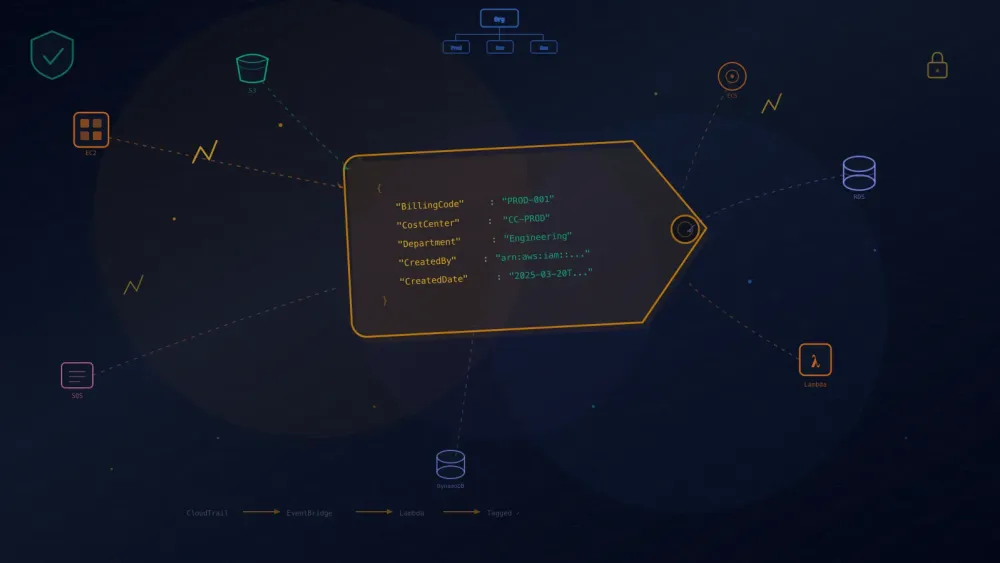
Automate Resource Tagging Across Multi-Account AWS Environments Using Landing Zone Accelerator
A practical guide to deploying event-driven tagging automation across 50+ AWS accounts using Landing Zone Accelerator with per-account customization and retroactive backfill.

Solutions Architect
The Problem
When you manage AWS accounts on behalf of other teams — whether you're a central IT organization, a managed service provider, or a shared services platform team — one problem comes up fast: how do you guarantee that every resource in every account is tagged correctly, without relying on end users to do it?
Consistent tagging matters for more than just cost allocation. Tags drive access control policies, automate incident response routing, feed compliance reporting, enable resource lifecycle management, and power operational dashboards. Without them, you lose visibility into who created what, which team owns it, and how it maps to your business.
Service Control Policies (SCPs) enforce tagging at creation time by requiring the resource creator to supply the correct tags. AWS Config detects untagged resources after creation and can trigger remediation. Tag Policies standardize tag values and casing across your organization. Each of these serves a different purpose, and they work best when combined.
The Solution
This post walks through a different approach: automated tagging at resource creation time, deployed through Landing Zone Accelerator on AWS (LZA) so it's baked into every account from day one. The implementation adapts the existing aws-samples/resource-tagging-automation solution for LZA-managed environments, adding per-account tag customization, multi-region deployment, CDK CfnInclude compatibility, and an optional one-time backfill that tags resources created before the solution was deployed.
This solution handles three tagging scenarios:
Stage | Scenario | How It Works |
|---|---|---|
1. New resources | A developer creates an EC2 instance tomorrow | EventBridge catches the API call, Lambda tags it within seconds |
2. Existing resources | 200 resources already exist untagged in the account | A one-time backfill scans and tags them on first deploy |
3. Tag value changes | BillingCode changes from PROD-001 to PROD-002 | Redeploy with the new value and an empty marker key to update all resources |
Stage 1 runs continuously. Stages 2 and 3 are opt-in and run once per deployment. Details in Retroactive Tagging of Existing Resources .
Where This Fits — SCPs, Config, Tag Policies, and Automated Tagging
AWS provides several mechanisms for tagging governance. They're complementary, not mutually exclusive:
Control Type | Mechanism | What It Does | Best Suited For |
|---|---|---|---|
Preventive | SCPs | Deny resource creation if required tags are missing | Environments where the creator is responsible for supplying correct tags. Requires per-service/per-action rules. |
Standardization | Tag Policies | Enforce allowed tag keys, values, and casing org-wide | Ensuring consistent tag formats across all accounts. Non-disruptive — does not block resource creation. |
Detective | AWS Config ( required-tags ) | Find non-compliant resources after creation and trigger remediation | Compliance reporting, drift detection, and catching resources that were created without tags. |
Automated | EventBridge + Lambda (this solution) | Apply tags at creation time without creator involvement | Environments where the platform team owns tagging and end users should not need to provide tags. |
Use SCPs when the creator is responsible for providing tags. Use Tag Policies always — they standardize without disruption. Use AWS Config for compliance dashboards and drift detection. Use this solution when the platform team owns the tagging responsibility and end users should not need to know your billing codes.
For the strongest posture, layer all four — each one complements the others:
Layer | When it acts | What it provides |
|---|---|---|
SCPs | Before creation | Ensures creators supply required tags |
Tag Policies | At creation | Standardizes tag values and casing |
Automated Tagging (this solution) | Seconds after creation | Applies platform team tags that creators are not expected to provide |
AWS Config | After creation | Compliance reporting and remediation for anything not yet tagged |
How It Works
Plain text
CloudTrail event (resource creation API call)↓EventBridge (filters for ~30 resource creation event names)↓Lambda (applies tags via Resource Groups Tagging API)
When someone creates a resource, CloudTrail records the API call. EventBridge matches the event name (e.g.,
RunInstances , CreateBucket , CreateDBInstance ) and invokes a Lambda function that applies:- Custom tags — passed as a JSON parameter at deployment time (e.g.,
BillingCode,CostCenter,Department)
- Metadata tags —
CreatedBy(IAM principal from CloudTrail) andCreatedDate(UTC timestamp)
The template relies on the existing AWS Control Tower organization trail for EventBridge events — no per-account CloudTrail trail or S3 bucket is deployed.
What it costs
Component | Monthly Cost | Notes |
|---|---|---|
KMS (encryption key) | ~$1.00 | One customer-managed key per account/region. This is the main cost driver. |
Lambda | < $1.00 | Free tier eligible. Typical accounts generate a few hundred invocations/month. |
CloudWatch Logs | < $1.00 | Lambda execution logs with 90-day retention. |
SQS (dead-letter queue) | < $0.01 | Free tier eligible. Only used for failed invocations. |
CloudWatch Alarms | < $0.10 | DLQ alarm. |
EventBridge | $0.00 | No charge for AWS service events. |
Total per account/region | ~$1-2/month | Multi-region multiplies by region count (4 regions = ~$4-8/account/month). |
For context: a single untagged resource that runs for months without cost attribution can easily cost more than the entire tagging solution across all your accounts. Organizations without consistent tagging typically see 20-30% of cloud spend that cannot be attributed to a team, project, or cost center. For a 50-account environment spending $100K/month, even 5% of unattributable spend is $5,000/month in lost visibility, compared to ~$100/month for this solution.
The solution supports 30+ resource types across compute, storage, database, networking, analytics, security, integration, monitoring, and developer tools.
What's in the Repo
Plain text
sample-lza-automated-resource-tagging/├── resource-tagging-automation.yaml ← CloudFormation template├── sample-config/│ ├── customizations-config.yaml ← Option A: per-account deployment│ └── customizations-config-stackset.yaml ← Option B: per-OU deployment├── DEPLOYMENT-GUIDE.md ← Step-by-step single-account walkthrough├── README.md└── ...
Copy the sample config that matches your needs, replace placeholder values, and paste into your
customizations-config.yaml .
Deploying
Prerequisites
- AWS Control Tower with LZA v1.5.0+
- Access to the LZA config repo (
aws-accelerator-config)
- Verify the Control Tower organization trail is active from the management account:
Bash
aws cloudtrail describe-trails \--query 'trailList[?IsOrganizationTrail==`true`].Name' \--region <home-region>aws cloudtrail get-trail-status \--name <trail-name-from-above> \--region <home-region># Must show IsLogging: true
No CLI access? Check via console: Management account → CloudTrail → Trails → trail marked Organization trail: Yes → Logging is ON.
Step 1: Copy the template
Bash
mkdir -p customizationscp /path/to/resource-tagging-automation.yaml customizations/
Step 2: Configure deployment targets
Choose per-account (unique tags per account) or per-OU (same tags for all accounts in an OU).
Option A: Per-Account Deployment (recommended when accounts need unique tags)
YAML
customizations:cloudFormationStacks:- deploymentTargets:accounts:- ProductionAccount # UPDATE: from accounts-config.yamlname: ResourceTaggingAutomation-Productiondescription: Auto-tagging for Productionregions: # UPDATE: list ALL governed regions- us-east-1- us-east-2- us-west-1- us-west-2runOrder: 1template: customizations/resource-tagging-automation.yamlterminationProtection: falseparameters:- name: AutomationTagsvalue: '{"BillingCode": "PROD-001", "CostCenter": "CC-PROD", "Department": "Engineering"}'# Optional: tag existing resources on first deploy# - name: EnableRetroactiveTagging# value: 'true'# - name: MarkerTagKey# value: BillingCode
Add one block per account with unique tags.
Option B: Per-OU Deployment
YAML
customizations:cloudFormationStackSets:- capabilities:- CAPABILITY_IAMdeploymentTargets:organizationalUnits:- Workloads # UPDATE: from organization-config.yamlname: ResourceTaggingAutomationdescription: Auto-tagging for all workload accountsregions:- us-east-1- us-east-2- us-west-1- us-west-2template: customizations/resource-tagging-automation.yamlparameters:- name: AutomationTagsvalue: '{"BillingCode": "WL-001", "CostCenter": "CC-WORKLOADS", "Department": "Platform"}'
New accounts added to the OU automatically get the stack.
Step 3: Push and deploy
Bash
cd aws-accelerator-configgit add -Agit commit -m "Add resource tagging automation"git push# Trigger the pipeline if it doesn't auto-start:aws codepipeline start-pipeline-execution \--name AWSAccelerator-Pipeline \--region <your-home-region>
Step 4: Verify
Create a test resource in a target account and region, wait ~60 seconds, then check tags:
Bash
aws sqs create-queue --queue-name tagging-test-queue --region us-east-1# After ~60 seconds:aws sqs list-queue-tags \--queue-url https://sqs.us-east-1.amazonaws.com/<account-id>/tagging-test-queue \--region us-east-1
You should see your custom tags plus
CreatedBy and CreatedDate .
Multi-Region
The EventBridge rule and Lambda only exist in the region where the stack is deployed. Resources created in a region without the stack won't get tagged.
List all governed regions in the
regions array — LZA deploys the stack to each one independently. The Control Tower organization trail is multi-region, so it delivers events to EventBridge in every governed region. Each region's stack is self-contained with no cross-region dependencies.If your landing zone uses SCPs to restrict non-governed regions, there is no tagging gap since resources can only be created in regions where the stack is deployed.
Cost impact: Multi-region multiplies cost by the number of regions. The main driver is KMS at ~$1/key/month, so 4 regions is approximately $4-8/account/month. See the cost breakdown above.
Retroactive Tagging of Existing Resources
The event-driven pipeline only tags resources created after deployment. For resources that already exist, the template includes an optional one-time backfill. The same mechanism also supports updating tag values on previously tagged resources.
Three Tagging Stages
Stage | What It Does | When It Runs |
|---|---|---|
1. Event-driven tagging | Tags new resources at creation time via EventBridge + Lambda | Continuously, after stack deployment |
2. Retroactive backfill | Tags existing resources that are missing the MarkerTagKey | Once, on stack creation (when EnableRetroactiveTagging is 'true' ) |
3. Tag value update | Re-tags all resources with updated AutomationTags values, overwriting previous values | On-demand: delete stack, set MarkerTagKey to '' , redeploy |
How the backfill works
Plain text
Stack creation with EnableRetroactiveTagging = 'true'↓CloudFormation Custom Resource triggers backfill Lambda (runs ONCE on Create)↓Backfill Lambda calls Resource Groups Tagging API → GetResources (paginated)↓For each resource:MarkerTagKey is empty? → Yes → Tag (update mode — tags everything)Has MarkerTagKey (e.g. BillingCode)? → Yes → Skip→ No → Apply all AutomationTags↓Reports Tagged / Skipped / Failed counts in stack outputs
The backfill applies the full
AutomationTags JSON — not just the MarkerTagKey . The marker is only used to decide "already tagged or not." For example, if your AutomationTags contain BillingCode , CostCenter , and Department , all three get applied to every untagged resource. The backfill does not add CreatedBy or CreatedDate metadata — those come from the CloudTrail event at creation time, and there's no event to extract from during a retroactive scan.The Lambda only runs on stack Create — not on Update or Delete. Subsequent LZA pipeline runs skip it. The backfill sends
SUCCESS back to CloudFormation even if individual resources fail to tag, so it never blocks stack creation.Enabling the backfill (Stage 2)
Set
EnableRetroactiveTagging to 'true' in your parameters:YAML
parameters:- name: AutomationTagsvalue: '{"BillingCode": "PROD-001", "CostCenter": "CC-PROD", "Department": "Engineering"}'- name: EnableRetroactiveTaggingvalue: 'true'- name: MarkerTagKeyvalue: BillingCode
On stack creation, a second Lambda function scans all resources in the account/region via the Resource Groups Tagging API , skips anything that already has the
MarkerTagKey , and applies the full AutomationTags to everything else. It runs once on Create — not on Update or Delete — so subsequent pipeline runs skip it.Updating tag values on existing resources (Stage 3)
When tag values change (e.g.,
BillingCode changes from PROD-001 to PROD-002 ), the event-driven Lambda picks up the new values for future resources automatically (the stack update refreshes the Lambda environment variable). To update tags on resources that already exist:- Update
AutomationTagswith the new values
- Set
MarkerTagKeyto''(empty string) — this tells the backfill to tag all resources, not just untagged ones
- Delete the stack and redeploy (the backfill only runs on Create)
YAML
parameters:- name: AutomationTagsvalue: '{"BillingCode": "PROD-002", "CostCenter": "CC-PROD", "Department": "Engineering"}'- name: EnableRetroactiveTaggingvalue: 'true'- name: MarkerTagKeyvalue: ''
After the update completes, set
MarkerTagKey back to BillingCode for normal operation so future backfills skip already-tagged resources.Results are available in the CloudFormation stack outputs:
BackfillResourcesTagged , BackfillResourcesSkipped , and BackfillStatus .The backfill Lambda sits idle after the initial run and incurs no cost (Lambda only charges on invocation). To remove it, set
EnableRetroactiveTagging to 'false' and run the pipeline.For a detailed walkthrough of deploying and testing with a single account, see the Deployment Guide in the repo.
A Note on global-config.yaml CloudTrail Settings
Your
global-config.yaml has a cloudtrail section. This controls whether LZA manages its own trails — it has nothing to do with the Control Tower organization trail or this solution.YAML
logging:cloudtrail:enable: false # ← LZA-managed trails, NOT the Control Tower org trailorganizationTrail: false
Your
global-config.yaml CloudTrail settings can be anything without affecting the tagging automation.
Onboarding New Accounts
Per-account (Option A): Add a new
cloudFormationStacks entry with the account name and tags. Commit, push, trigger pipeline.Per-OU (Option B): Add the account to the OU in
accounts-config.yaml . The StackSet deploys automatically. Commit, push, trigger pipeline.
Wrapping Up
SCPs , Tag Policies , AWS Config , and automated tagging each address a different aspect of tagging governance. This solution is designed for environments where the platform team owns the tags. Deploy it through LZA, list all your governed regions, and you get three stages of coverage: event-driven tagging for new resources, retroactive backfill for existing ones, and tag value updates when requirements change. At $1-2/account/month, the cost is a fraction of the visibility you gain.
The sample repo is at sample-lza-automated-resource-tagging . For troubleshooting, security details, supported resource types, and LZA compatibility notes, see the README.
FAQ
Before the full FAQ, here are the questions that come up most often:
- Does this overwrite existing tags? Only the tag keys in
AutomationTags. Other tags on the resource are untouched.
- What if the Lambda fails? Failed events go to an SQS dead-letter queue with a CloudWatch alarm. Nothing is lost.
- What about resources created before deployment? Enable the retroactive backfill (Stage 2) to tag them. See Retroactive Tagging .
Q: Does this overwrite tags that already exist on a resource?
No. The Resource Groups Tagging API adds or updates only the tag keys specified in
AutomationTags . Existing tags with different keys are left untouched. If a resource already has a BillingCode tag with a different value, it will be overwritten with the value from AutomationTags .Q: What happens if the Lambda fails to tag a resource?
The event is sent to an SQS dead-letter queue (DLQ). A CloudWatch alarm fires when messages land in the DLQ. Check the DLQ and Lambda CloudWatch Logs for details.
Q: Does the retroactive backfill add
CreatedBy and CreatedDate ?
No. Those metadata tags are extracted from the CloudTrail event at creation time. The backfill has no CloudTrail event to reference, so it only applies the tags from AutomationTags .Q: Can I run the backfill again after the initial deploy?
The backfill only runs on stack Create. To re-run it, delete the stack, clean up orphaned CloudWatch Log Groups, and redeploy with
EnableRetroactiveTagging set to 'true' .Q: Does the backfill Lambda cost anything after the initial run?
No. Lambda only charges on invocation. The backfill Lambda sits idle and incurs zero cost. To remove it entirely, set
EnableRetroactiveTagging to 'false' and run the pipeline.Q: What if a resource type isn't supported?
The event-driven Lambda covers 30+ resource types. If a resource type isn't in the EventBridge rule's event pattern, it won't be tagged automatically. The retroactive backfill uses the Resource Groups Tagging API, which covers any resource type that supports tagging. You can extend the EventBridge rule and Lambda handler to add new resource types — see the upstream repo for the pattern.
Q: Could the backfill time out if an account has a large number of resources?
The backfill Lambda runs at the maximum Lambda timeout of 15 minutes (900 seconds) with 512 MB of memory. It processes resources in pages of 100 and tags in batches of 20, which is sufficient for most accounts (estimated capacity of 50,000+ resources in a single run). For accounts with an exceptionally large number of resources, the Lambda monitors its remaining execution time and sends a successful response to CloudFormation before timing out, reporting how many resources were tagged, skipped, and how many remain unprocessed. Check CloudWatch Logs for the detailed breakdown. If resources remain unprocessed, you can delete the stack and redeploy to run the backfill again — it skips already-tagged resources, so it picks up where it left off.
Q: Can different accounts have different tags?
Yes — that's the primary use case for Option A (per-account deployment). Each account gets its own
cloudFormationStacks entry with unique AutomationTags . Option B (per-OU) applies the same tags to all accounts in the OU.Q: What happens when I change tag values in LZA?
The LZA pipeline updates the CloudFormation stack, which updates the Lambda's environment variable. From that point on, new resources get the updated tag values. However, resources that were already tagged keep the old values. To update existing resources, set
MarkerTagKey to '' (empty string), delete the stack, and redeploy with EnableRetroactiveTagging set to 'true' . The backfill will re-tag all resources with the current AutomationTags . After the update, set MarkerTagKey back to its original value (e.g., BillingCode ) for normal operation. See Updating tag values on existing resources (Stage 3) above.Q: Why not just use AWS Config with auto-remediation instead?
AWS Config remediation is a strong approach — it associates SSM Automation documents with Config rules to fix noncompliant resources. For tagging specifically, there are a few differences to consider when choosing between the two (or using both):
- Timing. Config evaluates resources after creation, so there is a window between resource creation and tag application. This solution tags within seconds of the API call via EventBridge, minimizing that window.
- Custom remediation required. The built-in
AWS-SetRequiredTagsSSM document is not compatible with therequired-tagsrule. A custom SSM Automation document is needed to apply tags as remediation.
- SSM dependency. Config remediation runs through SSM Automation, which needs to be available in each account and region. The remediation document (or a Lambda it invokes) requires IAM permissions to tag resources across every account.
- Tag value management. When tag values change (new billing code, department rename), the remediation configuration needs to be updated in every account. With this solution, tag values live in a single LZA
customizations-config.yaml— one commit updates all accounts on the next pipeline run.
- Resource type coverage. The
required-tagsConfig rule supports a specific set of resource types , and not all resource types have tag recording in Config's configuration items.
The two approaches complement each other well. Use this solution for near-real-time tagging at creation. Use Config for compliance reporting and as an additional layer of coverage.
References
- aws-samples/resource-tagging-automation — Upstream solution this sample adapts
Enjoyed reading this content? Let the author know!
Your likes, comments, shares, and saves help creators reach more builders.

Loading recommendations
Loading article