
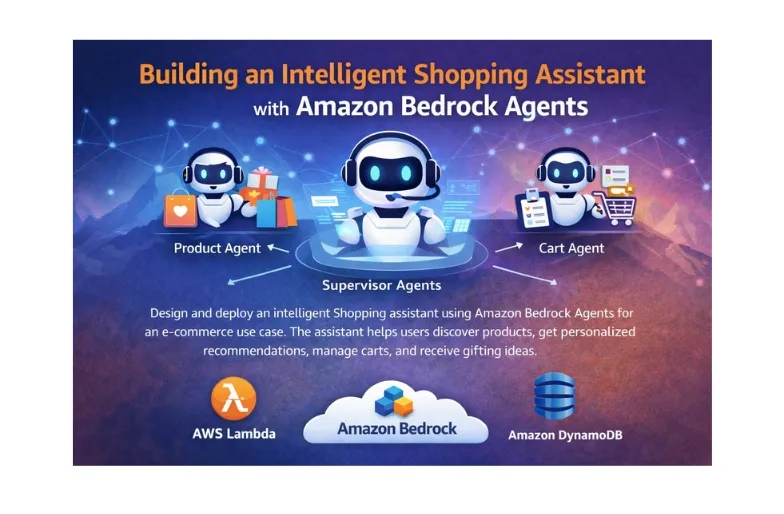
Building an Intelligent Shopping Assistant with Amazon Bedrock Agents
Design and deploy an intelligent shopping assistant using Amazon Bedrock Agents for an e-commerce use case. The assistant helps users discover products, get personalized recommendations, manage carts, and receive gifting ideas. I will gain hands-on experience with multi-agent workflows, AWS Lambda, and Amazon DynamoDB, learning how to build scalable, AI-driven applications on AWS.

As Generative AI continues to reshape application development, AWS now enables builders to create action-oriented AI agents that don’t just chat but get work done. In this blog post, I’ll walk through a hands-on workshop where we build a smart e-commerce product recommendation chatbot using Amazon Bedrock Agents.
This project showcases how multiple AWS services work together to deliver a real-world conversational commerce experience, including product discovery, personalized recommendations, cart management, gift suggestions, and multi-agent collaboration.
This walkthrough is ideal for AWS Community Builders, solution architects, and developers exploring Generative AI on AWS no prior ML experience required.
The solution uses:
- Amazon Bedrock Agents for conversational intelligence
- AWS Lambda for API-based actions
- Amazon DynamoDB for product and cart data
- Knowledge Bases for Amazon Bedrock for Retrieval Augmented Generation (RAG)
- Simulated Amazon Personalize integration
- A multi-agent collaboration model with a supervisor agent
Architecture
A serverless architecture of Amazon Bedrock calling AWS Lambda functions which do some actions on a set of Amazon DynamoDB tables, and utilizing Knowledge Bases for Amazon Bedrock to incorporate data from files in Amazon Simple Storage Service (Amazon S3).

Conversational Product Discovery
The first capability we implement is a product exploration agent.
Instead of forcing users to navigate filters and menus, the chatbot asks natural questions such as:
- Who is the gift for?
- What’s the occasion?
- Do you have a category in mind?
Behind the Scenes
- Product data is stored in a DynamoDB table (
producttableandapi-ws-Products-XXXX) - Attributes include product name, category, gender, and occasion
- Global Secondary Indexes (GSIs) enable efficient filtering
- A Lambda function (
GetProductDetailsFunction) dynamically queries the table based on conversation context
Create the Agent
Create an Agent from Amazon Bedrock console -> Agents you can use
product-recommendation-agent as the name:
- Select
AnthropicClaude Sonnet 4.5as the model, deselect the ‘Bedrock Agent Optimized’ checkbox to see it

1.1 select model
- Select
Use an existing service roleas the Agent resource role, then select the role starting withproducttableandapi-ws-IAMRole00AmazonBedrock - use the following as the instructions for the agent:
1
2
3
4
5
6
you are a product recommendations agent for gift products, the user is trying to buy a gift for someone and you are trying to help identify the best products based on the filters in the action groups, ask questions to identify at least one of the input filters, gender, category or occasion.

do not recommend any products that are not retrieved from the products API.

do not ask about the gender if it is obvious from the user input already.

Always start by getting the full list of products from the API so you can know the proper filter values to be used in the API parameters.

always use a single value for each filter field, and adhere to the filtration values based on the first API call.

And never tell the user about the API and its details.
This set of instructions is important to guide the Agent on how to communicate with the user and how to utilize the API, this can be adjusted based on the different use cases and business scenarios, as well as the available APIs.

- Enable User input in Additional settings:

Choose “Save” at the top of the page before you proceed to the next steps.

Add an Action group
- Navigate to the Action Groups section, then choose “Add” to add an Action Group to enable the Agent to invoke the Lambda Function, and put the name as
get-product-recommendationsand choose Action Group Type “Define with API Schemas”: - Select the ‘GetProductDetailsFunction’ Lambda function for Action Group Invocation:

- Choose ‘Define Via inline schema editor’ for Action Group Schema:

Use the following OpenAPI schema in the in-line OpenAPI schema section:
1
2
3
4
5
6
7
8
9
10
11
12
13
14
15
16
17
18
19
20
21
22
23
24
25
26
27
28
29
30
31
32
33
34
35
36
37
38
39
40
41
42
43
44
45
46
47
48
49
50
51
52
53
54
55
56
57
58
59
60
61
62
63
64
65
66
67
68
69
70
71
72
73
74
75
76
77
78
79
80
81
82
83
{

  "openapi": "3.0.0",

  "info": {

    "title": "Product Details API",

    "version": "1.0.0",

    "description": "This API retrieves product information. Filtering parameters are passed as query strings. If query strings are empty, it performs a full scan and retrieves the full product list."

  },

  "paths": {

    "/products": {

      "get": {

        "summary": "Retrieve product details",

        "description": "Retrieves a list of products based on the provided query string parameters. If no parameters are provided, it returns the full list of products.",

        "operationId":"getProducts",

        "parameters": [

          {

            "name": "product_name",

            "in": "query",

            "description": "Retrieve details for a specific product",

            "schema": {

              "type": "string"

            }

          },

          {

            "name": "category",

            "in": "query",

            "description": "Filter products by category",

            "schema": {

              "type": "string"

            }

          },

          {

            "name": "gender",

            "in": "query",

            "description": "Filter products by gender",

            "schema": {

              "type": "string"

            }

          },

          {

            "name": "occasion",

            "in": "query",

            "description": "Filter products by occasion",

            "schema": {

              "type": "string"

            }

          }

        ],

        "responses": {

          "200": {

            "description": "Successful response",

            "content": {

              "application/json": {

                "schema": {

                  "type": "array",

                  "items": {

                    "type": "object",

                    "properties": {

                      "product_name": {

                        "type": "string"

                      },

                      "category": {

                        "type": "string"

                      },

                      "gender": {

                        "type": "string"

                      },

                      "occasion": {

                        "type": "string"

                      },

                      "product_description": {

                        "type": "string"

                      }

                    }

                  }

                }

              }

            }

          }

        }

      }

    }

  }

}- Choose “Create” to create the action group, then on the Agent builder page, Choose “Save” and then “Prepare” on the top of the page. then you can use the ‘Test Agent’ section on the right to start testing having conversations with the chatbot.

Proceed to next section to test your agent
Test the agent chatbot’s responses recommending products after calling the API:

The agent automatically adjusts API inputs as the conversation evolves asking clarifying questions when needed and returning the most relevant products.

Sample Conversation and Responses:
Once it has gathered enough information, it queries the API and presents a list of recommended products matching the user’s preferences.

The agent’s primary goal is to engage in a conversation with the user, gathering information about the recipient’s gender, the occasion for the gift, and the desired category. Based on this information, the agent will query the Lambda Function to retrieve and recommend suitable products.
Shopping Cart Management
Next, we extend the chatbot with cart operations, turning it from a recommender into a true shopping assistant.
Capabilities Added
- Add products to the cart
- Retrieve current cart contents
Implementation
- Cart data is stored in a DynamoDB table (
producttableandapi-ws-Cart-XXXXX) - Lambda functions (
AddToCartFunctionandGetCartFunction) handle cart operations - The chatbot invokes these APIs directly through Amazon Bedrock Agents
Cart Actions
Add 2 more functionalities to the agent: adding an item to a shopping cart and getting shopping cart information.
The chatbot will leverage 2 APIs in the form of Lambda functions called
GetCartFunction and AddToCartFunction, which will get the cart details and add a product to the producttableandapi-ws-Cart-XXXXX DynamoDB table. Those components were already created for you as part of the workshop CloudFormation setup.Cart Table Attributes:
user_idproduct_nameWith these APIs connected, the chatbot can seamlessly manage cart operations through conversation.
Edit the Agent
Now that the cart infrastructure is in place, update the agent to use the new cart APIs. After recommending products, the agent should ask the user if they want to add an item to the cart. To associate the cart with a user, the agent should prompt once for the user’s email ID and reuse it for all future cart actions.
Choose the Agent you created in the previous section of the workshop, and choose Edit in Agent Builder

Use the following as the updated instructions for the agent:
1
2
3
4
5
6
7
you are a product recommendations agent for gift products, the user is trying to buy a gift for someone and you are trying to help identify the best products based on the filters in the action groups, ask questions to identify at least one of the input filters, gender, category or occasion.

do not recommend any products that are not retrieved from the products API.

do not ask about the gender if it is obvious from the user input already.

Always start by getting the full list of products from the API so you can know the proper filter values to be used in the API parameters.

always use a single value for each filter field, and adhere to the filtration values based on the first API call.

And never tell the user about the API and its details.

After recommending products ask the user if they want to add any products to the cart, then use the add to cart API to add it, ask the user about his email and use it as user id and use it along the whole conversation and in any cart API calls, reply to the user with the user id after first cart addition to be used in later additions.
These updated set of instructions are important to guide the Agent how to communicate with the user and how to utilize the APIs, this can be adjusted based on the different use cases and business scenarios as well as the available APIs.

Important Choose “Save” on the top of the page before you proceed to next steps.
Add new Action groups
Navigate to the Action Groups section, then choose “Add” to add an Action Group to enable the Agent to invoke the
GetCartFunction Lambda Function, put the name as get-cart and choose Action Group Type “Define with API Schemas”:
Select the ‘GetCartFunction’ Lambda function for Action Group Invocation and Select ‘Define Via inline schema editor’ for Action Group Schema:

schema for get cart
Use the following OpenAPI schema in the in-line OpenAPI schema section:
1
2
3
4
5
6
7
8
9
10
11
12
13
14
15
16
17
18
19
20
21
22
23
24
25
26
27
28
29
30
31
32
33
34
35
36
37
38
39
40
41
42
43
44
45
46
47
48
49
50
51
52
53
54
55
56
57
58
{

  "openapi": "3.0.0",

  "info": {

    "title": "Get Cart API",

    "version": "1.0.0",

    "description": "This API retrieves the items in a user's cart."

  },

  "paths": {

    "/cart": {

      "get": {

        "summary": "Get the user's cart",

        "description": "Retrieves the list of products in the user's cart.",

        "operationId":"getCart",

        "parameters": [

          {

            "name": "userId",

            "in": "query",

            "description": "The ID of the user",

            "required": true,

            "schema": {

              "type": "string"

            }

          }

        ],

        "responses": {

          "200": {

            "description": "Successful response",

            "content": {

              "application/json": {

                "schema": {

                  "type": "array",

                  "items": {

                    "type": "object",

                    "properties": {

                      "product_name": {

                        "type": "string"

                      }

                    }

                  }

                }

              }

            }

          },

          "400": {

            "description": "Bad Request",

            "content": {

              "application/json": {

                "schema": {

                  "type": "string"

                }

              }

            }

          }

        }

      }

    }

  }

}
Choose “Create” to create the action group.

Add another Action Group in the Action Groups section, Choose “Add” to add an Action Group to enable the Agent to invoke the
AddToCartFunction Lambda Function, put the name as add-item-to-cart and choose Action Group Type “Define with API Schemas”:
Select the ‘AddToCartFunction’ Lambda function for Action Group Invocation:

Select ‘Define Via inline schema editor’ for Action Group Schema:
schema for add item to cart
Use the following OpenAPI schema in the in-line OpenAPI schema section:
1
2
3
4
5
6
7
8
9
10
11
12
13
14
15
16
17
18
19
20
21
22
23
24
25
26
27
28
29
30
31
32
33
34
35
36
37
38
39
40
41
42
43
44
45
46
47
48
49
50
51
52
53
54
55
56
57
58
59
{

  "openapi": "3.0.0",

  "info": {

    "title": "Add to Cart API",

    "version": "1.0.0",

    "description": "This API adds a product to a user's cart."

  },

  "paths": {

    "/cart": {

      "post": {

        "summary": "Add a product to the cart",

        "description": "Adds a product to the user's cart. If the product already exists in the cart, it returns an error.",

        "operationId":"postCart",

        "parameters": [

          {

            "name": "userId",

            "in": "query",

            "description": "The ID of the user",

            "required": true,

            "schema": {

              "type": "string"

            }

          },

          {

            "name": "productName",

            "in": "query",

            "description": "The name of the product to add to the cart",

            "required": true,

            "schema": {

              "type": "string"

            }

          }

        ],

        "responses": {

          "200": {

            "description": "Successful response",

            "content": {

              "application/json": {

                "schema": {

                  "type": "string"

                }

              }

            }

          },

          "400": {

            "description": "Bad Request",

            "content": {

              "application/json": {

                "schema": {

                  "type": "string"

                }

              }

            }

          }

        }

      }

    }

  }

}
Choose “Create” to create the action group. Then on the Agent builder page, Choose “Save” and then “Prepare” on the top of the page. Now you can use the ‘Test Agent’ section on the right to start testing having conversations with the chatbot.
Test the Agent
Below are example conversations, along with the chatbot’s responses recommending products and adding them to the cart:


You can see the items added to the cart in the DynamoDB table
producttableandapi-ws-Cart-XXXXX:
Sample Conversation and Responses:
You can see the rationale for each response by Choosing Show trace >, see how the Agent decides to use different API filters based on the discussion:

From the user’s perspective, everything happens naturally through conversation.
Personalized Recommendations with Amazon Personalize
To simulate real-world personalization, we integrate a mock Amazon Personalize workflow.
Why Amazon Personalize?
**** Amazon Personalize is a fully managed ML service that uses the same recommendation technology behind Amazon.com without requiring ML expertise.
Use Case: Increase Average Cart Value
- Suggest complementary items
- Reduce browsing fatigue
- Encourage cross-selling
Implementation
- The chatbot invokes GetPersonalizeRecommendationFunction
- The input product is the item most recently added to the cart
- The function returns a related product recommendation
A Lambda function (
“Customers who bought X also bought Y” scenario by recommending products commonly purchased together.
GetPersonalizeRecommendationFunction) simulates a“Customers who bought X also bought Y” scenario by recommending products commonly purchased together.
Edit the Agent
Now that the Amazon Personalize integration is available, update the agent to call the Personalize recommendation API whenever a user adds a product to the cart. The agent should pass the product name as input and return a “customers who bought this also bought” recommendation to the user.
Choose the Agent you created in the previous section of the workshop, and choose Edit in Agent Builder

- Use the following as the updated instructions for the agent:
1
2
3
4
5
6
7
8
9
you are a product recommendations agent for gift products, the user is trying to buy a gift for someone and you are trying to help identify the best products based on the filters in the action groups, ask questions to identify at least one of the input filters, gender, category or occasion.

do not recommend any products that are not retrieved from the products API.

do not ask about the gender if it is obvious from the user input already.

Always start by getting the full list of products from the API so you can know the proper filter values to be used in the API parameters.

always use a single value for each filter field, and adhere to the filtration values based on the first API call.

And never tell the user about the API and its details.

After recommending products ask the user if they want to add any products to the cart, then use the add to cart API to add it, ask the user about his email and use it as user id and use it along the whole conversation and in any cart API calls, reply to the user with the user id after first cart addition to be used in later additions.

before item addition to the cart, use the get personalize recommendation API to get products other customer has bought based on the product that you just added to the cart, recommend that to the user by telling them that other customers also bought this along with the product that you just added and ask if they want to also add it to the cart as well.

after adding an item to the cart, retrieve the cart items from the get cart API and display it to the user, the user can ask about the items in the cart at any time, use the get cart api to answer that.
Important Choose “Save” on the top of the page before you proceed to next steps.
Add new Action groups
Navigate to the Action Groups section, then choose “Add” to add an Action Group to enable the Agent to invoke the
GetPersonalizeRecommendationFunction Lambda Function, put the name as get-amazon-personalize-recommendation and choose Action Group Type “Define with API Schemas”:Select the ‘GetPersonalizeRecommendationFunction’ Lambda function for Action Group Invocation:

Select ‘Define Via inline schema editor’ for Action Group Schema:
Use the following OpenAPI schema in the in-line OpenAPI schema section:
1
2
3
4
5
6
7
8
9
10
11
12
13
14
15
16
17
18
19
20
21
22
23
24
25
26
27
28
29
30
31
32
33
34
35
36
37
38
39
40
41
42
43
44
45
46
47
48
49
50
51
52
53
54
55
56
57
58
59
60
61
62
63
64
65
66
67
68
69
70
71
72
73
74
75
{

  "openapi": "3.0.0",

  "info": {

    "title": "Get Product Recommendation API",

    "version": "1.0.0",

    "description": "This API retrieves a recommended product based on the input product name."

  },

  "paths": {

    "/personalize-recommendation": {

      "get": {

        "summary": "Get a recommended product from Amazon personalize",

        "description": "Retrieves a recommended product based on the input product name using Amazon Personalize.",

        "operationId":"getPersonalize",

        "parameters": [

          {

            "name": "product_name",

            "in": "query",

            "required": true,

            "description": "The name of the product for which to get a recommendation",

            "schema": {

              "type": "string"

            }

          }

        ],

        "responses": {

          "200": {

            "description": "Successful response",

            "content": {

              "application/json": {

                "schema": {

                  "type": "array",

                  "items": {

                    "type": "object",

                    "properties": {

                      "product_name": {

                        "type": "string"

                      },

                      "product_description": {

                        "type": "string"

                      },

                      "category": {

                        "type": "string"

                      },

                      "gender": {

                        "type": "string"

                      },

                      "occasion": {

                        "type": "string"

                      }

                    }

                  }

                }

              }

            }

          },

          "400": {

            "description": "Bad Request",

            "content": {

              "application/json": {

                "schema": {

                  "type": "object",

                  "properties": {

                    "message": {

                      "type": "string"

                    }

                  }

                }

              }

            }

          }

        }

      }

    }

  }

}
Choose “Create” to create the action group.
Then on the Agent builder page, Choose “Save” and then “Prepare” on the top of the page. Now you can use the ‘Test Agent’ section on the right to start testing having conversations with the chatbot.
Test the Agent
Below are example conversations, along with the chatbot’s responses recommending products and adding them to the cart, then recommending similar personalized product that other customers have purchased:

Sample Conversation and Responses:
You can see the rationale for each response by selecting Show trace >, see how the Agent decides to use different API filters based on the discussion:

Amazon Personalize to enhance recommendations and increase average cart value.
Gift Wrapping Ideas with Knowledge Bases for Amazon Bedrock
To further enhance the user experience, you’ll add gift-wrapping suggestions using Knowledge Bases for Amazon Bedrock.
Why Knowledge Bases?
Knowledge Bases enable Retrieval Augmented Generation (RAG) by:
- Pulling relevant content from private data sources in Amazon S3
- Enriching prompts with contextual information
- Delivering more accurate and personalized responses
Workshop Setup
- A Knowledge Base is already provisioned
- Data source: Amazon S3
- File used:
Gift-wrapping.txt
Synchronize the Knowledge Base data source
Go to the Knowledge Bases for Amazon Bedrock console. Choose the ‘GiftWrappingKnowledgeBase’. In the Data source section, select the ‘GiftWrappingDataSource’ and choose Sync.

Choose the ‘GiftWrappingDataSource’ to view its details and make sure the data source sync is complete from the Sync history section

Edit the Agent
Now that the knowledge base is synchronized, update the agent to query the Knowledge Base based on the products added to the cart and suggest relevant gift-wrapping ideas to the user.
Choose the Agent you created in the previous section of the workshop, and choose Edit in Agent Builder

- Use the following as the updated instructions for the agent:
1
2
3
4
5
6
7
8
9
10
you are a product recommendations agent for gift products, the user is trying to buy a gift for someone and you are trying to help identify the best products based on the filters in the action groups, ask questions to identify at least one of the input filters, gender, category or occasion.

do not recommend any products that are not retrieved from the products API.

do not ask about the gender if it is obvious from the user input already.

Always start by getting the full list of products from the API so you can know the proper filter values to be used in the API parameters.

always use a single value for each filter field, and adhere to the filtration values based on the first API call.

And never tell the user about the API and its details.

After recommending products ask the user if they want to add any products to the cart, then use the add to cart API to add it, ask the user about his email and use it as user id and use it along the whole conversation and in any cart API calls, reply to the user with the user id after first cart addition to be used in later additions.

before item addition to the cart, use the get personalize recommendation API to get products other customer has bought based on the product that you just added to the cart, recommend that to the user by telling them that other customers also bought this along with the product that you just added and ask if they want to also add it to the cart as well.

after adding an item to the cart, retrieve the cart items from the get cart API and display it to the user, the user can ask about the items in the cart at any time, use the get cart api to answer that.

Before the end of the conversation ask the user if they want you to suggest gift wrapping ideas for the products in the cart, and get the wrapping ideas based on the gift wrapping knowledge base.
These updated set of instructions are important to guide the Agent how to communicate with the user and how to utilize the APIs, this can be adjusted based on the different use cases and business scenarios as well as the available APIs.

Important Choose “Save” on the top of the page before you proceed to next steps.
Add new Knowledge Base to the Agent
Navigate to the Knowledge Bases section under the Agent, then choose “Add” to add an Knowledge Base to enable the Agent to use the Gift Wrapping knowledge base.
Select the knowledge base ‘GiftWrappingKnowledgeBase’ and choose Action Group Type “Define with API Schemas”. Add the following instructions as the ‘Knowledge base instructions for Agent’:
1
This is a gift wrapping knowledge base for ideas on how to wrap gifts based on the gift details the occasion and its recipient
Choose Add to add the knowledge base to the agent.
Then on the Agent builder page, Choose “Save” and then “Prepare” on the top of the page. Now you can use the ‘Test Agent’ section on the right to start testing having conversations with the chatbot.
Test the Agent
Below are example conversations, along with the chatbot’s responses recommending Gift Wrapping ideas:

Sample Conversation and Responses:
In the sample conversation, the chatbot proactively offers gift-wrapping ideas. When the customer agrees, the agent queries the Knowledge Base to retrieve gift-wrapping suggestions relevant to the products in the cart. By selecting Show trace, you can see the agent’s reasoning and how it dynamically chooses API filters based on the conversation context.

Outcome
The chatbot can now:
- Generate creative gift-wrapping ideas
- Suggest styles based on the occasion or recipient
- Improve customer engagement and loyalty
A pre-configured Knowledge Base uses a file (
Gift-wrapping.txt) containing gift-wrapping ideas, allowing the chatbot to generate thoughtful and context-aware suggestions. Multi-Agent Collaboration
Builds on the multi-agent collaboration pattern in Amazon Bedrock, in the AWS Builders article 🔗 Building a Multi-Agent Product Recommendation Chatbot with Amazon Bedrock, which demonstrates how a supervisor agent orchestrates specialized agents to deliver a seamless e-commerce shopping experience.
Key Takeaways :
- Amazon Bedrock Agents enable action-driven AI, not just chatbots
- Multi-agent collaboration unlocks complex, real-world workflows
- Serverless services like Lambda and DynamoDB pair perfectly with Generative AI
- RAG enhances accuracy, relevance, and user trust
- You can build advanced AI systems without deep ML expertise
Final Thoughts
This project demonstrates how AWS makes it practical to build intelligent, scalable, and secure AI-powered applications using managed services. For AWS Community Builders, it’s a great reference architecture for workshops, demos, hackathons, and real-world customer conversations.
If you’re exploring Generative AI on AWS, Amazon Bedrock Agents are a powerful place to start.
By leveraging Amazon Bedrock Agents, this workshop demonstrates how to build an intelligent, context-aware e-commerce chatbot that can recommend products, manage shopping carts, upsell items using simulated personalization, and enrich conversations with knowledge-based insights. The implementation of multi-agent collaboration, coordinated by a supervisor agent, highlights how complex business workflows can be handled efficiently using specialized agents.
This hands-on experience clearly shows how Amazon Bedrock Agents can call APIs, use knowledge bases, and orchestrate multiple agents to solve real-world business problems. The possibilities with GenAI on AWS are truly endless.
A special thanks to BeSA (Become a Solutions Architect) for providing a free mentoring platform that enabled me to gain practical, hands-on experience with Generative AI through this workshop. BeSA’s guidance and community support played a key role in helping me strengthen my GenAI and cloud skills.
Thank you for taking the time to read my article! If you found it helpful, feel free to like, share, and drop your thoughts in the comments; I’d love to hear from you.
If you want to connect or dive deeper into cloud, AI and DevOps, feel free to follow me on my socials:
💼 LinkedIn
👨💻 DEV Community
🛡️Medium
🐙 GitHub
Enjoyed reading this content? Let the author know!
Your likes, comments, shares, and saves help creators reach more builders.

Loading recommendations
Loading article