
KIRO - The Complete Guide for Teams
A practical guide to connecting your team's tools, managing context, and using specs, Powers, subagents, hooks, and skills to ship faster with Kiro's agentic IDE.

What is Kiro?
Kiro is an agentic IDE built by AWS that goes beyond code completion and chat-based AI assistants. Where most AI coding tools generate code from prompts one conversation at a time, Kiro introduces spec-driven development - a structured methodology where you define what you want to build before the AI writes a single line of code.
The core idea: instead of prompting an AI and hoping it gets it right, you collaborate with Kiro to create a specification (requirements, design, and tasks) that becomes the blueprint for everything that follows - code generation, testing, and verification. The spec is a living document that evolves with your project, not a one-time artifact that gets forgotten.
Kiro works in two modes:
- Vibe mode - traditional AI chat for quick tasks, exploration, and prototyping
- Spec mode - structured, plan-first development for features that need clarity and traceability
Why Spec-Driven Development?
AI coding agents are powerful, but they have a fundamental limitation: they're only as good as the context you give them. Without clear requirements, an AI agent guesses - and guessing at scale produces code that looks right but doesn't match what you actually need.
Spec-driven development solves this by making intent explicit before code generation begins:
- Requirements - What should the system do? Captured as user stories with EARS-format acceptance criteria that are precise enough to test against.
- Design - How should it be built? Technical architecture, data models, API contracts, and integration points - all documented before implementation.
- Tasks - What are the steps? A breakdown of implementation work with clear definitions of done.
This isn't just documentation for documentation's sake. These specs become executable - Kiro extracts correctness properties from your requirements and generates property-based tests that verify your code actually matches what you specified.
Why Context is Everything
The single biggest factor in getting quality output from any AI coding agent is context. An agent without context is like a contractor without blueprints - it'll build something, but probably not what you wanted.
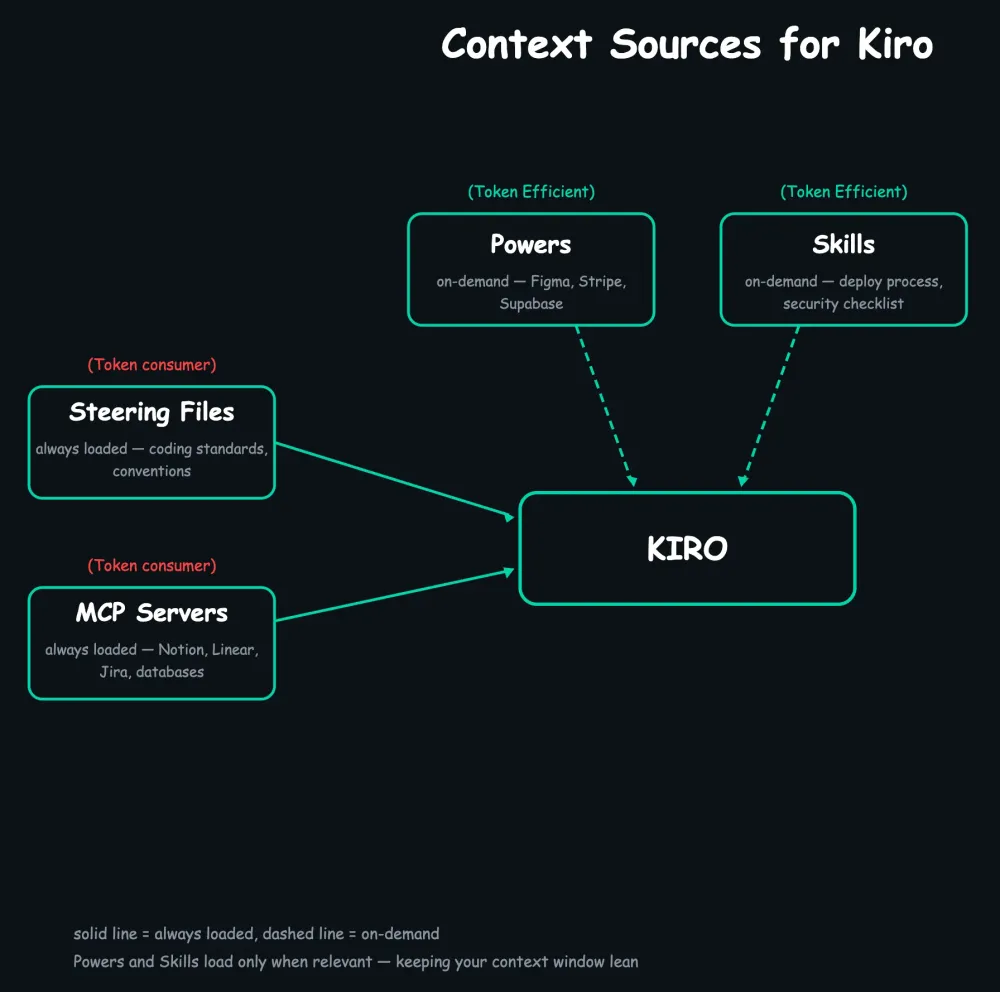
Kiro provides multiple layers of context, each serving a different purpose:
Always in Kiro's Brain:
- Steering Files - "The house rules" - coding standards and conventions
- Your Codebase - "The existing masterpiece" - patterns and file structure
- Active Spec - "The blueprint" - requirements, design, and tasks
Loaded When Needed:
- Powers - "Instant expertise" - Figma, Stripe, Supabase tool knowledge
- Skills - "Quick reference guides" - deploy steps, security checks, API standards
Scoped Per Domain:
- Subagents - "Divide and conquer" - frontend dev, backend dev, reviewer, each with own context
The Outside World:
- MCP Servers - "Phone-a-friend" - Notion, Linear, Jira, Figma, databases
Automated:
- Hooks - "Set it and forget it" - auto-sync, auto-lint, auto-test
The key insight: not all context should be loaded all the time. Kiro's architecture is designed around progressive context loading - steering files and the active spec are always present (they're the blueprint the agent works from), but Powers activate only when you mention a relevant topic, Skills load only when matched, and subagents each manage their own focused context window. This keeps the AI fast and accurate instead of overwhelmed.

What This Guide Covers
- Connecting Kiro specs to your Product Manager's favorite tools (Notion, Linear, Jira, etc.)
- Connecting all your context sources - codebase, Notion, Figma, Linear, APIs
- Specs for greenfield projects and existing codebases
- The full agile workflow from PM ideation to sprint delivery
- Correctness properties - what they are
- How correctness properties become real tests
- Linear/Jira integration, code generation control, and the hybrid approach
- Using specs and properties as code review context
- Keeping specs, code, and tests in sync as things change
- Agent Hooks - event-driven automation for your workflow
- Custom subagents - specialized AI assistants per domain
- Agent Skills - on-demand expertise that loads when relevant
- Multi-root workspaces - working across multiple projects in one window
- Agent modes - autopilot, supervised, and auto model selection
1. Connecting Kiro Specs to Your Product Manager's Favorite Tools
Use case: Your Product Managers work in Notion, Linear, Jira, Confluence, or other project management tools. Your developers work in the IDE. Kiro specs are markdown files in a Git repo - a format Product Managers don't naturally interact with. You need a way to bridge these worlds without forcing non-technical stakeholders into GitHub or developers into manual copy/paste workflows.
Kiro specs (
.kiro/specs/*.md ) are markdown files stored in your project workspace. The primary sharing mechanisms are:- Git-based sharing - Specs live in
.kiro/specs/inside your repo. Any Git host (GitHub, GitLab, Bitbucket) syncs them with the team.
- Copy/paste into external tools - You can copy spec content into Notion, Linear, Confluence, etc.
- MCP integrations (the real answer for Product Managers) - Kiro supports Model Context Protocol servers that connect directly to tools like Notion, Linear, Jira, and others. You can configure MCP servers so that Kiro can read from and write to these platforms natively:
- Use a Notion MCP server to push spec content into Notion pages
- Use a Linear MCP server to create issues/tickets directly from specs
- Use a Jira MCP server to create epics, stories, and tasks in Jira projects
- Use a Confluence MCP server to sync specs with Confluence documentation
The practical recommendation:
- Product Managers draft initial thoughts in Notion, Linear, Jira, or Confluence (their natural habitat)
- Developers pull that content into Kiro via Powers (one-click install for supported tools like Figma), MCP servers (for Notion, Linear, Jira, Confluence, etc.), or custom Powers (for internal/proprietary tools - build once, share with the whole team)
- Specs can be pushed back to Notion/Linear/Jira via MCP for PM review
- The
.kiro/specs/files remain the source of truth for the agent
There is no built-in "publish to Notion" button today - it's done through MCP server configuration and natural language prompts like: "Read the Notion page at [URL] and create a spec" or "Push this spec summary to Linear as an epic."
However, this can be automated with Kiro Agent Hooks. Instead of manually typing those prompts every time, you can set up hooks that trigger automatically. For example:
- A hook that fires whenever a spec file is edited, automatically pushing the updated requirements to a Notion page
- A hook that fires when the agent finishes work, syncing completed tasks to Linear
- A hook that fires when a new spec is created, automatically creating a corresponding Linear epic
Example hook that syncs spec changes to Notion:
{ "name": "Sync Spec to Notion", "version": "1.0.0", "when": { "type": "fileEdited", "patterns": [".kiro/specs/*.md"] }, "then": { "type": "askAgent", "prompt": "The spec file was updated. Use the Notion MCP to update the corresponding Notion page with the latest requirements summary." }}Example hook that creates Linear tickets when agent work completes:
{ "name": "Create Linear Issues on Spec Complete", "version": "1.0.0", "when": { "type": "agentStop" }, "then": { "type": "askAgent", "prompt": "Check if any new tasks were added to specs in .kiro/specs/. If so, use the Linear MCP to create corresponding issues in the project." }}See Section 10 for a full explanation of what Agent Hooks are and how to use them.
2. What Context Sources Can We Add? How Do We Add Them?
Use case: Most teams have knowledge scattered across multiple tools - codebases in GitHub, documentation in Notion or Confluence, designs in Figma, tickets in Linear or Jira. For Kiro to generate useful specs and code, it needs access to these sources - but loading everything at once would overwhelm the AI's context window, slow responses, and increase costs.
What you can add
- Codebase (GitHub) - Already available. Kiro reads your workspace files directly.
- Notion docs - Via Notion MCP server ( official hosted MCP )
- Jira issues/epics - Via Jira MCP server (e.g., Atlassian's MCP )
- Confluence docs - Via Confluence MCP server
- Figma designs - Via Figma Kiro Power (one-click install, recommended) or Figma MCP server
- Linear documents - Via Linear MCP server ( official from Linear )
- API specs (OpenAPI, GraphQL) - Place files in your repo and reference them using
#[[file:path/to/openapi.yaml]]
- Any other tool - Find or build an MCP server, or check the Kiro Powers marketplace
Kiro Powers - The Easiest Way to Add Context (Including Figma)
Before diving into manual MCP configuration, check if a Kiro Power exists for your tool. Powers are the recommended approach - they bundle MCP tools, steering files, and best practices into a one-click install.
What is a Kiro Power?
A Power is a pre-packaged bundle that gives Kiro's agent instant, specialized expertise for a specific tool or domain. Each Power includes:
- A POWER.md steering file - an onboarding manual that tells the agent what tools are available and when to use them
- MCP server configuration - the actual connection to the external service
- Optional hooks and steering - automation and workflow-specific guidance
The key advantage: Powers load dynamically. Instead of all MCP tools consuming your context window at all times, Powers activate only when relevant. Mention "design" and the Figma Power loads. Switch to database work and Supabase activates while Figma deactivates. Baseline context usage when no Powers are active is near zero.
Traditional MCP approach: All tools loaded upfront. 50K+ tokens burned before your first prompt.
Kiro Powers approach: Only the active Power consumes tokens. Everything else stays dormant until needed.
Figma Power - "Design to Code with Figma"
Figma has published an official Kiro Power that goes beyond a raw MCP server. It includes:
- Figma's MCP tools for reading designs, components, styles, and layout information
- Code Connect integration - maps your Figma components directly to code components in your repo
- Steering that guides the agent through design-to-code workflows
- Best practices for translating Figma designs into production-ready frontend code
To install: Open the Kiro Powers panel in the sidebar, search for "Figma", click Install. No manual JSON configuration needed.
Other available launch partner Powers:
- Stripe (payments)
- Supabase (backend-as-a-service)
- Datadog (observability)
- Dynatrace (monitoring)
- Neon (serverless Postgres)
- Netlify (deployment)
- Postman (API testing)
- Strands Agent (AI agent development)
- Plus community-built Powers and the ability to build your own
Recommendation: Use Powers where available (Figma, Stripe, Supabase, etc.). Use raw MCP servers for tools that don't have a Power yet (Linear, Notion, Jira). You can mix both approaches in the same workspace.
How to add them
MCP servers are configured in
.kiro/settings/mcp.json (workspace-level) or ~/.kiro/settings/mcp.json (user-level). Each MCP server provider (Linear, Notion, Jira, Figma, etc.) publishes setup instructions on their website - follow their docs for exact package names, authentication, and configuration.Steering files (
.kiro/steering/*.md ) are another way to inject persistent context. You can reference external files inline:# Project ContextOur API follows the schema defined in #[[file:docs/openapi.yaml]]Our data model is documented in #[[file:docs/data-model.md]]Where to introduce them
- MCP servers - For live, dynamic data from external tools (Notion pages, Linear tickets, Figma designs)
- Steering files - For persistent project conventions, architecture decisions, tech stack info, coding standards
- Spec file references - For linking specific documents (API specs, schemas) directly into a spec using
#[[file:relative_path]]
Performance concerns
- Steering files marked as "always included" consume tokens on every request. Keep them focused and concise.
- Use conditional inclusion (
inclusion: fileMatchwithfileMatchPattern) for context that's only relevant when working on specific files.
- Use manual inclusion (
inclusion: manual) for large reference docs - only loaded when you explicitly add them via#in chat.
- MCP tool calls only consume tokens when invoked, not passively. They're efficient for on-demand lookups.
- Large files referenced via
#[[file:]]will expand into the context window. Keep referenced files reasonable in size, or point to summaries.
3. Specs for Greenfield Projects and Existing Codebases
Use case: Whether you're starting a brand-new project from scratch or adding features to a mature codebase, Kiro needs the right context to generate specs that actually fit. A greenfield project needs architectural decisions and technology choices. An existing codebase needs Kiro to respect established patterns and integrate with what's already built.
Greenfield projects - starting from scratch
When there's no existing code, Kiro's spec-driven approach is at its strongest. You define the architecture before any code exists, which means the spec becomes the single source of truth for the entire project.
How to get the best results on greenfield:
- Be explicit about your tech stack in the prompt - tell Kiro what frameworks, languages, and infrastructure you want
- Set up steering files early - even before your first spec, create
.kiro/steering/architecture.mdwith your chosen stack, conventions, and patterns
- Use specs to make architectural decisions visible - data models, API contracts, auth strategy, error handling patterns
- Start with a foundational spec - create your first spec for the core infrastructure (project setup, database schema, auth) before feature specs
Existing codebases - building on what's already there
When you have an established project, Kiro needs to understand your existing patterns so it doesn't generate specs that conflict with them.
How to make Kiro aware of your existing code:
- Open your project in Kiro first - it has access to all workspace files and can read them during spec creation
- Reference existing code in your prompt - tell Kiro to review specific directories and integrate with current patterns
- Use steering files to document your architecture - create
.kiro/steering/architecture.mddescribing your existing stack, patterns, and conventions
- Reference key files in specs - use
#[[file:src/api/routes.py]]or#[[file:src/components/Layout.tsx]]to give Kiro explicit awareness of existing code
- Iterative refinement - after Kiro generates the initial spec, tell it what it missed: "This doesn't account for our existing auth middleware - update the design to integrate with it."
The key insight for both scenarios
Kiro's specs are editable markdown. Whether greenfield or existing, you review and refine them before any code is generated. On greenfield, you're shaping the architecture. On existing codebases, you're guiding integration points. Either way, the spec is a conversation - not a single-round output.
4. Anticipated Workflow - From PM Initial Thoughts Through Agile Development
Use case: Kiro's spec-driven development has three sequential phases - Requirements, Design, Tasks - which can look like a waterfall process at first glance. Teams working in agile sprints need to understand how this fits into their existing iterative workflow.
Stage 1: PM Ideation (Outside Kiro)
PM captures initial thoughts in Notion, Linear, or Jira - user stories, goals, rough requirements. This is the early brainstorming phase - informal, collaborative, PM-owned.
Stage 2: Spec Creation (Developer + Kiro)
Developer pulls PM content into Kiro via MCP servers, Kiro Powers, or copy/paste:
- Via an installed Power (easiest) - If a Power exists for the tool (e.g., Figma Power), it activates automatically when you mention design work.
- Via MCP server - For tools connected through raw MCP (Notion, Linear, Jira): "Read the Notion page [URL] and create a spec"
- Via a custom Power - If your team has internal tools, build a custom Power that packages your own MCP server + steering + hooks. Build it once, share via GitHub, every developer gets the same integration.
- Via copy/paste - Always works as a fallback.
Kiro generates three artifacts: Requirements (user stories with EARS acceptance criteria), Design (technical architecture, data models, API contracts), and Tasks (implementation steps with definitions of done).
Stage 3: Review and Refinement (Collaborative)
Developer reviews the spec, iterates with Kiro. PM reviews requirements section (shared via Notion MCP or Git). This is where the "waterfall" concern dissolves - you iterate on the spec before committing to implementation. Specs are living documents, not frozen contracts.
Stage 4: Sprint Planning (Team)
Tasks from the spec map to sprint items. Push tasks to Linear/Jira via MCP. Team estimates, prioritizes, assigns. Not every task needs to be implemented - tasks in specs are optional, you select which ones to execute.
Stage 5: Implementation (Developer + Kiro)
Developer picks a task from the spec's task list. Kiro uses the spec as context to generate code that aligns with the design. Checkpointing lets you roll back if the agent goes off track.
Stage 6: Verification (Automated + Human)
Property-based tests validate code against spec requirements. Standard unit/integration tests run in CI. Code review uses spec as reference.
Stage 7: Iterate (Continuous)
Requirements change? Update the spec. Kiro can regenerate affected design/tasks. New sprint? Pick the next set of tasks from existing specs or create new ones. Specs accumulate as living documentation of your system.
How this maps to Agile
- User stories = Requirements phase (EARS format acceptance criteria)
- Sprint planning = Task list generation + pushing to Linear/Jira
- Sprint backlog = Selected tasks from spec
- Definition of done = Each task has explicit completion criteria
- Sprint review = Property-based tests + spec verification
- Retrospective = Update specs based on learnings
- Living documentation = Specs evolve with the codebase
The key difference from waterfall: you don't need to complete all three phases before starting work. You can create a lightweight spec, implement one task, learn from it, and refine the spec. The phases are a structure, not a gate.
5. Correctness Properties - What Are They?
Use case: When Kiro generates specs, it produces "correctness properties" alongside requirements. Teams often wonder what these are, whether they're just documentation artifacts or something that actively influences code generation and testing.
What they are
Correctness properties are formal statements extracted from your spec's acceptance criteria that describe how your system should behave universally. They use the format: "For any [inputs], given [preconditions], [expected behavior] is true."
Example from a spec requirement:
THE System SHALL allow authenticated users to view active car listings Becomes the property:
For any authenticated user and any active listing, the user can view that listing.
What they're for
They serve as an executable specification - a bridge between your written requirements and automated verification:
- Measuring spec correctness - Do the code and the spec actually agree? Property-based testing generates hundreds/thousands of random inputs to check.
- Finding edge cases - Unlike unit tests that check specific examples, properties test universal behaviors across entire input spaces.
- Catching spec-implementation drift - When code changes, properties detect if it no longer matches what was specified.
Are they used for agentic code generation?
Yes. When Kiro generates code from a spec, the properties serve as a feedback loop:
- Kiro generates code
- Runs property-based tests (100s of random inputs)
- If tests fail, Kiro gets a minimal counter-example via "shrinking"
- Uses it to fix the code
- Repeats until tests succeed
This creates a tighter, more reliable code generation cycle than unit tests alone.
6. Do Correctness Properties Translate to Testing?
Use case: Teams want to know if correctness properties produce real, runnable test code or if they're just theoretical statements. Understanding whether these tests can be edited is critical for teams with existing testing strategies.
Yes - directly
Kiro translates properties into property-based tests using the Hypothesis framework (Python). These are real, runnable test files that integrate with pytest.
How it works:
- Kiro reads your spec's acceptance criteria
- Extracts properties (universal behavioral statements)
- Generates property-based test code with input generators (called "strategies" in Hypothesis)
- Runs hundreds of randomized test cases automatically
- When a test fails, uses "shrinking" to find the minimal counter-example
Example generated test (Python with Hypothesis):
@given(schedule=schedule_strategy(), initial_state=signal_state_strategy())def test_safety_invariant_at_most_one_green(schedule, initial_state): state = initial_state for operation in schedule: state = apply_operation(state, operation) green_count = sum(1 for s in state.signals if s == "green") verify(green_count <= 1)Can they be edited?
Yes. Properties are generated as standard test files in your project. You can edit the property test code directly, modify input generators, add new properties, or remove ones that don't apply.
When a property test fails, Kiro surfaces three options:
- Fix the code - the implementation is wrong
- Fix the spec - the requirement was wrong
- Fix the PBT - the property test itself was wrong
Relationship to traditional testing
Property-based tests are complementary to unit tests, not a replacement. Unit tests check specific input/output pairs (good for documenting known scenarios). Property-based tests check universal behaviors across random inputs (good for finding unknown edge cases). Both can coexist in your test suite and run in CI.
7. Integration Into Your Existing System
Use case: Teams need Kiro to fit into their existing project management and development workflow - creating tickets in Linear or Jira, choosing what code to generate vs. write manually, and maintaining control over what the AI produces.
Creating Linear/Jira Tickets
Use a Linear or Jira MCP server. Once configured, you can say:
"Create a Linear epic and issues from .kiro/specs/notifications.md in project MYPROJECT"
Kiro will use the MCP tools to create issues, mapping spec tasks to tickets. You can also add comments to existing issues, update status, search for related issues, and link spec sections to tickets bidirectionally.
Generating Code - What If We Don't Want To?
You have full control over code generation.
You can use specs without generating any code. Specs are valuable on their own as living requirements documentation, design documents, task breakdowns for manual implementation, context for code reviews, and onboarding material for new team members.
If you do want code generation, you choose what:
- Tasks in specs are optional - you select which ones Kiro implements
- You can click "Start" on individual tasks
- You can implement some tasks manually and let Kiro handle others
- You can use specs purely for planning and write all code yourself
Advantages of letting Kiro generate code:
- Faster implementation of well-specified tasks
- Code aligns with the spec's design decisions
- Property-based tests verify correctness automatically
- Checkpointing lets you roll back any changes
Advantages of NOT generating code:
- Full manual control over implementation details
- Better for highly nuanced or security-critical code
- Team members learn the codebase by writing it themselves
- Specs still provide value as structured planning artifacts
Recommended hybrid approach:
- Let Kiro generate boilerplate, create-read-update-delete operations, standard patterns
- Write complex business logic, security-critical code, and performance-sensitive code manually
- Use specs as the shared understanding regardless of who writes the code
- Use custom subagents to scope code generation by domain (see Section 11)
8. Code Reviews - Using Specs and Correctness Properties as Context
Use case: Code reviews often lack a clear reference point - reviewers check code against their own mental model. Kiro's specs and correctness properties can serve as that reference, giving reviewers concrete acceptance criteria to check against.
How to use specs in code reviews
- PR references the spec section - include a link to the relevant
.kiro/specs/feature.mdsection in your PR description
- Reviewers check code against acceptance criteria - the spec's EARS-format requirements give reviewers concrete criteria to verify
- Property-based test results - if PBTs succeed, reviewers have evidence the code matches the spec
- Design alignment - reviewers can check that implementation follows the spec's technical design
Using Kiro for code review assistance
- Kiro can read a PR diff and compare it against the spec
- Steering files can encode your team's review standards
- Agent hooks can automate review checks (e.g., run PBTs on every PR)
What else to know about code reviews under Kiro
- Steering files can encode review checklists and standards that Kiro follows
- Hooks can trigger automated checks when files are edited (linting, type checking, PBT runs)
- Checkpointing means you can review incremental changes, not just the final result
- Custom subagents are a powerful fit here - create a dedicated
code-review-agentwith read-only access and your team's review checklist (see Section 11)
- The spec creates a shared language between the person writing the code and the person reviewing it
9. Living Project Space - How Does Kiro Keep Everything in Sync?
Use case: In any real project, requirements change, designs evolve, code gets refactored, and tests need updating. The risk is drift - specs saying one thing while the code does another. Teams need to understand what mechanisms Kiro provides to keep all these artifacts in sync.
How Kiro accomplishes a "living" project space
The
.kiro/ directory is the heart of this:.kiro/ specs/ - Requirements, design, tasks (living documents) steering/ - Persistent project context and conventions hooks/ - Automated triggers and workflows agents/ - Custom subagents (frontend, backend, review, etc.) skills/ - On-demand expertise packages (deploy, review, etc.) settings/ - MCP and other configurationSpecs as living documents - Specs are markdown files that you edit at any time. When requirements change, you update the spec and Kiro can regenerate affected design sections and tasks. Property-based tests continuously validate that code matches specs.
Steering as persistent context - Steering files ensure Kiro always knows your conventions, even across sessions. When your architecture evolves, update the steering files and all future work reflects the change.
Hooks as automation - Hooks can trigger actions when files change (e.g., re-run PBTs when implementation files are edited) and remind the agent to check spec alignment after code changes.
How to keep things in sync as changes happen
- Requirements change - Update the spec's requirements section, ask Kiro to update design and tasks accordingly
- Design changes - Update the spec's design section, affected tasks may need updating
- Task changes - Edit tasks directly in the spec, implementation follows
- Code changes - Run property-based tests to verify spec alignment, update spec if behavior intentionally changed
- New team conventions - Update steering files, all future agent work follows new conventions
- External tool changes - MCP servers provide live data, Notion/Linear/Figma changes are reflected when Kiro queries them
What's NOT automatic (yet)
- Specs don't auto-update when code changes - you need to prompt Kiro to reconcile
- External tool sync (Notion, Linear) requires explicit MCP calls, not real-time push
- If someone edits code outside Kiro, property-based tests are your safety net to catch drift
The "living" aspect comes from the combination of: editable specs + persistent steering + automated hooks + property-based verification + MCP integrations. No single feature does it alone - it's the system working together.
10. What Are Kiro Agent Hooks?
Use case: MCP integrations let Kiro read from and write to external tools, but each interaction requires a manual prompt. Teams need event-driven automation - things that happen automatically when files change, when the agent finishes work, or when specific conditions are met.
Agent Hooks are automated triggers that run agent actions in response to IDE events - no manual prompting required. Think of them as "if this, then that" rules for your development workflow.
How they work
A hook has two parts:
- When - the event that triggers it (a file changes, the agent finishes, a prompt is submitted, etc.)
- Then - the action to take (ask the agent to do something, or run a terminal command)
Hooks live as JSON files in
.kiro/hooks/ and are version-controlled with your project, so the whole team shares the same automation.Available trigger events
-
fileEdited- fires when a file is saved (run linting, sync specs)
-
fileCreated- fires when a new file is created (auto-generate tests)
-
fileDeleted- fires when a file is deleted (clean up resources)
-
promptSubmit- fires when a message is sent to the agent (pre-process input)
-
agentStop- fires when agent execution completes (sync to Linear/Notion)
-
preToolUse- fires before a tool is executed (access control, safety checks)
-
postToolUse- fires after a tool is executed (audit logging)
-
userTriggered- fires when user manually clicks a button (on-demand workflows)
Available actions
- askAgent - sends a prompt to the Kiro agent, which then acts on it using all its tools (including MCP)
- runCommand - executes a terminal command directly (e.g.,
npm run lint,pytest)
Practical examples
Auto-lint on save:
{ "name": "Lint on Save", "version": "1.0.0", "when": { "type": "fileEdited", "patterns": ["*.ts", "*.tsx"] }, "then": { "type": "askAgent", "prompt": "Run npm run lint and fix any errors in the edited file" }}Run property-based tests when implementation files change:
{ "name": "Run PBTs on Code Change", "version": "1.0.0", "when": { "type": "fileEdited", "patterns": ["src/**/*.py"] }, "then": { "type": "runCommand", "command": "pytest tests/property/ -x --tb=short" }}On-demand deploy button:
{ "name": "Deploy to Staging", "version": "1.0.0", "when": { "type": "userTriggered" }, "then": { "type": "runCommand", "command": "npm run deploy:staging" }}How to create hooks
- Command palette - search for "Open Kiro Hook UI" to use the visual builder
- Explorer view - find the "Agent Hooks" section in the Kiro sidebar and click "+"
- Manually - create a JSON file in
.kiro/hooks/following the schema above
11. Custom Subagents - Specialized AI Assistants for Your Team
Use case: Projects with multiple technology domains - a React frontend, Python backend, Figma designs, infrastructure-as-code - suffer when a single AI agent tries to handle everything at once. The context window fills up with irrelevant tools, quality drops, and responses slow down. Teams need a way to give each domain focused, expert-level attention.
What are subagents?
Custom subagents are specialized versions of Kiro's agent, each configured for a specific domain or task. Instead of one general-purpose agent that loads everything into context, you split responsibilities across focused agents that each manage their own context window.
Think of it like a team: a frontend specialist, a backend specialist, a code reviewer, and a DevOps engineer - each knowing exactly what they need and nothing more.
How to create them
Subagents live in
.kiro/agents/ (workspace-level) or ~/.kiro/agents/ (user-level). Each agent is a directory with a configuration file that defines:- System prompt - what the agent knows and how it should behave
- Model selection - which AI model to use (can differ per agent)
- Tool access - which tools the agent can use (restrict to only what's needed)
- MCP server integration - which MCP servers the agent has access to
Example: Frontend agent
---description: Frontend development specialist for React components and UItools:  - read  - write  - terminalmcpServers:  - figma---
You are a frontend development specialist. You work with:- React 18+ with TypeScript- Our component library in src/components/- Figma designs via the Figma MCP server- CSS modules for styling
Always follow our design system conventions. Reference existingcomponents before creating new ones.
Example: Code review agent (read-only)
---description: Code review specialist that checks against specs and standardstools:  - read---
You are a code review specialist. When reviewing code:1. Check implementation against the relevant spec in .kiro/specs/2. Verify acceptance criteria are met3. Check for security issues4. Verify error handling follows our patterns5. Check that property-based tests cover the new behavior
You have read-only access. Flag issues but do not modify code.
How Kiro's main agent invokes subagents
Subagents aren't standalone - they're orchestrated by Kiro's main agent through a delegation model.
Automatic selection (IDE): When you type a request in Kiro's main chat, the main agent reads the
description field of every custom agent defined in .kiro/agents/ . If your request matches a subagent's description, Kiro automatically delegates the task to that subagent.- You ask about React components - main agent delegates to
frontend-agent
- You ask about API endpoints - delegates to
backend-agent
- No match - main agent handles it directly
Explicit invocation (IDE + CLI): You can also invoke a specific subagent by name. In the CLI, start a session with
kiro-cli --agent <agent-name> .Key mechanics:
- Each subagent runs with its own context window - the frontend-agent's context isn't polluted with backend tools
- Subagents run autonomously - once delegated, they complete the task independently and return results
- The main agent can delegate to multiple subagents in parallel for independent tasks
- Subagents support live progress tracking
Subagent-to-subagent orchestration (advanced)
Subagents can invoke other subagents, enabling multi-agent workflows. A practical example is the "player/coach" pattern ( documented by the community ):
- Orchestrator agent - you talk to this one
- Player subagent - does the implementation work
- Coach subagent - reviews the work and provides feedback
- Player iterates based on coach feedback - better output
CLI-specific features
- In the Kiro CLI,
subagentis a built-in tool. Add it to your allowed tools list to enable delegation.
- The CLI supports a Plan agent (accessed via
Shift + Tabor/plan) - a read-only agent that breaks down complex tasks into structured implementation plans before handing off to an execution agent.
- The Delegate feature enables launching asynchronous task processes, running Kiro chat sessions with specific agents in parallel to your main conversation.
12. Agent Skills - On-Demand Expertise That Loads When You Need It
Use case: Teams have specialized knowledge - deployment processes, API conventions, security checklists, onboarding guides - that the AI needs to know about, but not all the time. Steering files are always loaded (wasting tokens on irrelevant context), and Powers are designed for external tool integrations. Teams need a lightweight, portable way to package procedural expertise that loads only when relevant.
What are Skills?
Skills are portable instruction packages that follow the open Agent Skills standard . They bundle instructions, scripts, and templates into reusable packages that Kiro activates only when relevant to your current task.
A skill is a folder containing a
SKILL.md file with metadata and markdown instructions:my-skill/ SKILL.md - Required: instructions + metadata scripts/ - Optional: executable code references/ - Optional: documentation assets/ - Optional: templates, resourcesHow Skills work - progressive disclosure
- Discovery - At startup, Kiro loads only the
nameanddescriptionfrom each skill. Dozens of skills might be installed, but they consume almost no tokens.
- Activation - When your request matches a skill's description, Kiro loads the full
SKILL.mdinstructions into context.
- Execution - Kiro follows the instructions, loading referenced scripts or resource files only as needed.
This means a Terraform skill doesn't consume context when you're writing React components. A security review skill isn't active during routine refactoring.
SKILL.md structure
---name: code-review-checklistdescription: Comprehensive code review process following team standards.  Use when reviewing pull requests or code changes.---
# Code Review Checklist
## When to use this skillUse this skill when reviewing code changes or pull requests.
## Review Process1. Check against the relevant spec in .kiro/specs/2. Verify acceptance criteria from EARS requirements3. Security review (input validation, auth, injection risks)4. Error handling patterns5. Test coverage (unit tests + property-based tests)
Where Skills live
- Workspace level (
.kiro/skills/) - project-specific knowledge, shared with the team via Git
- User level (
~/.kiro/skills/) - personal skills that apply across all your projects
Workspace skills take precedence when names collide, so teams can override global defaults.
Skills vs. Steering vs. Powers vs. Subagents - the rule of thumb
- Use steering for things that should always apply (coding standards, project conventions)
- Use skills for specialized knowledge that's only relevant sometimes (deployment process, security review, API design patterns)
- Use powers for external tool integrations that need MCP servers (Figma, Stripe, Supabase)
- Use subagents for domain separation where you want isolated context windows (frontend agent, backend agent)
Cross-tool compatibility
Because Skills follow the open agentskills.io standard, they're portable. Skills built for Claude Code, GitHub Copilot, or other tools that support the standard are compatible with Kiro. Browse community skills at skills.sh .
13. Multi-Root Workspaces - Working Across Projects in One Window
Use case: Many teams don't work in a single repo. You might have a frontend app, a shared component library, a backend service, and infrastructure code - each in separate folders or Git repos. Switching between multiple IDE windows breaks flow and loses context.
What are multi-root workspaces?
A typical Kiro workspace has one root folder. Multi-root workspaces let you bring multiple folders into a single Kiro window, each staying independent but all working together:
my-workspace/ my-app/ - root 1 (your main application) shared-ui/ - root 2 (shared component library) auth-service/ - root 3 (authentication microservice)How to set it up
- File, Add Folder to Workspace... - choose the folder
- Drag and drop a folder from Finder/Explorer into Kiro
How Kiro handles multiple roots
Steering files - one list, multiple sources: All steering files appear in one list. "Always Included" steering loads regardless of which root the agent is working in. "Conditional Inclusion" steering loads only when the agent is working on a file in that specific root.
Hooks - scoped to their root: A hook in
shared-ui/.kiro/hooks/ only triggers when files in shared-ui change. Keeps automation contained and predictable.MCP servers - unified with precedence rules: All MCP server definitions from each root are loaded at startup. If two roots define an MCP server with the same name, the one from the last root wins. Use prefixes to avoid conflicts:
frontend-github and backend-github instead of just github .Codebase search - spans all roots:
#codebase searches across all roots automatically. When using #file with duplicates, Kiro shows full paths so you pick the right one.Real-world example
"Update the Button component in shared-ui to add a 'danger' variant, then update my-app to use the new variant in the delete confirmation dialog."
Kiro works across both roots in one conversation - no window switching, no separate sessions.
14. Agent Modes - Autopilot, Supervised, and Auto Model Selection
Use case: Teams need different levels of AI autonomy for different situations. Boilerplate code and test generation can be fully automated, but infrastructure changes and auth logic need human review at every step.
The three operating modes
Autopilot mode - the agent works autonomously. Give it a high-level goal and it proposes and applies concrete edits. Multi-file transformations, test generation, and doc updates happen in one go. Best for well-scoped, low-risk tasks where the spec clearly defines what needs to happen.
Supervised mode - the same underlying engine, but requires stepwise approval. You review changes in smaller slices instead of one giant diff. Best for risky areas like infrastructure, auth, external contracts, or anything with significant impact.
Auto model selection - Kiro automatically picks the best AI model for the task at hand. Instead of manually choosing between Sonnet, Haiku, or Opus, Auto uses best-in-class models and routes your request to the right one.
When to use which
- Generating tests from a spec - Autopilot (well-scoped, low risk)
- Adding boilerplate data endpoints - Autopilot (repetitive, well-defined)
- Modifying authentication logic - Supervised (high impact)
- Changing infrastructure/IaC templates - Supervised (needs careful review)
- Updating external API contracts - Supervised (affects other systems)
- General daily development - Auto model (let Kiro pick the best model)
Autopilot + specs = confidence
The reason autopilot works well with Kiro is the spec-driven foundation. When tasks are broken down into small, atomic pieces of work that have been defined and reviewed up front, letting the agent execute autonomously feels much safer. Every change traces back to a requirement in the spec.
Checkpointing adds another safety layer - Kiro creates a checkpoint after every change, so you can roll back any number of steps without losing progress.
Autonomous agent (preview)
Kiro also offers a more advanced autonomous agent (currently in preview for Pro, Pro+, and Power users) that goes beyond autopilot:
- Works independently on development tasks in isolated sandbox environments
- Maintains context across tasks, repositories, and pull requests
- Executes across multiple repos - plan a change once and Kiro creates coordinated edits and PRs
- Opens pull requests for review so work progresses while you stay focused
- Learns from your codebase, tickets, and feedback to better align with your team's patterns
This is the "assign and come back later" mode - you assign a task, Kiro works on it in the background, and you review the PR when it's ready.
Summary
Kiro's value for your team comes from treating specs as the connective tissue between Product Managers, developers, and code. MCP servers and Powers bridge the gap to tools your Product Managers already use (Notion, Linear, Jira, Figma). Correctness properties give you automated verification that code matches intent. Custom subagents let you scope the agent's expertise by domain so frontend, backend, review, and DevOps each get focused attention. Skills give the agent on-demand specialized knowledge without bloating the context window. Multi-root workspaces let you work across multiple projects in a single session. Agent modes let you dial autonomy up or down based on risk. Hooks automate the glue between all of these.
The workflow isn't waterfall - it's structured agile. Plan iteratively, implement selectively, verify continuously.
Resources
Blog Posts
Enjoyed reading this content? Let the author know!
Your likes, comments, shares, and saves help creators reach more builders.

Loading recommendations
Loading article