
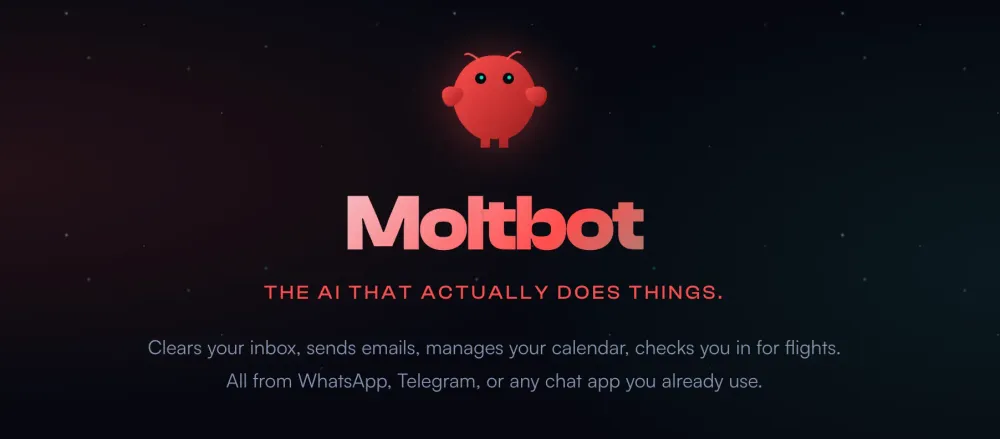
Build Your Own AI Assistant with Molt Bot (Clawdbot) and Amazon Nova: A Complete Setup Guide
Learn how to deploy Molt Bot (previously known as Clawdbot) — a powerful, open-source AI assistant — using Amazon Nova foundation models on Amazon Bedrock. This step-by-step guide covers creating AWS access keys, configuring AWS authentication on Molt Bot, and running your own AI assistant powered by AWS-native models.


Amazon Nova is AWS's state-of-the-art foundation models designed for a wide range of AI tasks. From the lightweight Nova Micro for text-only workloads to Nova Pro and Nova Premier for multimodal understanding across text, images, and video — Nova models offer compelling performance at competitive price points.
Molt Bot (previously known as Clawdbot) is an open-source AI assistant that integrates seamlessly with Amazon Bedrock. By combining Molt Bot with Amazon Nova, you get a fully-featured AI assistant powered by AWS-native models.
This guide walks you through setting up Molt Bot with Amazon Nova models using AWS access keys or AWS profile.
Prerequisites
Before you begin, ensure you have the following:
- An AWS account
- Node.js v24 or later installed on your machine
Amazon Nova 2 Model Overview
Amazon Nova offers two generations of models. Nova 2 is the latest release with enhanced reasoning, extended thinking, and built-in tools. Nova models remain available for existing workloads.
Nova 2 Models (Latest)
| Model | Model ID | Input | Output | Context | Best For |
|---|---|---|---|---|---|
| Nova 2 Lite | amazon.nova-2-lite-v1:0 | Text, Image, Video, Documents | Text | 1M tokens | High-volume agentic workflows, extended thinking, cost-efficient multimodal |
Nova 2 Key Features:
- Extended thinking - Advanced reasoning with three-level intensity control for complex multi-step problems
- Built-in tools - Web grounding for real-time information and code interpreter for Python execution
- AI agent optimization - Improved tool use and context maintenance for agentic workflows
- Enhanced document understanding - Better processing of tables, charts, and multi-page documents
Step 1: Create IAM User
- Navigate to IAM in the AWS Console
- Select Users from the left navigation pane
- Select Create Users and fill in the User name, for example "MoltBot"
- Click Attach policies directly
- Under Permissions polices, select AmazonBedrockFullAccess
- Click Next
- Click Create user

Step 2: Create Access Keys
- Go to the Security credentials tab
- Under Access keys, click Create access key
- Select Command Line Interface (CLI) as the use case, tick the checkbox and click Next
- Click Create access key
- Download the CSV file or copy both the Access Key ID and Secret Access Key
Important: You will not be able to view the secret key again after this step.


Step 3: Install & Onboard Molt Bot (Clawdbot)
Verify if you have Node.js installed:
1
node --version
Install Molt Bot (Clawdbot):
1
npm install -g clawdbot@latest
Important: As of 27-Jan-2026, the npm package is still named as clawdbot, hence use clawdbot for all command until the npm package name is updated to moltbot.
Verify the installation:
1
clawdbot --version
Run Onboarding:
1
clawdbot onboard --install-daemon
During the onboarding wizard:
- Accept the security notice
- Select Manual onboarding mode
- Select Local gateway (this machine)
- Set your workspace directory
- Skip model/auth provider for now
- Filter models by provider: select amazon-bedrock
- Choose your default model (e.g.,
amazon-bedrock/amazon.nova-lite-v1:0) - Accept default gateway settings (port 18789, loopback)
- Complete the remaining prompts
- Select Do this later when prompted if you want to hatch your bot
Step 4: Configure AWS Credentials
Molt Bot (Clawdbot) reads environment variables from
~/.clawdbot/.env. Create this file with your AWS credentials using either Option A or Option B:Option A: Using AWS Access Keys (Recommended for simplicity)
1
2
3
4
5
6
cat > ~/.clawdbot/.env << 'EOF'
# AWS Credentials for Bedrock
AWS_ACCESS_KEY_ID=your-access-key-id-here
AWS_SECRET_ACCESS_KEY=your-secret-access-key-here
AWS_REGION=us-east-1
EOF
Replace
your-access-key-id-here and your-secret-access-key-here with your actual AWS credentials.Option B: Using AWS Profile
If you have AWS CLI configured with profiles (
~/.aws/credentials):1
2
3
4
5
cat > ~/.clawdbot/.env << 'EOF'
# AWS Credentials for Bedrock
AWS_PROFILE=your-profile-name
AWS_REGION=us-east-1
EOFReplace
your-profile-name with your actual AWS profile name.Step 5: Add Nova 2 Lite to clawdbot.json
nano ~/.clawdbot/clawdbot.json and add the models section:1
2
3
4
5
6
7
8
9
10
11
12
13
14
15
16
17
18
19
20
21
22
{
"models": {
"providers": {
"amazon-bedrock": {
"baseUrl": "https://bedrock-runtime.us-east-1.amazonaws.com",
"api": "bedrock-converse-stream",
"auth": "aws-sdk",
"models": [
{
"id": "us.amazon.nova-2-lite-v1:0",
"name": "Amazon Nova 2 Lite (US Inference Profile)",
"reasoning": false,
"input": ["text", "image"],
"cost": { "input": 0, "output": 0, "cacheRead": 0, "cacheWrite": 0 },
"contextWindow": 300000,
"maxTokens": 8192
}
]
}
}
}
}Important: Merge this into your existing
clawdbot.json, don't replace the whole file. It is going to look similar to example below: 1
2
3
4
5
6
7
8
9
10
11
12
13
14
15
16
17
18
19
20
21
22
23
24
25
26
27
28
29
30
31
32
33
34
35
36
37
38
39
40
41
42
43
44
45
46
47
48
49
50
51
52
53
54
55
56
57
58
59
60
61
62
63
64
65
66
{
"messages": {
"ackReactionScope": "group-mentions"
},
"models": {
"providers": {
"amazon-bedrock": {
"baseUrl": "https://bedrock-runtime.us-east-1.amazonaws.com",
"api": "bedrock-converse-stream",
"auth": "aws-sdk",
"models": [
{
"id": "us.amazon.nova-2-lite-v1:0",
"name": "Amazon Nova 2 Lite (US Inference Profile)",
"reasoning": false,
"input": ["text", "image"],
"cost": { "input": 0, "output": 0, "cacheRead": 0, "cacheWrite": 0 },
"contextWindow": 300000,
"maxTokens": 8192
}
]
}
}
},
"agents": {
"defaults": {
"maxConcurrent": 4,
"subagents": {
"maxConcurrent": 8
},
"compaction": {
"mode": "safeguard"
},
"workspace": "/Users/yungjunyong/clawd",
"model": {
"primary": "amazon-bedrock/us.amazon.nova-2-lite-v1:0"
},
"models": {
"amazon-bedrock/us.amazon.nova-2-lite-v1:0": {}
}
}
},
"gateway": {
"mode": "local",
"auth": {
"mode": "token",
"token": "undefined"
},
"port": 18789,
"bind": "loopback",
"tailscale": {
"mode": "off",
"resetOnExit": false
}
},
"wizard": {
"lastRunAt": "2026-01-27T18:09:07.983Z",
"lastRunVersion": "2026.1.24-3",
"lastRunCommand": "onboard",
"lastRunMode": "local"
},
"meta": {
"lastTouchedVersion": "2026.1.24-3",
"lastTouchedAt": "2026-01-27T18:09:07.992Z"
}
}Step 6: Restart the Gateway
1
clawdbot daemon restart
Step 7: Verify Setup
Check that models are available and authenticated:
1
clawdbot models list
You should see output like:
1
2
Model                                      Input      Ctx      Local Auth  Tags
amazon-bedrock/us.amazon.nova-2-lite-v1:0     text+image 31k      no    yes   default,configured
The
Auth: yes column confirms your AWS credentials are working.To see all available Bedrock models:
1
clawdbot models list --all
Step 8: Start Using Clawdbot
Launch the terminal UI:
1
clawdbot tui
Or send a message directly:
1
clawdbot agent --message "which AI model powered you"
Changing the Default Model
To switch to a different model (e.g., Claude Opus 3):
1
clawdbot config set agents.defaults.model.primary "amazon-bedrock/anthropic.claude-3-opus-20240229-v1:0"
Conclusion
You now have a fully functional AI assistant powered by Amazon Nova. Molt Bot with Amazon Nova gives you:
- AWS-native AI - built and optimized by AWS for Bedrock
- Data sovereignty - all inference happens within your AWS account
- Flexible pricing - choose the Amazon Nova model that fits your budget
- Multimodal capabilities - process text, images, and video with Nova Lite, Pro, or Premier
- Enterprise-ready - leverage IAM, VPC, and CloudTrail for governance
From here, you can extend Molt Bot with messaging integrations (Telegram, Slack, Discord), scheduled tasks, memory persistence, and custom skills. Check out the full documentation at docs.molt.bot for more advanced configurations.
Enjoyed reading this content? Let the author know!
Your likes, comments, shares, and saves help creators reach more builders.

Loading recommendations
Loading article