
Scale Claude Code to hundreds of developers using Amazon Bedrock with self-managed usage limits
Break free from rigid AI coding assistant quotas and vendor lock-in with a scalable, self-managed solution that puts you in control of your development team's AI budget and tool choices. Learn how to deploy an LLM Gateway backed by Amazon Bedrock to create a unified backend that supports your coding assistants, while maintaining enterprise-grade security, custom rate limits, and cost visibility across your entire organization.


This post is co-written by Ryan Tan, Startup Solutions Architect, Jesus Bernal, Senior Startup Solutions Architect, Pranav Sharma, EMEA SMB SA Lead Architect, and Stephen Smith, Senior Solutions Architect.
Introduction: Agentic Coding
AI Coding agents have taken off in 2025, with an estimated 20 million developers using tools like Kiro , Cline or Claude Code . Customers often adopt these tools through subscription tiers that come with daily/weekly limits. This is the case when using Claude Code directly with models from Anthropic. It may work for most, but for others, these quotas cause throttling when usage limits are hit and waiting for limits to reset is not ideal. Such customers, rather than having rigid predefined controls, often prefer controls that they can self-define at the usage or budget level. They also face other challenges like:
- Additional vendor management - handling Anthropic outside of their AWS ecosystem
- Lack of scalable architecture patterns to securely setup and use AI Coding assistants
- Missing best practices - a lack of guidance to apply consistent organization standards
- Limited flexibility - AI Coding assistants are evolving at a very fast pace, and different developers may want to use different tools but 1st party use limits those options
This post will address these challenges by using Amazon Bedrock coupled with an LLM Gateway solution as a scalable backend for the agentic coding assistants of your choice. Here, we will be showing integration with Claude Code, but the architecture can be used with other tools.
Customer Scenarios
Before diving into the implementation, let's look at a few scenarios where customers can get value from this solution:
- A startup has a team of 20 developers that want to choose their own Agentic coding assistants (Claude Code, OpenCode, etc). By allowing developers flexibility to choose their own AI coding assistants - startups will need a unified way to control access and set budgets for the chosen LLMs being used by these agentic coding assistants.
- A team of 5 developers is using Claude Code, however, one developer is overusing their allocated capacity, blowing the team's token budget on just Claude Code itself. This has resulted in tension within the team, causing other developers to have to 'race' to input their prompts into their tools.
- Developers may ask their AI coding assistants similar problems/issues. Questions such as "what errors are being shown on the observability tooling" may be commonly asked across the organisation. Teams should be able to access logs and learn the commonly asked questions that can then be used to spark conversations between teams.
Proposed solution
The diagram below illustrates key components of the solution. Agentic Coding assistants on your local machine connect to an LLM Gateway component hosted on AWS, which routes requests to Amazon Bedrock or other providers if required. Bedrock provides access to leading coding models, including Anthropic Claude Sonnet/Opus 4.5.
The LLM Gateway is built on the open-source LiteLLM solution and delivers essential capabilities:
- API key management
- Rate limiting at usage, budgetary, and developer and team levels
- Cost visibility and usage tracking
The solution also offers flexibility to connect with providers beyond Amazon Bedrock, such as OpenAI, without requiring architectural changes. This makes it ideal for customers who are planning on using different coding agents such as Codex from OpenAI .

The architecture diagram below provides a detailed view of the LLM
Gateway component and its underlying AWS services. While this example shows deployment on Amazon ECS, the solution also supports Amazon EKS.
Gateway component and its underlying AWS services. While this example shows deployment on Amazon ECS, the solution also supports Amazon EKS.
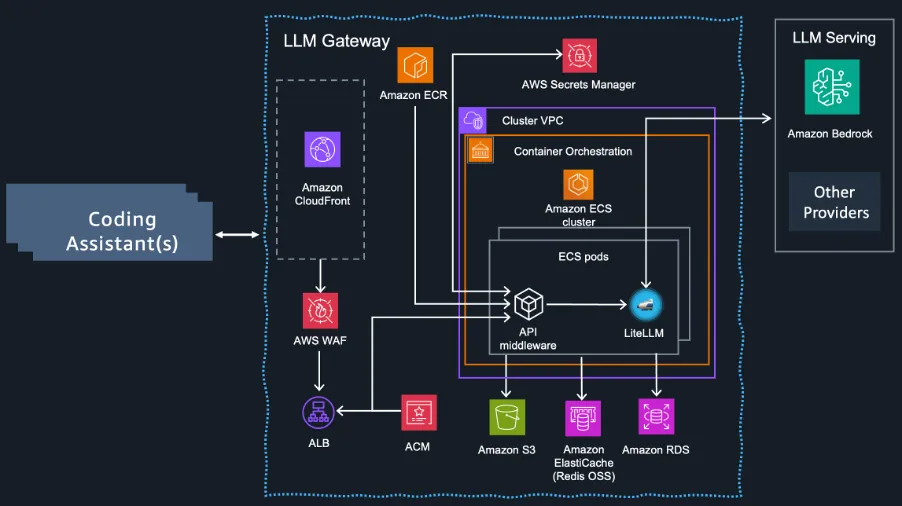
The architecture relies on several key components:
- LiteLLM Admin UI -- Configure rate limits, view cost dashboards, and manage settings
- Amazon S3 -- Stores all usage logs
- Amazon RDS -- Maintains team and user-level configuration data
When requests are made, the following flow occurs:
- Agentic Coding assistants connect to a CloudFront URL
- CloudFront forwards requests to an Application Load Balancer
- The ALB routes traffic to the API middleware service running on
Amazon ECS - The API middleware service connects to LiteLLM service (also running
on ECS), which manages Amazon Bedrock connections, rate limiting features, and model selection
Implementation
This section will detail the steps needed to deploy a pre-configured LiteLLM Gateway onto Amazon Elastic Container Service that will be used as a proxy server to call supported LLM models from Claude Code.
Prerequisites
- Install Docker CLI
- Install AWS CLI
- Install terraform CLI
- Install yq utility
- Install Claude Code
It is best practice to use a separate AWS account for coding assistant inference. Follow this guide for steps to set up an AWS account.
Deploying LLM Gateway
The following steps provide a walkthrough of how to deploy an LLM Gateway solution within your AWS account. The LLM Gateway will act as a proxy server that provides a unified interface for multiple Large Language Model (LLM) providers. It acts as a single API entry point that can route requests to different AI model providers including Amazon Bedrock, OpenAI, Anthropic, and others while maintaining a consistent API interface.
1. Make sure Docker daemon is running.
2. Configure AWS credentials in your favourite command line tool.
- In the cli:
aws configure
3. Clone the LLM Gateway code repository from GitHub
4. In the terminal prompt, change into the root directory of the clone repository
cd guidance-for-multi-provider-generative-ai-gateway-on-aws
5. Run
cp .env.template .env to copy template of LiteLLM deployment options configuration file to its actual value.6. In .env config file, set the
TERRAFORM_S3_BUCKET_NAME value to a globally unique bucket name. This will store your .tfstate files for your Terraform deployment.7. In .env config file, configure your preferred distribution option:
USE_CLOUDFRONT="true"USE_ROUTE53="false"PUBLIC_LOAD_BALANCER="true"
8. Check the list of default models in the
config/default-config-base.yaml file. Add any additional models to the config file. In this example, we have added the Claude Sonnet 4 model as a cross-region model to the config file.
9. Change the region listed in the
deploy.sh file to the region of your deployment.10. Deploy the solution using
/deploy.sh11. To validate the deployment, you can check the ECR registries as the container images for the LLM Gateway will be deployed there.

Configuring the LLM Gateway
With the LLM Gateway deployed (in this case, LiteLLM), the next step is to configure it for your team. Developers need API keys to access the gateway, while teams and users allow admins to manage and track spending and usage. To set this up, we'll take on the role of team admin and access the LiteLLM UI to create teams, users, API keys, and define budgets and limits.
We will be going through the base level configurations needed to get a team up and running, but if you are interested in further customisation, check out the LiteLLM docs .
Accessing the LiteLLM UI
To begin configuring the LLM Gateway, we will need to access the UI. We will log in as the admin user and will have full access.
1. Visit the LiteLLM UI URL by using the CloudFront distribution domain name. It can be found in the AWS console under CloudFront Distributions.

2. Access the LiteLLM Admin Panel

- The master API key is stored in Secrets Manager as the
LiteLLMMasterSalt-XXXXXXXXsecret in theLITELLM_MASTER_KEYkey. This will be used as the log in password. - User id: admin
Creating Users and Teams
There are two methods to manage API keys. They can be added directly to a team or can be mapped to a user. Teams are logical groupings of keys and users, while users created in LiteLLM will map to individuals on your team.
In this case, we will map our API key to a user, then add the user to a team.
1. Access "Teams" within the LiteLLM UI and select "Create New Team" to create a team.

2. Input a team name and adjust any of the settings as you see fit. This can be modified later.

3. Access "Internal Users" and select "Invite User"

4. Input the intended user's email and select the Team ID of the team created earlier.
5. You can then send the invitation link to the intended user to get them onboarded to the LLM Gateway. Your team members will now be able to log into the LiteLLM UI using their newly created credentials to view their keys, teams, models, etc.


Creating API Keys
Now we need to create an API key that will be used later on to access the LLM models.
This API Key will be mapped to the user created earlier.
We use long-term API keys in this implementation as it is the prevalent pattern within the industry, with it being provided by platforms like OpenAI and Amazon Bedrock. However, while long term API keys provide ease of use, they can be a security threat. At scale, we would recommend to use SSO which comes with the enterprise subscription of LiteLLM.
1. Go to "Virtual Keys" and select "Create New Key"
- Set "Owned By" to "Another User"
- Select the User ID created in the previous step
- Select the team created in the previous step
- Input a key name and select desired models

2. Take note of the API key -- you will need it to configure Claude Code. In practice, these API Keys will be created by an admin and shared with developers.
Setting Up Rate Limiting
You can set up limits at various levels. In this case, we will be setting up limits at both the team and user level.
Team Limits
- Access the previously created team
- Select "Settings" and "Edit Settings"
- Set max budget, TPM limit, RPM limit, etc.
User Limits
- Access the previously created user
- Select "Default User Settings" and "Edit Settings"
- Set max budget, models, budget duration, etc.
Configuring Claude Code to use LLM Gateway
Now that LiteLLM has been configured, we can start using it with Claude Code.
- Add environment variables for Claude Code to call models through the LiteLLM gateway using the keys set up in the previous steps.
export LITELLM_MASTER_KEY="YOUR-LiteLLM-API-KEY"export ANTHROPIC_BASE_URL="YOUR-CLOUDFRONT-URL"export ANTHROPIC_AUTH_TOKEN="$LITELLM_MASTER_KEY"
- Launch Claude Code with the desired model.
- e.g.
claude --model eu.anthropic.claude-sonnet-4-20250514-v1:0
- e.g.
Testing the Solution
Let's go through what this looks like in practice.
This is a request made within Claude Code with no limits set.
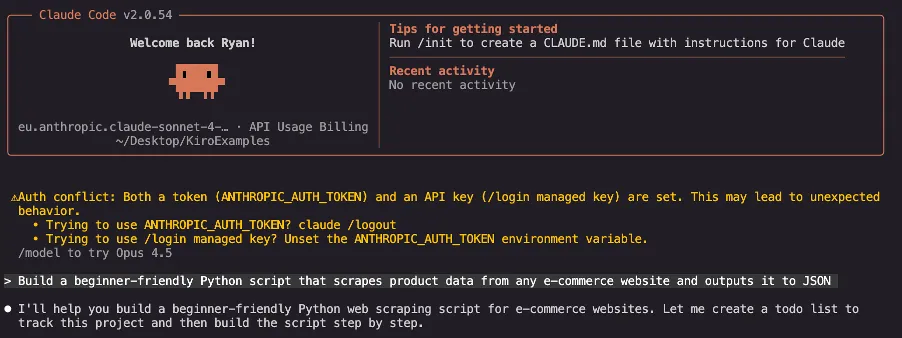
Now, let's set a new max budget for the team. We can see that Claude Code will return an error stating that the budget has been exceeded and the request does not go through.

Similarly, we get an error message stating that the rate limit has been exceeded when the max RPM set for the team has been reached.

Additionally, the solution allows for monitoring within both AWS and the LiteLLM UI. You will be able to track usage globally, per team, by model, and even per key.

Logs are also stored within S3. These logs are in JSON format and contain user ids, questions asked, responses provided, etc.

Conclusion
In this article, we showed how to deploy a solution to help address challenges around AI developer productivity by using Amazon Bedrock as the scalable backend for agentic coding assistants like Claude Code. We also explored an LLM Gateway solution to achieve flexibility and provide controls as needed.
In the next part, we will showcase how you can build a data processing layer to process the logs that are generated while using the solution and run analysis to understand your developers' questions and working style. We will also look at implementing rotating keys, for a more secure design of the solution, rather than using long term API
Enjoyed reading this content? Let the author know!
Your likes, comments, shares, and saves help creators reach more builders.

Loading recommendations
Loading article