
How I Migrated a Self-Hosted KoboToolbox Server from Microsoft Azure to AWS EC2
A practical walkthrough of migrating a self-hosted KoboToolbox server from Microsoft Azure to Amazon EC2, covering VM migration, EBS storage, EC2 configuration, troubleshooting, service verification, and lessons learned from the process.

Introduction
I recently migrated a self-hosted KoboToolbox environment from a Microsoft Azure virtual machine to Amazon EC2.
The goal of this project was not to perform a fresh KoboToolbox installation. Instead, I wanted to move the existing Ubuntu-based server, including its existing environment and data, from Azure to AWS while minimizing changes to the server.
In this article, I will share the migration approach I used, some of the problems I encountered, and what I learned during the process.
Existing Environment
Before the migration, KoboToolbox was running on an Ubuntu virtual machine in Microsoft Azure.
The server contained an existing KoboToolbox deployment running with Docker, along with the associated application environment and data.
Instead of rebuilding the entire KoboToolbox environment on AWS, I decided to migrate the existing virtual machine.
My high-level migration path was:
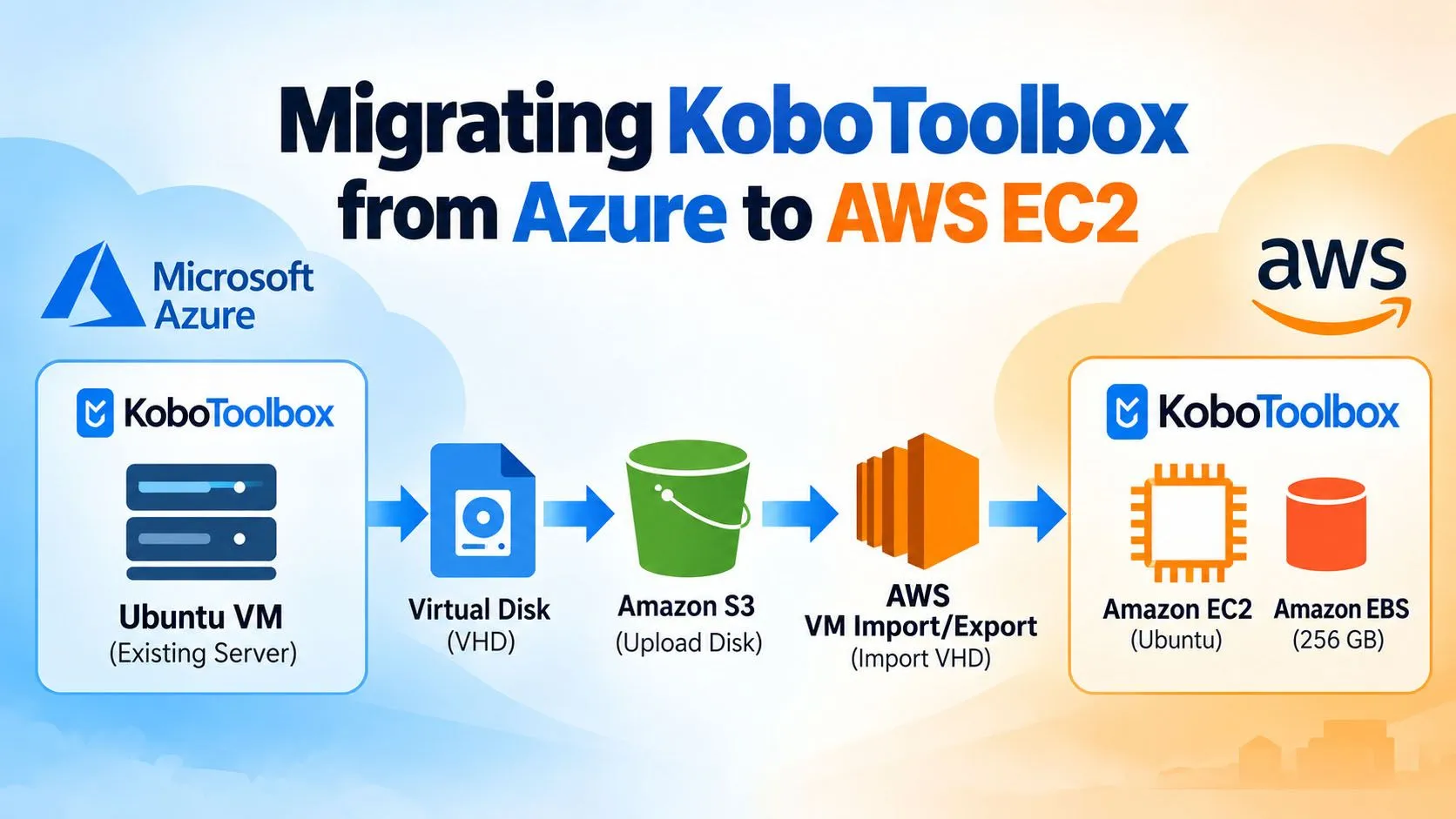
Azure VM → Virtual Disk → Amazon S3 → AWS VM Import/Export → Amazon EC2
Preparing the AWS Environment
Before importing the server, I prepared the required AWS resources.
These included:
- An Amazon S3 bucket for the VM import process
- Appropriate IAM permissions for VM Import/Export
- An Amazon EC2 environment
- Amazon EBS storage
- A Security Group for controlling access to the EC2 instance
The S3 bucket was used as temporary storage for the exported virtual disk before AWS converted it into an EC2-compatible resource.
Exporting the Azure Virtual Machine Disk
The next step was to prepare the existing Azure VM disk for migration.
Because this was an existing production-style server, I wanted the disk to remain as consistent as possible during the migration.
The virtual disk was exported from Azure and prepared for transfer to AWS.
The disk size in my environment was approximately 256 GB.
After preparing the disk, I uploaded it to the S3 bucket that I had created for the import process.
Importing the VM into AWS
Once the disk was available in Amazon S3, I used AWS VM Import/Export to import it.
VM Import/Export allows existing virtual machine images from other environments to be imported into Amazon EC2.
The basic workflow was:
- Export the virtual disk from the source environment.
- Upload the disk to Amazon S3.
- Start the AWS VM import process.
- Wait for AWS to process and convert the image.
- Use the imported resources to create the EC2 environment.
This stage required patience because importing a large virtual disk is not instantaneous.
Working with the Imported EBS Volume
During troubleshooting, I used a temporary Ubuntu recovery EC2 instance.
At one stage, the recovery instance had two volumes:
- A small temporary Ubuntu system volume
- The imported 256 GB volume containing my original server environment
After verifying the imported disk, I detached the temporary volume and configured the imported 256 GB volume as the boot volume.
This was one of the most important parts of the migration because my goal was to boot the original server environment rather than build KoboToolbox again from scratch.
EC2 Boot and Access Troubleshooting
The imported server did not immediately give me a perfect login experience.
During the migration, I had to troubleshoot several areas, including:
- EC2 boot status
- EBS volume attachment
- Boot device configuration
- SSH connectivity
- EC2 Instance Connect
- Linux username selection
- EC2 instance performance
I also used the EC2 console and serial-console-related troubleshooting while investigating the boot and access problems.
Eventually, the instance successfully passed all EC2 status checks.
Seeing:
3/3 checks passed
was an important milestone because it indicated that the EC2 instance and the underlying AWS infrastructure were operating correctly.
Solving SSH Access
SSH access was another useful learning experience.
Initially, I had difficulty connecting to the imported server. I tested different access methods and reviewed the instance configuration.
After correcting the SSH login details, including the appropriate Linux username and authentication configuration, I was able to access the migrated Ubuntu environment successfully.
This reminded me that after importing a VM from another cloud provider, the original operating-system configuration still matters. Moving the disk does not automatically redesign the Linux authentication configuration.
Configuring EC2 Networking and Security
After the instance was running, I reviewed the EC2 networking configuration.
I configured the required Security Group rules for administrative and application access.
For SSH, it is important to restrict port 22 to trusted administrative IP addresses whenever possible rather than leaving it open to the entire Internet.
I also associated an Elastic IP with the EC2 instance so that the server could have a stable public IPv4 address.
Verifying the KoboToolbox Environment
Getting an EC2 instance into the Running state was not enough. I still needed to confirm that the actual KoboToolbox environment had survived the migration.
After connecting to the server through SSH, I checked the operating system and network interfaces.
I also verified the Docker environment.
For example, I reviewed the available network interfaces and Docker bridge networks and confirmed that the existing KoboToolbox installation files were present.
I then checked the Docker containers and KoboToolbox services to make sure the application environment had migrated with the server.
This verification stage is critical in a lift-and-shift migration.
A successful EC2 status check means that the virtual machine is healthy from the AWS infrastructure perspective. It does not necessarily mean that the application running inside the VM is healthy.
Performance Considerations
During testing, I found that the initial EC2 instance configuration was not providing the performance I wanted.
I changed the EC2 instance type to provide more appropriate resources for the workload.
After the change, the server became more responsive.
This is one advantage of running the workload on Amazon EC2: compute resources can be adjusted as workload requirements change.
However, instance sizing should be based on actual CPU, memory, storage, and application requirements rather than simply selecting a larger instance.
Backup Considerations After Migration
Once the server was operating successfully on AWS, backup became an important consideration.
For this type of migrated server, Amazon EBS snapshots and AWS Backup can be used as part of the backup strategy.
EBS snapshots provide point-in-time backups of EBS volumes, while AWS Backup can provide centralized backup management, scheduling, and retention policies.
A backup strategy should be tested before it is considered complete. Having a backup is useful, but knowing that the workload can actually be restored is even more important.
Important Lessons I Learned
This migration taught me several practical lessons.
1. A cloud migration is more than copying a disk
Storage migration is only one part of the process. Boot configuration, authentication, networking, security, application services, and performance all need to be validated.
2. Keep the original server available during testing
I did not immediately remove the original Azure environment.
Keeping the source environment available during the initial AWS testing provided a rollback option if the migrated server encountered a serious problem.
3. Verify the application, not only EC2
An EC2 instance showing healthy status checks does not guarantee that KoboToolbox or its Docker services are functioning correctly.
Application-level testing is essential.
4. Review security after migration
Security rules from one cloud environment do not automatically translate into the correct AWS Security Group configuration.
After migration, inbound access should be reviewed carefully and unnecessary exposure should be removed.
5. Plan backups before considering the migration finished
After confirming that the workload works correctly, the next task should be protecting it with an appropriate backup and recovery strategy.
Conclusion
Migrating my self-hosted KoboToolbox server from Microsoft Azure to Amazon EC2 was a valuable hands-on cloud migration experience.
The most challenging parts were not simply transferring the virtual disk. Boot configuration, EBS volume handling, SSH access, instance sizing, networking, and application verification all required attention.
The project also reinforced an important cloud migration principle for me:
A migration is not complete when the virtual machine starts. It is complete when the application has been verified, secured, backed up, and can be recovered if something goes wrong.
For anyone planning a similar migration, I recommend keeping the original environment available during testing, documenting each migration step, validating the application separately from the infrastructure, and creating a backup and recovery plan after the workload is stable.
Enjoyed reading this content? Let the author know!
Your likes, comments, shares, and saves help creators reach more builders.

Loading recommendations
Loading article