


Objective
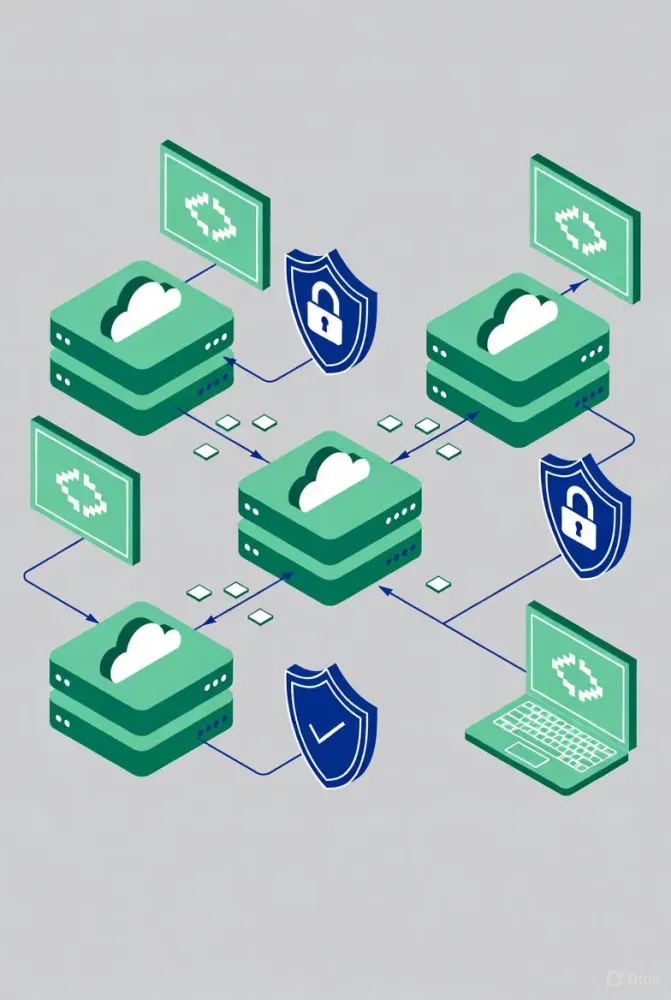
In this article, we will see how to create and deploy a VPS on AWS using EC2.
We will discover what a VPS is, how to create and configure one on AWS, and how to connect to it from a personal computer.
We will discover what a VPS is, how to create and configure one on AWS, and how to connect to it from a personal computer.
Prerequisites
- An AWS account
- Basic knowledge of command-line usage
- An SSH client (terminal)
What Is a VPS?
A VPS (Virtual Private Server) is a computer that allows us to deploy and manage services in the cloud.
It can host an API, a microservice, a website, etc.
It can host an API, a microservice, a website, etc.
A VPS is equipped with:
- CPU
- RAM
- Storage
- An operating system
- Administrative access
On AWS, VPSs correspond to EC2 instances (Elastic Compute Cloud).
An EC2 instance allows you to launch a virtual server on demand, offering a high level of security and control.
An EC2 instance allows you to launch a virtual server on demand, offering a high level of security and control.
Throughout this article, the term EC2 will refer to a VPS.
How to Create an EC2 Instance on AWS
Now that we understand what an EC2 instance is, let’s create one.
Follow the steps below.
Follow the steps below.
Choose a Region
To provide cloud access, multiple physical infrastructures are built to store data and process it in real time.
These infrastructures are spread across the globe and are known as Data Centers.
These infrastructures are spread across the globe and are known as Data Centers.
They contain all the necessary hardware to perform cloud operations.
When you choose a region, you are selecting the physical location of the data center that will host your server.
To select a region:
- Click near your profile name
- Choose the region that suits you (for example: eu-west-3 – Paris)
Launch an EC2 Instance
This step allows you to create your EC2 instance—your cloud machine.
Steps:
- Go to EC2
- Select Instances
- Click Launch Instance
- Give your EC2 a name (for example:
my-vps)
Choose an AMI
An AMI (Amazon Machine Image) is the operating system that will run on your EC2 instance.
Choose one based on your needs, for example:
- Ubuntu 22.04
- Amazon Linux 2023
Choose an Instance Type
This defines the type of machine you want to create.
Each instance type comes with predefined characteristics (CPU, RAM, etc.) that you can scale up or down.
Each instance type comes with predefined characteristics (CPU, RAM, etc.) that you can scale up or down.
Choosing the right instance type is very important.
Create a Key Pair (SSH)
The key pair allows you to connect to your VPS using an SSH client.
Steps:
- Create a new key pair
- Download the
.pemfile
⚠️ Keep this file safe: anyone who has it can access your server.
Configure the Security Group
Here you define which ports are open on your EC2 instance.
Common ports:
- 22 → SSH
- 80 → HTTP
- 443 → HTTPS (optional)
⚠️ For security reasons, avoid opening all ports.
You can choose only the ports your service really needs.
You can choose only the ports your service really needs.
Launch the Instance
By clicking Launch Instance, you finalize the creation of your VPS.
At this point, you are already capable of creating an EC2 instance on AWS.
🎉 Congratulations!
🎉 Congratulations!
Deploying on an EC2 Instance
In your SSH client, run the following commands:
1
2
chmod 400 vps-key.pem
ssh -i vps-key.pem ec2-user@PUBLIC_IP
- PUBLIC_IP: the public IP address used to access your VPS
- ec2-user: the default username on your VPS
At this stage, all that remains is to configure your application or service on the EC2 instance.
Remember:
Your EC2 instance is a full computer at your disposal.
Your EC2 instance is a full computer at your disposal.
You will need to:
- Install all dependencies required by your service
- Install Nginx
- Enable it using
systemctl - Configure Nginx
- Start your service
You can then access your service via:
http://PUBLIC_IP- or explicitly:
http://PUBLIC_IP:80
Best Practices and Conclusion
Best Practices
- Do not leave unnecessary ports open
- Use SSH keys instead of passwords
- Stop the instance when not in use
- Monitor costs (AWS Free Tier)
Conclusion
In this article, you learned how to:
- Understand what a VPS is on AWS
- Create an EC2 instance
- Connect via SSH
- Deploy a web service
Next Steps
- Associate an Elastic IP
- Secure your service with HTTPS
- Automate setup using User Data
- Containerize your application with Docker
Enjoyed reading this content? Let the author know!
Your likes, comments, shares, and saves help creators reach more builders.

Loading recommendations
Loading article