

Just for Fun: Building a Gnome Extension with Spec-Driven Development and Kiro
A small, personal utility born from a daily annoyance. And I'll show how I used not just an "AI assistant" but a Spec-Driven Development methodology, made possible by the Kiro IDE.

In the early 90s, Linus Torvalds began developing Linux, describing it as "just for fun." It was the golden age of hackers—programmers who created tools primarily to solve their own problems and for the sheer joy of the process.
In my third article for the AWS Community Builder program, I want to return to this core principle.
My previous articles focused on complex open-source migrations that took weeks. The feedback was great, but the main request could be summarized as: "Could you show a simple, practical example of a problem an AI assistant can solve?"
This time, I'm going to show precisely that: a small, personal utility born from a daily annoyance. And I'll show how I used not just an "AI assistant" but a Spec-Driven Development methodology, made possible by the Kiro IDE.
The Problem: Juggling Browsers for VPN Authentication
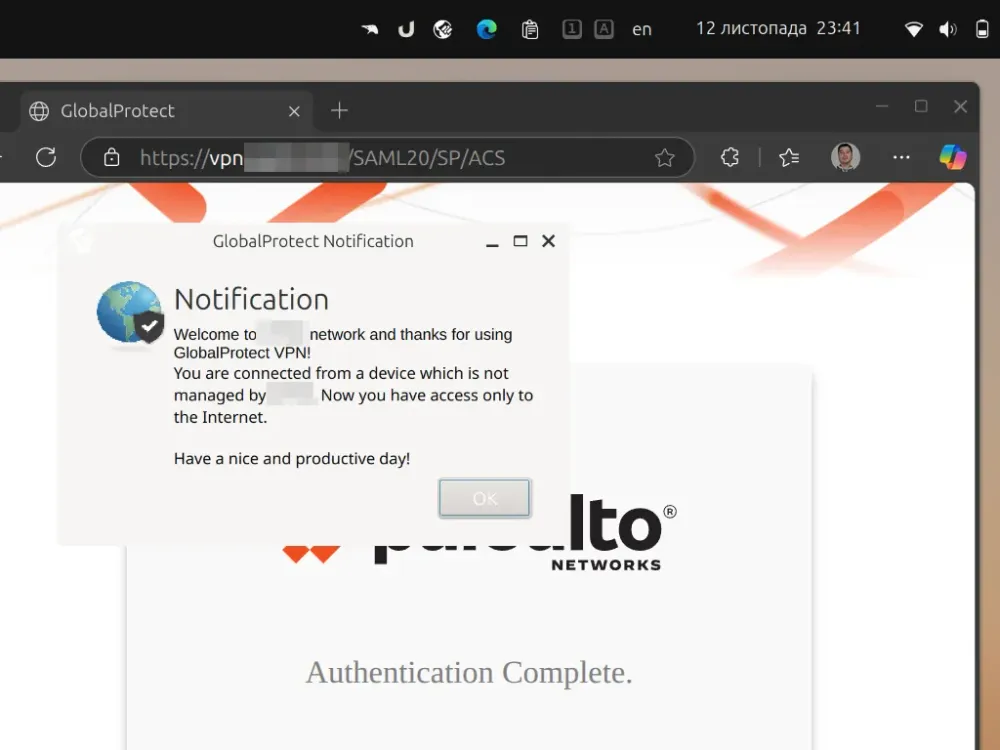
I've been a Linux user (with the Gnome shell) for over 15 years. For work, I constantly need to connect to a corporate VPN, which, like most modern solutions (Fortinet, GlobalProtect), uses browser-based SSO authentication.
This creates chaos. I don't want to mix my profiles. Imagine:
- Work Profile: Google Chrome
- Client Profile: Microsoft Edge
- Personal Profile: Firefox
Every time I need to log in to the VPN, I have to set the "correct" browser as the default. Doing this manually via
update-alternatives or Gnome settings is a pain.The Solution Idea: A Minimalist Gnome Shell Extension
I needed a simple Gnome extension: a single icon on the panel showing the current default browser. When clicked, it should present a simple dynamic menu of the browsers available on the system. No settings, no configuration.

The Process: Spec-Driven Development with Kiro
Here's where it gets interesting. Developing for Gnome is a challenge. The ecosystem is moving fast (the transition from GTK3 to GTK4, Wayland nuances), and I had no desire to spend time learning all those details.
I used Kiro, but not as a typical "AI code completion" tool. I used it as an engine for Spec-Driven Development. My process looked like this:
- Configuring Kiro: First, I set up Prompt Steering (to control the style and approach of the code generation) and MCP (this allowed Kiro to access external information and "fetch" the latest Gnome Extensions development documentation from the internet).
- Writing Specifications: Instead of writing code, I wrote requirement and task documents. This was my job as the architect: defining precisely what the app should do and how it should do it.
- Generation: Kiro then turned these "specs" into code. My job transformed into "sequentially clicking buttons" and verifying the results, while Kiro acted as the developer, implementing my architectural decisions.
I have attached all the requirements and task documents to this article so you can see the exact input material that was fed to Kiro.
design.md
1
2
3
4
5
6
7
8
9
10
11
12
13
14
15
16
17
18
19
20
21
22
23
24
25
26
27
28
29
30
31
32
33
34
35
36
37
38
39
40
41
42
43
44
45
46
47
48
49
50
51
52
53
54
55
56
57
58
59
60
61
62
63
64
65
66
67
68
69
70
71
72
73
74
75
76
77
78
79
80
81
82
83
84
85
86
87
88
89
90
91
92
93
94
95
96
97
98
99
100
101
102
103
104
105
106
107
108
109
110
111
112
113
114
115
116
117
118
119
120
121
122
123
124
125
126
127
128
129
130
131
132
133
134
135
136
137
138
139
140
141
142
143
144
145
146
147
148
149
150
151
152
153
154
155
156
157
158
159
160
161
162
163
164
165
166
167
168
169
170
171
172
173
174
175
176
177
178
179
180
181
182
183
184
185
186
187
188
189
190
191
192
193
194
195
196
197
198
199
200
201
202
203
204
205
206
207
208
209
210
211
212
213
214
215
216
217
218
219
220
221
222
223
224
225
226
227
228
229
230
231
232
233
234
235
236
237
238
239
240
241
242
243
244
245
246
247
248
249
250
251
252
253
254
255
256
257
258
259
260
261
262
263
264
265
266
267
268
269
270
271
272
273
274
275
276
277
278
279
280
281
282
283
284
285
286
287
288
289
290
291
292
293
294
295
296
297
298
299
300
301
302
303
304
305
306
307
308
309
310
311
312
313
314
315
316
317
318
319
320
321
322
323
324
325
326
327
328
329
330
331
332
333
334
335
336
337
338
339
340
341
342
343
344
345
346
347
348
349
350
351
352
353
354
355
356
357
358
359
360
361
362
363
364
365
366
367
368
369
370
371
372
373
374
375
376
377
# Design Document

## Overview

Gnome Browser Switcher is a lightweight Gnome Shell extension that provides a quick way to switch the default browser through the system panel. The extension uses standard Gnome Shell APIs for panel integration and GIO/GSettings for managing system browser settings.

**Design Principles:**
- **Simplicity First**: Minimal code, no configuration UI, straightforward functionality
- **Zero External Dependencies**: Uses only APIs included in Gnome Shell
- **Standard Compliance**: Follows XDG Desktop Entry Specification for browser detection

The extension consists of three main components:
- **Indicator** - displays an icon in the system panel
- **Browser Manager** - detects and manages browsers
- **Menu Builder** - creates the popup menu with browsers

## Architecture

```mermaid
graph TD
    A[Extension Entry Point] --> B[Browser Manager]
    A --> C[Indicator]
    C --> D[Menu Builder]
    B --> D
    B --> E[GSettings/xdg-settings]
    D --> F[User Interaction]
    F --> B
    B --> C
```

### Technology Stack

- **Gnome Shell Extension API** - for panel integration
- **GJS (GNOME JavaScript)** - programming language
- **GIO/GSettings** - for system settings management
- **xdg-settings** - for changing the default browser
- **Desktop Entry Specification** - for detecting installed browsers

## Components and Interfaces

### 1. Extension Entry Point (extension.js)

Main extension file that manages the lifecycle.

**Responsibilities:**
- Initialize extension when Gnome Shell loads
- Create and destroy components
- Handle enable/disable events

**Key Methods:**
```javascript
function init() // Initialize metadata
function enable() // Activate extension
function disable() // Deactivate and cleanup resources
```

### 2. Browser Manager (browserManager.js)

Responsible for browser detection and default browser management.

**Responsibilities:**
- Scan system to detect installed browsers
- Get current default browser
- Change default browser
- Monitor default browser changes

**Key Methods:**
```javascript
getInstalledBrowsers() // Returns array of browser objects
getCurrentDefaultBrowser() // Returns ID of current browser
setDefaultBrowser(browserId) // Sets new default browser
watchDefaultBrowser(callback) // Subscribe to changes
```

**Browser Object Structure:**
```javascript
{
  id: 'firefox.desktop',
  name: 'Firefox',
  icon: 'firefox',
  execPath: '/usr/bin/firefox'
}
```

### 3. Indicator (indicator.js)

System tray component that displays the icon and menu.

**Responsibilities:**
- Display current browser icon in the panel
- Update icon when browser changes
- Show popup menu on click
- Position in system tray near clock

**Key Methods:**
```javascript
constructor(browserManager)
updateIcon(browserId) // Updates indicator icon
show() // Shows indicator in panel
hide() // Hides indicator
destroy() // Cleans up resources
```

**Integration:**
- Extends `PanelMenu.Button` from Gnome Shell
- Added to `Main.panel.addToStatusArea()`

### 4. Menu Builder (menuBuilder.js)

Creates and manages the popup menu with browsers.

**Responsibilities:**
- Build menu with browser list
- Display browser icons and names
- Mark current browser
- Handle user browser selection

**Key Methods:**
```javascript
buildMenu(browsers, currentBrowserId) // Creates menu
updateCurrentBrowser(browserId) // Updates marker
onBrowserSelected(callback) // Selection handler
```

**Menu Structure:**
- PopupMenuItem for each browser
- Icon + browser name
- Checkmark for current browser
- Separator between browsers (optional)

## Data Models

### Browser Information

Browsers are represented as objects with the following fields:

```javascript
{
  id: String,           // Desktop file ID (e.g., 'firefox.desktop')
  name: String,         // Display name (e.g., 'Mozilla Firefox')
  icon: String,         // Icon name or path (e.g., 'firefox')
  execPath: String,     // Path to executable
  desktopFile: String   // Full path to .desktop file
}
```

### Extension Metadata (metadata.json)

```json
{
  "uuid": "browser-switcher@gnome-shell-extensions",
  "name": "Browser Switcher",
  "description": "Quick default browser switching",
  "shell-version": ["45", "46"],
  "url": "https://github.com/[username]/gnome-browser-switcher"
}
```

## Implementation Details

### Browser Detection

Browsers are detected by scanning `.desktop` files in standard directories:
- `/usr/share/applications/`
- `/usr/local/share/applications/`
- `~/.local/share/applications/`

Filtered by `WebBrowser` category in desktop entry.

### Default Browser Management

Two approaches are used:

1. **xdg-settings** (primary):
```bash
xdg-settings get default-web-browser  # Get current
xdg-settings set default-web-browser firefox.desktop  # Set
```

2. **GSettings** (fallback):
```javascript
const settings = new Gio.Settings({
  schema_id: 'org.gnome.desktop.default-applications.web'
});
settings.get_string('browser');
settings.set_string('browser', 'firefox.desktop');
```

### Icon Management

Icons are loaded through Gnome Shell Icon Theme:

```javascript
const icon = new St.Icon({
  gicon: Gio.icon_new_for_string(browser.icon),
  style_class: 'system-status-icon'
});
```

Fallback to generic browser icon if browser icon is not found.

### File Structure

```
gnome-browser-switcher/
├── extension.js           # Entry point (~150 lines)
├── metadata.json          # Extension metadata
├── browserManager.js      # Browser detection and management (~300 lines)
├── indicator.js           # System tray indicator (~200 lines)
├── menuBuilder.js         # Menu construction (~150 lines)
├── stylesheet.css         # Minimal custom styling (optional, ~50 lines)
├── LICENSE                # GPL-3.0 license
└── README.md              # Installation and usage instructions
```

**Note**: No prefs.js or GSettings schemas - keeping it simple with zero configuration.

## Error Handling

### Browser Detection Failures

- **Scenario**: No browsers found
- **Handling**: Show "No browsers found" message in menu
- **Logging**: Log to journal via `log()`

### Default Browser Change Failures

- **Scenario**: xdg-settings returns error
- **Handling**:
  1. Try fallback via GSettings
  2. Show notification to user
  3. Do not change indicator icon
- **Logging**: Log error details

### Permission Issues

- **Scenario**: Insufficient permissions to change settings
- **Handling**: Show notification with explanation
- **Recovery**: Do not block extension operation

### Icon Loading Failures

- **Scenario**: Browser icon not found
- **Handling**: Use fallback icon 'web-browser'
- **Logging**: Warning to journal

## Testing Strategy

### Manual Testing

1. **Installation Testing**
   - Install extension via `gnome-extensions install`
   - Verify appearance in extensions list
   - Activate via `gnome-extensions enable`

2. **Functional Testing**
   - Verify icon display in tray
   - Open menu and verify browser list
   - Switch browser and verify icon change
   - Open link and verify correct browser opens

3. **Edge Cases**
   - Test with one browser
   - Test with no browsers (remove all)
   - Test with custom .desktop files
   - Gnome Shell reload (Alt+F2, 'r')

### Integration Testing

- Verify compatibility with different Gnome Shell versions (45, 46)
- Test on different distributions (Ubuntu, Fedora, Arch)
- Check conflicts with other extensions

### Performance Considerations

- Browser scanning performed once at initialization
- Browser list caching
- Minimal memory usage (single indicator)
- Fast icon updates (<1 second)

## Security Considerations

- Use only system APIs
- Validate desktop file paths
- Safe execution of xdg-settings via GLib.spawn_command_line_sync
- Do not execute arbitrary user commands

## Distribution and Publishing

### extensions.gnome.org Requirements

The extension will be published on extensions.gnome.org after local testing. Requirements:

1. **Metadata Completeness**
   - Valid UUID format
   - Accurate shell-version compatibility
   - Clear description and name
   - Valid URL to source repository

2. **Code Quality**
   - No syntax errors
   - Proper resource cleanup
   - No memory leaks
   - Follows Gnome Shell extension best practices

3. **Packaging**
   - ZIP file with all required files
   - Proper directory structure
   - LICENSE file included
   - README with clear instructions

4. **Testing**
   - Tested on Gnome Shell 45 and 46
   - No conflicts with common extensions
   - Proper error handling
   - Clean enable/disable cycle

### Publication Process

1. Complete local development and testing
2. Create ZIP package: `gnome-extensions pack`
3. Test installation from ZIP
4. Submit to extensions.gnome.org
5. Respond to review feedback
6. Publish approved extension

## Future Enhancements

**Note**: These are explicitly out of scope for v1.0 to maintain simplicity.

1. **Browser Profiles** - Support switching between profiles of same browser
2. **Keyboard Shortcuts** - Global shortcuts for quick switching
3. **Browser Filtering** - Hide specific browsers from the list
4. **Custom Icons** - User-provided icons for browsers

## Dependencies

### Runtime Dependencies

**Zero External Dependencies** - The extension uses only what's included in Gnome Shell:
- Gnome Shell 45+ (required)
- GJS (included in Gnome Shell)
- GIO/GLib (included in Gnome Shell)
- xdg-utils (typically pre-installed on all Gnome systems)

### Development Dependencies

- gnome-extensions CLI tool (for packaging and testing)
- Text editor (no build system required)

## Deployment

### Installation Methods

1. **Manual Installation**
```bash
mkdir -p ~/.local/share/gnome-shell/extensions/browser-switcher@gnome-shell-extensions
cp -r * ~/.local/share/gnome-shell/extensions/browser-switcher@gnome-shell-extensions/
gnome-extensions enable browser-switcher@gnome-shell-extensions
```

2. **ZIP Package**
```bash
zip -r browser-switcher@gnome-shell-extensions.zip *
gnome-extensions install browser-switcher@gnome-shell-extensions.zip
```

3. **GNOME Extensions Website** (future)
   - Publish on extensions.gnome.org
   - Automatic updates

### Uninstallation

```bash
gnome-extensions disable browser-switcher@gnome-shell-extensions
gnome-extensions uninstall browser-switcher@gnome-shell-extensions
```
requirements.md
1
2
3
4
5
6
7
8
9
10
11
12
13
14
15
16
17
18
19
20
21
22
23
24
25
26
27
28
29
30
31
32
33
34
35
36
37
38
39
40
41
42
43
44
45
46
47
48
49
50
51
52
53
54
55
56
57
58
59
60
61
62
63
64
65
66
67
68
69
70
71
72
73
74
75
76
77
78
79
80
81
82
83
84
85
86
87
88
# Requirements Document

## Introduction

This is a Gnome Shell extension that allows users to quickly switch the default web browser through the system tray. The primary use case is working with different profiles in different browsers for easy switching between corresponding browsers (for example, for SSO authentication).

## Glossary

- **Browser Switcher Extension**: A Gnome Shell extension module that provides browser switching functionality
- **System Panel**: The top panel area in Gnome Shell where system indicators and extension icons are displayed
- **Default Browser**: The web browser that the operating system uses to open web links
- **Browser Entry**: A desktop application entry representing an installed web browser
- **Popup Menu**: A menu that appears when the user clicks on the extension icon
- **Browser Icon**: A graphical image that identifies a specific browser application
- **Desktop File**: A .desktop file conforming to the freedesktop.org Desktop Entry Specification

## Requirements

### Requirement 1

**User Story:** As a user working with different profiles in different browsers, I want to see the current default browser icon in the system panel, so that I can quickly identify which browser is currently active.

#### Acceptance Criteria

1. WHEN the Browser Switcher Extension starts, THE Browser Switcher Extension SHALL display an icon in the System Panel
2. THE Browser Switcher Extension SHALL use the Browser Icon of the current Default Browser as the extension icon
3. WHEN the Default Browser changes, THE Browser Switcher Extension SHALL update the extension icon to the Browser Icon of the new Default Browser within 1 second
4. THE Browser Switcher Extension SHALL display the icon with the same visual style and size as other Gnome Shell system indicators

### Requirement 2

**User Story:** As a user, I want to see a list of all available browsers in a popup menu, so that I can quickly select the browser I need to switch to.

#### Acceptance Criteria

1. WHEN the user clicks on the Browser Switcher Extension icon in the System Panel, THE Browser Switcher Extension SHALL display a Popup Menu containing all installed browsers
2. THE Browser Switcher Extension SHALL detect all installed Browser Entries by scanning standard Desktop File locations
3. THE Browser Switcher Extension SHALL display the Browser Icon and name for each Browser Entry in the Popup Menu
4. THE Browser Switcher Extension SHALL mark the current Default Browser in the Popup Menu with a visual indicator
5. IF no Browser Entries are detected in the system, THEN THE Browser Switcher Extension SHALL display a message indicating no browsers are available

### Requirement 3

**User Story:** As a user, I want to switch the default browser with a single click in the menu, so that I can quickly change the active browser for SSO and other tasks.

#### Acceptance Criteria

1. WHEN the user selects a Browser Entry from the Popup Menu, THE Browser Switcher Extension SHALL set the selected browser as the Default Browser using system APIs
2. WHEN the user selects a Browser Entry from the Popup Menu, THE Browser Switcher Extension SHALL close the Popup Menu within 500 milliseconds
3. WHEN the Default Browser changes, THE Browser Switcher Extension SHALL update the visual indicator for the current browser in the Popup Menu
4. IF the Default Browser change operation fails, THEN THE Browser Switcher Extension SHALL display an error notification to the user
5. THE Browser Switcher Extension SHALL persist the Default Browser setting across system restarts using system configuration mechanisms

### Requirement 4

**User Story:** As a Gnome Shell user, I want the extension to work reliably and integrate seamlessly with the system, so that I have a dependable tool for switching browsers.

#### Acceptance Criteria

1. WHEN Gnome Shell starts, THE Browser Switcher Extension SHALL initialize automatically if enabled
2. WHEN the Browser Switcher Extension is disabled or Gnome Shell restarts, THE Browser Switcher Extension SHALL release all allocated resources
3. THE Browser Switcher Extension SHALL be compatible with Gnome Shell versions 45 and 46
4. THE Browser Switcher Extension SHALL use xdg-settings or GSettings APIs to modify the Default Browser configuration
5. IF the Browser Switcher Extension encounters an error during operation, THEN THE Browser Switcher Extension SHALL log error details to the system journal

### Requirement 5

**User Story:** As a developer, I want the extension to be lightweight and simple, so that it is easy to maintain and has minimal dependencies.

#### Acceptance Criteria

1. THE Browser Switcher Extension SHALL use only runtime dependencies included in Gnome Shell by default
2. THE Browser Switcher Extension SHALL detect browsers by scanning Desktop Files in standard XDG directories only
3. THE Browser Switcher Extension SHALL have no configuration UI or preferences dialog
4. THE Browser Switcher Extension SHALL consist of no more than 5 JavaScript files
5. THE Browser Switcher Extension SHALL have a total codebase size of less than 1000 lines of code

### Requirement 6

**User Story:** As a Gnome Shell user, I want to install the extension from the official repository, so that I can receive automatic updates and trust the source.

#### Acceptance Criteria

1. THE Browser Switcher Extension SHALL be packaged for distribution on extensions.gnome.org
2. THE Browser Switcher Extension SHALL include all required metadata for extensions.gnome.org submission
3. THE Browser Switcher Extension SHALL pass all extensions.gnome.org validation requirements
4. THE Browser Switcher Extension SHALL be published under the GPL-3.0 license
5. THE Browser Switcher Extension SHALL include installation instructions for both manual and extensions.gnome.org installation methods
tasks.md
1
2
3
4
5
6
7
8
9
10
11
12
13
14
15
16
17
18
19
20
21
22
23
24
25
26
27
28
29
30
31
32
33
34
35
36
37
38
39
40
41
42
43
44
45
46
47
48
49
50
51
52
53
54
55
56
57
58
59
60
61
62
63
64
65
66
67
68
69
70
71
72
73
74
75
76
77
78
79
80
81
82
83
84
85
86
87
88
89
90
91
92
93
94
95
96
97
98
99
100
101
102
103
104
105
106
107
108
109
110
111
112
113
114
115
116
117
118
119
120
121
122
123
124
125
126
127
128
129
130
131
132
133
134
135
136
137
138
# Implementation Plan

## Overview

This plan breaks down the implementation into discrete, incremental coding tasks. Each task builds on previous ones, ending with full integration. All tasks reference specific requirements from the requirements document.

## Tasks

- [x] 1. Set up project structure and metadata
  - Create extension directory structure
  - Write metadata.json with UUID, name, description, shell-version, and URL
  - Create LICENSE file (GPL-3.0)
  - Create basic README.md with installation instructions
  - _Requirements: 6.2, 6.4, 6.5_

- [x] 2. Implement browser detection and management (browserManager.js)
- [x] 2.1 Create browser detection functionality
  - Write function to scan standard XDG directories for .desktop files
  - Parse .desktop files to extract browser information (id, name, icon, exec path)
  - Filter applications by WebBrowser category
  - Return array of browser objects
  - _Requirements: 2.2, 5.2_

- [x] 2.2 Implement default browser getter
  - Write function to get current default browser using xdg-settings
  - Implement GSettings fallback if xdg-settings fails
  - Parse and return browser ID
  - _Requirements: 1.2, 4.4_

- [x] 2.3 Implement default browser setter
  - Write function to set default browser using xdg-settings
  - Implement GSettings fallback mechanism
  - Add error handling and logging
  - Return success/failure status
  - _Requirements: 3.1, 3.4, 4.4, 4.5_

- [x] 2.4 Add browser change monitoring
  - Implement file system watch on xdg-settings config
  - Create callback mechanism for browser change events
  - _Requirements: 1.3, 3.3_

- [x] 3. Create system panel indicator (indicator.js)
- [x] 3.1 Implement basic indicator class
  - Extend PanelMenu.Button from Gnome Shell
  - Create constructor that accepts browserManager
  - Implement show() and hide() methods
  - Implement destroy() method with resource cleanup
  - _Requirements: 1.1, 4.2_

- [x] 3.2 Add icon display functionality
  - Write updateIcon() method to load and display browser icon
  - Use St.Icon with Gio.icon_new_for_string
  - Apply 'system-status-icon' style class
  - Implement fallback to 'web-browser' icon if browser icon not found
  - _Requirements: 1.2, 1.4_

- [x] 3.3 Implement icon update on browser change
  - Connect to browserManager change events
  - Update icon within 1 second of browser change
  - _Requirements: 1.3_

- [x] 4. Build popup menu (menuBuilder.js)
- [x] 4.1 Create menu builder class
  - Implement buildMenu() method that accepts browsers array and current browser ID
  - Create PopupMenuItem for each browser with icon and name
  - Add visual indicator (checkmark) for current default browser
  - _Requirements: 2.1, 2.3, 2.4_

- [x] 4.2 Implement browser selection handling
  - Add click event handlers to menu items
  - Call browserManager.setDefaultBrowser() on selection
  - Close menu within 500ms after selection
  - _Requirements: 3.1, 3.2_

- [x] 4.3 Add error handling for menu
  - Display "No browsers found" message if browser list is empty
  - Show error notification if browser switch fails
  - _Requirements: 2.5, 3.4_

- [x] 4.4 Implement menu update on browser change
  - Update checkmark position when default browser changes
  - Refresh menu items if needed
  - _Requirements: 3.3_

- [x] 5. Create extension entry point (extension.js)
- [x] 5.1 Implement extension lifecycle functions
  - Write init() function for metadata initialization
  - Write enable() function to create and activate components
  - Write disable() function to cleanup and destroy components
  - _Requirements: 4.1, 4.2_

- [x] 5.2 Wire components together
  - Instantiate browserManager in enable()
  - Create indicator with browserManager reference
  - Connect indicator to menuBuilder
  - Add indicator to Main.panel.addToStatusArea()
  - _Requirements: 1.1, 4.1_

- [x] 5.3 Add error handling and logging
  - Wrap initialization in try-catch blocks
  - Log errors to system journal using log()
  - Ensure graceful degradation on errors
  - _Requirements: 4.5_

- [x] 6. Add optional styling (stylesheet.css)
  - Create minimal CSS for menu styling if needed
  - Ensure consistent look with Gnome Shell theme
  - Keep file under 50 lines
  - _Requirements: 1.4, 5.5_

- [x] 7. Create packaging and distribution files
- [x] 7.1 Test manual installation
  - Test copying files to ~/.local/share/gnome-shell/extensions/
  - Verify extension appears in gnome-extensions list
  - Test enable/disable cycle
  - _Requirements: 6.5_

- [x] 7.2 Create ZIP package for extensions.gnome.org
  - Use gnome-extensions pack command
  - Verify all required files are included
  - Test installation from ZIP package
  - _Requirements: 6.1, 6.2_

- [x] 7.3 Validate extension for submission
  - Verify metadata.json completeness
  - Check code for syntax errors
  - Test on Gnome Shell 45+
  - Verify resource cleanup on disable
  - Ensure total codebase is under 1000 lines
  - _Requirements: 4.3, 5.4, 5.5, 6.3_

## Notes

- Each task should be completed and tested before moving to the next
- All code should follow Gnome Shell extension best practices
- Keep code simple and readable - avoid over-engineering
- Test frequently with `gnome-extensions enable/disable` and Alt+F2, 'r' to reload
- Use `journalctl -f` to monitor logs during development
The Result and Conclusion
The result is a finished, working extension that I use every day. It works flawlessly.
- The code is published on GitHub: https://github.com/totoshko88/browser-switcher
- The extension: https://extensions.gnome.org/extension/8836/browser-switcher/
This example is an excellent alternative to the typical "workshops" where you build apps you'll never actually use.
The power of AI assistants like Kiro lies in their ability to solve your personal, real-world problems rapidly. Think back to the "Just for Fun" spirit. Ask yourself:
- Do you want to see the current currency exchange rates?
- The current weather?
- Your public IP address with a country flag?
Any little thing that improves your workflow can now be implemented simply by clearly describing what you need.
I hope you found this interesting. As always, I am including screenshots and a demonstration of the extension in action below.
Thank you for reading!
Enjoyed reading this content? Let the author know!
Your likes, comments, shares, and saves help creators reach more builders.

Loading recommendations
Loading article